








Is your iPhone screen stuck in zoom mode, leaving you unable to navigate? This common issue often occurs when the accessibility Zoom feature activates unexpectedly, resulting in a screen that is too magnified to use comfortably. Fortunately, you can fix this issue with ease. This guide covers seven proven ways to help you regain control of your display, from simple to more advanced troubleshooting methods. Whether your iPhone zoomed in stuck on the lock screen or home screen, these steps will help you restore a normal view.
- Part 1. Why Is My iPhone Zoomed in and Stuck?
- Part 2. How to Get iPhone Out of Zoom Mode
- Part 3. How to Fix iPhone Screen Zoomed in Stuck
- Part 4. How to Prevent Future Zoom Locks on iPhone
- Part 5. Conclusion
Part 1. Why Is My iPhone Zoomed in and Stuck?
Your iPhone may be zoomed in and stuck when the Zoom accessibility feature is accidentally activated. This feature magnifies the screen for better visibility. However, this feature can sometimes appear as a glitch if triggered unintentionally. Common triggers include:
- Accidental triple-tap with three fingers
- Accessibility settings misconfiguration
- Software glitches or temporary system bugs
- iOS updates affecting display settings
Understanding the cause allows us to apply the most effective fix immediately. Next, we will cover how to get iPhone out of zoom mode and how to fix iPhone zoomed in stuck.
Part 2. How to Get iPhone Out of Zoom Mode
It is a common situation where your screen suddenly looks like you're viewing it through a magnifying glass. Most of the time, this isn't a hardware glitch, but the Zoom accessibility feature was accidentally triggered. Here is how to get your iPhone screen back to normal.
Option 1. Zoom Out with Siri
If you can't navigate your screen at all because it is too magnified, Siri is your best friend. As long as you have an active internet connection or offline Siri enabled, the easiest way to fix a stuck iPhone zoom is to let your voice assistant do the heavy lifting.
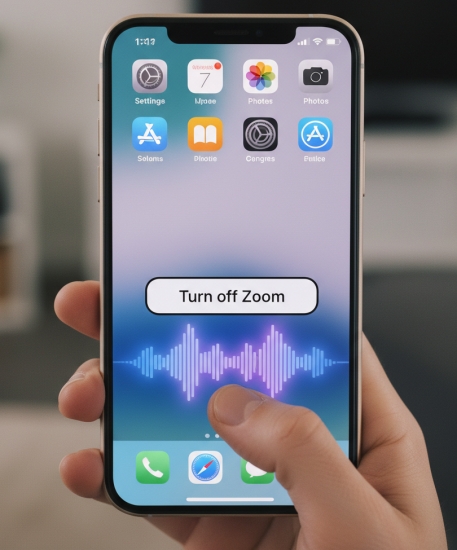
Step 1. Say "Hey Siri" or hold the Power button to activate Siri.
Step 2. Clearly say, "Turn off Zoom."
Siri will respond with "OK, I've turned Zoom off." Then Siri will instantly override the setting, and your screen should snap back to its standard resolution.
Option 2. Zoom Out with Fingers
If Siri isn't enabled, you need to use the specific "Handshake" gesture that iOS requires for this mode. This is the "official" way to exit the zoom state. Standard one-finger taps will not work when the iPhone screen is magnified. Instead, use three-finger double-tap.
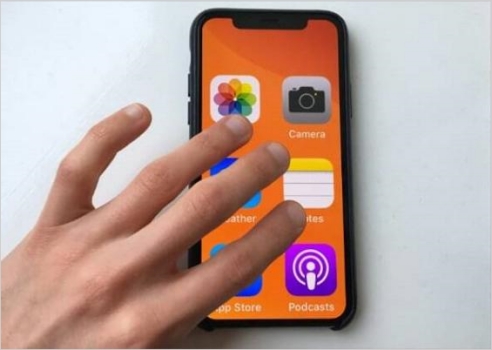
Step 1. Take three fingers and spread them slightly.
Step 2. Double-tap the screen quickly with all three fingers at once.
Pro Tip:
If the double-tap doesn't work, try a three-finger triple-tap. This often brings up a small "Zoom Controller" menu on the screen where you can slide a bar to choose the exact magnification level or select "Choose Region" to fix the view.
Part 3. How to Fix iPhone Screen Zoomed in Stuck
Whether to use Siri or the specific gesture, you can get your iPhone out of zoom mode quickly. However, if the voice commands or the gestures above fail, you need to take some steps to fix the iPhone screen zoomed in and stuck.
Method 1. Force Restart iPhone
If your screen is completely unresponsive to three-finger taps and Siri isn't listening, the software responsible for the accessibility layer may have crashed. A Force Restart resets the hardware's power cycle without deleting your data. Force restart the iPhone with the following instructions.
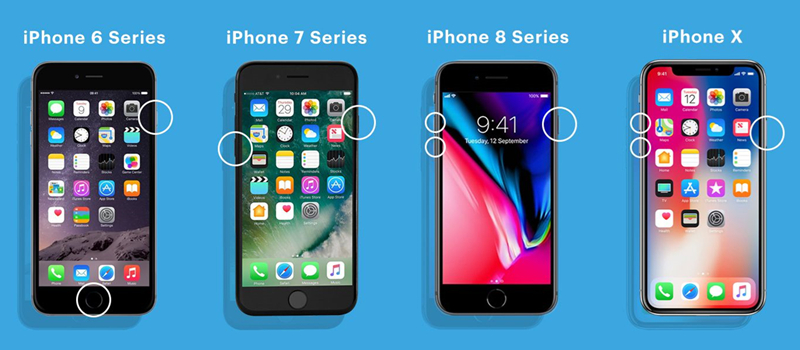
Step 1. Press and quickly release Volume Up.
Step 2. Press and quickly release Volume Down.
Step 3. Press and hold the Side button until the Apple logo appears.
Method 2. Disable Zoom in Settings
The Zoom accessibility feature can be entirely disabled in the Settings. If your iPhone is stuck in zoom mode, disabling Zoom in the Settings can help to get the device out of trouble, making it easier to keep the display at its default size.
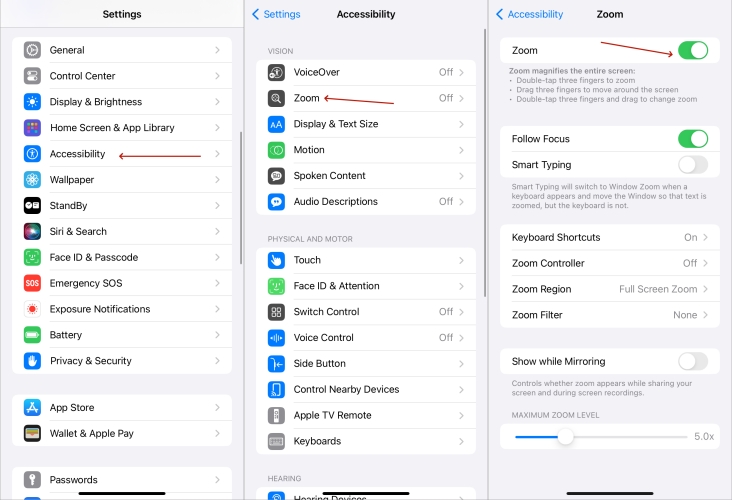
Step 1. Go to Settings > Accessibility and select Zoom.
Step 2. Toggle off the switch next to Zoom.
Pro Tip:
In the Zoom mode, one-finger swipe does nothing. To move the view and find your Settings app, place three fingers on the screen. Drag your fingers together in any direction to slide the magnified window. Use this "three-finger drag" to find your Settings icon.
Method 3. Reset All Settings to Default
Provide setting conflict is the reason why your screen zoomed in and stuck, resetting all settings might resolve the issue. It won't erase all data on the iPhone but to delete all settings set down before. When you don't know what to do with this issue, do the steps below.

Step 1. Open the Settings app and navigate to General.
Step 2. Tap Transfer or Reset iPhone, then tap Reset.
Step 3. Select Reset All Settings and enter the screen passcode to confirm.
Method 4. Deactivate Zoom Using Computers
If the touch-sensitive part of your screen is glitching, you can disable Zoom on your iPhone remotely using a computer with iTunes or the Finder. This option is especially useful if you can't get into the Settings app on your iPhone.
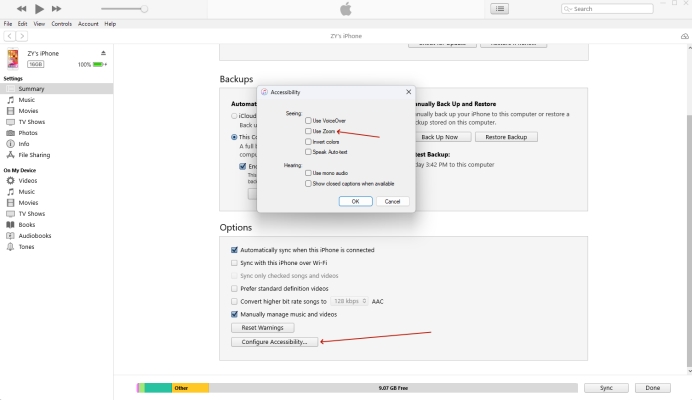
Step 1. Connect your iPhone to a Mac or a PC, then launch the Finder or iTunes.
Step 2. Click your device and navigate to the General or Summary tab.
Step 3. Click the Configure Accessibility button at the bottom.
Step 4. In the pop-up window, uncheck the Zoom box and click OK.
Method 5. Update to the Latest iOS Version
Outdated software can cause unexpected display behavior such as iPhone screen zoomed in and stuck. Ensure your iPhone is running the latest iOS version. If not, updating your iPhone ensures stability and bug fixes.

Step 1. Go to Settings > General and tap Software Update.
Step 2. Tap Download and Install to download the update file.
Step 3. After the download, tap Install Now to install the update.
Method 6. Use Recovery Mode to Repair
If none of the above solutions work, repairing the iPhone in recovery mode can resolve deeper configuration issues. After restoring, your iPhone will return to its original settings and the persistent problems will be fixed. But it will delete all the data and setting

Step 1. Turn off your iPhone and connect it to a computer via a USB cable.
Step 2. Get your device into recovery mode, then launch iTunes or Finder.
Step 3. In the pop-up window, click Restore and wait to complete.
Method 7. Turn to a Professional Repair Tool
If standard gestures and resets don't solve the issue, or if your iPhone remains stuck due to a deeper software glitch, a dedicated repair tool like MagFone iOS System Recovery can be a highly effective solution. Unlike a standard factory restore, this software is designed to fix over 150+ iOS-related issues, including a screen stuck on zoom, without wiping your personal data. Next is how to use MagFone iOS System Recovery to get rid of the iPhone zoom stuck screen.

MagFone iOS System Recovery
Fix various iOS and iPadOS system issues, such as black screen, boot loop, frozen screen, or stuck on Apple logo, without data loss.
Step 1 Link iPhone and Launch MagFone

Connect your iPhone to a computer via USB, then open MagFone iOS System Recovery on your computer. Next. You need to choose the iOS System Repair tab on MagFone and click Start.
Step 2 Enter Recovery or DFU Mode
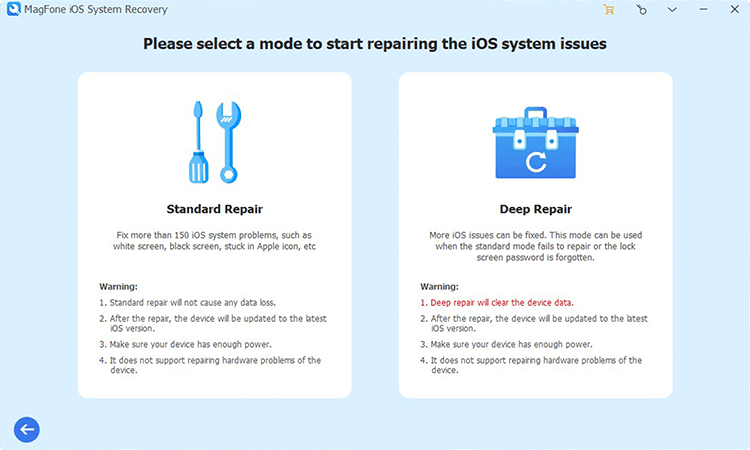
Select the Standard Repair Mode between the two repair modes. Then follow the on-screen instructions to enter your iPhone into recovery mode. If it fails, click the provided link to switch to DFU mode.
Step 3 Download a Firmware Package

Now, it's time to download and verify your iPhone information and firmware version, then click the Download button to obtain the appropriate firmware package for fixing your iPhone.
Step 4 Begin Repair iPhone Zoomed in Stuck

OAfter that, click Start Standard Repair to unzip and verify the downloaded firmware. Then MagFone will repair the stuck zoom screen issue automatically, restoring your iPhone's display to normal.
Part 4. How to Prevent Future Zoom Locks on iPhone
Once you have regained control of your screen, you should make some changes to prevent your iPhone from getting stuck on zoom in the future. It is about more than just turning the feature off; it's about disabling the shortcuts that cause it to trigger accidentally. Here is how to ensure your iPhone stays at the correct resolution permanently.
01Disable the Triple-Click Shortcut (Most Important)
The most common cause of a stuck zoom is the Accessibility Shortcut. If this is enabled, clicking your side button three times fast will toggle Zoom on or off. Then even if you accidentally "panic-click" the power button, the screen will not zoom in.
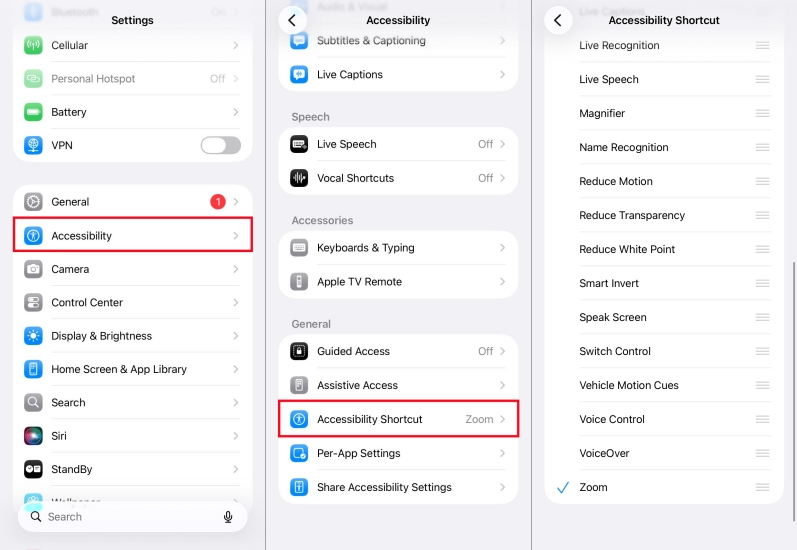
Step 1. Open Settings and navigate to Accessibility.
Step 2. Scroll to the very bottom and tap Accessibility Shortcut.
Step 3. If Zoom has a blue checkmark next to it, tap it to uncheck it.
02Completely Deactivate the Zoom Feature
If you don't actually need the magnification feature for visual assistance, the safest bet is to disable the core setting entirely. When this is off, the "three-finger double-tap" gesture is deactivated, meaning you won't accidentally zoom in while gaming or typing.
Step 1. Go to Settings > Accessibility.
Step 2. Tap on Zoom, then toggle the Zoom switch to OFF.
03Disable Back Tap (For iOS 14 and Later)
iPhones have a feature called "Back Tap" that allows you to trigger actions by tapping the back of the phone. Sometimes, "Zoom" is assigned to a Double or Triple Back Tap, leading to random magnification when you set your phone down.
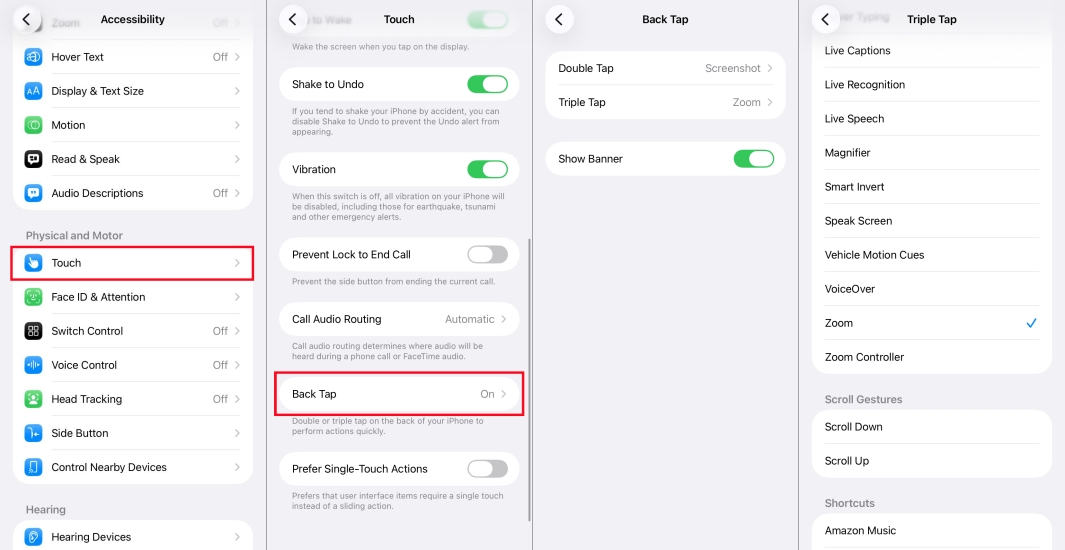
Step 1. Go to Settings > Accessibility > Touch.
Step 2. Scroll down to Back Tap.
Step 3. Check both Double Tap and Triple Tap.
Step 4. If either is set to "Zoom," change it to None.
04Use "Display Zoom" Instead of "Accessibility Zoom"
If you find the iPhone's default text and icons too small, don't use the Accessibility Zoom tool to fix it. Instead, use Display Zoom. This scales the entire interface permanently and is impossible to "get stuck" in because it doesn't use gestures.
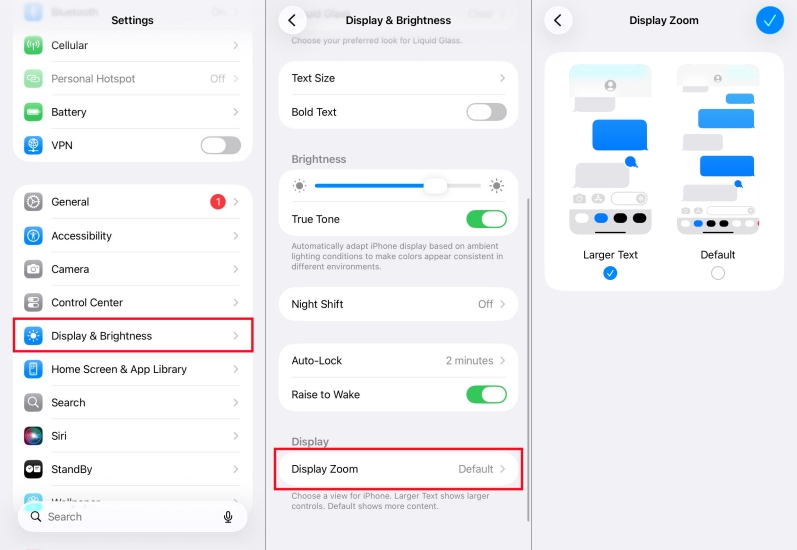
Step 1. Go to Settings > Display & Brightness.
Step 2. Scroll to the bottom and tap Display Zoom.
Step 3. Select Larger Text, then tap Done and confirm.
Part 5. Conclusion
An iPhone stuck in zoom mode is a nightmare, but it's easy to fix with the right approach. From basic settings adjustments to advanced tools used, these seven methods offered here can get you out of the dilemma simply. By using MagFOne iOS System Recovery, even without know-how, you can manage this zoom-stuck screen and keep your iPhone working again.

Dylan Jones
Editor in chief





