









Have you ever found your iPhone stubbornly frozen on the lock screen, leaving you in a state of frustration and confusion? Don't worry, you're not alone. In the Apple Community, many users complained the issue of the iPhone stuck on lock screen. What to do when your iPhone is frozen on the lock screen? Fortunately, there are several ways to help you get out of the iPhone frozen on the lock screen dilemma. In this guide, we will explore the main causes of iPhone screen frozen on lock screen and guide you through the process of fixing it.

- Part 1. Why Is My iPhone Stuck on Lock Screen?
- Part 2. How to Identify Specific Lock Screen Issues
- Part 3. How to Fix iPhone Frozen on Lock Screen
- Part 4. How to Avoid iPhone Lock Screen Frozen
- Part 5. Conclusion
Part 1. Why Is My iPhone Stuck on Lock Screen?
A frozen lock screen can occur due to various reasons. It can be frustrating, especially when basic functions like unlocking the device or restarting it become unresponsive. Let's break down the main reasons why your iPhone might be frozen on the lock screen.

Cause 1. App-related Glitches
Many users report their iPhone freezing due to a pop-up notification that appears on the lock screen. This can happen when you download an app, and while interacting with the notification prompt, you may accidentally press the power button or another command.
Cause 2. Hardware-related Issues
A malfunctioning touchscreen may prevent you from interacting with the lock screen and disable partial features such as a gray camera. A depleted or faulty battery can cause the phone to freeze on the lock screen as well and prevent it from shutting down properly.
Cause 3. System-related Bugs
Bugs in outdated or newly updated iOS beta can freeze the lock screen, making elements like the clock or unlock mechanisms unresponsive. Besides, running too many apps or background tasks can also cause the phone to freeze, particularly on the lock screen.
Part 2. How to Identify Specific Lock Screen Issues
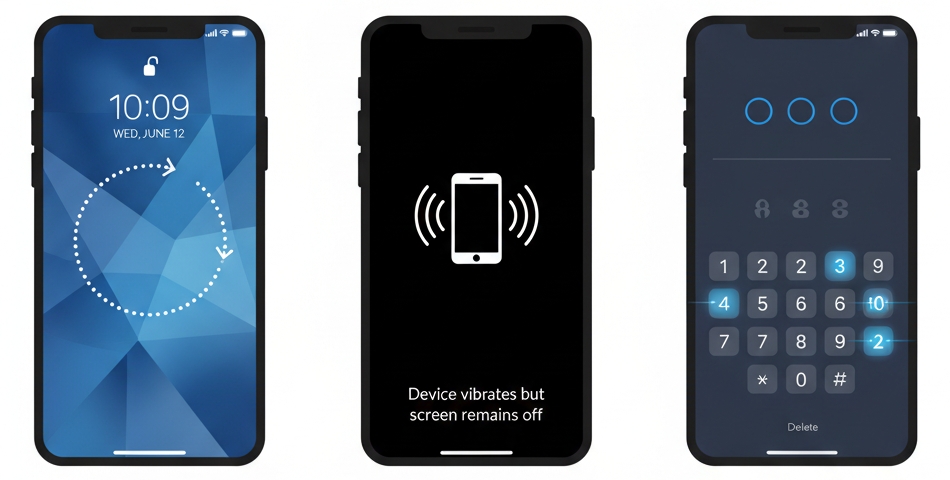
After figuring out the causes of the issue, we can identify the "flavor" of the freeze. This determines which solution will be most effective, instead of directly jumping into complex repairs. Here are main scenarios of the iPhone stuck on lock screen.
Scenario A: The Interface Freeze
The screen is on, you can see your wallpaper and notifications, but it is unresponsive to touch. This is usually a software process hanging in the background.
Scenario B: The Black Screen
The screen is dark, but the phone still vibrates for calls or pings for notifications. This indicates the display driver has crashed while the OS is still running.
Scenario C: Ghost Touching
The phone appears stuck because it is registering phantom touches, preventing you from entering your passcode correctly.
Part 3. How to Fix iPhone Frozen on Lock Screen
If your iPhone is frozen on the lock screen, there are several basic and advanced troubleshooting steps you can try to resolve the issue. Basic troubleshooting steps are simple to execute, while advanced troubleshooting steps may take more time with the risk of losing data. Below is a table of the right path forward depending on the specific scenario.
| If your screen is | Try this first | Why it's happening |
|---|---|---|
| Frozen on an app | Force Restart | Background app crash or RAM spike. |
| Black but phone vibrates | Plug into a charger for 30 minutes | The display driver may have crashed. |
| Unresponsive to touch | Clean screen or remove case | Physical interference or "Ghost Touch." |
| Stuck after an update | Restore the device | Firmware corruption during install. |
Method 1. Force Restart Frozen iPhone
A Force Restart is the most effective way to clear the system's temporary memory and break the freeze without affecting your photos or messages. The steps for this are different according to different models. Follow the steps for your iPhone.
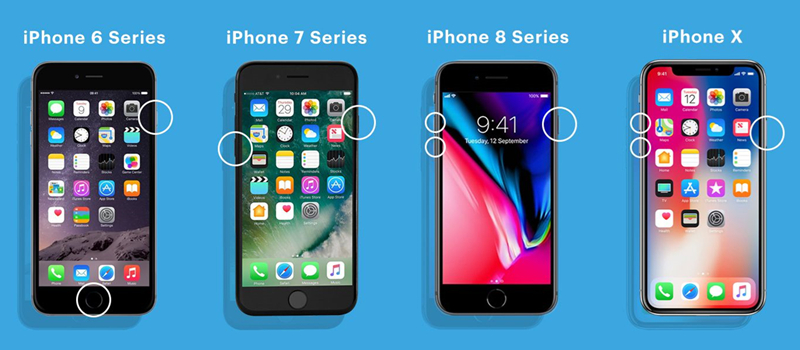
iPhone 8 or later: Press and hold both the side button and the Volume down button until the power off slider appears. Then drag the slider to turn off your iPhone and restart it.
iPhone 7 or iPhone 7 Plus: Press and hold the side button until the power off slider appears. Then drag the slider to turn off your iPhone and restart it.
iPhone 6s and earlier: Press and hold the top button until the power off slider appears. Then drag the slider to turn off your iPhone and restart it.
Method 2. Charge Your iPhone
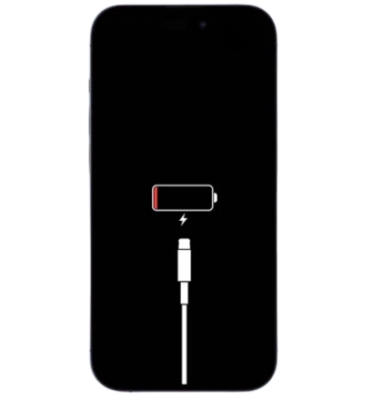
If your iPhone freezes on the lock screen, it could simply be a sign that the battery is critically low. Sometimes, a frozen screen may indicate a power issue rather than a software glitch. Plug your iPhone into a charger for at least 15–30 minutes, as low battery levels can sometimes cause the system to freeze. If this doesn't work, you can switch to the next method.
Method 3. Remove the External Protector
If the physical restart or device charging didn't work, the issue may be external interference. Modern sensors are more sensitive than ever to environmental changes. Make some connectivity or environmental checks for your iPhone.

Remove Third-Party Accessories: Incompatible MagSafe cases or cheap USB-C cables can create "electrical noise" that freezes the touch digitizer.
Temperature Regulation: If your iPhone is too hot or too cold, the lock screen may disable input to protect the battery. Move to a room-temperature environment for 15 minutes.
Clean the Sensor Array: Use a dry cloth to wipe the top "Dynamic Island" area. If the proximity sensor thinks you are holding the phone to your ear, it may keep the screen locked.
Method 4. Use an iOS Recovery Tool
A force restart is often the go-to solution. If your iPhone is frozen on the lock screen and won't restart, consider more advanced solutions like restoring your iPhone through an iOS system repairing tool. MagFone iOS System Recovery is a professional system repairing tool for Apple devices like iPhone and iPad. When the issue is caused by some complicated system glitches, MagFone iOS System Recovery can fix it as soon as possible while not deleting any data on the device. Follow the steps below to fix the issue now.
Step 1 Open MagFone Software and Connect iPhone

Plug your iPhone into your computer through a USB cable, then open MagFone iOS System Recovery. On the main interface of MagFone software, select the iOS System Repair option, then click on the Start button.
Step 2 Select Standard Repair to Fix iPhone Frozen
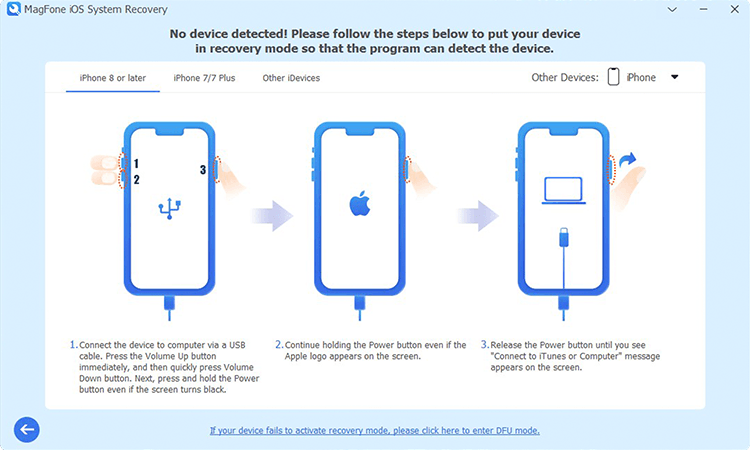
Continue to select the Standard Repair option. Make sure that your device is detected by MagFone software. Then you have to put your iPhone into recovery mode or DFU mode by following the on-screen instructions.
Step 3 Download and Verify the Firmware for iPhone

You need to carefully check the device information including device model and model number and select the firmware version. Then you can click the Download button to download the latest iOS firmware package.
Step 4 Start to Fix iPhone Frozen on Lock Screen

After the firmware package has been downloaded to the computer, you can click the Start Standard Repair button, and MagFone software will unzip the firmware and start fixing the iPhone screen frozen on the lock screen.
Method 5. Restore iPhone in iTunes
If you don't want to use any iOS system repairing tool, there is another option for you to restore your iPhone. That is to use iTunes on a Windows PC or the Finder on a Mac. When you place your iPhone into recovery mode, you can restore the device to its original state. However, exercise caution, as these steps would result in data loss.

Step 1. Connect your iPhone to a computer through a USB cable, then turn off your device.
Step 2. Keep holding the correct button until you see the recovery mode screen.
- iPhone 8 or later: Press and quickly release the volume up button. Press and quickly release the volume down button. Then, press and hold the side button until you see the recovery mode screen.
- iPhone 7 or iPhone 7 Plus: Press and hold the top and volume down buttons at the same time. Keep holding them until you see the recovery mode screen.
- iPhone 6s or earlier: Press and hold both the Home and the top buttons at the same time. Keep holding them until you see the recovery mode screen.
Step 3. Open iTunes on a Windows PC or the Finder on a Mac, then click on the Restore button.
Step 4. Your computer will download the software for your device. It will take several minutes to fix iPhone frozen on lock screen.
MMethod 6. Contact Apple Support
The final solution is to contact Apple Support. Apple technicians can assist in diagnosing the issue and recommend the most appropriate solutions. Whether it's a hardware problem or a more complex software issue, Apple Support can guide you through the troubleshooting process. The time it takes to resolve the issue varies depending on the nature of the problem and your device's condition, it could take anywhere from a few hours to several days.

Part 4. How to Avoid iPhone Lock Screen Frozen
While knowing how to fix a frozen iPhone is important, preventing the issue in the first place is even better. If you've ever been stuck with a frozen iPhone, you know how frustrating it can be. Whether you're trying to unlock your phone or use it in any way, a frozen lock screen can be a real hassle. Below are some tips to avoid your iPhone getting stuck on the lock screen again.
01Keep Your iOS Updated
One of the most common causes of a frozen iPhone lock screen is outdated software. Apple regularly releases updates to fix bugs, improve performance, and enhance security. To avoid a frozen lock screen, make sure you're running the latest version of iOS.
02Check for App Conflicts
Sometimes, third-party apps can cause issues with your phone's performance, including freezing the lock screen. This is especially true for apps that heavily rely on background processes. If you notice a pattern where your lock screen freezes after using a certain app, uninstall that app.
03Disable Raise to Wake
The Raise to Wake feature can sometimes interfere with your lock screen's responsiveness, particularly if it's too sensitive. If your iPhone keeps waking up when it's not supposed to or freezing, go to Settings > Display & Brightness, then toggle off Raise to Wake.
04Free Up Storage Space
If your iPhone is running low on storage, it could slow down and cause issues like freezing. To check your storage, you should open Settings > General. Then select iPhone Storage. Here, you can see which apps are taking up the most space and decide whether to delete or offload them.
Part 5. Conclusion
In conclusion, dealing with an iPhone frozen on the lock screen can be a daunting task, but it's not insurmountable. By following the solutions introduced in this guide, you can navigate through this challenge with ease. If you want to fix the frozen lock screen on your iPhone while not losing any data on the device, using MagFone iOS System Recovery can be a great option.

Dylan Jones
Editor in chief





