








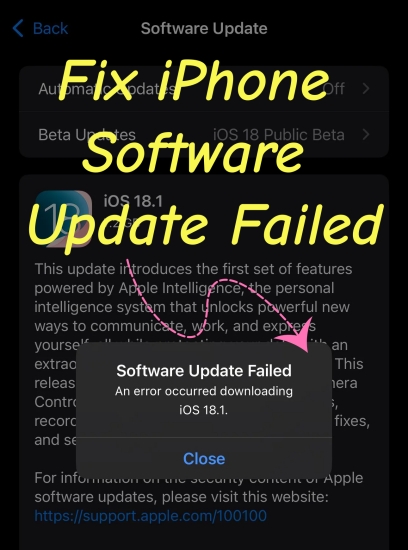
Few things are more frustrating than preparing your device for the latest features, security patches, and performance improvements, only to be met with a frustrating notification: "Software Update Failed. An error occurred downloading iOS 27." When an iOS update halts mid-way or refuses to install, it leaves your phone vulnerable and stops you from enjoying new system capabilities.
Fortunately, this is a very common issue with straightforward solutions. This comprehensive troubleshooting guide breaks down exactly why your iPhone update failed and provides several proven, step-by-step methods to get your system back on track safely.
- Part 1. Causes of Software Update Failed on iPhone
- Part 2. Master Fixes for iPhone Software Update Failed
- Part 3. Ultimate Workaround to Update iPhone Software
- Part 4. Proactive Tips for Smooth Future iPhone Updates
- Part 5. Conclusion
Part 1. Causes of Software Update Failed on iPhone
When you trigger an over-the-air update, your iPhone initiates a complex, multi-stage process: downloading a massive encrypted archive, unpacking it locally, verifying cryptographic signatures with Apple's servers, and rewriting core system files. A failure can occur if any single stage of this pipeline is disrupted. There are a few common reasons why your iPhone might show a "Software Update Failed" error.

Server Congestion
When Apple releases a major iOS version like iOS 27, millions of devices globally request data simultaneously. This immense traffic load can cause Apple's deployment servers to temporarily time out, resulting in an "Unable to Check for Update" or "Unable to Verify Update" error.
Network Interruptions
A standard internet connection might be perfectly fine for streaming video, but iOS updates require absolute data integrity. If your WiFi drops packet data for even a fraction of a second during a download, the archive can become slightly corrupted.
Storage Limitations
An iPhone needs enough free space not just to hold the download package, but to uncompress it and maintain a cache of your old operating system during the installation process. If the storage calculation is too tight, the update fails mid-way.
Part 2. Master Fixes for iPhone Software Update Failed
If your system update failed on your iPhone, work through these solutions in order. We have ranked them from the easiest, lowest-effort fixes to the more advanced troubleshooting workarounds.
Step 1: Check Apple's Sever Status
When Apple releases a new update, millions of people try to download it at the same time. This can slow down or crash Apple's servers. Go to check Apple's server status.
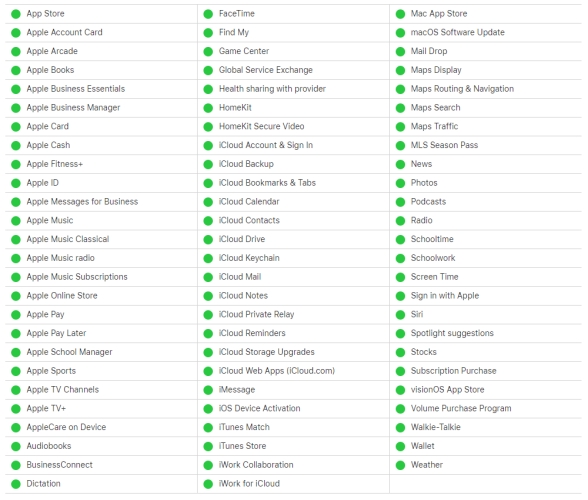
1. Open your web browser and visit Apple's official System Status page.
2. Look at the circle next to iOS Device Activation & iCloud.
If it is yellow or red, Apple's traffic volume is too high. Waiting a few hours or trying again the next day usually fixes the issue.
Step 2: Force Restart Your iPhone
A simple system restart can clear out temporary architectural glitches in your iPhone's RAM that might be halting the update process.
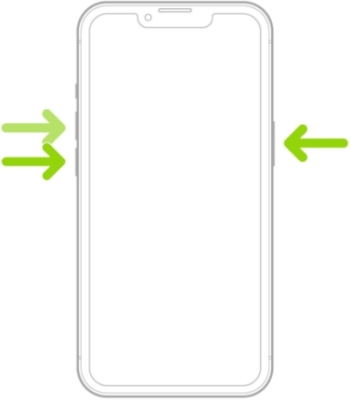
1. Press and quickly release the Volume Up button.
2. Press and quickly release the Volume Down button.
3. Press and hold the Power button until the Apple logo appears, then release it.
Step 3: Free up Local iPhone Storage
Major iOS upgrades require substantial breathing room. Even if an update package size says it is only 3 GB, your device actually requires double that amount of free space to securely unpack and execute the temporary installation files.
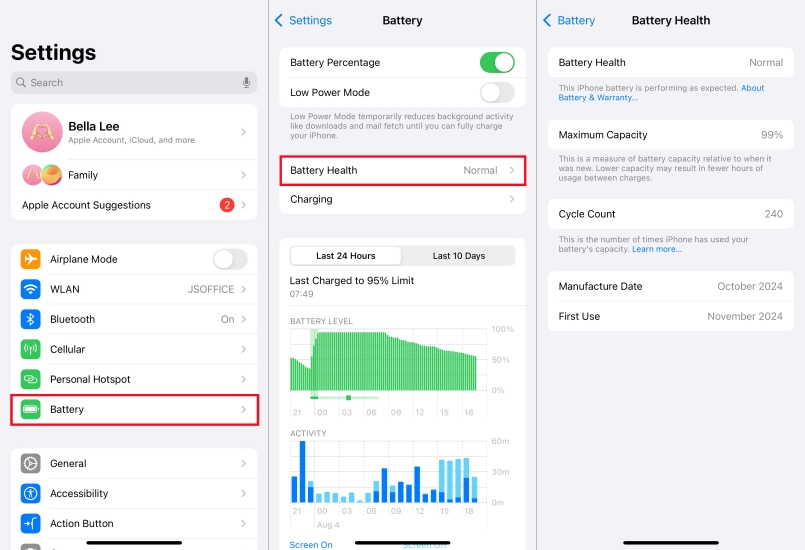
1. Navigate to Settings > General > iPhone Storage.
2. Look at the grid at the top to see your available gigabytes.
3. If you have less than 10 GB of free space, scroll down to see which apps, videos, or cached files are taking up the most room.
4. Utilize Apple's recommendations to Offload Unused Apps or manually delete large video attachments to clear out the required space.
Step 4: Disable Active VPN Services
Active Virtual Private Networks and third-party security configurations are some of the most frequent, hidden culprits behind the error. These applications securely reroute your data traffic, which can accidentally block the strict security protocols Apple uses to verify that your download is safe and untampered with.
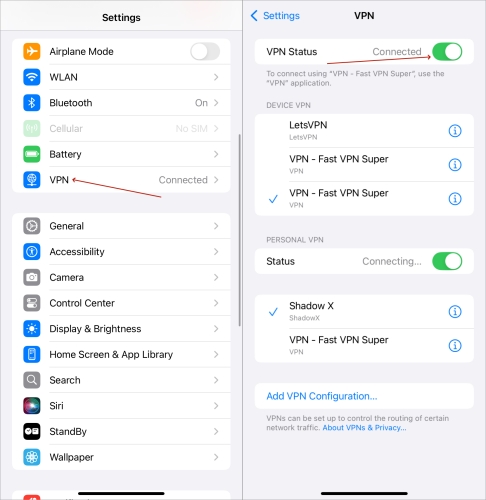
1. Go to Settings > General > VPN & Device Management.
2. Look under the VPN tab. If it says Connected, tap into it and toggle the status to Not Connected.
3. If you see any old iOS Beta Configuration Profiles listed below the VPN settings, select them and tap Remove Profile.
4. Turn off your Wi-Fi connection, turn it back on, and try the update process again.
Step 5: Delete the Corrupted Update File
If your network connection dropped for even a split second during the download process, the downloaded software package may have become corrupted. Your iPhone will recognize this corruption during the verification stage and refuse to install it to protect your phone from breaking. Deleting the bad file forces the system to start fresh.
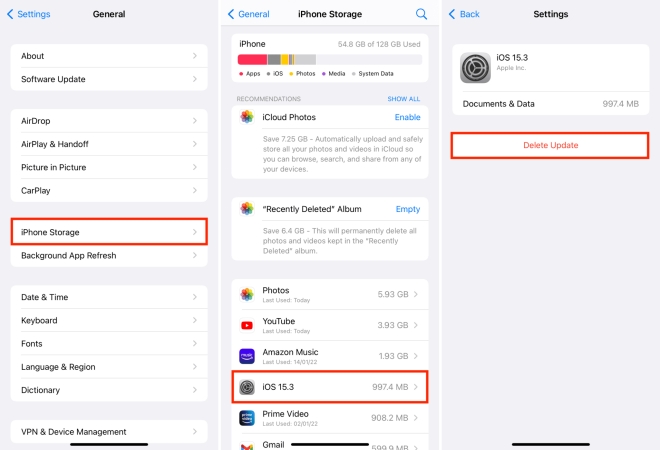
1. Go to Settings > General > iPhone Storage.
2. Scroll down through your list of apps until you find the item labeled iOS.
3. Tap on the iOS update entry.
4. Select Delete Update and confirm your choice.
5. Restart your iPhone, navigate back to Settings > General > Software Update, and attempt to download the package cleanly over a reliable Wi-Fi network.
Part 3. Ultimate Workaround to Update iPhone Software
If your iPhone still refuses to update on its own, bypassing the over-the-air method entirely by using a desktop environment is an incredibly reliable alternative. Your computer handles the heavy lifting of downloading, unpacking, and verifying the firmware files, clearing out deeper iOS system discrepancies. Here are two workarounds to update your iPhone when your iPhone software update keeps failing.
Method 1. Update iOS via iTunes, Finder, or Apple Devices
Depending on whether you are using a Mac or a Windows PC, the process of updating an iPhone on the computer will use Finder, iTunes, or the Apple Devices app. All of them are the official tools from Apple, helping users to update iOS devices directly.
Option 1. On a Modern Mac (Using Finder)
If your Mac is running macOS Catalina (10.15) or later, Apple moved device management out of iTunes and built it directly into the Mac's operating system via Finder.
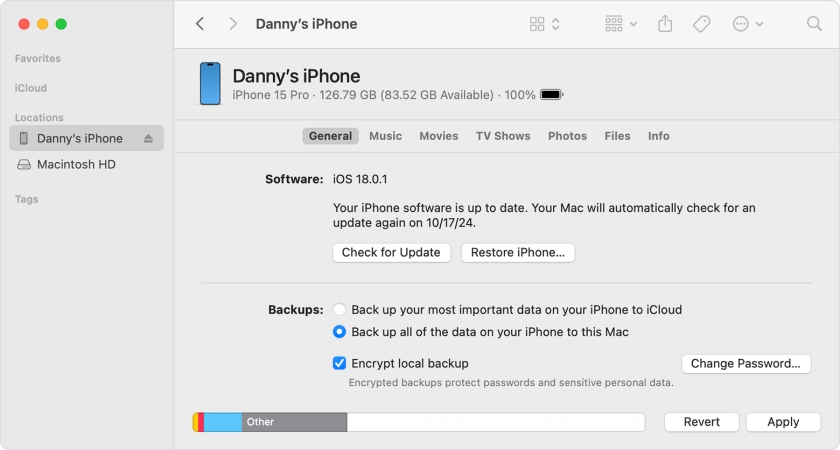
Step 1. Connect your iPhone to your Mac using a USB or USB-C cable.
Step 2. Open Finder and click on your iPhone under the Locations section in the left sidebar.
Step 3. Click on the General tab at the top of the window.
Step 4. Click Check for Update, then click Update or Download and Update.
Step 5. Follow the onscreen prompts to complete the software update.
Option 2. On a Windows PC (Using the Apple Devices App)
On modern Windows 10 and 11 systems, Apple has replaced iTunes with the standalone Apple Devices app, which is faster and more streamlined.
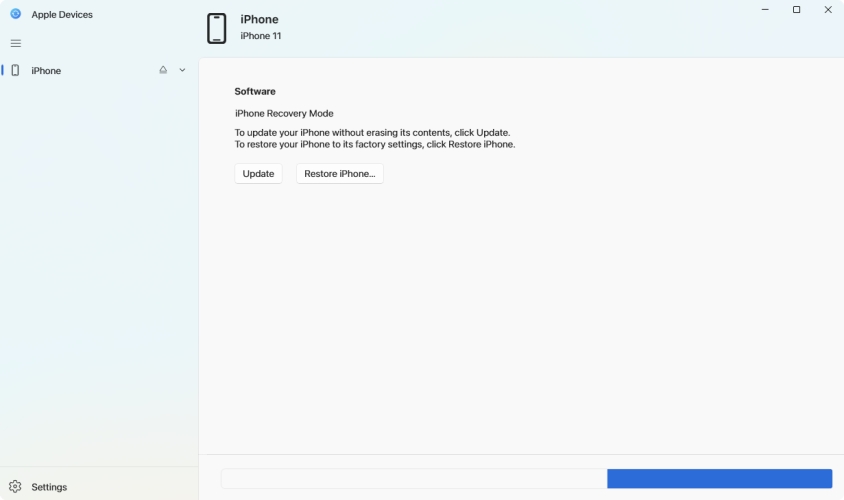
Step 1. Download and open the Apple Devices app from the Microsoft Store.
Step 2. Connect your iPhone to your PC using a USB cable.
Step 3. Click on your iPhone in the left sidebar of the app.
Step 4. Select the General tab, then click Check for Update.
Step 5. Click Update to download and install the latest software.
Option 3. On Older Macs or Older Windows PCs (Using iTunes)
If you are using an older Mac running macOS Mojave or earlier or an older Windows PC setup where you prefer iTunes, the steps are very similar.
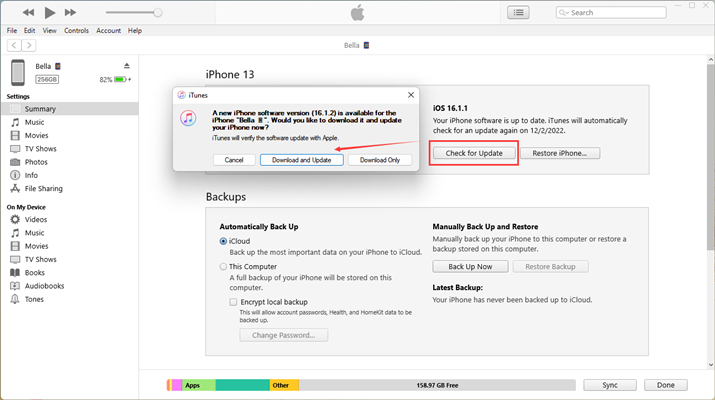
Step 1. Open iTunes and connect your iPhone to the computer with a USB cable.
Step 2. Click the small iPhone icon that appears in the top-left corner of the iTunes window.
Step 3. Click on the Summary tab in the sidebar.
Step 4. Click Check for Update.
Step 5. Click Download and Update and keep your phone plugged in until the process finishes.
Method 2. Use an iOS Upgrade Tool (MagFone iOS System Recovery)
If traditional computer updates fail or trigger unexpected error codes, a dedicated iOS upgrade tool like MagFone iOS System Recovery can provide a more seamless workaround. As a multi-functional software, MagFone iOS System Recovery is designed to not only troubleshoot deep software issues but also offer upgrade services.

MagFone iOS System Recovery
Fix various iOS and iPadOS system issues, such as black screen, boot loop, frozen screen, or stuck on Apple logo, without data loss.
Step 1 Open MagFone and Connect iPhone

Go to download and install MagFone iOS System Recovery on your computer, then launch it and connect your iPhone to the computer using a USB cable. From the main window of the software, select Upgrade/Downgrade iOS.
Step 2 Download the Firmware Package

Select iOS Upgrade, then check the download the firmware package. Here you need to check the device model and current iOS version. If nothing is wrong, select the firmware version and click on the Download button to get it.
Step 3 Start to Upgrade iPhone Software
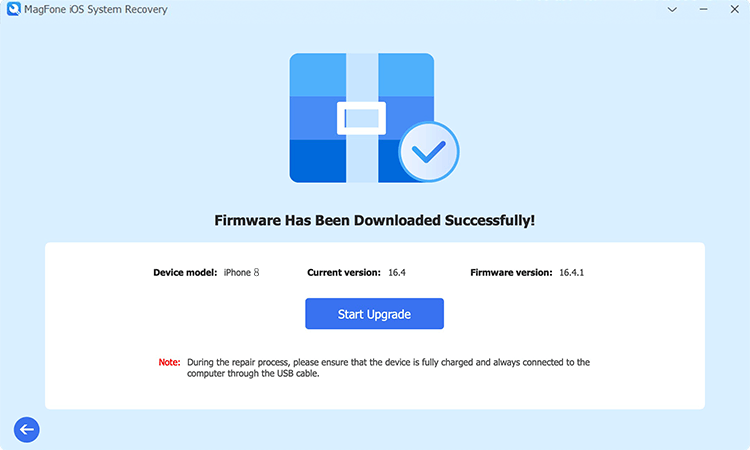
After downloading the firmware package, you can click on the Start Upgrade button to start upgrading your iPhone's software. Keep your iPhone connected to the computer until the process completely finishes.
Part 4. Proactive Tips for Smooth Future iPhone Updates
To ensure you don't encounter another software update failure during the next deployment cycle, implement these preventative measures to ensure a smooth software update on the iPhone.
Schedule Updates for Off-Peak Hours: Enable Automatic Updates by tapping Settings > General > Software Update and turning on Automatic Updates. Your iPhone will download and install the update overnight while you sleep, completely bypassing peak global server traffic.
Maintain a 15% Storage Buffer: Try to avoid filling your iPhone's storage to maximum capacity. Keeping a continuous buffer of free space ensures your device always has room for urgent security patches.
Avoid Public Wi-Fi for System Upgrades: Never attempt an operating system upgrade on hotel, airport, or cafe Wi-Fi networks, as their security firewalls and timeout settings are highly likely to disrupt large data transfers.
Part 5. Conclusion
Encountering an iPhone software update failed error can be incredibly frustrating, but it rarely indicates a permanent hardware problem. Most update failures are caused by easily fixable issues like temporary server congestion, hidden VPN blocks, low local storage, or slight data corruption during download.
By working through the troubleshooting steps sequentially, starting with a simple force restart, you can safely bypass these barriers. Or turn to robust desktop alternatives like Finder or specialized iOS upgrade tools like MagFone iOS System Recovery. To prevent these installation loops in the future, try scheduling your updates to run automatically overnight and always maintain a healthy storage buffer on your device.

Dylan Jones
Editor in chief





