








With frequent iOS updates rolling out, many users rush to upgrade to the latest version. But it can be frustrating to see your iPhone stuck on Verifying Update, especially when you are eager to try out new iOS features. Your screen freezes, the loading wheel spins indefinitely, and your phone becomes completely unusable.
Fortunately, this is a common software glitch that can usually be resolved in a few minutes without losing any of your photos, messages, or app data. To help with this issue, we will explain why your iPhone is stuck on verifying update and provide step-by-step step solutions to get your device back up and running.
- Part 1. How Long Does Verifying Update Take?
- Part 2. Why Is iPhone Stuck on Verifying Update?
- Part 3. How to Fix iPhone Stuck on Verifying Update
- Part 4. Alternative Options to Update iPhone to iOS 27
- Part 5. Conclusion
Part 1. How Long Does Verifying Update Take?
Under normal conditions, the update verification process takes anywhere from 30 seconds to 5 minutes. During this time, your device communicates with Apple's servers to authenticate the downloaded firmware package.
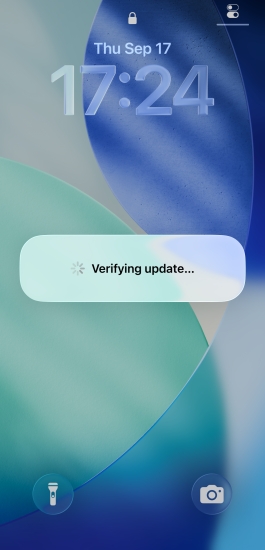
If your iPhone screen has been displaying "Verifying Update..." for more than 15 minutes, your device is stuck in an update loop. At this point, the process will not complete on its own, and manual intervention is required.
Part 2. Why Is iPhone Stuck on Verifying Update?
When encountering the issue, lots of users don't know the reason. Before jumping into the solutions, it helps to understand why your iPhone update gets stuck on verification.
Unstable Wi-Fi Connection: A temporary drop in internet connectivity prevents your iPhone from reaching Apple's verification servers.
Corrupted Update Download File: If the Over-The-Air (OTA) update package was interrupted mid-download, the file signature may be corrupted.
Apple Server Congestion: Immediately following a major iOS release, millions of users attempt to verify updates simultaneously, causing server slowdowns.
Insufficient Free Storage: Unpacking and verifying firmware requires several gigabytes of temporary free space.
System Glitches: Background processes or active VPN settings can interfere with the verification handshake.
Part 3. How to Fix iPhone Stuck on Verifying Update
Try these non-destructive troubleshooting steps to fix the iPhone stuck on verifying update issue. None of these quick fixes will cause data loss.
Method 1. Check Wi-Fi Connection
A stable internet connection is required to authenticate firmware signatures. A brief drop in connectivity can cause the verification handshake to hang.
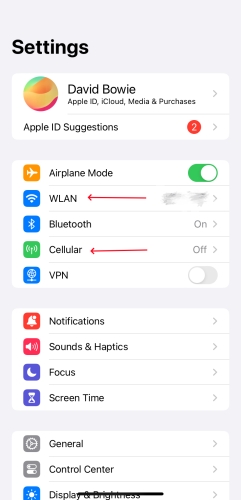
Step 1. Ensure your iPhone is connected to a reliable, private Wi-Fi network.
Step 2. Go to Settings > VPN & Device Management and disable any active VPN services.
Step 3. Toggle Airplane Mode on for 10 seconds in the Control Center.
Step 4. Turn Airplane Mode off to re-establish your network connection.
Method 2. Verify Apple System Status
When Apple releases major iOS versions, millions of devices attempt to authenticate simultaneously. This surge can temporarily overload Apple's verification infrastructure.
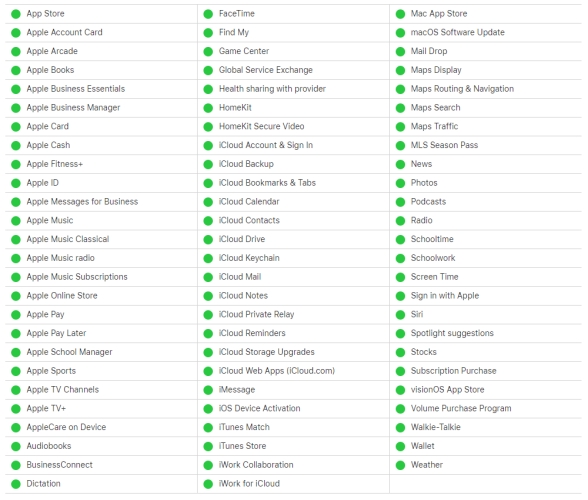
Step 1. Visit Apple's official System Status webpage in any web browser.
Step 2. Look for iOS Device Activation and Software Updates.
If the status indicator next to these services is yellow or red, Apple's servers are experiencing issues. Wait an hour and attempt verification again once indicators turn green.
Method 3. Force Restart iPhone
A force restart breaks the software loop, clears temporary cache, and allows your iPhone to reboot cleanly without wiping your content.
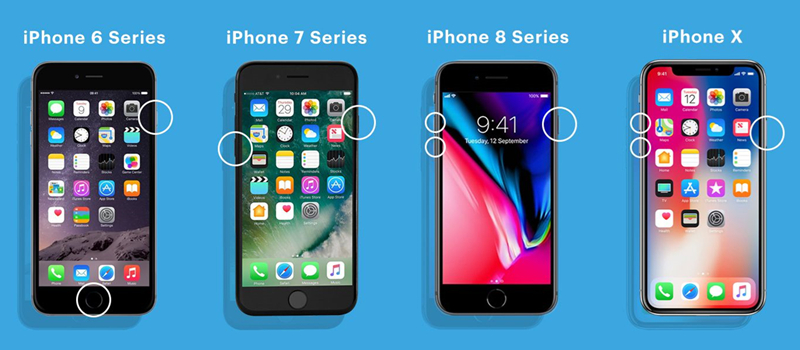
iPhone 8 and later: Push and release the volume up key quickly, followed by the volume down key. Then, hold the power key. Let go of the power key when the Apple logo appears.
iPhone 7 and iPhone 7 Plus: Hold down both the volume down key and the power key together. Once the Apple logo shows up, release both keys.
iPhone 6s or earlier: Depress and hold both the power key and the Home key simultaneously. Release both of the keys when the Apple logo appears.
Method 4. Delete the iOS Update File
If the download file on your iPhone became corrupted during the initial fetch, deleting it allows your device to download a fresh, clean package.
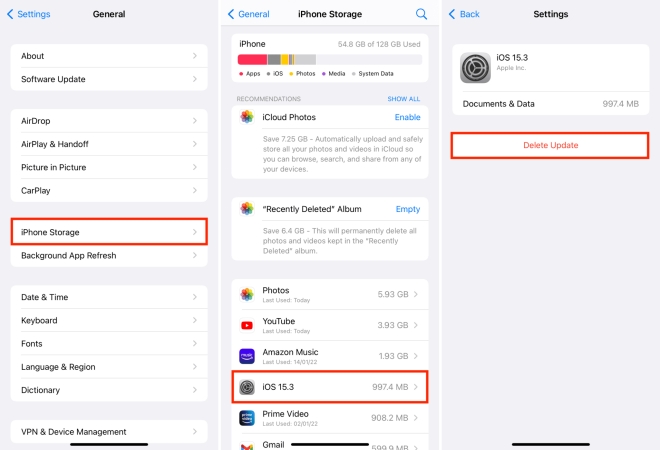
Step 1. Open Settings and tap General > iPhone Storage.
Step 2. Scroll through the list of apps until you find the iOS 27 update file.
Step 3. Tap the update file and select Delete Update.
Step 4. Confirm the deletion, then restart your iPhone.
Step 5. Return to Settings > General > Software Update.
Step 6. Download the update again over a strong WiFi network.
Part 4. Alternative Options to Update iPhone to iOS 27
If your iPhone remains unresponsive after trying the quick fixes, you can update your firmware directly through a computer using Recovery Mode or an iOS upgrade tool like MagFone iOS System Recovery. This bypasses Over-The-Air verification entirely while preserving all your personal data. Here are alternative options when your iPhone is stuck on verifying update.
Method 1. Use iOS System Recovery Tools
If on-device methods fail or your phone remains unresponsive, specialized repair software like MagFone iOS System Recovery provides an alternative to complete the update process. When an iPhone is frozen during verification, official tools like Finder, iTunes, or Apple devices sometimes fail to detect the device or produce error codes such as Error 4013 or 11. MagFone iOS System Recovery can address this by repairing system glitches and executing a clean firmware flash without data loss.

MagFone iOS System Recovery
Fix various iOS and iPadOS system issues, such as black screen, boot loop, frozen screen, or stuck on Apple logo, without data loss.
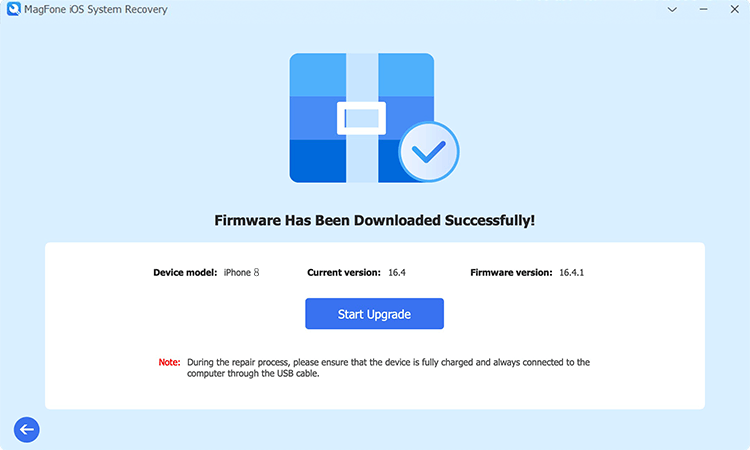
Step 1. Download and install MagFone iOS System Recovery on your PC or Mac.
Step 2. Connect your iPhone via USB cable and launch the software.
Step 3. Select the Upgrade/Downgrade iOS feature on the main interface.
Step 4. Click iOS Upgrade and select the target iOS version you wish to install.
Step 5. Once the upgrade firmware package is downloaded, click Start Upgrade.
Method 2. Use Finder, iTunes, or Apple Devices
If you prefer using official applications, updating through Finder, iTunes, or Apple devices is another way to bypass Over-The-Air verification. This re-installs iOS while leaving all user data intact on your iPhone.
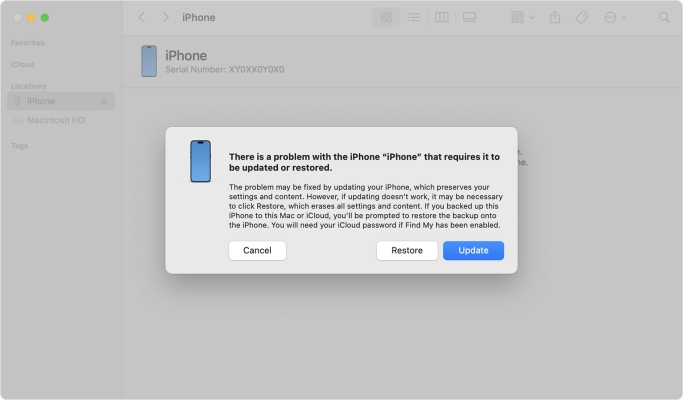
Step 1. Connect your iPhone to a computer using an official USB cable.
Step 2. Open Finder on a Mac or iTunes or Apple Devices on a Windows PC.
Step 3. Put your iPhone into Recovery Mode.
Step 4. On your computer screen, click Update.
Part 5. Conclusion
Getting stuck on the "Verifying Update" screen can interrupt your day, but it rarely means your device is permanently broken. In most cases, the freeze is caused by temporary network timeouts, high Apple server traffic, or corrupted installation packages. By working down from basic troubleshooting steps to choosing alternative solutions like MagFone iOS System Recovery, you can easily bypass the loop without risking your photos, messages, or personal settings.

Teresa Miller
Editor in chief





