








Pokémon unblocked games have become a popular choice for students and casual gamers who want to enjoy classic Pokémon adventures directly through a browser. These games eliminate the need for high-end devices or installations, making them accessible almost anywhere. Whether you are at school, work, or home, there are multiple ways to enjoy Pokémon titles without restrictions. This guide explains different methods, platforms, and tools to help you play smoothly and safely online today.
- Part 1. 6 Ways to Play Pokémon Unblocked Games Online
- Part 2. How to Play Pokémon Unblocked Games at School
- Part 3. What Are the Best Pokémon Unblocked Games 2026?
- Part 4. Extra Tip: How to Play Pokémon GO without Walking
- Part 5. Conclusion
Part 1. 6 Ways to Play Pokémon Unblocked Games Online
There are many practical ways to access Pokémon unblocked games depending on your device, network, and preferences. Some methods are browser-based while others rely on tools or alternative connections. Below is a simple comparison of the six most common approaches so you can quickly choose the one that best fits your needs.
| Method | Requirements | Time Needed | Free or Paid | Best For |
|---|---|---|---|---|
| Online Websites | Browser + internet | Instant | Free | Quick access in restricted environments |
| Online Emulators | Browser + internet | Instant | Free | Playing ROMs without downloading software |
| VPN or Proxy | VPN/proxy service | 5–10 minutes setup | Mostly paid | Accessing blocked networks |
| Phone Hotspot | Mobile data plan | Instant | Paid | Bypassing Wi-Fi restrictions |
| Game Consoles | 3DS or Switch device | Instant | Paid | Full official Pokémon gameplay |
| Remove MDM Restrictions | MDM remover | 10–20 minutes | Paid | Devices controlled by MDM/administration profiles |
Part 2. How to Play Pokémon Unblocked Games at School
Before this section, we gave you a quick overview of all the methods you can use on school or other restricted devices. Next, you can explore exactly how each method works step by step below.
01Enter Online Websites
At school or work, the fastest way to enjoy Pokémon unblocked games is through online gaming websites. These platforms host playable versions of classic Pokémon titles directly in your browser. You don't need installation, just open a site and start playing immediately.
Limitation:
-
Many of these websites may be unstable, frequently change domains, or get blocked by school filters over time.
02Use Online Emulators
Another simple method to play Pokémon unblocked games is by using browser-based emulators. These tools simulate classic gaming systems inside your web browser, allowing you to load Pokémon ROMs and play instantly without downloading software.
01ClassicGameZone
This platform offers a large collection of Pokémon unblocked games. You can launch titles directly online and play without installing anything or creating an account.
Step 1. Go to https://classicgamezone.com/ and click View All to browse more online games.
Step 2. Type Pokémon in the search box, then choose the Pokémon unblocked game you want.
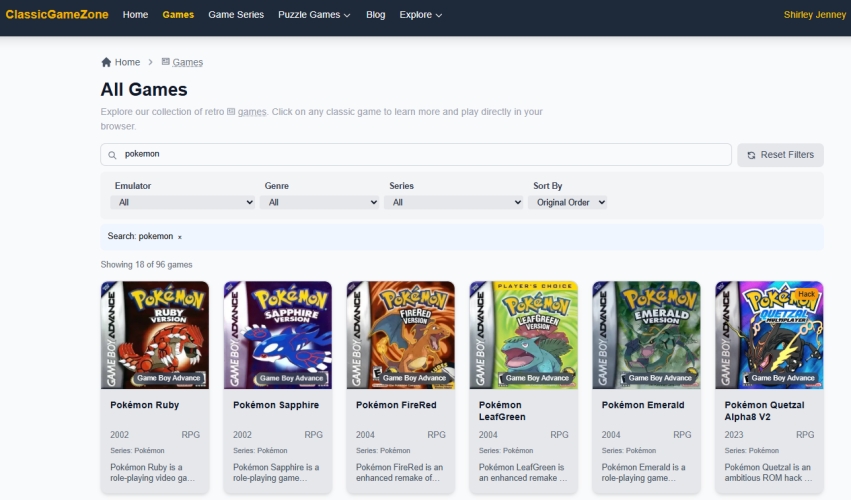
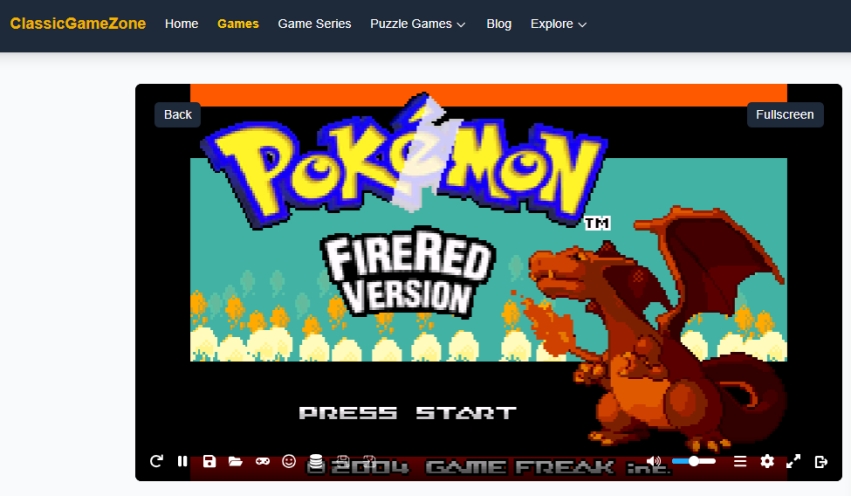
Step 3. Click the Play Game button, then select Start Game to begin playing.
Step 4. Adjust the shortcut keys in the Control settings to your preference.
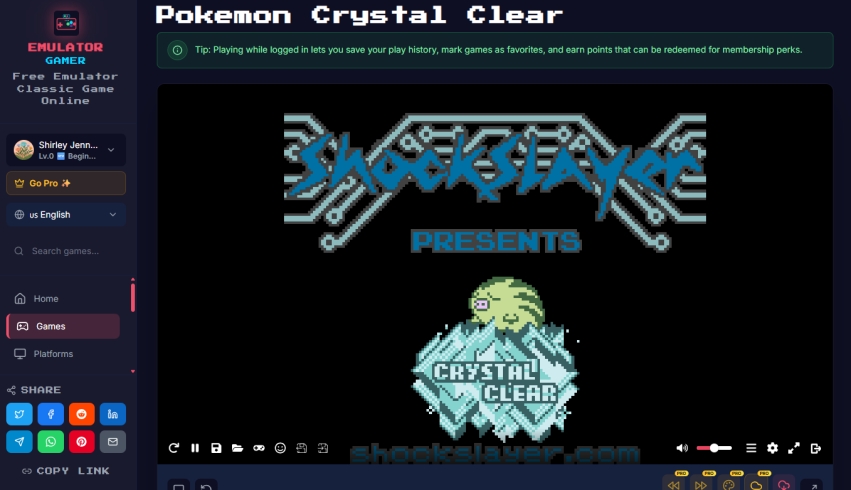
02Emulator Gamer
Similar to the emulator above, this service lets you load and play Pokémon games directly in the browser with smooth controls and easy navigation.
Step 1. Navigate to https://emulatorgamer.com/ and sign in from the sidebar.
Step 2. Click the Search section and type Pokémon in the search box.
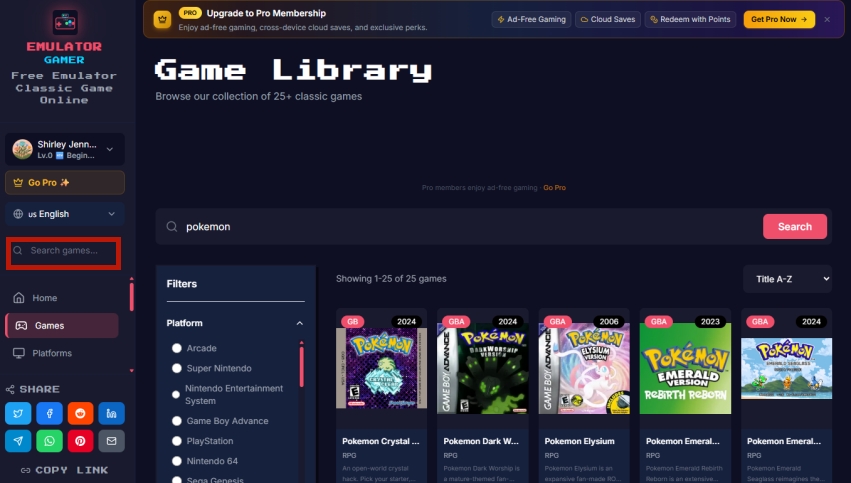
Step 3. Click the Play Now button, then select Start Game to begin playing on the page.
03Pokémon Game Dashboard
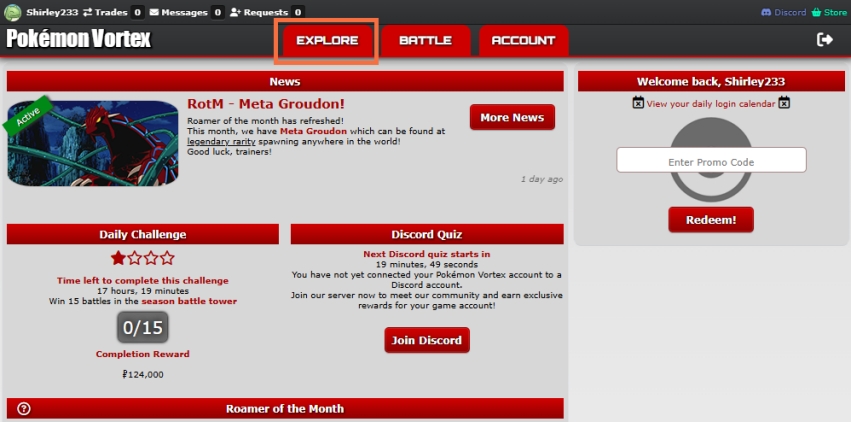
The Pokémon Game Dashboard is an online platform where only one Pokémon game is active at a time, played in full-screen with a shared server for users. Players can battle, trade, and interact in real time. The game rotates every few weeks or months to keep things fresh. Right now, the active rotation is Pokémon Vortex.
Step 1. Enter https://www.pokemon-vortex.com/ and sign up using your Gmail and a password.
Step 2. Click EXPLORE at the top of the screen to enter the game.
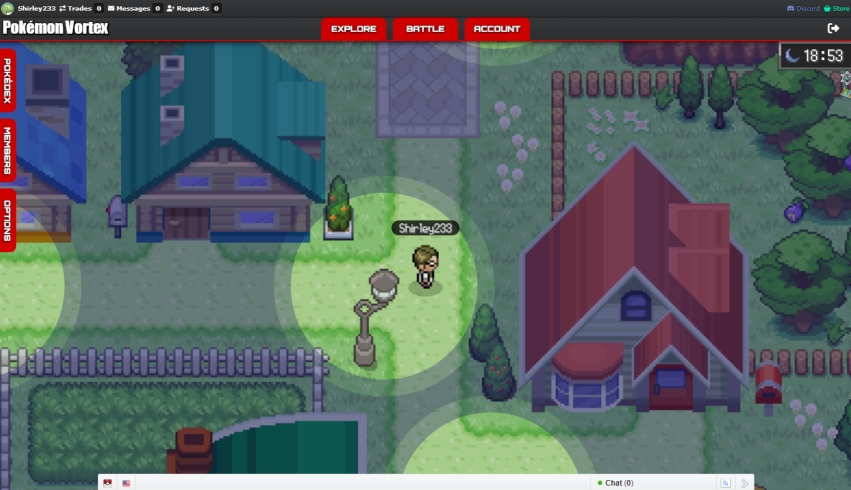
Step 3. Use your keyboard to control your movement in the game.
Limitation:
-
This method is prone to performance inconsistency, as some emulators may lag or not support all games properly, depending on your browser.
03Use VPN or Proxy
VPNs and proxies can sometimes help students access Pokémon unblocked games when school networks restrict gaming websites. A proxy server works by acting as a middle layer between your browser and the game site, allowing indirect access. A VPN (Virtual Private Network) goes further by encrypting your connection and routing it through external servers, making your browsing activity harder to detect on restricted networks.
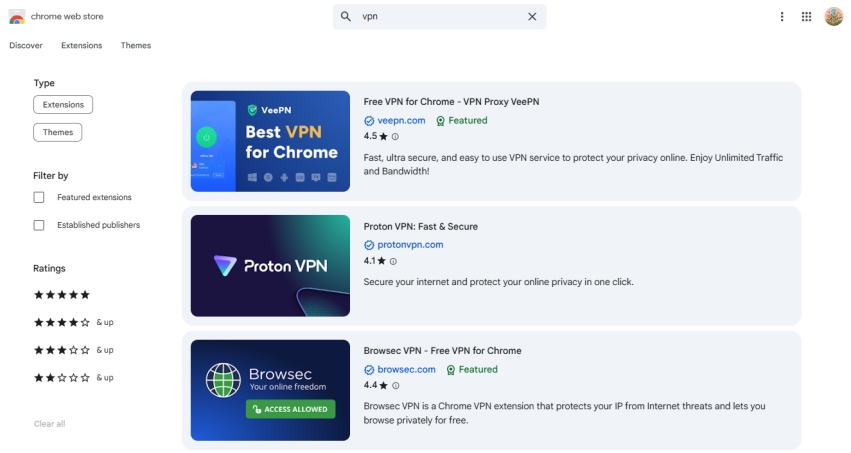
Step 1. Select a free VPN or web proxy service. Add the extension on your school-issued computer.
Step 2. Enable the VPN/proxy and connect to a server in a nearby location.
Step 3. Visit an accessible Pokémon gaming website or an online emulator and start playing.
Step 4. If the connection doesn't work properly, switch to a different server and try again.
Limitation:
-
Some schools actively block VPN services, and free VPNs often have slow speeds or limited stability, which can affect gameplay quality.
04Use Phone Hotspot
A phone hotspot does not directly unlock Pokémon games, but it can bypass school Wi-Fi restrictions. When you connect your device to mobile data instead of school internet, your traffic goes through carriers like Verizon, AT&T, or T-Mobile instead of filtered school networks. This often allows previously blocked Pokémon game websites to load normally.
Step 1. Enable Mobile Hotspot on your Android phone or iPhone.
Step 2. Join the hotspot network from your school computer using the hotspot password.
Step 3. Browse the internet through your phone's data connection rather than the school's Wi-Fi network.
Limitation:
-
Mobile data is limited and long gaming sessions can quickly use up your data. Also, this method is not always practical.
05Use Game Consoles
Dedicated consoles like Nintendo 3DS and Nintendo Switch are among the best ways to play Pokémon games at school. The 3DS is ideal for older titles such as Pokémon Omega Ruby and Pokémon Alpha Sapphire, while the Switch supports newer releases like Pokémon Scarlet and Pokémon Violet.
Step 1. Power on your Nintendo 3DS or Switch and sign in to your Nintendo account if required.
Step 2. Open the Nintendo eShop and purchase or download your chosen Pokémon title.
Step 3. Start the game from the home screen and begin your gameplay.
Limitation:
-
Consoles require purchase, setup time, and are not usable on school devices, making them less flexible for quick access.
06Remove MDM Restrictions
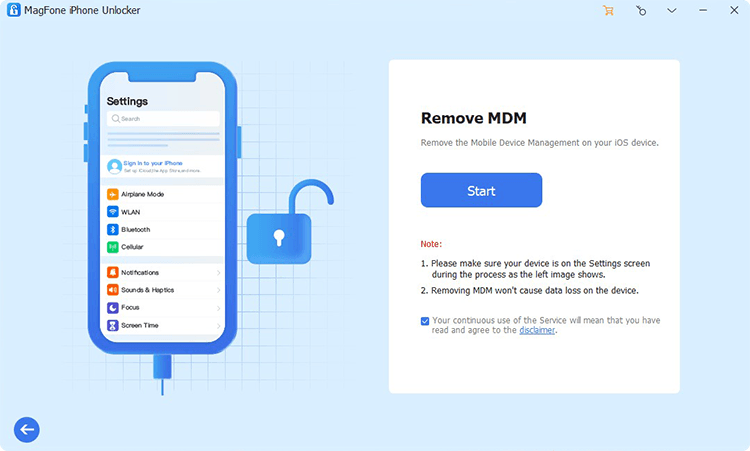
Many school devices use Mobile Device Management (MDM) systems to control what students can access, including blocking games and websites. When these restrictions are removed, the device is no longer filtered by school policies, allowing Pokémon games or unblocked sites to function normally. This is often done using tools like MagFone iPhone Unlocker, which is designed to manage or remove certain device management profiles.
Part 3. What Are the Best Pokémon Unblocked Games 2026?
Pokémon unblocked games are browser-accessible versions or fan adaptations of classic Pokémon titles. If you've never tried them, here are some top choices in 2026.
1. Pokémon FireRed
A classic Kanto journey with smooth gameplay and Gym battles, widely loved for browser emulation stability.
2. Pokémon LeafGreen
A counterpart to FireRed with slightly different encounters, often grouped as a nostalgic duo.
3. Pokémon Emerald
Features the Hoenn region, Battle Frontier, and deeper mechanics, praised for its long replay value.
4. Pokémon Ruby / Pokémon Sapphire
Early Hoenn adventures with a simpler structure but strong nostalgic appeal.
5. Pokémon Quetzal
A fan-made version of Emerald with modern mechanics, an expanded Pokémon roster, and enhanced gameplay systems.
Part 4. Extra Tip: How to Play Pokémon GO without Walking
If you're a Pokémon GO fan, here's a handy tool you shouldn't miss—MagFone Location Changer. It lets you spoof your GPS location, jump between places, and even simulate real walking routes with a virtual joystick. This makes it easier to play without actually moving, saving both time and effort. Give it a try if you want a more flexible gaming experience. Here's how to use MagFone Location Changer to play Pokémon GO without walking.

MagFone Location Changer
Easily change your GPS location on iOS and Android devices to anywhere with one click, while not requiring root or jailbreaking!
Step 1 Launch MagFone Location Changer

First, download and open MagFone Location Changer on your computer. Connect your iPhone or Android device using a USB cable. On the main interface, select the Start button, then click Pokémon GO in game mode to begin adjusting your GPS position.
Step 2 Create a Virtual Movement Route

Next, switch to the route mode from the top-right section of the tool. Drag and drop points on the map to design your custom path. Once satisfied, click Plan Route and Start Moving to activate movement simulation. Your device will now follow the virtual route.
Part 5. Conclusion
Pokémon unblocked games offer many flexible ways to enjoy classic and modern Pokémon experiences, whether through browsers, emulators, consoles, or mobile connections. Each method has its own strengths depending on accessibility and device type. From school-friendly websites to advanced tools and official consoles, players can choose what fits best.

Edgar Davis
Editor in chief




