








Pokemon GO players are always looking for smarter ways to explore the game without being limited by real-world distance. That's where tools like iTools Pokemon GO spoofing come into the spotlight. Known for features such as virtual location control, joystick movement, and auto catch support, iTools has gained attention among iOS users in particular. But questions remain: Is iTools legit? Is iTools safe? Is iTools free? This comprehensive guide breaks down everything you need to know, from features and pricing to usage steps and alternatives.
- Part 1. What Is iTools Pokemon GO Spoofing?
- Part 2. iTools Pokemon GO: Is It Legit/Free/Safe?
- Part 3. How to Use iTools for Pokemon GO on iOS/Android
- Part 4. Best Alternative Tool for iToolsPokemon GO Spoofing
- Part 5. Conclusion
Part 1. What Is iTools Pokemon GO Spoofing?
iTools Pokemon GO spoofing refers to using the iTools Virtual Location feature to change your GPS position in Pokemon GO without physically moving. Originally developed as an iOS device management tool, iTools later introduced location simulation, which quickly became popular among Pokemon GO players.
Key Features of iTools for Pokemon GO:
- iTools Virtual Location: Allows users to teleport their GPS location in Pokemon GO anywhere in the world.
- iTools Joystick Mode: The joystick lets you simulate walking naturally, moving in any direction at adjustable speeds.
- Auto Catch Compatibility: iTools works well alongside Pokemon GO Plus and other auto-catch devices.
- Route Simulation: Players can set custom paths to walk automatically, perfect for hatching eggs and collecting candies.
- Cooldown-Friendly Controls: iTools supports cooldown awareness, helping users avoid suspicious teleporting behavior.
- iTools Max: iTools Max is a physical GPS device that plugs into your iPhone, offering safer spoofing without modifying game files.
Part 2. iTools Pokemon GO: Is It Legit/Free/Safe?
Before using iTools for Pokemon GO, players often question its legitimacy, cost, and safety, making these concerns essential to address clearly today.
2.1 Is iTools Legit?
Yes, iTools is a legitimate GPS spoofing tool in the sense that it's an actual product created by ThinkSky and widely used in the Pokemon GO community, especially on iOS devices. It's not a scam or fake.
2.2 Is iTools Free?
iTools isn't fully free: the desktop version offers a limited trial, while advanced features and the iTools Max hardware require separate purchases.
2.3 Is iTools Safe?
iTools is relatively safe compared to modified Pokemon GO apps. Since it does not alter the game client, the risk of bans is lower, especially when following cooldown rules. However, no spoofing method is 100% risk-free.
Note:
When using iTools for Pokemon GO spoofing, avoid rapid teleporting between distant locations, always follow cooldown times before performing in-game actions, and never run multiple spoofing tools at the same time to reduce detection risk.
Part 3. How to Use iTools for Pokemon GO on iOS/Android
This part explains how to obtain iTools and correctly use its different spoofing options to play Pokemon GO efficiently and safely.
3.1 How to Get iTools for Pokemon GO Spoofing
Different iTools versions for Pokemon GO spoofing are available directly from the official iTools website, including desktop software and hardware devices. Each version targets different spoofing needs, and you can choose the suitable option based on your device and gameplay style, which are introduced in the following sections.
3.2 How to Use iTools for Pokemon GO Spoofing
Below are the two main iTools spoofing options, each with a brief introduction and clear, practical steps.
How to Use iToolsBT 2.0
Using iTools BT 2.5 offers a hardware-based Pokemon GO spoofing option designed for stability and safety. The setup involves purchasing the dongle, installing required apps, pairing Bluetooth correctly, and configuring location permissions before gameplay. Following each step carefully ensures smooth joystick control, reliable teleporting, and reduced risk while exploring virtual locations worldwide.
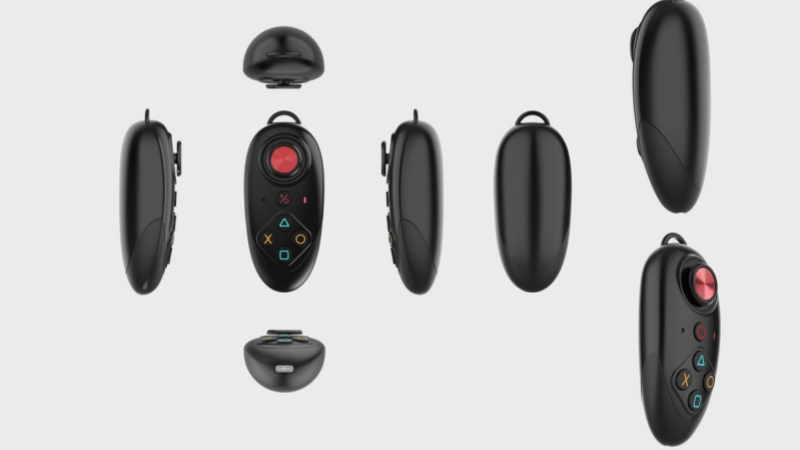
Step 1. Order iTools BT 2.5 from ThinkSky and await an email containing TestFlight access.
Step 2. Install Apple TestFlight from the App Store to enable iTools app installation.
Step 3. Open the TestFlight invitation link and install iTools General on your iPhone.
Step 4. Power on the Bluetooth dongle and confirm the LED indicator lights up.
Step 5. Pair the device via iPhone Bluetooth settings when iToolsBT-MFI appears available there.
Step 6. Grant location permissions, open iTools, set destinations, then launch Pokemon GO carefully.
How to Use iTools on PC
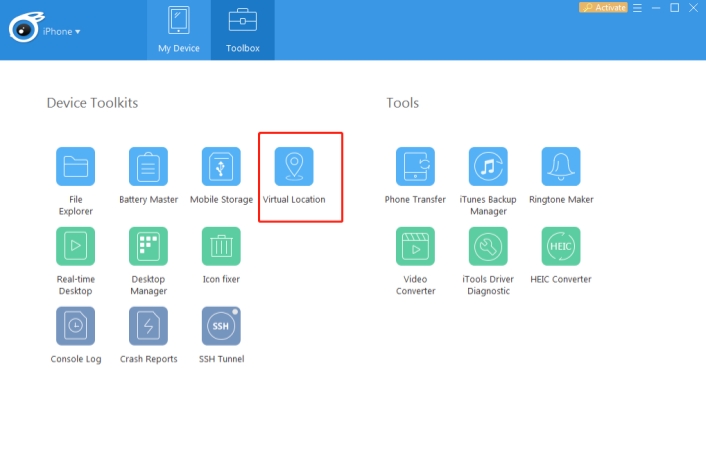
Using iTools on a PC provides another way to spoof your iOS device's location for Pokemon GO. The process involves downloading the software, connecting your iPhone, accessing the virtual location tool, and selecting a target location. Following these steps ensures precise teleporting and full control over the joystick and map features.
Step 1. Go to ThinkSky's official website and download the iTools desktop application.
Step 2. Install iTools on your PC by following the on-screen setup instructions carefully.
Step 3. Connect your iPhone to the computer using a reliable USB cable.
Step 4. Open iTools and click "Toolbox," then select the "Virtual Location" feature.
Step 5. Type the desired GPS coordinates or choose a point on the map.
Step 6. Click "Go" or "Move here" to teleport your iOS device successfully.
Part 4. Best Alternative Tool for iTools Pokemon GO Spoofing
A great alternative to iTools is MagFone Location Changer, which addresses several drawbacks of iTools. Unlike iTools, MagFone supports both iOS and Android, requires no additional hardware like iTools Max, and avoids complicated TestFlight setups. It also allows instant location changes without repeated USB connections, reducing setup time. The software includes intuitive joystick controls, multi-stop routes, and cooldown-friendly teleporting, making it safer and more efficient for Pokemon GO players who want flexible, cross-platform spoofing without hardware limitations.

MagFone Location Changer
Easily change your GPS location in Pokemon GO to anywhere with one click, while not requiring root or jailbreaking!
Step 1 Choose Change Location Mode in MagFone

Download and open MagFone Location Changer on your computer. Connect your phone via USB and enable Developer Mode when prompted. From the main dashboard, select Change Location, then click Start to proceed.
Step 2 Set a New Location with One Click

Use the search bar or interactive map to pick your desired location. After confirming the spot, click Start Modifying. Within seconds, your device location updates, ready for Pokemon GO gameplay.
Part 5. Conclusion
iTools Pokemon GO spoofing remains a popular choice for players seeking advanced GPS control, joystick movement, and reliable virtual location features. While iTools is legit and relatively safe, it is not free and is mainly suited for iOS users. For those needing cross-platform support or a simpler setup, tools like MagFone Location Changer provide a powerful alternative.

Olivia Wood
Editor in chief





