








Ever wished you could slip off the map for an afternoon without setting off the family group chat? Life360 keeps circles connected, but constant visibility can feel like a lot. That's why so many people search for Ghost Mode. The app has no button by that name, yet several workarounds give a similar result. Here's what Life360 Ghost Mode means, how to use it, and a smoother alternative.
- Part 1. What Is Ghost Mode on Life360?
- Part 2. How to Turn On Life360 Ghost Mode
- Part 3. Best Alternative to Ghost Mode Life360
- Part 4. FAQs about Life360 Ghost Mode
- Part 5. Conclusion
Part 1. What Is Ghost Mode on Life360?
Ghost Mode is a nickname for any method of hiding, freezing, or blurring your position in Life360 so your Circle can't track your real-time movements. The name is borrowed from Snapchat, which has an official feature called Ghost Mode. Life360 has no such switch. People use the term to refer to pausing sharing, blurring their area with Bubbles, or faking their GPS. It's handy when you want a private afternoon, a surprise outing, or a break from being watched.
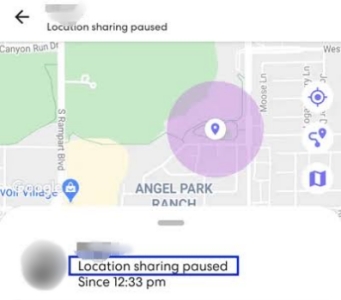
When you go "ghost," what your Circle sees depends on the method. Pausing sharing displays a "Location Sharing Paused" notice. Switching off GPS or enabling Airplane Mode can show "Location/GPS off" or "No network." A Bubble shows only a wide area instead of your exact spot. A spoofing tool can show a believable pin that isn't your real position. Each approach helps with privacy, but each also has trade-offs worth weighing.
 Benefits
- Protects your personal privacy.
- Avoids constant check-in questions.
- Keeps surprises under wraps.
- Works for short, temporary periods.

- Circle members may notice.
- Safety alerts can stop working.
Part 2. How to Turn On Life360 Ghost Mode
Since there's no official toggle, you have to pick a method that fits your goal. The simplest option is pausing location sharing inside the app, which takes under a minute. The steps below use that built-in route, and you can reverse it at any time.
Step 1. Open the Life360 app on your iPhone or Android phone and sign in.
Step 2. Tap the Settings icon, then choose Location Sharing.

Step 3. Pick the Circle you want to hide from.
Step 4. Switch the Location Sharing toggle to off.
Step 5. Return to the map to confirm that your Circle now sees a paused status instead of live movement.
Part 3. Best Alternative to Ghost Mode Life360
If you want to ghost your location on an iPhone or Android phone without a "paused" message appearing, MagFone Location Changer is a good helper. It has two modes. Game Mode suits location-based games such as Pokémon Go. General Mode is for everyday apps like Life360, where you can hide your real whereabouts behind a virtual location that looks normal to your Circle.

MagFone Location Changer
Easily change your GPS location on iOS and Android devices to anywhere with one click, while not requiring root or jailbreaking!
Step 1 Connect Phone to PC and Launch MagFone
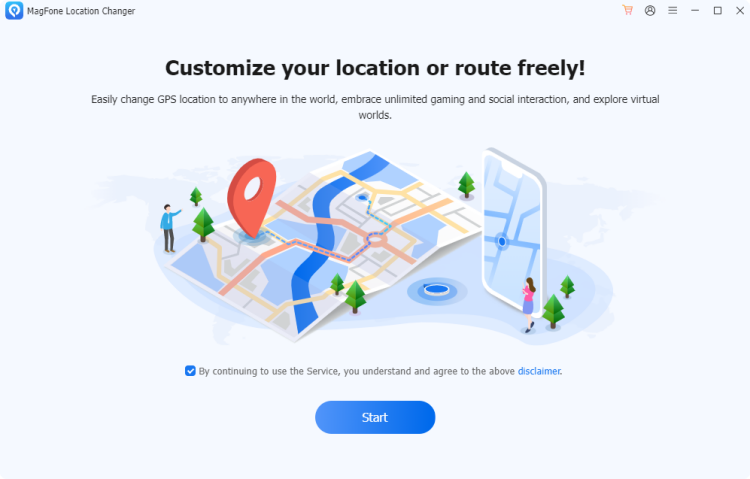
Download and install MagFone Location Changer on your computer, then open it. Link your phone using a USB cable or a Wi-Fi connection. On the main screen, choose the Change Location option and press Start to begin.
Step 2 Set a New Spot for Life360 on Android or iOS
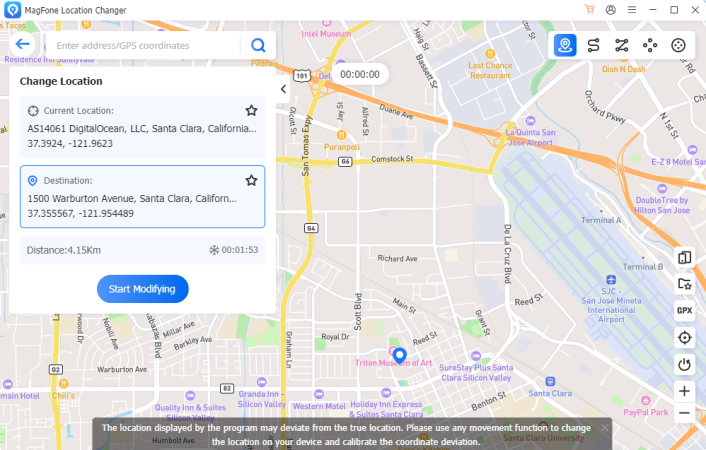
Type an address or a set of GPS coordinates into the search box to find the place you want to appear in. Once you've confirmed the destination, click Start Moving, and your phone will jump to that spot. Life360 will then display this virtual position to your Circle.
Part 4. FAQs about Life360 Ghost Mode
How to tell if someone has Life360 Ghost Mode on?
If someone's Life360 status shows "Location Sharing Paused," they may have manually paused location sharing using the app's settings. However, if they use third-party location-changing software to spoof their GPS location, it can be much harder to tell because Life360 may continue displaying a seemingly normal location.
How to use Ghost Mode on Life360 without others knowing?
You can use third-party location-changing tools like MagFone Location Changer to achieve a Ghost Mode-like effect on Life360 without directly pausing location sharing in the app. These tools let you change your phone's GPS location, making it appear as though you are somewhere else while location sharing remains enabled.
Is Life360 Ghost Mode free to use?
If you use Life360's built-in Ghost Mode feature, it's free. However, if you use third-party tools to change your GPS location and hide your real location, these tools commonly require a paid subscription.
Part 5. Conclusion
Life360 has no official Ghost Mode, but there are several practical ways to get the same effect: pausing sharing, using Bubbles, turning off GPS, or spoofing your position. Each has benefits and drawbacks, from visibility to safety to trust. For a discreet option, MagFone Location Changer lets you set a virtual location easily. Whatever you choose, honest communication with your Circle keeps privacy and trust balanced.

Olivia Wood
Editor in chief




