








Trying to login Pokémon GO since the past 10 minutes, no update. It says failed to log in. I am a little concerned. Can anyone help?"
—— From Reddit
Pokémon GO is a famous augmented reality mobile game that keeps millions of players exploring the real world to catch Pokémon, battle in gyms, and join special events. However, when users are eager to start playing, they sometimes find they can't log in or sign in properly. These Pokémon GO login issues can be frustrating and confusing. To help you quickly regain access, this full guide explains the causes and offers practical fixes for login errors.

- Part 1. Reasons of Pokémon GO Login Issues
- Part 2. How to Fix Pokémon GO Login Issues
- Method 1. Log In to Pokémon.com
- Method 2. Update Account Password
- Method 3. Check Niantic Authority
- Method 4. Check Pokémon GO Server Status
- Method 5. Update iOS System
- Method 6. Update the Pokémon GO App
- Method 7. Close Background Apps
- Method 8. Clear the Pokémon GO Cache
- Method 9. Reinstall the Pokémon GO App
- Method 10. Contact Niantic Support
- Part 3. Bonus Tip: How to Spoof Pokémon GO Location
- Part 4. Conclusion
Part 1. Reasons of Pokémon GO Login Issues
There are several common situations where users face Pokémon GO login problems or Pokémon GO login trouble. In most cases, these issues fall into four main categories. Each problem has a different cause, such as account settings, authorization errors, or server-related issues. Let's explore them in detail below.
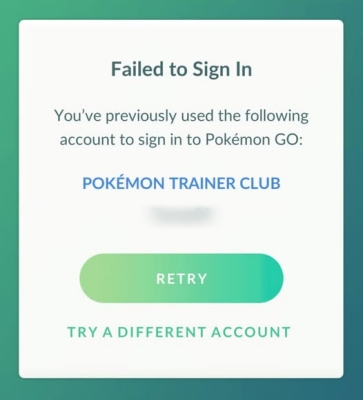
Error 1. Failed to Sign In - Previously Used Account
If you see a message like "You've previously used the following account to sign in to Pokémon GO," it means the account has already been registered and signed in before. In this case, the system recognizes and shows your previous login account. You should use the same account to log in or switch to another login option.
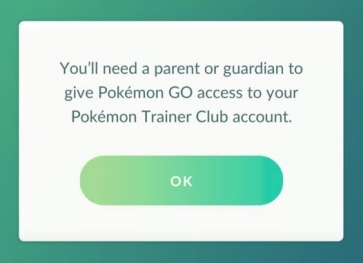
Error 2. Need Parent to Give Pokémon GO Access
This error appears when parental controls are enabled through a Pokémon Trainer Club account. Parents or guardians can manage access permissions for child accounts and restrict gameplay. If you see "You'll need a parent or guardian to give Pokémon GO access," it means your account is currently blocked until permission is granted or adjusted in settings.
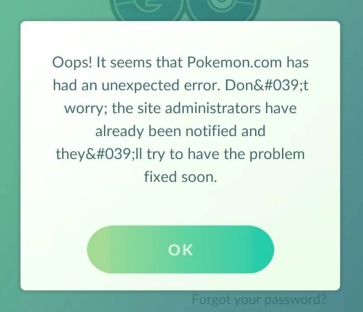
Error 3. Pokemon.com Unexpected Error Occurred
When users face a "Pokemon.com has an unexpected error occurred" message, it often indicates a temporary server-side problem. In many cases, this is related to downtime or maintenance on the Pokémon GO or Pokémon Trainer Club system. These Pokémon GO login issues today usually resolve automatically once servers are restored.
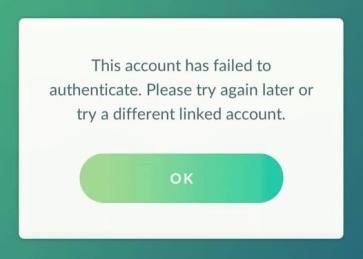
Error 4. Pokémon GO Account Failed to Authenticate
If your screen shows "This account has failed to authenticate," it means your login credentials are valid but not properly authorized. The app has not been granted permission to connect with Niantic, Inc. services. This leads to authentication failure and prevents access to Pokémon GO.
Part 2. How to Fix Pokémon GO Login Issues
You can solve most Pokémon GO login issues using a series of troubleshooting steps. Below are effective methods that help restore access, fix authentication errors, and eliminate common system or app-related login failures quickly and safely.
Method 1. Log In to Pokémon.com
Try signing into your The Pokémon Company Trainer Central account through Pokémon.com. If you can log in successfully, your account password is correct. This confirms that the Pokémon GO login issues are not caused by incorrect passwords, but rather app or connection-related problems.
Method 2. Update Account Password
If you cannot access Pokémon.com, resetting your password is recommended. After updating, try logging in again using the new credentials across all linked platforms, including Pokémon GO and related services. Here's how to recover the Pokémon GO account password.
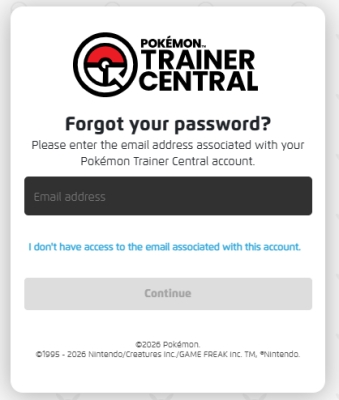
Step 1. Open a web browser on your device and go to the Pokémon GO recovery page.
Step 2. Select i forgot my password, and then enter your email address and usename.
Step 3. Type the verification code you received via email and follow the instructions to set a new one.
Step 4. After that, open Pokémon GO and try signing in again.
Method 3. Check Niantic Authority
If you see the error "This account has failed to authenticate," check the Niantic Authority settings. Open your account settings, verify the linked login method, and reauthorize your account by signing in again. Once the authorization is refreshed, try logging in to the game again.
Step 1. Sign in to your Pokémon Trainer Club account and hit the Apps & Games section.
Step 2. Find Pokémon GO (Niantic, Inc.) and enable the access permission.
Step 3. Confirm the change to authorize the connection.
Method 4. Check Pokémon GO Server Status
Sometimes Pokémon GO login issues today occur due to server outages. You should check official Pokémon GO social media channels or community updates to confirm if servers are down. If so, wait until maintenance ends, as login services will resume automatically once systems are restored.
Method 5. Update iOS System
Outdated operating systems may cause Pokémon GO login trouble or app instability. Check for and install the latest iOS update on your device. System updates often fix compatibility bugs that affect authentication and connectivity, improving the overall performance of Pokémon GO.
For iPhone/iPad:
Step 1. Open the Settings app. Tap General, then Software Update.
Step 2. Press Download and Install if any updates show up.
Step 3. Enter your passcode if prompted.
Step 4. Restart your device and check if you can log in to Pokémon GO now.
For Android:
Step 1. Run Settings. Tap System or Software Update.
Step 2. Select System Update or Check for Updates.
Step 3. Download and install any available updates.
Step 4. Restart your device and open Pokémon GO and test the app again.
Method 6. Update the Pokémon GO App
Always keep the app updated via App Store or Google Play. Older versions of Pokémon GO may not sync properly with servers, causing login failures. Updating ensures compatibility with current systems and fixes known bugs affecting Pokémon GO login problems.
For iPhone/iPad:
Step 1. Go to the App Store and press your profile.
Step 2. Find Pokémon GO from the list and tap the Update button.
Step 3. Open the game after the update is complete.
For Android:
Step 1. Launch the Play Store and tap your profile icon in the upper-right corner.
Step 2. Tap Manage apps & device > Updates. Then find Pokémon GO and tap Update next to the app.
Step 3. Wait for the installation to finish. Then launch Pokémon GO.
Method 7. Close Background Apps
Too many background apps can interfere with network stability or memory usage, leading to Pokémon GO login problems. Close all unnecessary apps running in the background, then restart Pokémon GO. This refresh helps the game load properly and reduces login-related conflicts on mobile devices.
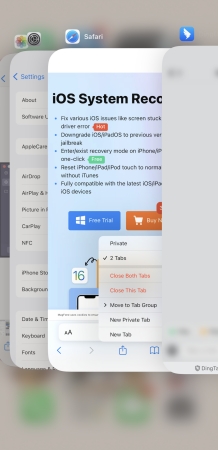
Step 1. Swipe up from the bottom of the screen.
Step 2. Swipe up all the pages to close these running apps.
Step 3. Return to the Home Screen and reopen Pokémon GO.
Method 8. Clear the Pokémon GO Cache
Android users can clear the app cache to resolve corrupted temporary files. These files may cause Pokémon GO login issues or loading errors. Go to app settings, find Pokémon GO, and clear cache data. Then restart the game to check if login functionality is restored.
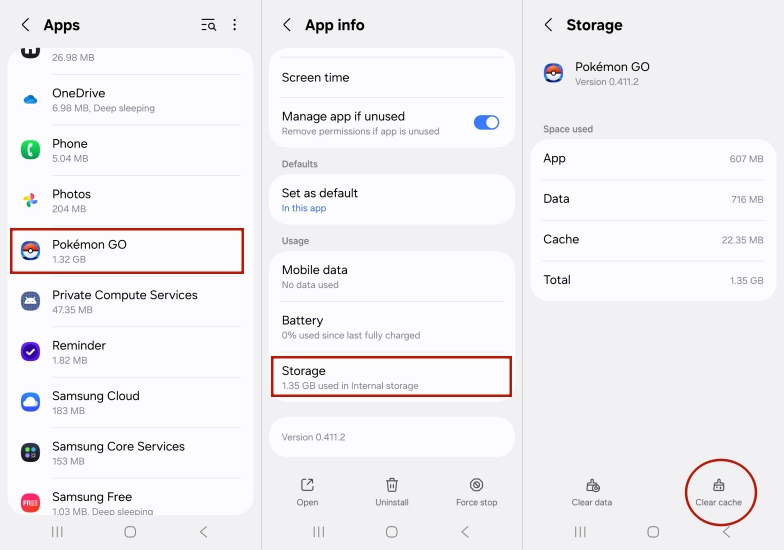
Step 1. Open the Settings app and tap Apps or Application Manager.
Step 2. Select Pokémon GO from the app list.
Step 3. Tap Storage and select Clear cache.
Step 4. Reopen Pokémon GO and check if the issue is fixed.
Method 9. Reinstall the Pokémon GO App
Reinstalling the app is a powerful fix for persistent Pokémon GO can't log in issues. This removes corrupted files, resets app configuration, and installs a fresh version of Pokémon GO. After reinstalling, try logging in again using your preferred method.
For iPhone/iPad:
Step 1. Locate Pokémon GO on your Home Screen.
Step 2. Press and hold the app icon and tap Remove App.
Step 3. Select Delete App and confirm.
Step 4. Then open the App Store to get Pokémon GO.
Step 5. Launch the game and sign in.
For Android:
Step 1. Open the Settings app. Then tap Apps.
Step 2. Select Pokémon GO and select Uninstall and confirm.
Step 3. Open the Google Play Store to install Pokémon GO.
Step 4. Open the game and log in with your account.
Method 10. Contact Niantic Support
If none of the methods work, contacting support is the best option. Niantic, Inc. support can investigate account-specific issues, including bans, authentication errors, or server-side restrictions causing Pokémon GO login issues facebook or other login failures.
Part 3. Bonus Tip: How to Spoof Pokémon GO Location
As a Pokémon GO fan, you should know that GPS location plays a crucial role in gameplay. It affects what Pokémon you encounter, what raids appear, and which events you can join. To explore more regions, you can use MagFone Location Changer. It allows teleporting to any location and simulating walking routes for egg hatching, saving time and effort. Below is a simple guide to use it for location spoofing.

MagFone Location Changer
Easily change your GPS location on iOS and Android devices to anywhere with one click, while not requiring root or jailbreaking!
Step 1 Connect Device and Launch Software

Use a USB cable to connect your phone to the computer and enable Developer Mode. Then open MagFone Location Changer and click the Start button. Choose Pokémon GO in the Game Mode.
Step 2 Select Target Location for Pokémon GO

On the map interface, search or manually choose your desired location. Once selected, confirm your choice and click Start Modifying. Your device location will then be updated, allowing Pokémon GO to reflect the new area.
Part 4. Conclusion
Pokémon GO login issues can happen for many reasons, including authentication errors, server problems, outdated apps, or account restrictions. Fortunately, most Pokémon GO login problems can be fixed with simple troubleshooting steps. By following the solutions above, players can quickly resolve Pokémon GO login issues and return to exploring the world of Pokémon GO without unnecessary interruptions.

Edgar Davis
Editor in chief





