








In a world where location-sharing apps blur the line between convenience and privacy, Zenly has become a daily companion for millions. It lets friends see where you are in real time, which is fun—until it isn't. Whether you want a little privacy, plan a surprise, or simply experiment with virtual locations, learning how to fake your location on Zenly can be surprisingly useful. This guide breaks everything down clearly and responsibly.
- Part 1. What Is Zenly App Used For?
- Part 2. How to Fake Your Location on Zenly with Ghost Mode
- Part 3. How to Change Location on Zenly [3 Proven Methods]
- Part 4. FAQs about Zenly Location
- Part 5. Conclusion
Part 1. What Is Zenly App Used For?
The Zenly app is a social location-sharing application that allows users to share real-time GPS locations with friends. Its core purpose is to help people see where friends are, how long they stay at places, and their movement status, making everyday communication more interactive.
Where to download Zenly?
You can perform a Zenly download directly from the Apple App Store or Google Play Store, depending on your device's operating system.
What is Zenly frozen location?
A Zenly frozen location happens when Ghost Mode stops your position from updating. Unlike location blurring, freezing keeps your icon fixed at one spot. Friends cannot see real-time movement and only view the last live location you shared before activating the freeze.
Part 2. How to Fake Your Location on Zenly with Ghost Mode
If you want to mask your movements without using external software, the built-in Ghost Mode Zenly feature is your first line of defense. It offers a native way to blur or freeze your coordinates, giving you a customized layer of privacy while you navigate your world off the grid.
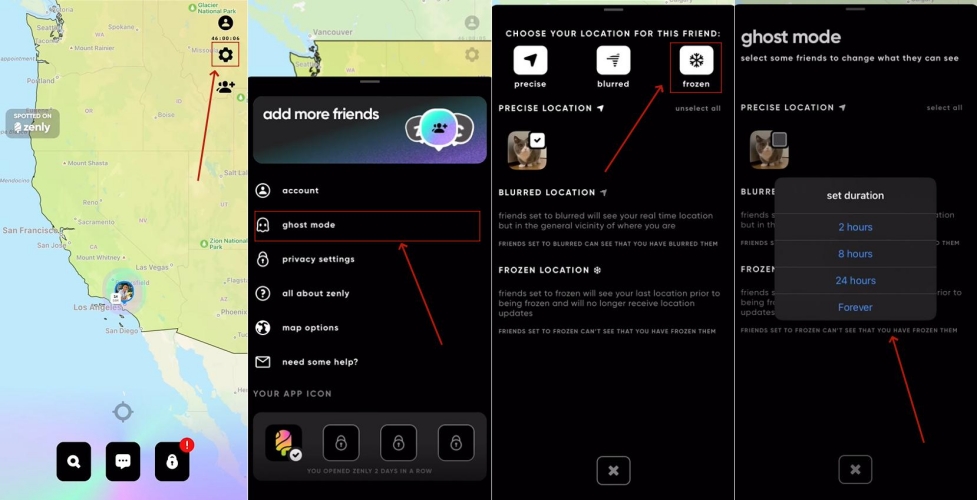
Step 1. Open the Zenly app and tap the Settings icon in the top right corner.
Step 2. Tap ghost mode in the list and then choose frozen mode here.
Step 3. After that, you can continue to set duration for the Zenly ghost mode.
Note:
You can choose between Blurred (shows an approximate area) or Frozen (keeps your location at a fixed point) to hide location on Zenly app.
Part 3. How to Change Location on Zenly [3 Proven Methods]
When native settings aren't enough, professional software allows you to fake your Zenly location anywhere globally with just a few clicks.
Method 1. Change Location on Zenly via MagFone Location Changer
MagFone Location Changer lets you display a virtual location on the Zenly map. More reliable than Ghost Mode, it keeps your spoofed position stable, with no flickers or sudden resets. This premium GPS spoofer stands out for stability and ease of use. It supports both iOS and Android devices, including the latest operating system versions. Setup is quick, intuitive, and works seamlessly across apps and sessions worldwide.

MagFone Location Changer
Easily change your GPS location on iOS and Android devices to anywhere with one click, while not requiring root or jailbreaking!
Step 1 Launch MagFone Software and Link Devices

Download and launch MagFone Location Changer on your computer, then connect your phone to the computer via a USB cable or WiFi connection. After enabling Developer Mode on your device, select a location simulation mode in the MagFone program.
Step 2 Start to Change Zenly Location to Anywhere

On the world map, select the place you want your device to change. Or enter specific coordinates in the search bar to find your desired location. Click the Start Modifying button, and your location will update to the spot you want in Zenly.
Method 2. Change Location on Zenly Using Xcode Spoof
For iPhone users who are tech-savvy, using Xcode is a sophisticated way to change location on Zenly. This method mimics a developer testing a location-based app, making it highly effective. It requires a Mac and a bit of patience, but it is a powerful, "official" way to spoof GPS.
Step 1. Download and install Xcode from the Mac App Store, then connect your iPhone to your Mac.
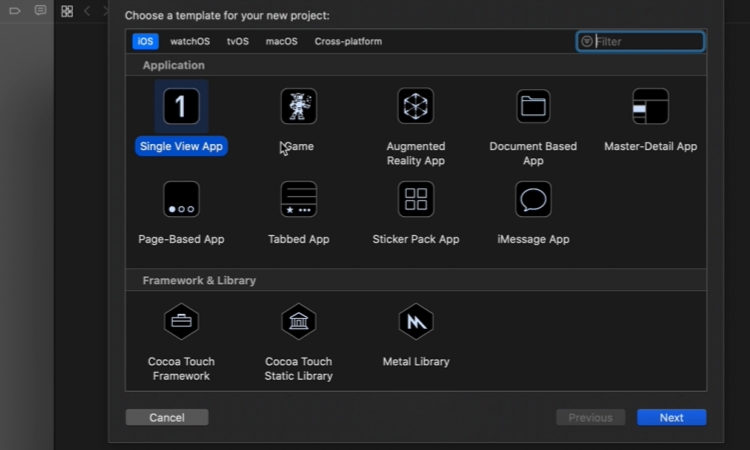
Step 2. Open Xcode, create a new project via File > New > Project, and select Single View App.
Step 3. Choose the project location, then go to Xcode > Preferences > Accounts and sign in with your Apple ID.
Step 4. Select your team in the project settings, click the > button to build and run your app.
Step 5. With the app running, navigate to the Debug menu > Simulate Location to choose a location.
Step 6. Your app (e.g., Zenly running through Xcode) will now reflect the coordinates simulated in Xcode.
Method 3. Change Location on Zenly Through Cydia Tweaks
If you have a jailbroken device, Cydia tweaks offer the most seamless integration for faking your Zenly location. These tweaks modify the system's location data directly at the root level. While this offers high flexibility, it does require your device to be jailbroken, which may void your warranty.
Step 1. Jailbreak your iPhone using Checkra1n on your PC/Mac and install Cydia on the iPhone.
Step 2. Open Cydia on the iPhone, add the official repo, then install Relocate Reborn.
Step 3. Respring or reboot when prompted after installation.
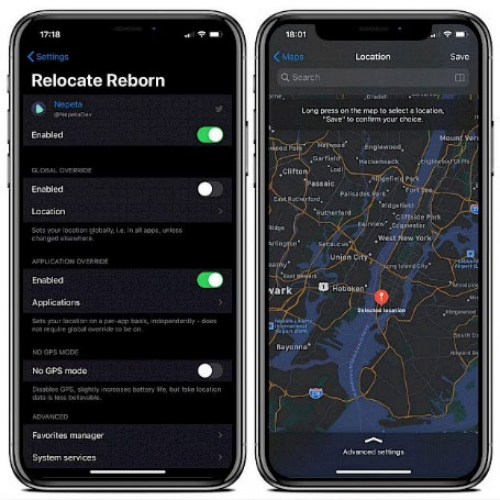
Step 4. Enter Settings > Relocate Reborn, enable it, and select the target app (e.g., Zenly).
Step 5. Open the tweak's map interface, drop a pin, and apply the spoofed location.
Part 4. FAQs about Zenly Location
How to know if someone froze their location on Zenly?
To know if someone froze their location on Zenly, you can look at their profile icon; if they are "Frozen," you won't see a "Live" indicator, and their location won't change for hours or days. Zenly doesn't send a notification, but the lack of movement is a dead giveaway.
How to view Zenly location without being a friend?
Currently, there is no official way how to view Zenly location without being a friend. The app is built on a "mutual opt-in" privacy model. You must send a friend request and have it accepted to see someone's map data.
How to turn off location on Zenly?
You can either go into your phone's system settings and turn off the "Location Permissions" for Zenly, or use the "Ghost Mode" within the app to select the "Frozen" option for all your friends.
Part 5. Conclusion
It's essential in an age of constant connectivity to master your digital footprint . Whether you use the native Ghost Mode Zenly or professional tools like MagFone to change location on Zenly, you now have the power to choose when to be seen. Use these methods responsibly to maintain your privacy while keeping the fun of the Zenly app alive on your own terms.

Olivia Wood
Editor in chief





