








Rover is an app for pet owners and pet caregivers, offering a variety of pet care services. However, it heavily relies on your phone's GPS location to provide these services. Whether you're a pet owner looking for pet services before a trip or a pet caregiver relocating, you may need to change your location on Rover. Changing your location on Rover is very simple, and this guide will show you how to do it.
- Part 1. How Do I Change My Location on Rover?
- Part 2. How to Change Region on Rover
- Part 3. How to Change Location on Rover
- Part 4. FAQs about Changing Location on Rover
- Part 5. Conclusion
Part 1. How Do I Change My Location on Rover?
You can change your location on Rover at any time. In fact, Rover's default setting automatically uses your current location, meaning it will only show you users near you. If you want to find pet-sitting services in other cities or countries, you'll need to change your location on Rover. Several methods are available for this adjustment, and you can familiarize them with the diagram before we explore each approach in depth.
| Quick Guide | Platform | Change GPS Location | Change to Precise Location | Success Rate | Ease of Use |
|---|---|---|---|---|---|
| Magfone Location Changer | iOS & Android | Yes | Yes | 100% | Easy |
| Fake GPS Location | Android | Yes | Yes | 80% | Medium |
| Proxy Servers | iOS & Android | No | No | 60% | Medium |
| VPN Services | iOS & Android | No | No | 60% | Easy |
Part 2. How to Change Region on Rover
Should you need to modify your region on Rover, the process is straightforward via either its app or official website. By following these simple steps, you can update your Rover region to suit your pet care needs in a particular region, or adjust it if you've relocated.
Change Region in the Rover App
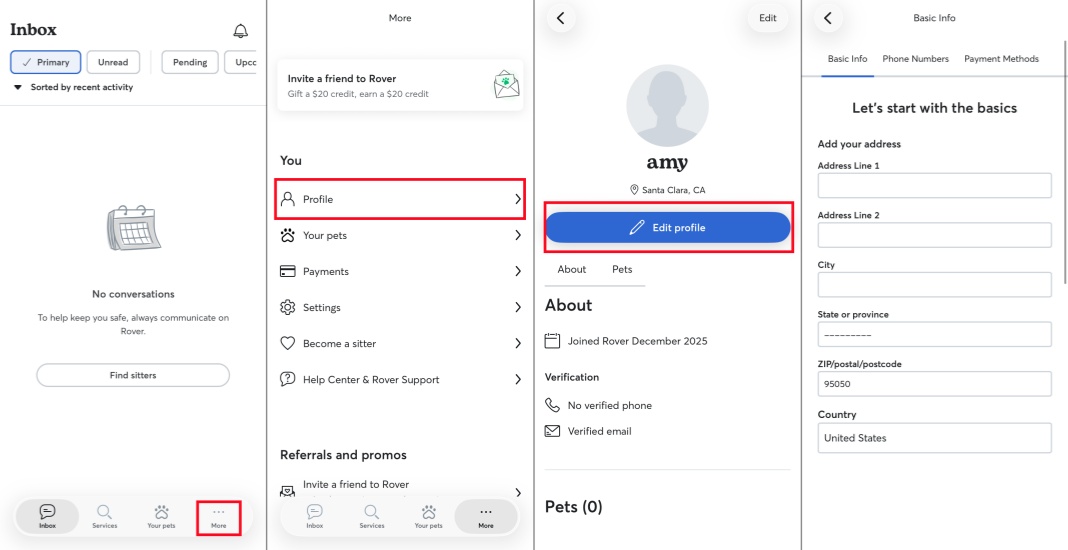
Step 1. Tap More menu > Profile.
Step 2. Then press Edit profile.
Step 3. Save your changes after modifying your service location.
Change Region on the Rover Site
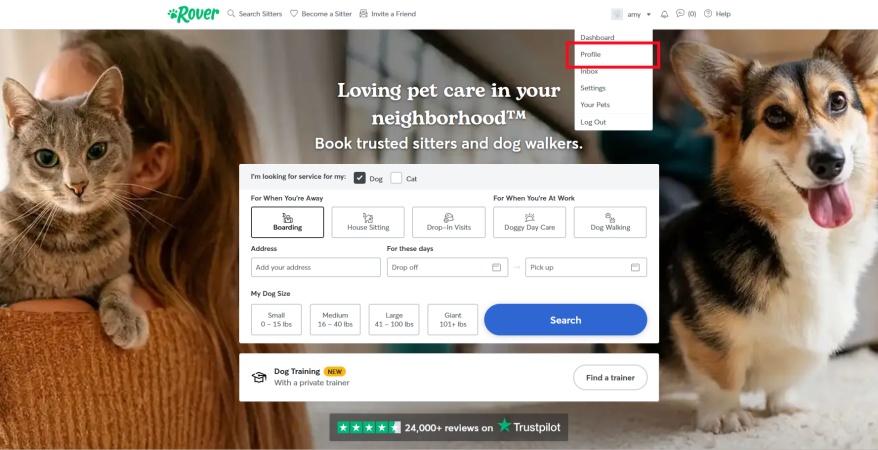
Step 1. After logging in, click your name at the top of the page, and then select Profile.
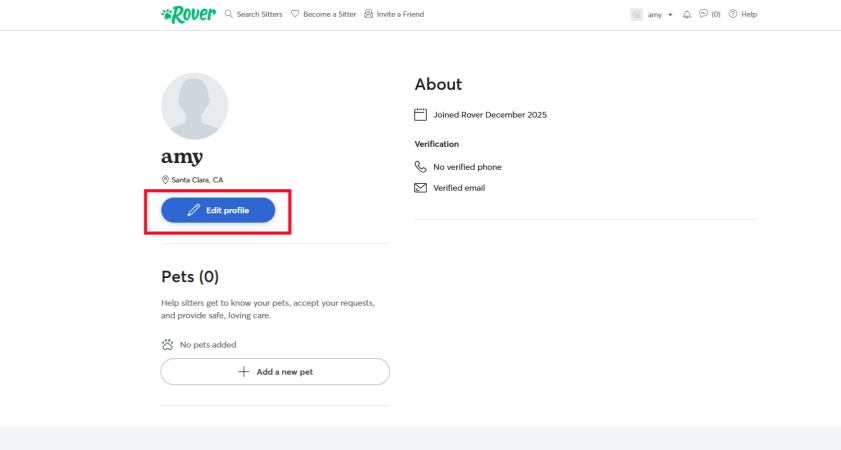
Step 2. Click Edit profile.
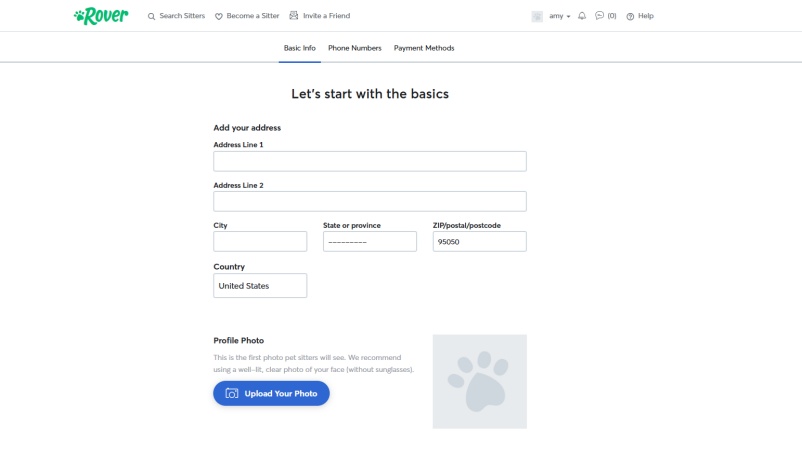
Step 3. Update Basic Info to change your main address.
Part 3. How to Change Location on Rover
Changing your region in Rover's settings menu is very simple and convenient, but if you want to change your location to another city or find pet-sitting services while traveling, the settings menu may not be the best option. Therefore, some users need to change their location on Rover so that the app can recognize them as being in different places. Don't worry, whether you want to change your GPS location or IP location, there are other methods available.
Method 1. Change Location on Rover via Location Changer
Whether you're planning a move, about to travel, looking for suitable pet care services, or seeking pet-sitting jobs, MagFone Location Changer provides a straightforward and dependable method to modify your location on Rover, with no need for a VPN or device jailbreak. Refer to the tutorial below to utilize MagFone Location Changer and switch your location to any desired destination.

MagFone Location Changer
Easily change your GPS location on Rover to anywhere with one click, while not requiring jailbreaking!
Step 1 Connect Your Phone to the Computer and Launch MagFone Software.

Install MagFone Location Changer on your computer and open the program. Next, link your phone to the computer using either a USB cable or a Wi-Fi connection. Enable Developer Mode on your device, then go back to the MagFone interface and pick a location simulation mode to proceed.
Step 2 Change Your Rover Location to Any Destination

On the built-in world map, select the location you want your device to change. Alternatively, input specific coordinates into the search bar to pinpoint your desired place. Once you've made your selection, click the Start Modifying button. This will update your location in the Rover app to the spot you chose.
Method 2. Change Location on Rover via Fake GPS Location
Fake GPS Location is a free location modification tool for Android that you can use to change your location on Rover. However, the app is unstable and sometimes fails to change the location on Android devices. Follow the steps below to use this tool to change your location on Rover.
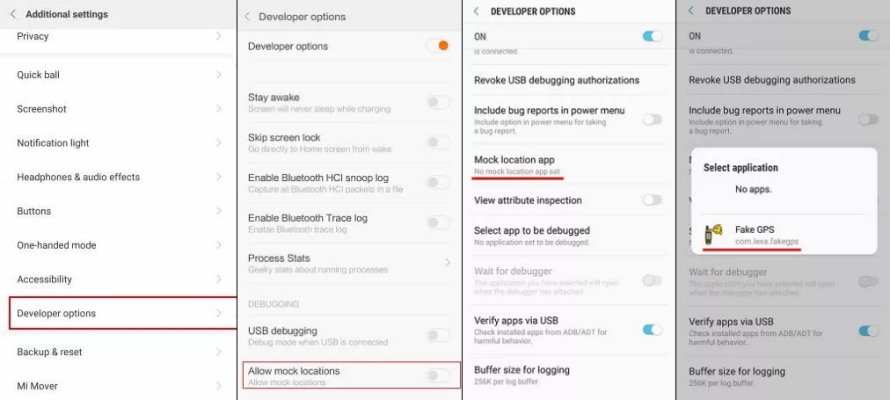
Step 1. Install Fake GPS Location on your phone and go to Settings.
Step 2. Turn on Developer Mode and tap Select Mock Location App > Fake GPS Location.
Step 3. Launch the app, then enter the coordinate of your desired location or search using regional keywords.
Step 4. Tap Start to change your location to the specified location.
Method 3. Change Location on Rover via Proxy Servers
Another method is to use a proxy server to change location on Rover, though this method works better for activities conducted via a browser. Note that this only alters the virtual location tied to your IP address, not the actual physical location detected by your device's GPS.
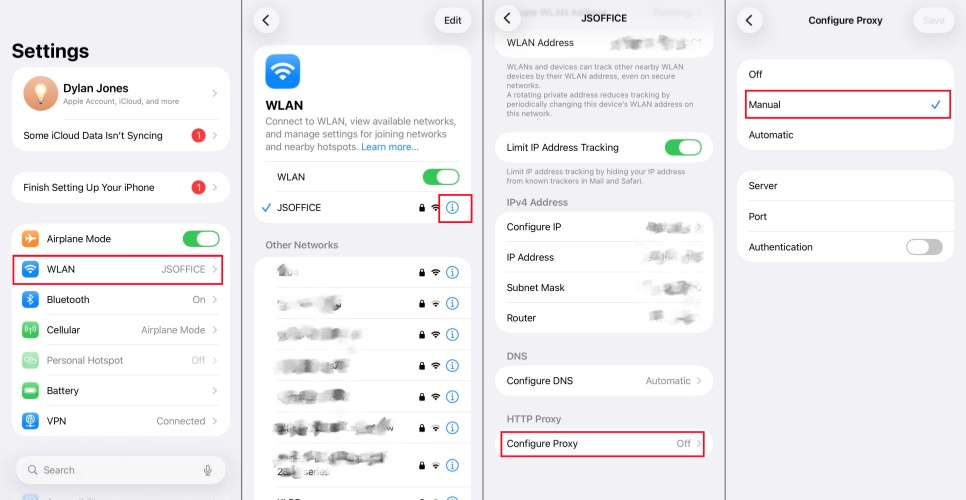
Step 1. Access WLAN settings on your device.
Step 2. Tap the (i) icon next to the connected Wi-Fi network.
Step 3. Scroll to the bottom of the page, tap Configure Proxy, and choose Manual.
Step 4. Input the server address and port number.
Step 5. Enable the authentication toggle and enter your username and password.
Step 6. Save and apply the proxy settings.
Method 4. Change Location on Rover via VPN Services
Besides using location spoofing tools or proxy servers, a common way to change your Rover location is to use a VPN to change the location in apps to other countries. VPN services work by changing your device's IP address, thereby affecting location-dependent functions. However, it's not suitable for precisely changing your location.
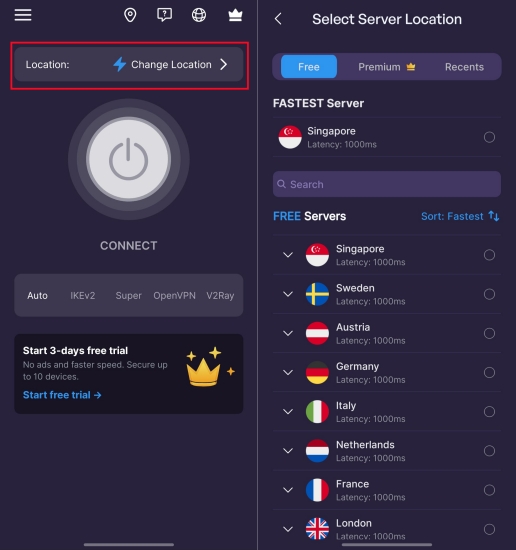
Step 1. On your device, select a VPN service to download and install.
Step 2. Run the app and authorize configuration permissions.
Step 3. In the VPN app, select an available server location.
Step 4. Tap the connect button, then your IP address will be changed to the selected location.
Part 4. FAQs about Changing Location on Rover
Can I use Rover in multiple states?
Rover only allows one address to be added to your profile at a time. You can change your address while you're in a location and then change it back when you return. However, using Magfone Location Changer is a better option, allowing you to change your Rover location to anywhere you want with just one click.
Will Rover track my location while I'm looking after pet?
Rover does use GPS to track your location, primarily to generate detailed maps for pet owners. However, this isn't real-time tracking. It logs the route, distance, and duration of the walk after it's completed, and this data is only visible to the pet owner, the dog walker, and the Rover platform.
How to change location on Rover as a sitter?
You can change your location by modifying your profile on the website and app, but we highly recommend Magfone Location Changer. If you travel frequently or change locations often but are looking for suitable pet care services, MagFone Location Changer provides a reliable way to change your location on Rover.
Part 5. Conclusion
Whether you're planning a move or simply want to experience different pet services, changing your location on Rover can help you find suitable pet care and connect with pet owners. Among the many ways to change your Rover location, MagFone Location Changer is the best choice, allowing you to connect with pet service providers or clients from different regions. Unlock cross-regional pet service resources. Let's start changing your Rover location with MagFone Location Changer!

Edgar Davis
Editor in chief





