








BLK is one of the most popular dating apps for Black people. It uses your phone's GPS to determine your location and recommends potential matches nearby. While this works most of the time, sometimes you might want to look for potential partners in other areas. Changing your location on BLK can help you connect with people from different places. This guide will show you how to change your location on BLK. Let's get started.
- Part 1. How to Change Distance on BLK App
- Part 2. How to Change Location on BLK App
- Part 3. Troubleshooting: BLK App Location Not Working
- Part 4. Conclusion
Part 1. How to Change Distance on BLK App
The BLK application allows you to adjust distance settings, which controls the geographic range of potential matches. Therefore, whether you want to increase the distance to match users further away or narrow your search to nearby users. Below is a simple step-by-step guide to change the distance settings in BLK.

Step 1. Open the BLK app on your phone and go to the Discover page.
Step 2. Tap your profile picture, then tap the gear icon to the Preferences page.
Step 3. Go to the Distance settings and adjust the radius you want to find matches.
Part 2. How to Change Location on BLK App
Simply adjusting the distance sometimes isn't enough to meet the needs of making friends and expanding one's social circle, thus preventing the connection with more diverse people. Therefore, some users need to change not only the distance but also the location so the application recognizes them as being in a different location. You can change your location in several ways, such as using location changing tools or VPN services. When you're ready to change your location on BLK, refer to the following instructions.
Method 1. Change BLK Location via Location Changer
BLK allows manual location changes by default, but there are distance limitations if you want to explore matches from a different city or even another country. Whether you're planning to move, traveling soon, or simply want to expand your dating pool, MagFone Location Changer offers a simple and reliable way to change your location on BLK without needing a VPN or a premium in-app feature. Below is how to switch your BLK location to anywhere you want with MagFone Location Changer.

MagFone Location Changer
Easily change your GPS location on BLK to anywhere with one click, while not requiring root!
Step 1 Connect Your Phone to Computer and Run MagFone Software

Install MagFone Location Changer onto your computer and launch the application thereafter. Then establish a connection between your mobile device and the computer through a USB cable or a Wi-Fi network. Ensure that developer mode is activated on your phone, then navigate to the MagFone interface and select the location simulation mode.
Step 2 Start changing your BLK location

Select the location you want to change on the map, or locate your desired location by entering the coordinates in the search bar. Then click the Start Modifying button to change the location in the BLK app to your selected location.
Method 2. Change BLK Location via Fake GPS Location (Android)
Another tool that can help you change your location on BLK is Fake GPS Location. Android users can find this free tool on the Google Play Store. Using the Fake GPS Location app, you can change your BLK's location. However, this method may be unreliable, and sometimes the location change may fail. Follow these steps to change location on BLK using Fake GPS Location.
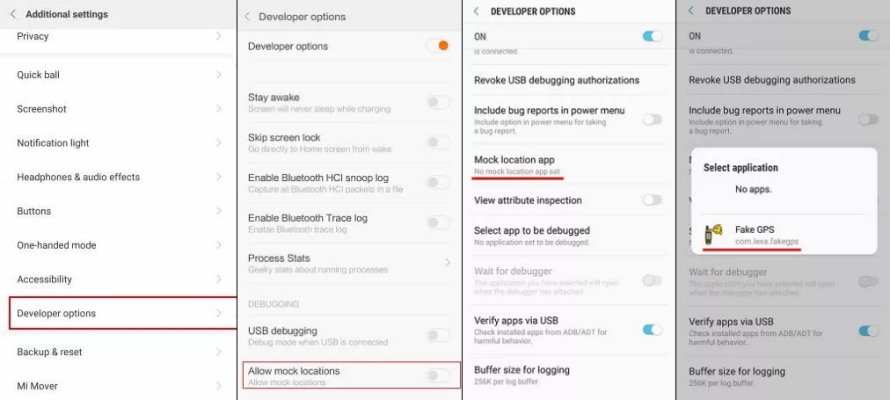
Step 1. Download the Fake GPS Location app on your device.
Step 2. Tap Settings and then enable Developer Mode.
Step 3. Then tap Select Mock Location App.
Step 4. Select Fake GPS Location to change your location on BLK.
Step 5. Then run the software, directly enter the coordinates, or search using regional keywords.
Step 6. After taping the start button, location will move to the specified location.
Method 3. Change BLK Location via VPN Services
In addition to using location spoofing tools, you can also use a VPN service to change the location of your BLK. However, this cannot change the device's GPS location. If you simply want to change your IP address, then using a VPN service to change the BLK location is an ideal option. Follow the steps below to use a VPN service.
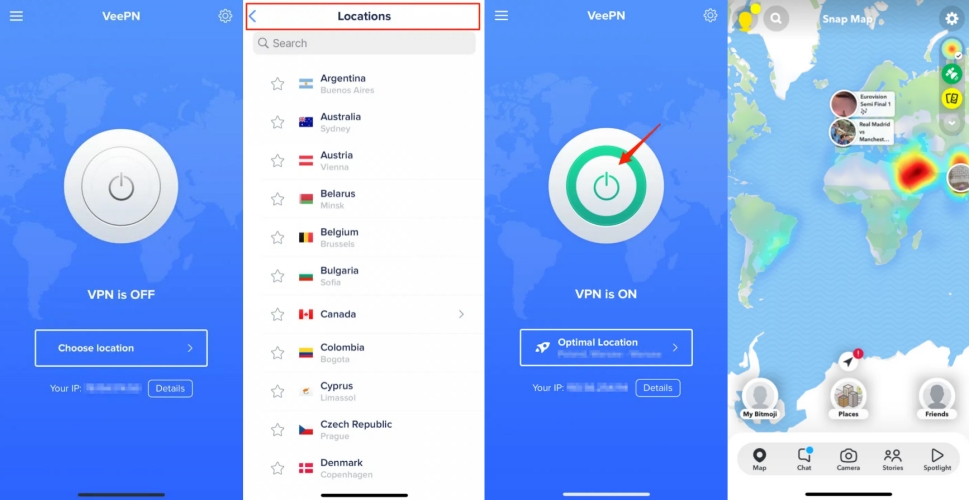
Step 1. Download and install your chosen VPN service on your device.
Step 2. Launch the VPN app and grant permission for the VPN configuration settings.
Step 3. Pick a server location from the list of available options.
Step 4. Hit the Connect button to switch your phone’s IP address to the selected location.
Part 3.Troubleshooting: BLK App Location Not Working
The BLK dating app depends heavily on your phone's GPS to show nearby matches. If the BLK app location is not working, you may notice issues like BLK not updating your location, matches showing up from the wrong city, or BLK stuck on an inaccurate position. Whatever location issues you're encountering, you can fix them with the following solutions.
Solution 1. Turn on Location Services for BLK
BLK cannot access GPS without permission. If permission is missing or set to Deny, the app will not know your exact position. Enabling location access restores the app's ability to read your coordinates. Follow these steps to enable location permissions for BLK.
On iPhone

Step 1. On your iPhone, go to Settings > Privacy & Security > Location Services.
Step 2. Turn on Location Services, then find and tap BLK.
Step 3. Under Allow Location Access, select Always.
On Android Phone
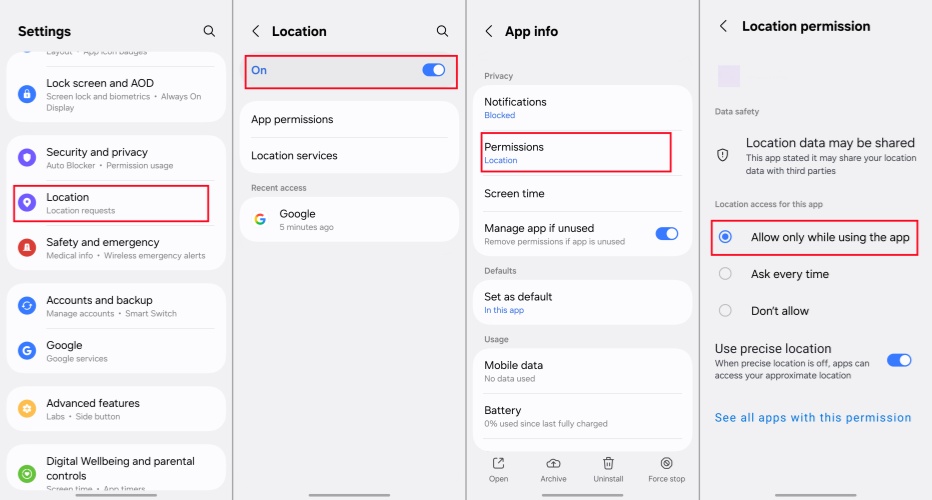
Step 1. On your Android phone, open Settings > Location.
Step 2. Turn on Location, then go to Apps and find BLK.
Step 3. Tap Permisssions > Location and select Allow only while using the app.
Solution 2. Delete and Reinstall the BLK App
Reinstalling BLK ensures you have the latest bug-free version with proper location support. While encountering the BLK app location not working issue, you can delete the BLK app on your phone, then reinstall it from the App Store or Google Play store.
Solution 3. Update BLK to the Latest Version
Outdated app versions often contain bugs affecting GPS. Make sure that the BLK app has been updated to the latest version on your phone. Follow the steps below to update the BLK app.
On iPhone

Step 1. Open the App Store and tap your profile picture.
Step 2. Check if there's an update for BLK, then tap Update.
On Android Phone
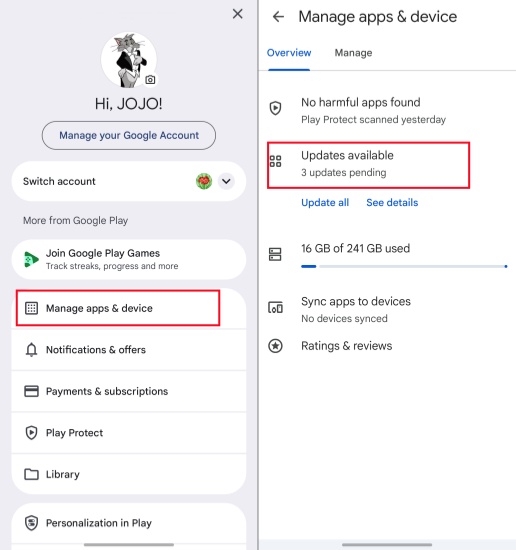
Step 1. Launch the Google Play store and press your profile picture.
Step 2. Tap Manage apps & device > Updates available.
Step 3. Check if there's an update for BLK and tap Update.
Solution 4. Restart the BLK App and Your Phone
A reboot resets the GPS module, clears temporary glitches, and refreshes app permissions often fixing stuck or inaccurate location detection. To fix the issue, completely close the BLK app by removing it from the recent apps list, then reopen it. Or power off your phone and restart it.
Solution 5. Clear Cache Data in the BLK App (Android)
Corrupted cached data can prevent BLK from updating your location. Clearing the cache forces BLK to reload fresh location data from the system.
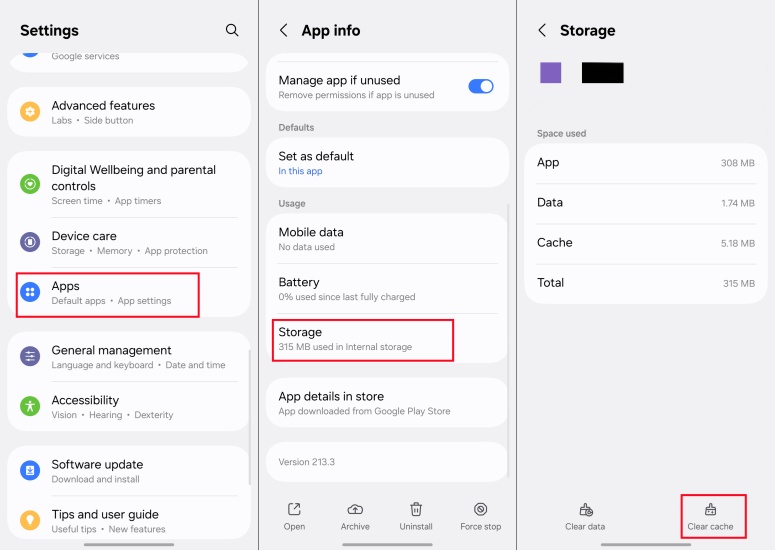
Step 1. After entering Settings , tap Apps > BLK > Storage .
Step 2. Tap Clear cache to clear the cache.
Solution 6. Enable Background Refresh for BLK (iOS)
Allowing the BLK app to run in the background can enable it to access background services like real-time GPS. To fix the issue, turn on Background App Refresh for BLK if location services are not working properly.
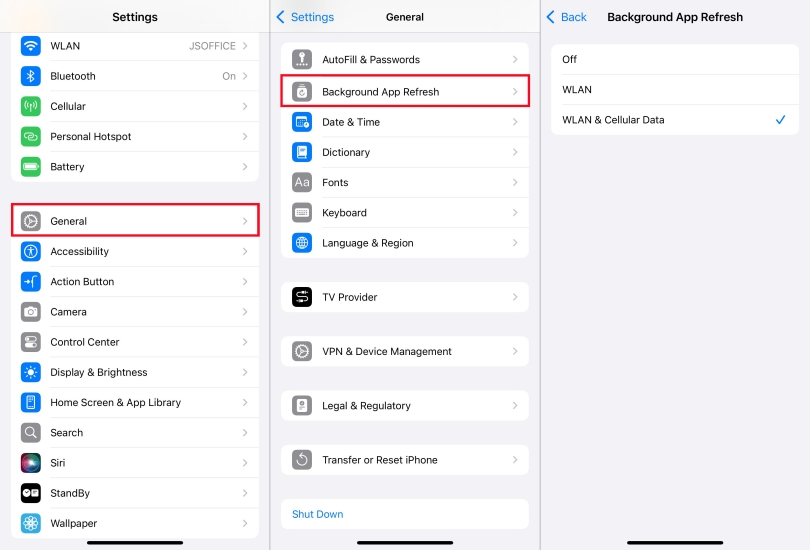
Step 1. Go to Settings > General > Background App Refresh.
Step 2. Tap Background App Refresh, then select WLAN & Cellular Data.
Step 3. Go back to Background App Refresh and toggle on the switch next to BLK.
Part 4. Conclusion
Whether you're planning a trip or simply want to experience different dating scenarios, changing your location on BLK offers numerous opportunities to meet new people and build friendly connections. Among the many ways to change your location on BLK, MagFone Location Changer provides the best solution, allowing you to connect with matches from different locations. Try changing your location on BLK with MagFone Location Changer now.

Edgar Davis
Editor in chief





