








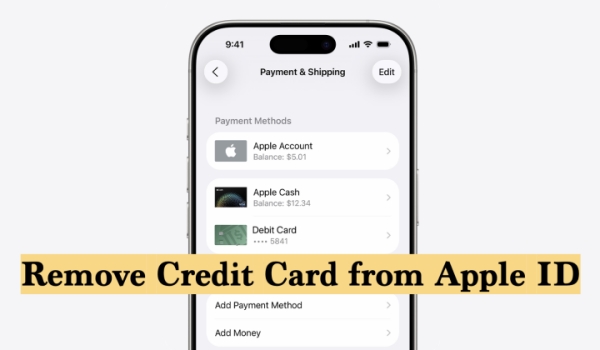
Managing the payment information linked to your Apple ID is an important part of protecting your privacy and keeping control of your purchases. Whether you've changed cards, no longer want to keep your credit card on file, or are simply tightening up your account security, knowing how to remove a credit card from Apple ID can be very useful. In this guide, we'll walk you through several simple ways to remove your card online, on your iPhone or iPad, and through iTunes, and explain what to do if you run into issues.
- Part 1. How Do You Remove Credit Card from Apple ID?
- Part 2. How to Remove Credit Card from Apple ID
- Part 3. What to Do If You Can't Remove Credit Card from Apple ID?
- Part 4. Bonus Tip: Remove Apple ID from iPhone without Password
- Part 5. Conclusion
Part 1. How Do I Remove Credit Card from Apple ID?
You can manage your payment methods for your Apple ID in several ways: through the Settings app on your device, online in your Apple account, or in iTunes.
Before you remove a credit card from your Apple ID, keep in mind that you might not be able to delete it if any of the following apply:
- You have an active subscription billed through Apple
- You have an unpaid order on your account
- It's currently the only payment method on your Apple ID
Once you know these items, you can follow the steps in Part 2 to successfully remove a credit card from your Apple ID. If you have issues, you can go to Part 3 to solve them, then follow the steps in Part 2.
Part 2. How to Remove a Credit Card from Apple ID
Depending on what you're using, you can remove your credit card directly on your iPhone or iPad, from a web browser, or through iTunes on your computer. Below are three options. Choose the one that's most convenient for you.
Option 1. Remove Credit Card from Apple ID Online
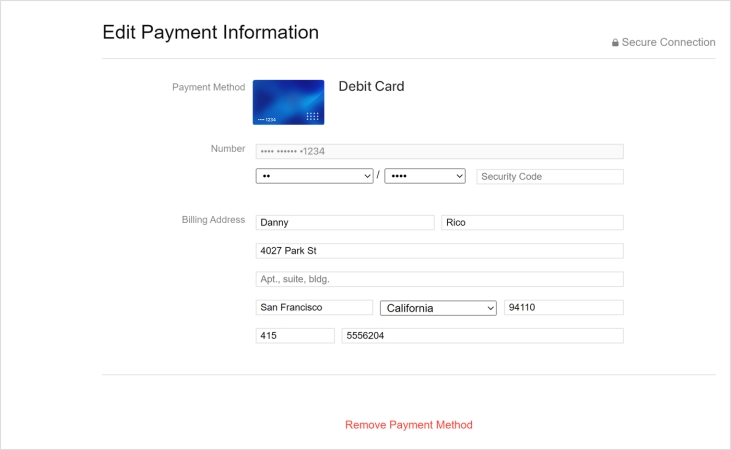
Step 1. Go to the Apple Account page and sign in with your Apple ID. account.apple.com
Step 2. Click Payment & Shipping to view all your credit cards that are linked to this Apple ID.
Step 3. Click Edit next to the credit card you want to remove from the Apple ID.
Step 4. Click Remove Payment Method to remove the credit card from your Apple Account.
Option 2. Remove Credit Card from Apple ID on iPhone/iPad
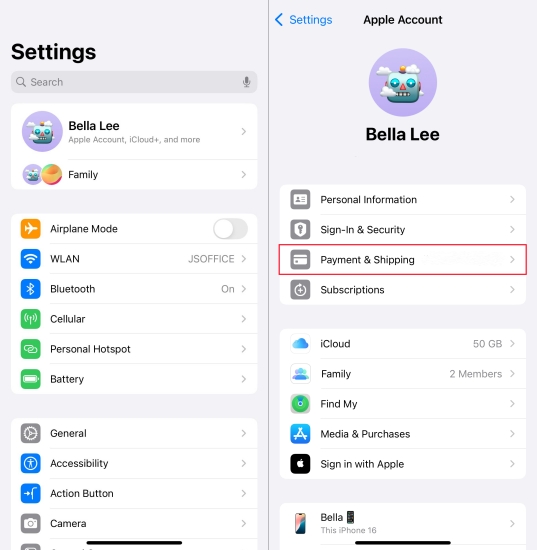
Step 1. Go to Settings on your iPhone or iPad and tap the Apple ID.
Step 2. Tap Payment & Shipping to see all added credit cards under this Apple ID.
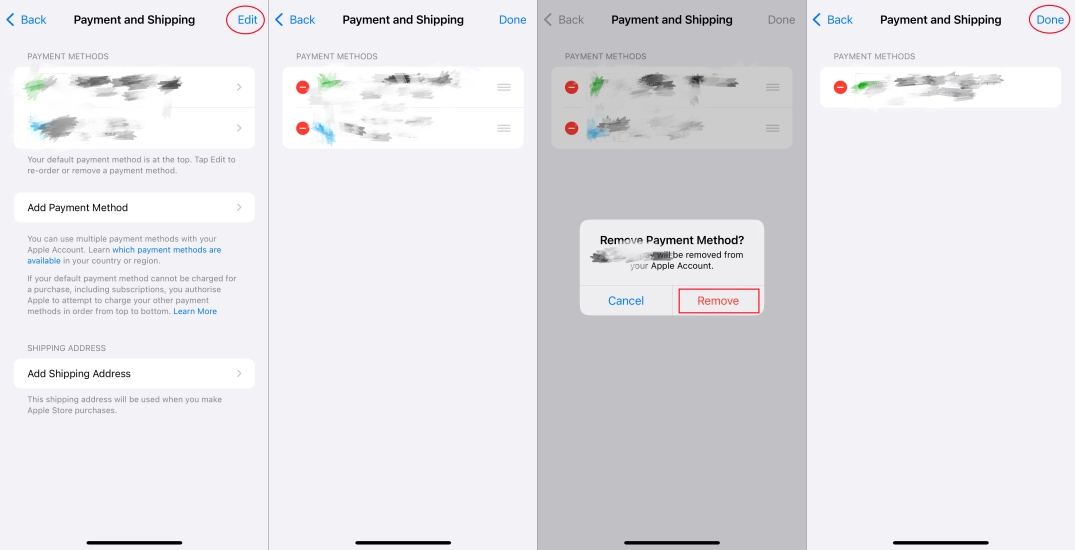
Step 3. Tap Edit, then tap the delete icon of the credit card you want to remove.
Step 4. Tap Remove to remove the credit card from your Apple ID.
Option 3. Remove Credit Card from Apple ID on iTunes
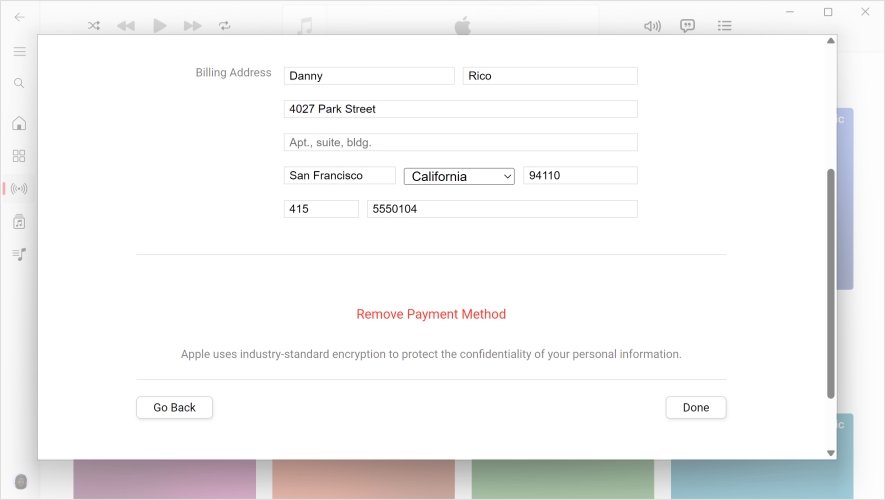
Step 1. Open iTunes and click Account from the menu.
Step 2. Click View My Account > Manage Payment Methods.
Step 3. Click Edit next to the credit card, and click Remove Payment Method to remove it from your Apple ID.
Part 3. What to Do If You Can't Remove a Credit Card from Apple ID?
If you see an "Unable to Remove" message when trying to delete a credit card from your Apple ID, check the explanation shown under the message first. It usually tells you what's preventing you. In most cases, you can fix the issue by trying the methods below.
Method 1. Check Subscriptions and Unpaid Orders
Before removing a card, make sure there are no active subscriptions or unpaid orders tied to that payment method.
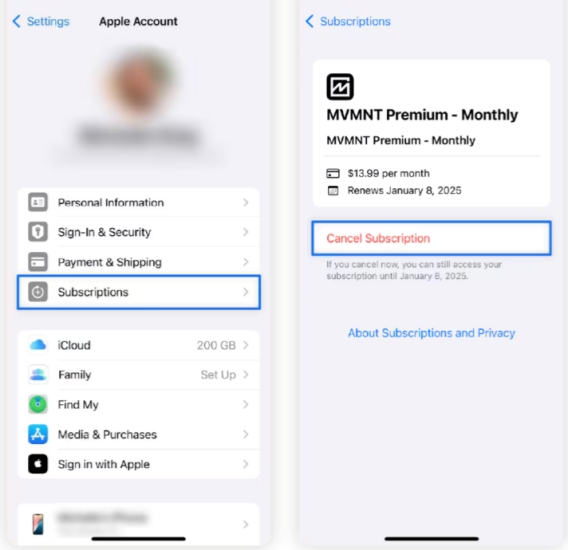
Step 1. Open Settings on your device and tap your Apple ID at the top.
Step 2. Tap Subscriptions and check whether there is an unpaid order or any ongoing subscription.
Step 3. If there is an unpaid order, complete the payment. If there is an active subscription you no longer need, cancel it and then try removing the credit card again.
Method 2. Stop Family Purchase Sharing
If you're part of a Family Sharing group with Purchase Sharing turned on, your payment method might be used for family purchases and cannot be removed.
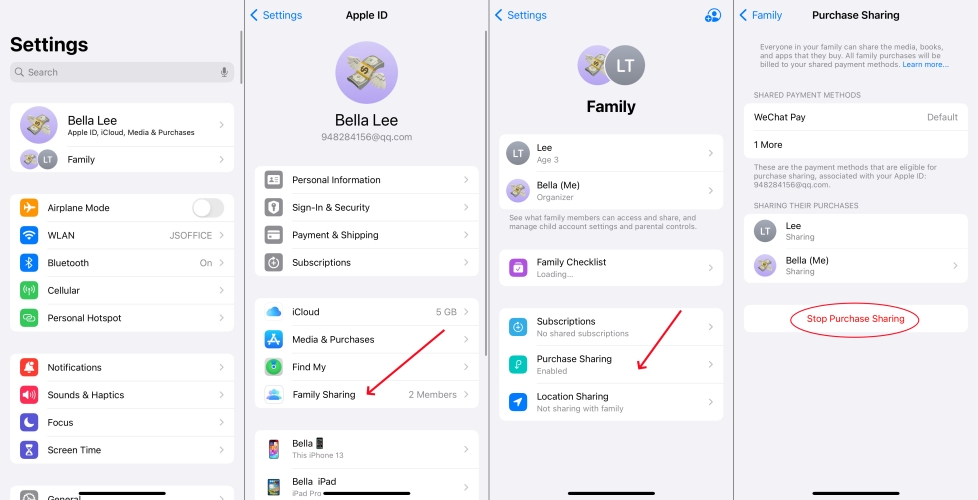
Step 1. Go to Settings > Apple ID > Family Sharing.
Step 2. Tap Purchase Sharing, then tap Stop Purchase Sharing.
Method 3. Add a New Payment Method First
If this is the only payment method on your Apple ID, Apple may require you to add another payment option before you can remove the existing card.
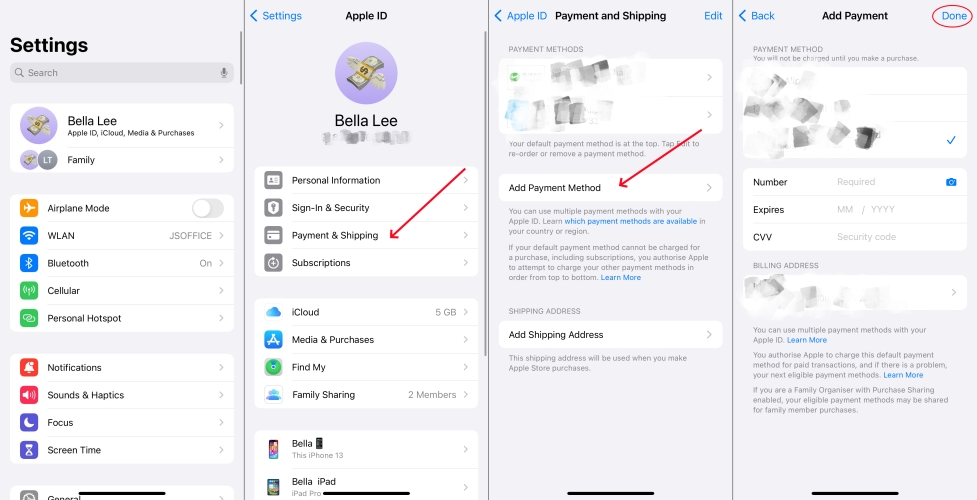
Step 1. Go to Settings > Apple ID > Payment & Shipping.
Step 2. Tap Add Payment Method, enter the required information, then tap Done.
Step 3. After the new payment method is added, go back and remove the original credit card from your Apple ID.
Part 4. Bonus Tip: Remove Apple ID from iPhone without Password
Managing Apple ID information is quite essential for persistent use. For users who have any issues with their Apple ID, MagFone iPhone Unlocker can be a versatile assistant. It can remove a lock screen passcode, Screen Time passcode, MDM restrictions, iPhone backup encryption, and even an Apple ID from an iPhone, iPad, or iPod without needing the original passcode or password. This can be especially useful if you're locked out of an account or using a second‑hand device and need to regain full access quickly. Below is how to remove Apple ID from iPhone step-by-step:

MagFone iPhone Unlocker
Unlock various locks on iOS devices, including screen locks, MDM, Apple ID, and Activation Lock without needing a password.
Step 1 Download and Install MagFone iPhone Unlocker
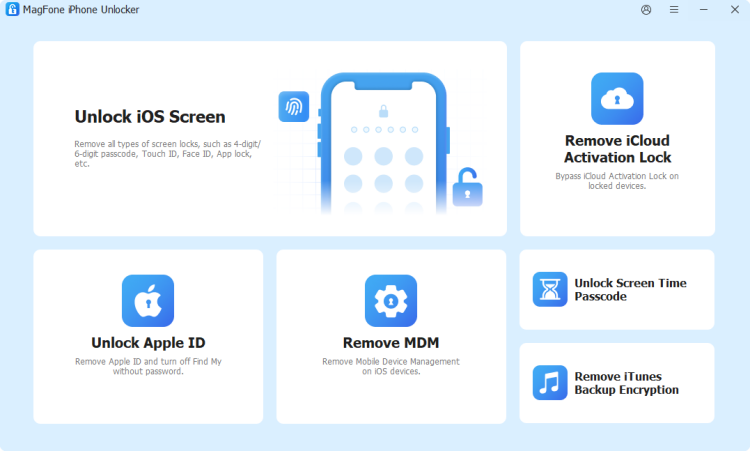
Start by downloading and installing MagFone iPhone Unlocker on your computer. Then use a data cable to link your iPhone to the computer.
Step 2 Choose Unlock Apple ID
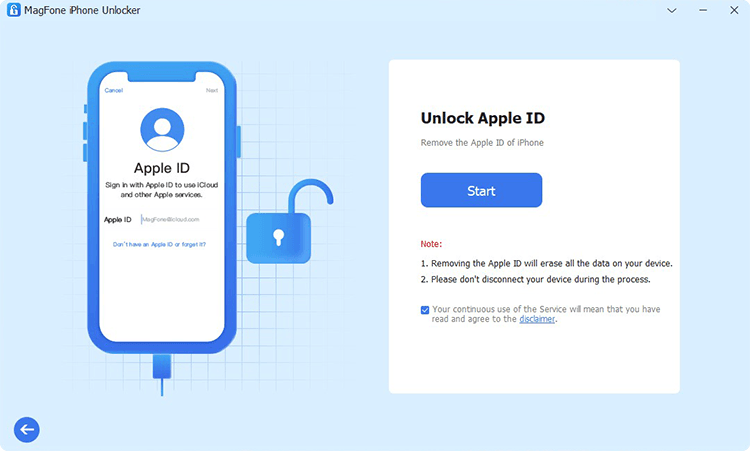
Click Unlock Apple ID from the main interface. And use a data cable to link your iPhone to the computer. Click Start once the iPhone is detected.
Step 3 Download the Firmware Package

If Find My is disabled on iPhone, the tool will remove the Apple ID directly. If not, confirm that the 2FA has been enabled and the iPhone passcode is set on the iPhone. Then click the Download button to download the correct firmware package for your iPhone.
Step 4 Remove Apple ID from iPhone without Password
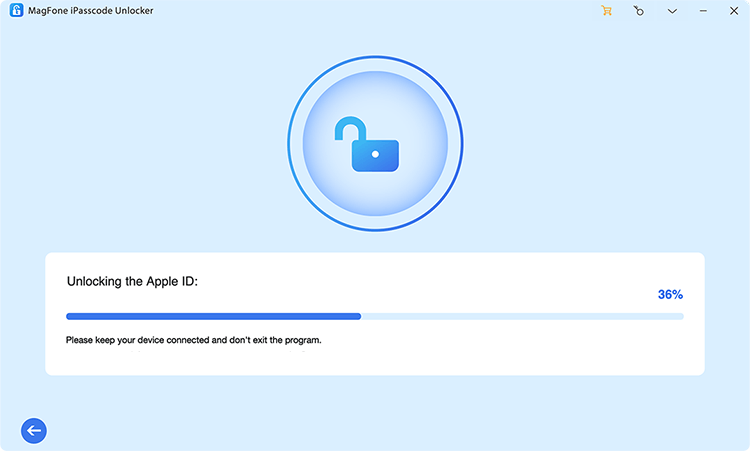
After downloading and verifying the firmware package, the tool will remove the Apple ID from your iPhone without password.
Part 5. Conclusion
Removing a credit card from Apple ID is easy on iPhone, iPad, or Mac. You can easily manage your payment methods after reading this guide and quickly solve issues, even if you can't remove a credit card from your Apple ID. In addition, if you encounter iOS issues related to Apple ID, you can consider using MagFone iPhone Unlocker to fix them.

Dylan Jones
Editor in chief





