








It's essential to understand Samsung OEM lock and unlock if you plan to customize your Samsung device, unlock the bootloader, or troubleshoot why OEM Unlock is missing. If you want to know more about OEM lock or unlock on your Samsung phone or need to enable OEM Unlock, you're in the right place. This guide will explains the concept clearly, walks you through the correct steps, and introduces the feasible solutions.
- Part 1. Overview of Samsung OEM Lock & Unlock
- Part 2. How to Enable OEM Unlock on Samsung
- Part 3. How to Fix Samsung OEM Unlocking Missing
- Part 4. Bonus Tip: Unlock Samsung Phones without Password
- Part 5. Conclusion
Part 1. Overview of Samsung OEM Lock & Unlock
Original Equipment Manufacturer (OEM) lock is a security protection prevent non-expert person from causing damage to their device. So OEM Lock and OEM Unlock refer to the state of a Samsung device's bootloader. Now, let's have a deeper understanding of them.
1.1 What Is OEM Lock in Samsung?
By default, most Samsung devices are shipped with the bootloader locked by the Original Equipment Manufacturer. It can prevent unauthorized individuals, ensure only software officially signed and verified by the manufacturer, and keep the device in a locked state, ensuring full warranty support.
1.2 What Is OEM Unlock in Samsung?
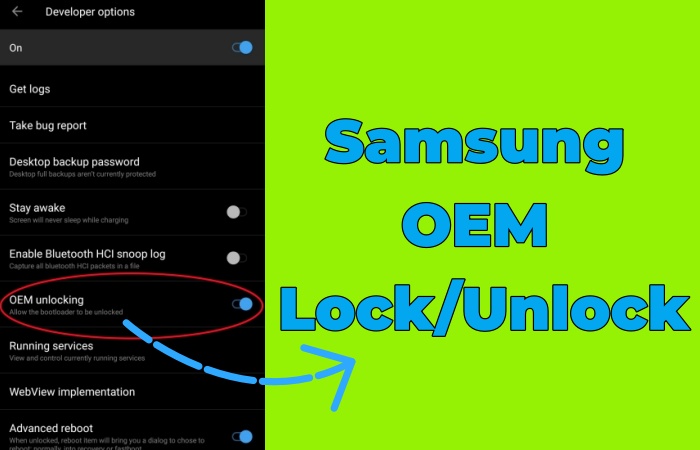
OEM Unlock is usually hidden in the Developer Options menu of Samsung settings. By enabling OEM Unlock, you can install custom software, reflash the stock firmware, and wipe all personal data. But your Samsung device may void the manufacturer's warranty after turning on OEM Unlock.
1.3 Differences between OEM Lock and Unlock
Based on basic information of OEM Lock and Unlock, the differences between them are clear. A simple summary of their differences is prepared for reference.
| Feature | OEM Lock | OEM Unlock |
|---|---|---|
| Definition | Default security preventing bootloader unlocking | Developer option granting permission to unlock |
| Data Loss | No | No |
| Risk | Device remains fully secure | Minimal, only enables unlock |
| Availability | Always | May be hidden |
| Effect | Prevents any bootloader changes | Allows bootloader to be unlocked |
| Reversibility | Yes | Yes |
Part 2. How to Enable OEM Unlock on Samsung
After understanding the information about OEM Unlock, you may want to enable OEM Unlock to realize full control over the use of your Samsung device. Now, follow the steps below to enable OEM Unlock on Samsung.
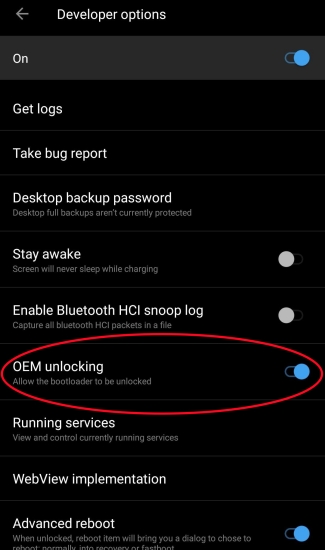
Step 1. To prevent accidental data loss, backup your important data in Settings first.
Step 2. Head to Settings > About phone > Software information.
Step 3. Tap Build number seven times to turn on Developer mode.
Step 4. Back to the Settings menu and go to Developer options.
Step 5. Scroll down to enable OEM unlocking.
Part 3. How to Fix Samsung OEM Unlocking Missing
If your Samsung phone supports OEM Unlock, it's easy to enable it on your device. But sometimes, you may find the OEM Unlocking option is missing. Why is the OEM Unlocking missing, and how to be fixed? There are some common reasons to cause OEM Unlocking missing on Samsung devices:
- Developer Mode is not enabled.
- The Samsung account is not properly synced.
- Factory Reset Protection is triggered.
- The firmware on the device is outdated.
- The device is locked by the carrier or manufacturer.
After finding out the reasons why the OEM Unlocking option is missing, you can refer to the solutions below to fix the problem exactly.
Solution 1. Enable Developer Options
Before accessing OEM Unlocking, you have to first enable Developer Options. With the hidden Developer Options appearing in the Settings menu, you can enable OEM Unlock successfully.
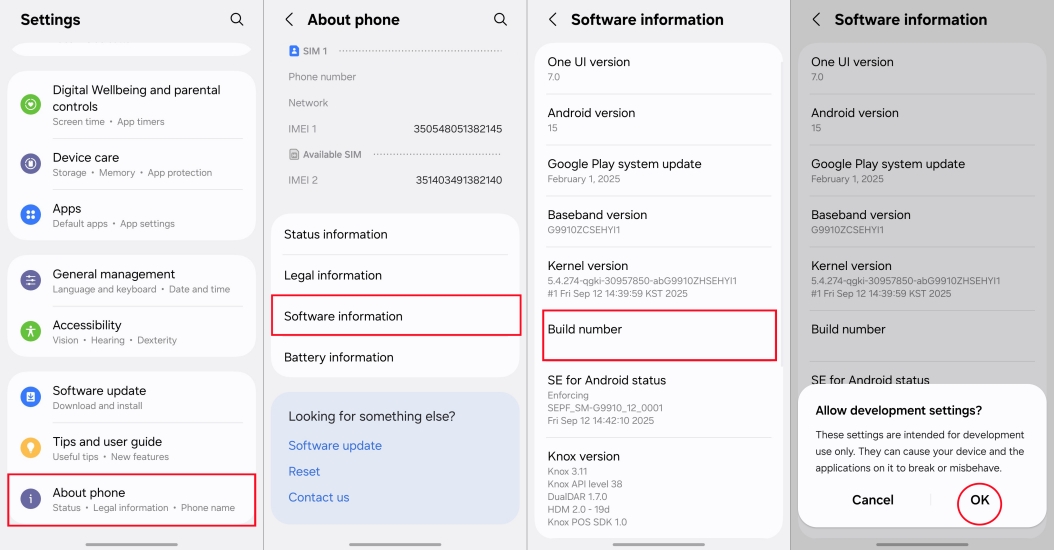
Step 1. Open Settings > About phone > Software information.
Step 2. Find and tap Build number seven times until the notification Developer mode has been turned on appears.
Solution 2. Turn Off Auto Update System
Turning off Auto Update System prevents software updates from overwriting your settings, including hiding or disabling OEM Unlocking. So you can turn it off to keep the current settings of your Samsung phone and enable OEM Unlock.
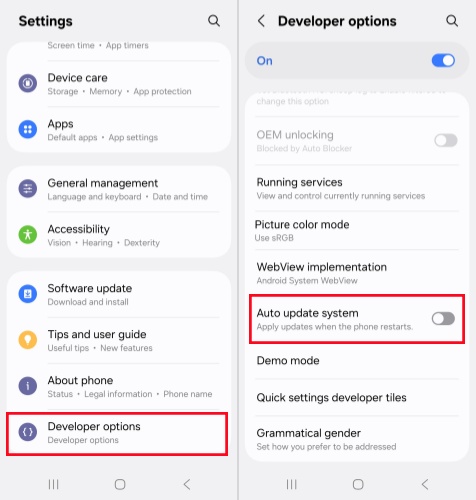
Step 1. Press the Developer Options at the bottom of the Settings menu.
Step 2. Toggle off the Auto update system.
Solution 3. Disable Automatic Date & Time
Disabling Automatic Date & Time can trick the Samsung servers into thinking the phone is older or has been offline, bypassing the seven days wait for the OEM Unlock option to appear in Developer options. The option of OEM Unlock will appear normally.
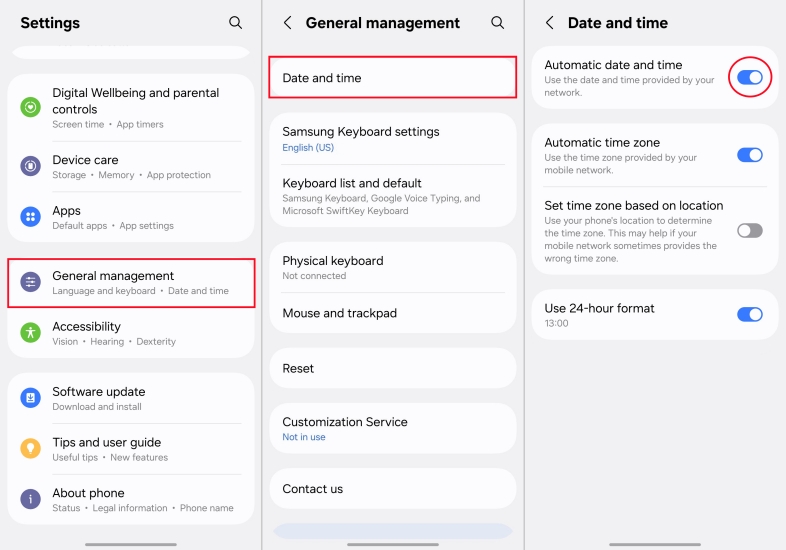
Step 1. Run Settings and find General management.
Step 2. Tap Data and time, switch the Automatic data and time to off.
Solution 4. Reset Devices to Factory Settings
If you have tried the above methods and no response, you can factory reset your Samsung device. A factory reset can fix system glitches and update firmware, including solving the problem of OEM Unlocking being missing. But it also erases all your personal data. So remember to backup your data first.
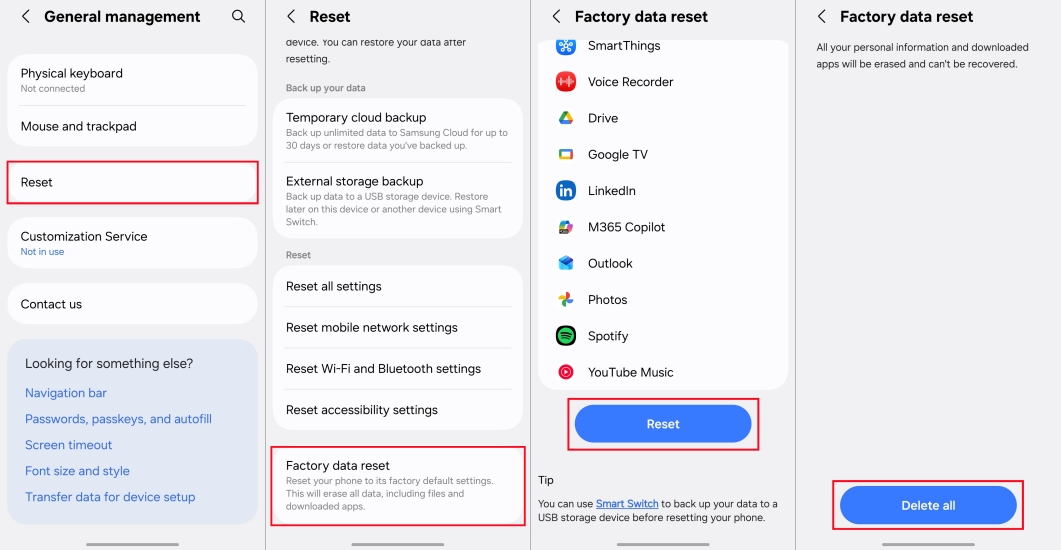
Step 1. Fire up Settings > General management > Reset.
Step 2. Select Factory data reset, and confirm your choice with Reset and Delete all.
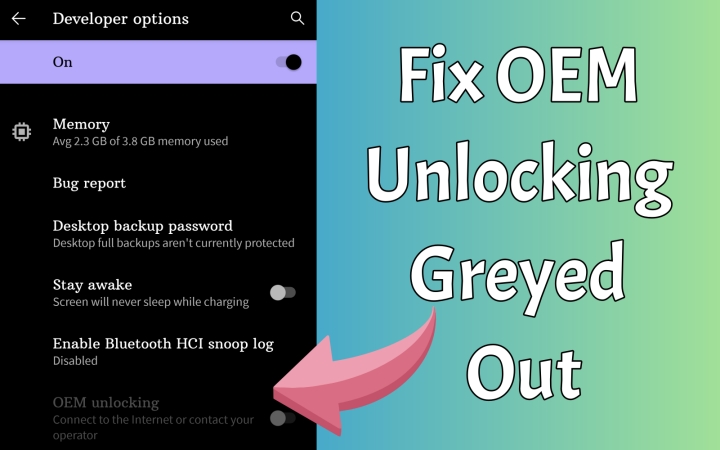
OEM Unlocking Greyed Out: Causes and Fixes
Try to unlock bootloader on your Android phone but find OEM unlocking is greyed out? Luckily, this guide will walk you through how to fix OEM unlocking greyed out.
Read More >>Part 4. Bonus Tip: Unlock Samsung Phones without Password
Are you still struggling with a locked Samsung phone without a password? Do you want to unlock it and enable OEM Unlock? Take it easy! After entering your Samsung phone without a password, you can enable OEM Unlock easily and quickly. There is the best method for you to unlock a Samsung phone without a password.MagFone Android Unlocker is an excellent choice for you to unlock your Samsung phone. The step-by-step guide will show you how to unlock Samsung phones with several clicks.

MagFone Android Unlocker
Remove multiple kinds of screen locks on over 5000 Android devices and delete Google FRP lock without a password.
Step 1 Fire up MagFone and Connect to Your Samsung Phone
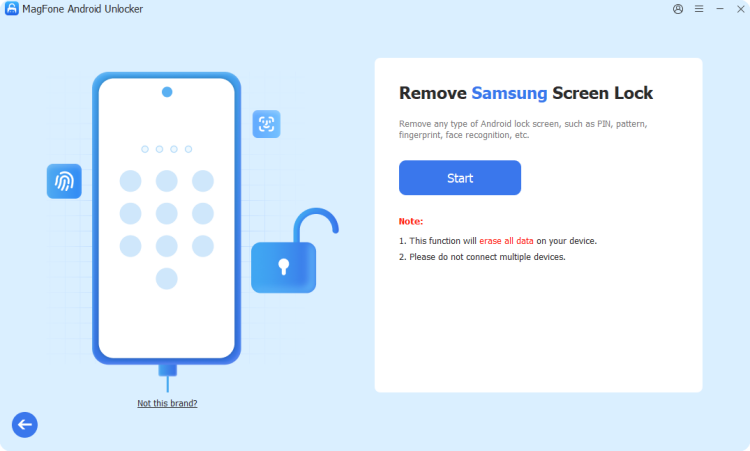
Connect your Samsung phone to a computer by using a USB cable. Open MagFone Android Unlocker and choose Remove Screen Lock. Your device will be detected automatically later.
Step 2 Put Samsung Phone into Recovery Mode
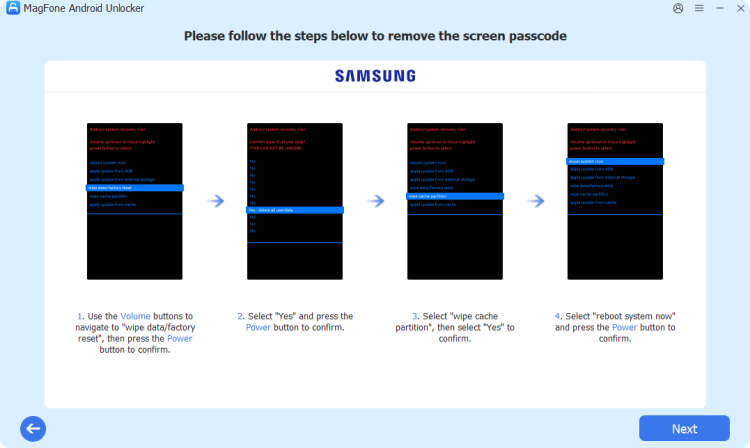
Operating your Samsung phone in Recovery Mode by following the on-screen steps. After entering Recovery Mode, choose Next.
Step 3 Remove Screen Lock Quickly

MagFone will remove your screen lock quickly and safely. When finished, you can enter your Samsung phone without a screen password.
Part 5. Conclusion
OEM Lock is designed to prevent your Samsung phone from attaching unknown security risks, but enabling OEM Unlock is also permitted. While some users may encounter the OEM unlocking missing issue, using the above solutions can easily solve the issues. By the way, MagFone Android Unlocker can help you enter your Samsung phone without a password, then you can open OEM Unlock quickly and easily.

Dylan Jones
Editor in chief





