








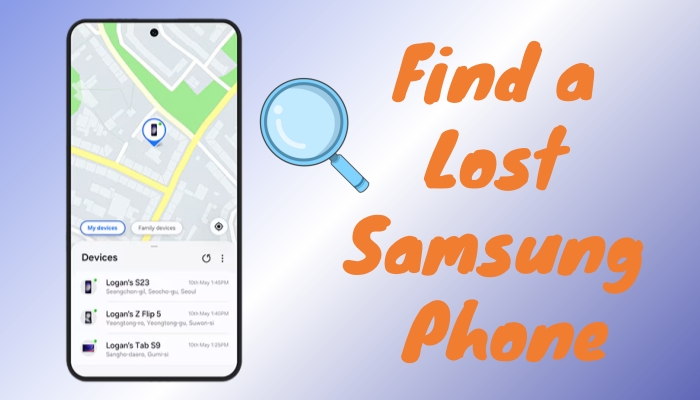
Losing your Samsung phone can be stressful. It is extremely risky that someone has the ability to hack the lost device and access all the information stored. If you're searching for "find a lost Samsung phone", you likely want fast, clear, and reliable steps, not vague advice. This comprehensive guide is designed to help you locate your Samsung phone, protect your data, and understand your options honestly. It follows official Samsung and Google methods, avoid unrealistic promises, and focuses on real solutions that work. Take a break, then follow the steps below in order.
- Part 1. How to Find a Lost Samsung Phone
- Part 2. How to Prevent Losing Your Samsung Phone Again
- Part 3. Bonus: Unlock a Locked Samsung Phone without Password
- Part 4. FAQs about Finding a Lost Samsung Phone
- Part 5. Conclusion
Part 1. How to Find a Lost Samsung Phone
Both official Samsung and Google methods allow users to track a Samsung phone remotely, even when it is lost. But before diving into detailed steps, it helps to know how tracking actually works. Samsung and Google can only locate your device if:
- Your Samsung phone is powered on.
- Remote controls must be enabled.
- The device is connected to a stable network connection.
- You're signed in with your Google or Google account.
If the phone is offline or powered off, you may only see the last known location. This is a technical limitation that any legitimate service cannot bypass. Provided that your lost Samsung phone meets the above conditions, you can use Samsung SmartThings Find or Google Find My Device to track your lost device. Let's dive into details.
Method 1. Track Lost Samsung Phone via Samsung SmartThings Find
Samsung's official tracking tool called SmartThings Find is often the most effective way to find a lost Samsung phone. SmartThings Find is Samsung's built-in service that lets you locate your phone on a map, lock it remotely, make it ring loudly, display a message on the lock screen, and erase data if necessary. Here's how to track lost Samsung phone via SmartThings Find.
📝What You Need:
A Samsung account logged in on your phone.
Location and remote controls enabled before the phone was lost.
Another phone, tablet, or computer with internet access.
Steps to find a lost Samsung phone online
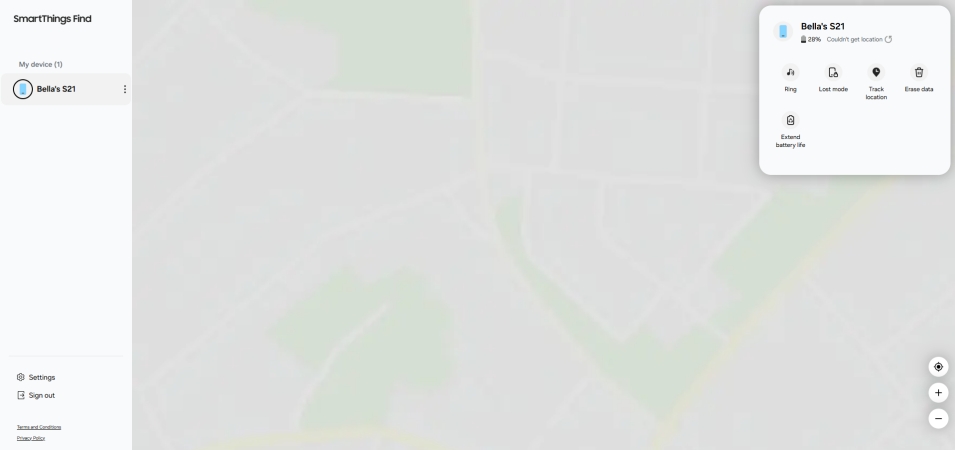
Step 1. On another device, open the SmartThings Find website.
Step 2. Sign in with the Samsung account used on your lost phone.
Step 3. Select your device from the device list.
Step 4. View its location on the map.
How to track a Samsung phone using a Galaxy watch
If you accidentally left your Samsung phone somewhere, you can use your Galaxy watch to locate it. This only works when your Galaxy watch is connected to the phone via Bluetooth or via remote connection over WiFi or LTE.
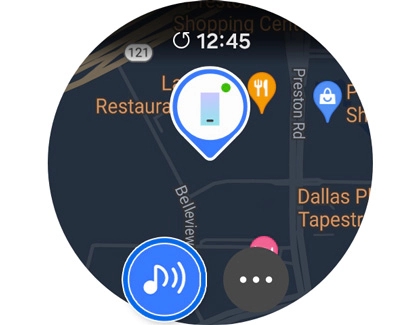
Step 1. Press the Home button, then swipe to and tap Samsung Find.
Step 2. Tap Continue and follow the prompts to allow the necessary permissions.
Step 3. Select your desired device to view its location.
Step 4. Tap the Ring icon to make your device ring.
Step 5. Locate your phone and swipe down on the Dismiss icon.
Method 2. Locate Lost Samsung Phone via Google Find My Device
If Samsung's service isn't available, Google offers a reliable backup option for most Android phones. Google connects your Samsung phone to your Google account. Through its official tracking page, you can see the phone's location, play a sound, secure the device, and erase all data on the phone. Here's how to locate lost Samsung phone via Google Find My Device.
📝What You Need:
Your phone still connects to your Google account.
Location services enabled before the phone was lost.
Another phone, tablet, or computer with internet access.
On the Find My Device Site
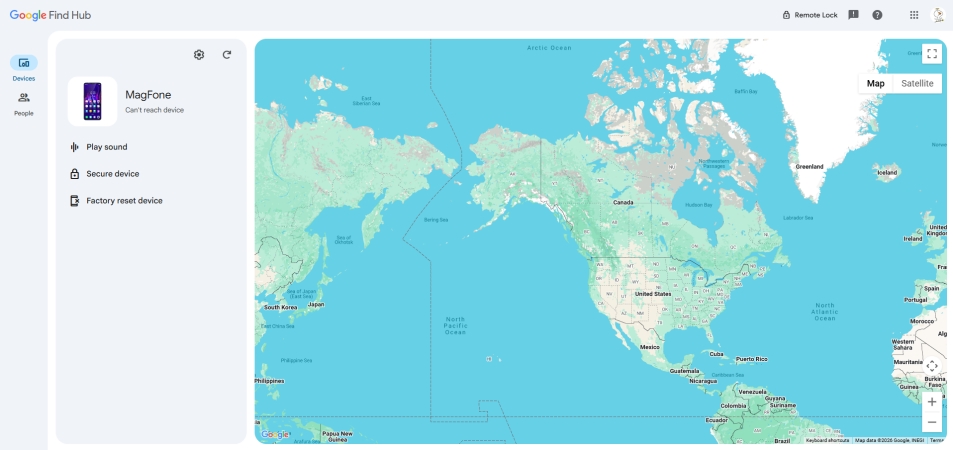
Step 1. Open Google Find My Device on another phone or computer.
Step 2. Log in with the Google account used on your Samsung phone.
Step 3. Select your device from the device list.
Step 4. Review the location and available actions.
In the Find My Hub App
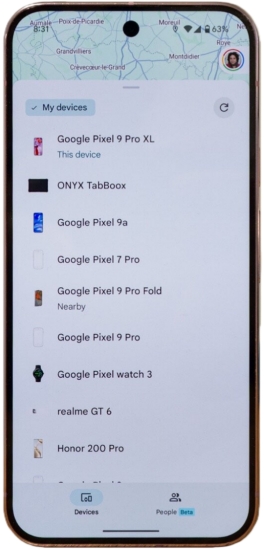
Step 1. Launch the Google Find Hub app on another phone.
Step 2. Sign in using the same Google account linked to your Samsung phone.
Step 3. Tap Devices at the bottom, then choose your device from the list.
Step 4. Check the map for its current or last known location.
How to track lost Samsung phone via Google Timeline
When your lost Samsung phone is lost or dead, you can use Google Timeline to get its last known location. But make sure that your phone is connected to a Google account and has Google Timeline services enabled.
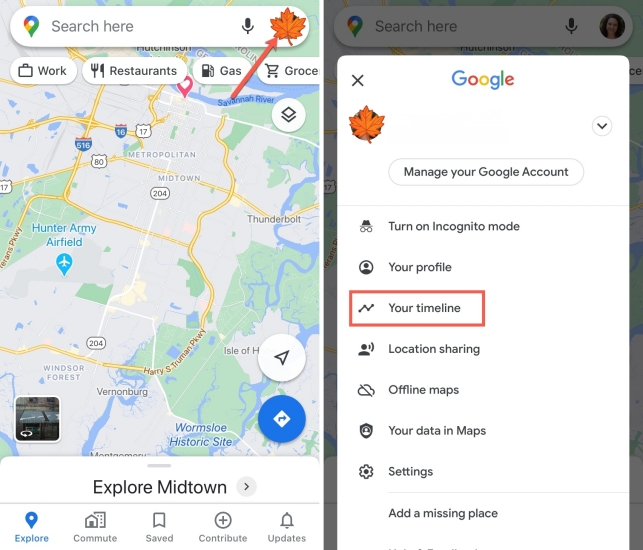
Step 1. On another device, launch Google Maps.
Step 2. Enter your Google account and password to sign in.
Step 3. Open the menu and select Your timeline.
Step 4. Check your location history of your device.
Part 2. How to Prevent Losing Your Samsung Phone Again
If your Samsung phone is lost, you can use SmartThings Find or Google Find My Device to find the device. Once this situation is resolved, you can make some preparations for the future to prevent losing your Samsung phone again. It is recommend to enable settings on the device as either SmartThings Find or Google Find My Device only works when everything is properly set up.
Turn on Remote Unlock and Offline Finding in Samsung settings. Open the Settings app, then tap Security and privacy > Lost device protection > Theft protection. Under Theft protection, tap Offline device lock > Turn on. Then tap Remote lock and toggle on Use Remote Lock.
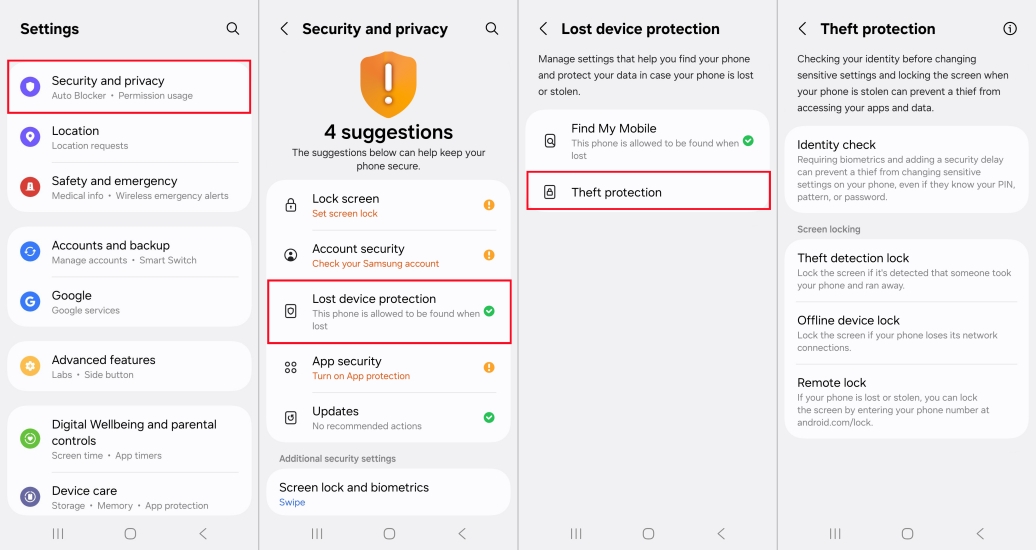
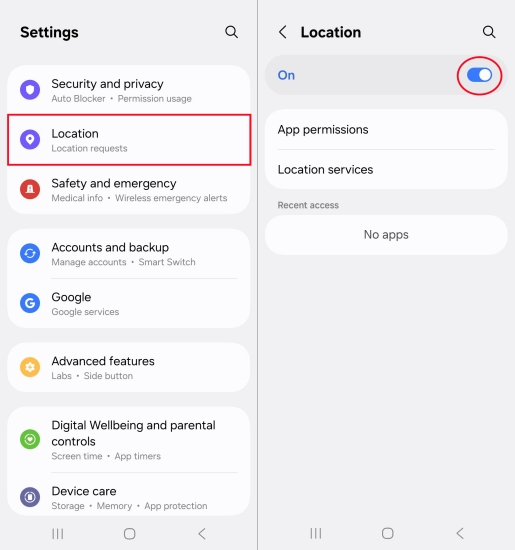
Keep Location services enabled in Samsung settings. In the Settings, tap Location and enable location services.
Sign into both Samsung account and Google account. Navigate to Settings, tap Google > Sign in, and then enter your Google account credentials.
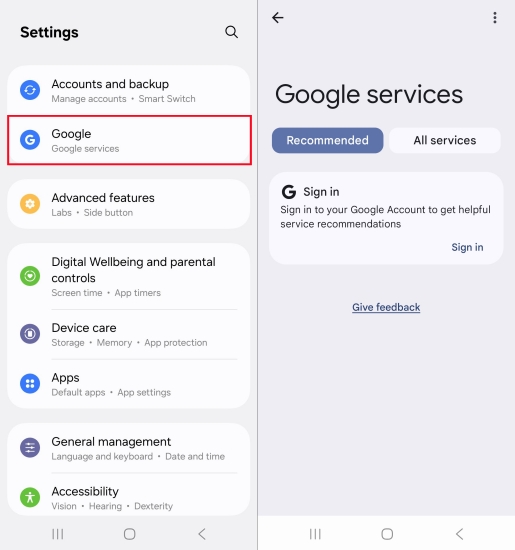
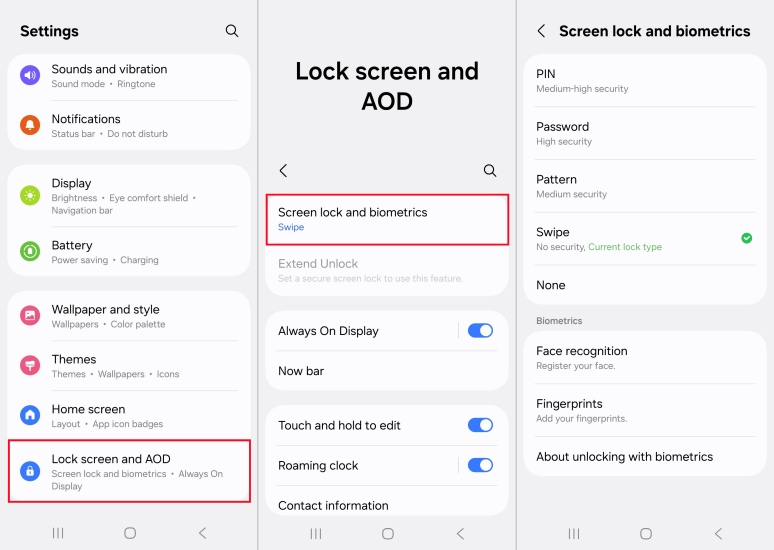
Add a secure lock screen for the Samsung phone. Go to Settings > Lock screen and AOD > Screen lock and biometrics and select PIN or other options. Then set the screen lock for your Samsung phone.
Part 3. Bonus: Unlock a Locked Samsung Phone without Password
Sometimes, people don't lost their phone physical, but still cannot access it. This often happens when you forget your screen lock like PIN, pattern, fingerprint, or face lock after recovering the device. In these situations, a professional unlocking tool may help. One option some users consider is MagFone Android Unlocker, a desktop tool designed to help unlock most Android devices, including many Samsung models. Following is how to unlock a locked Samsung phone without a password using MagFone Android Unlocker.

MagFone Android Unlocker
Remove multiple kinds of screen locks on over 5000 Android devices and delete Google FRP lock without a password.
Step 1 Install MagFone Android Unlocker and Connect Device
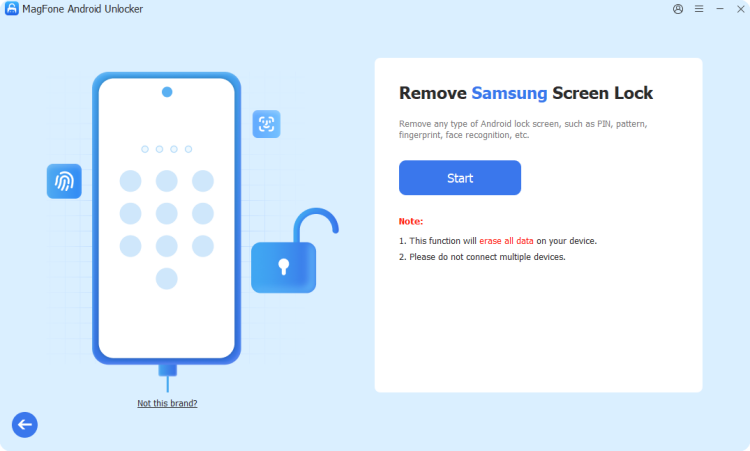
Download MagFone Android Unlocker from the official website, then install and run it on your computer. You will usually see options such as Remove Screen Lock and Remove Google FRP Lock. For unlocking a Samsung phone, simply select Remove Screen Lock. After that, use a USB cable to connect your Samsung phone to the computer.
Step 2 Follow Onscreen Instructions to Recovery Mode
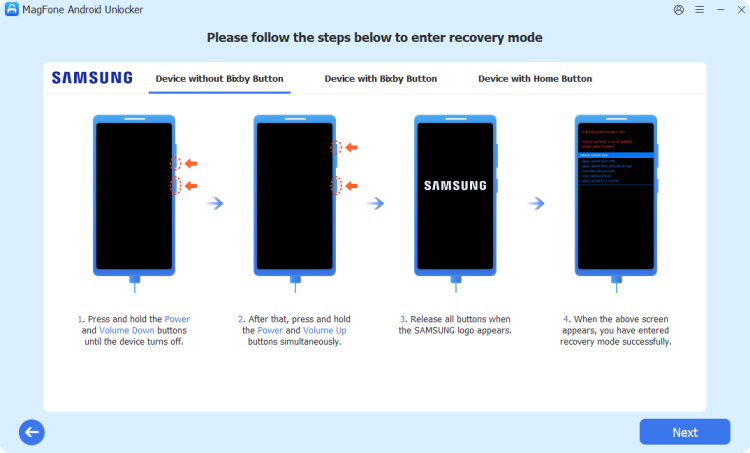
The software should detect your device automatically. MagFone will guide you to put your phone into recovery mode. The software usually shows visual instructions on screen, which make this easier to do. Once the device is recognized and in the correct mode, proceed to the next step.
Step 3 Start the Unlocking Process of Samsung Phone

Click Start Unlock to remove the screen lock on your phone. Wait while the software performs the process as they may take several minutes. Do not disconnect the cable, close the program, or power off your computer in the process. If the process succeeds, your phone will reboot.
Part 4. FAQs about Finding a Lost Samsung Phone
How to find a lost Samsung phone that is dead?
If your lost Samsung phone is dead, you may see the last known location with SmartThings Find or Google Find My Device. But real-time tracking will not update and remote actions may not work until the phone is charged again.
Can I find my Samsung phone using only the phone number?
No. A phone number alone cannot track a device's location. Only official services tied to your Samsung or Google account can provide accurate tracking. To find your lost Samsung phone, you can use SmartThings Find or Google Find My Device to track it.
Do tracking apps from third-party websites work?
Be cautious. Many unofficial sites make unrealistics promises. Stick with Samsung and Google's official tools for safety and accuracy. When your Samsung phone is lost, you can remotely track it with SmartThings Find or Google Find My Device.
How to factory reset lost Samsung phone?
When your lost Samsung phone is connected to a Samsung account and has Find My Phone settings enabled, you can remotely factory reset it on the Find My Mobile website.
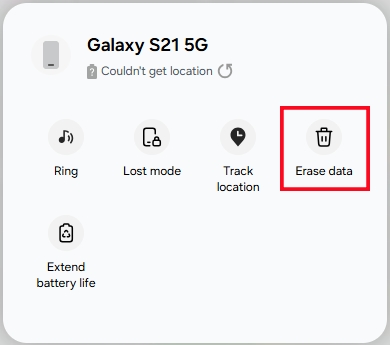
Step 1. On the SmartThings Find website, log into the same Samsung account.
Step 2. From the device list, select your lost Samsung phone.
Step 3. Click Erase data, enter the verification code, and click Verify.
Step 4. Click Erase data > Erase and enter your Samsung password to confirm.
How to lock Samsung phone when lost?
No, there is no way to lock a lost Samsung phone remotely. As the development of Samsung SmartThings Find, the feature of remote locking has been removed for a long time. So, you're unable to lock a Samsung phone when it is lost.
Part 5. Conclusion
The most reliable ways to find a lost Samsung phone are Samsung SmartThings Find and Google Find My Device. They work best when set up in advance. If you're unable to get your lost Samsung phone back using Samsung SmartThings Find or Google Find My Device, you can use some remote controls to protect your data. By the way, if your Samsung phone is locked by the screen lock or Google FRP, try using MagFone Android Unlocker to get it unlocked.

Teresa Miller
Editor in chief





