








I charged my iPhone before I went to bed and woke up, and it's a black screen and won't turn on. I've tried clicking on the volume +/ - and power button sequence to no avail. Doing a quick online search others are experiencing this issue as well, and is some Apple bug. Not really sure what to do other than having to visit an Apple Store to get it wiped and OS reinstalled. How frustrating."
—— From the Apple Community
Having your iPhone refuse to turn on can be a stressful experience, leaving you unsure of what to do next. Whether it's a brand-new device or one that's been working perfectly until now, users may encounter this issue after charging or due to other factors. This guide will cover the different scenarios where your iPhone might not power up and explore the potential causes. We will then offer a range of troubleshooting methods to help you resolve the iPhone won't turn on. Read on for actionable solutions.
- Part 1. Why Won't My iPhone Turn on?
- Part 2. 60-Second Fixes to iPhone Won't Turn on
- Part 3. How to Fix iPhone 17/16/15/14 Won't Turn on
- Part 4. Conclusion
Part 1. Why Won't My iPhone Turn on?
Before applying solutions, understanding the root causes helps you apply the correct fix efficiently. If your iPhone won't turn on, it could be due to external or internal reasons. The most frequent causes of the iPhone won't turn on include:
- Drained or faulty battery
- System crash or iOS glitch
- Hardware damage like water, drops, or overheating
- Charging port obstruction or cable failure
- Failed iOS update or software corruption
Common Cases of iPhone Won't Turn on
The issue of the iPhone won't turn on often happens in various scenarios. Also, identifying the exact situation can help you narrow down the potential causes and determine the appropriate troubleshooting steps. Here are some common cases where an iPhone won't turn on.
Case 1. iPhone Won't Turn On or Charge
The iPhone is unresponsive and won't show a charging icon. It usually occurs due to broken cables, faulty power adapters, or a dirty charging port.
Case 2. iPhone Died and Won't Turn On
The iPhone “died” and won't wake up at all, even when plugged in. The device appears completely unresponsive after hardware damage like a drop or significant system errors.
Case 3. iPhone Won't Turn On after Update
The screen stays black immediately after an iOS update or system patch. This issue might be due to software bugs, interrupted installations, or corrupted files during the update process.
Case 4. iPhone Won't Turn On after Dying
The iPhone won't turn on immediately after the battery hit 0%. The battery is too low to boot the operating system. It may need 30-60 minutes of charging before the screen reacts.
Case 5. New or Old iPhone Won't Turn On
Issues occurring on a brand-new phone or a very old one. New phones may have manufacturing defects; old phones usually suffer from natural wear and tear or internal component failure.
How to Diagnose iPhone Won't Turn on
When you cannot ensure the cause of why your iPhone won't turn on, you can make some inspections to determine if the iPhone is truly "off" or if the display is simply malfunctioning. So, to ensure if your screen is broken or if the iPhone is dead, diagnose with the following steps.
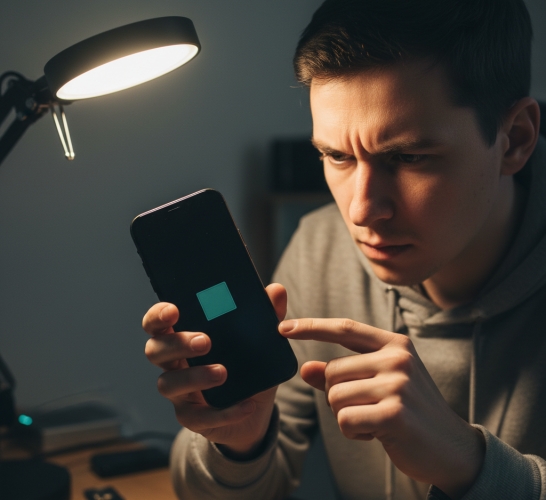
The Sound Test: Toggle the Silent/Ring switch or the Action Button. If you feel a vibration, the phone is on, but the screen is dead.
The Computer Test: Plug your iPhone into a computer. If the computer recognizes the device, your hardware is likely fine, but your display or iOS needs attention.
The Heat Check: If your iPhone is noticeably hot, it may have shut down to protect the battery. Let it cool in a shade for 30 minutes before trying to turn it on again.
Part 2. 60-Second Fixes to iPhone Won't Turn on
When your iPhone refuses to turn on, the first step is to check for any external issues that may be preventing it from powering up. These issues could be the result of something as simple as a faulty charger or a dirty charging port. Here are some quick fixes you can try.
Method 1. Charge Your iPhone Properly
The most overlooked issue is a completely drained battery. When your iPhone won't on, the first thing you should check is whether it's running out of power. If the battery is deeply drained, the screen may remain black for several minutes before showing the charging icon.
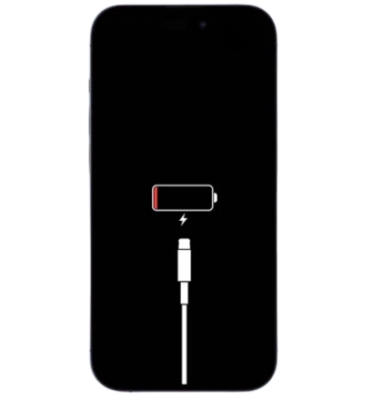
Step 1. Connect your iPhone to a certified charger and cable.
Step 2. Plug into a wall outlet, not a laptop USB port.
Step 3. Leave it charging for at least 30 minutes.
Pro Tip:
Use only high-quality or original charging accessories to avoid power inconsistencies.
Method 2. Wait and Reboot iPhone
Sometimes, the issue could be a temporary software glitch that is preventing the iPhone from starting up. In such cases, wait for a few minutes and then perform a Force Restart. This does not erase your data, and it simply cuts and restores power to the processor to break a software loop.
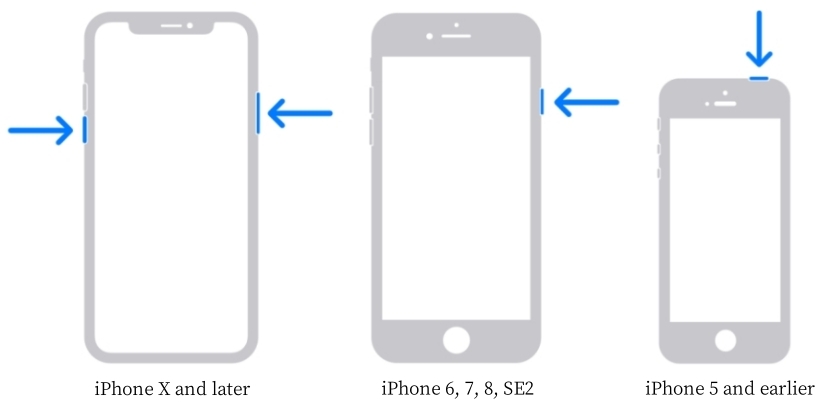
For iPhone 8 through iPhone 17:
Press and quickly release the Volume Up button. Press and quickly release the Volume Down button. Press and hold the Side button until the Apple logo appears on the screen.
For iPhone 7 and 7 Plus:
Press and hold the Side button and the Volume Down button at the same time until you see the Apple logo.
For iPhone 6s and earlier:
Press and hold both the Home button and the Top button simultaneously until the Apple logo appears.
Method 3. Inspect Charging Port and Cable
If the Force Restart failed, the battery might be "deep discharged." However, the issue often isn't the battery, and it's the path the electricity takes to get there. A faulty connection can prevent your device from receiving power. In this case, it is suggested that you do some things.
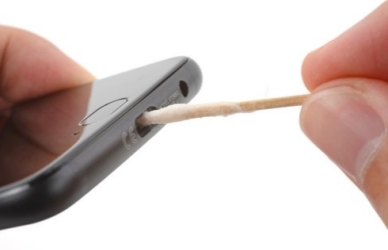
- Check for dust, lint, or debris in the charging port
- Use a soft brush or wooden toothpick to clean gently
- Test with a different cable and adapter
Method 4. Check for Overheating or Physical Damage
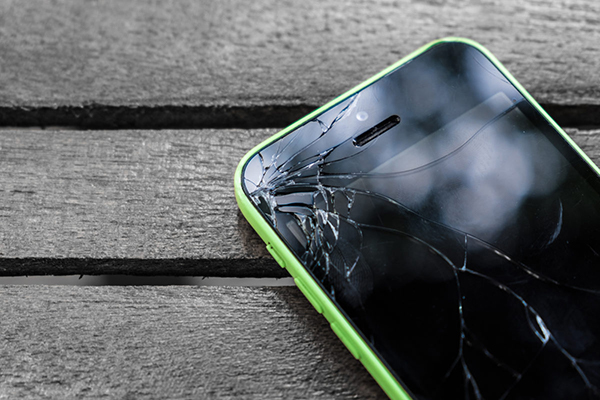
If you have tried a Force Restart, verified your charger works, and the computer doesn't recognize the device, your iPhone likely has a hardware failure. Check the screen or back glass, and make sure whether there is physical damage. Or make sure whether the battery has reached the end of its chemical life after a long time of use.
Part 3. How to Fix iPhone 17/16/15/14 Won't Turn on
If external fixes don't resolve the issue, the problem could be internal, such as software corruption or system glitches. In this case, you may need to try software-related solution or seek professional assistance to address the issue further.
Method 1. Restore iPhone in Recovery Mode
If your iPhone still won't turn on, or if it turns on but gets stuck on the Apple logo, you need to use Recovery Mode. It restores the device to normal from any state. However, this will erase all the data and settings on the device, which causes the inconvenience to you.

Step 1. On a Mac, open Finder. On Windows, open the iTunes.
Step 2. Connect your iPhone to a computer.
Step 3. Perform the Force Restart steps listed above, but do not release the Side button when you see the Apple logo. Keep holding it until the "Connect to Computer" screen appears.
Step 4. A window will pop up on your computer. Choose Restore. This will attempt to reinstall iOS, but erase your data.
Method 2. Restore iPhone via a Third-Party Tool
When an iPhone remains unresponsive despite basic troubleshooting, MagFone iOS System Recovery provides a reliable and efficient solution to restore the device without technical complexity. This professional tool is designed to resolve various iOS system issues, including a black screen, stuck Apple logo, or a device that refuses to power on.
With its neat interface and multiple functions, MagFone iOS System Recovery is able to give you the best experience ever. It works by repairing the underlying system without requiring manual intervention in most cases. Most importantly, it offers two repair modes such as Standard Mode which fixes common issues without data loss. Following are the steps to fix iPhone won't turn on.

MagFone iOS System Recovery
Fix various iOS and iPadOS system issues, such as black screen, boot loop, frozen screen, or stuck on Apple logo, without data loss.
Step 1Connect iPhone to Computer and Run MagFone

Connect your iPhone to your computer via a USB cable, then open MagFone iOS System Recovery. On the main interface of the software, choose iOS System Repair, and then you can select the specific type of iOS system problems. After your device is detected, click Start.
Step 2Choose Standard Repair Mode to Fix iPhone
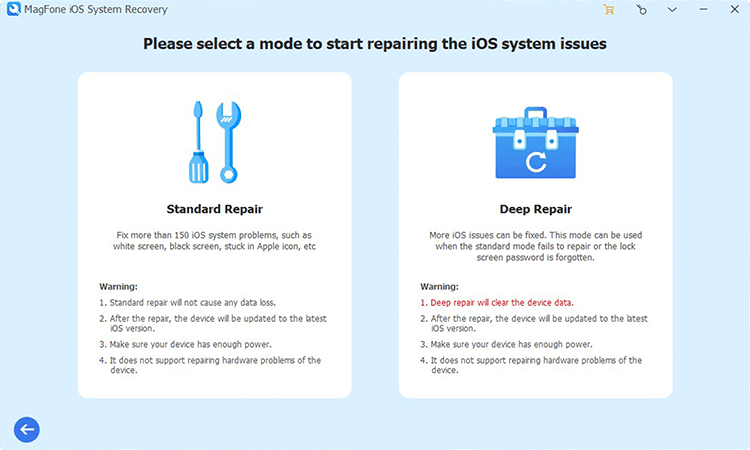
Here you can choose Standard Repair to fix iPhone won't turn on. You can now click the Standard Repair button. If there's no problem while detecting your iPhone, you can go to the next step. If there's something wrong, put your device into recovery mode as suggested on the screen.
Step 3Download and Verify the Firmware Package

Check the device information showing on the screen carefully and if you have different available options, choose your matched iOS version. Then click the Download button to start downloading and verifying a compatible firmware package. Wait patiently until the whole process finishes.
Step 4Fix iPhone Won't Turn on without Data Loss

Now you can start the repair by clicking the Repair button. MagFone software will unzip the firmware package and fix the iPhone won't turn on once the downloading is finished. Do not remove the device before the repair is completed. Finally, you can check whether your device can boot normally.
Method 3. Seek Professional Repair Service
When all methods fail, hardware issues are likely. It is proper to turn to the technician for help to check out what the actual difficulty is. In most conditions, the ways shown on the upper page can settle the matter, but no one can assure that an accident won't happen. So, if you haven't solved your problems till now, you had better go to the authorized store to call for help and obtain scientific and specific guidance.
Part 4. Conclusion
When an iPhone won't turn on, the solution often lies in systematic troubleshooting. By following the steps outlined above, including charging properly, force restarting, using recovery tools, and inspecting hardware, we can restore most devices without professional intervention. In order not to suffer from the risk of losing data, MagFone iOS System Recovery can be your best partner. For persistent issues, advanced repair or component replacement ensures long-term reliability.

Teresa Miller
Editor in chief





