








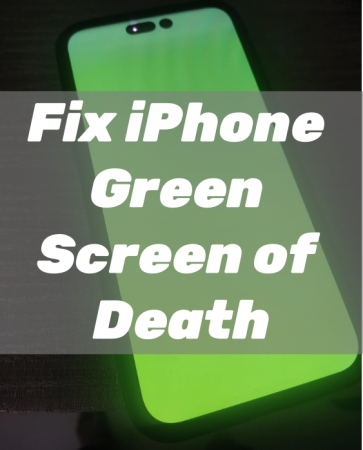
Have you ever experienced the dreaded green screen on your iPhone? It's that moment when your screen suddenly turns an eerie green, and sometimes it becomes normal on its own, while sometimes no amount of tapping or swiping seems to fix it. While it might feel like your beloved device is beyond repair, don't panic. There are several steps you can take to bring your iPhone back to life. Here we'll walk you through everything you need to know to fix the iPhone green screen issue. Let's dive into the details.
- Part 1. Why Is My iPhone Screen Green?
- Part 2. What to Do If iPhone Screen Goes Green?
- Part 3. How to Fix iPhone Green Screen of Death
- Part 4. FAQs about iPhone Green Screen
- Part 5. Conclusion
Part 1. Why Is My iPhone Screen Green?
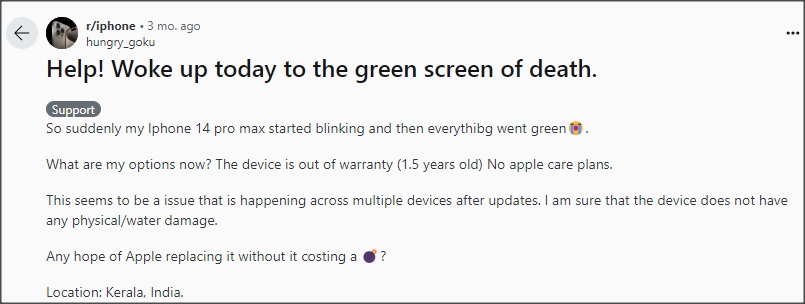
Many users in Apple Community and Reddit have posted that either there are green lines on their iPhone, or their iPhone screen turned green suddenly, or an unresponsive green screen on their iPhone. All these kinds of green screen issues mainly occur on iPhone 16/15/14/13/12 series. Let's see what the causes are and how to fix the issue next.
01What Does It Mean When Your iPhone Screen Turns Green?
When your iPhone screen turns green, we can analyze this case from two aspects. One is that your iPhone is responsive and back to normal after a while. The other is that your iPhone is unresponsive, also known as the iPhone green screen of death. Both aspects are frustrating, which affects our user experience. And it is not surprising that those forums like Apple Community and Reddit are full of postings looking for advice on how to fix the green screen on the iPhone. Have you experienced the issue of an iPhone green screen like below?
02Why Is My Screen Green on My iPhone?
If you are experiencing the iPhone green screen issue, don't be frustrated. As there will be various cases of the green screen, you can figure out what causes the issue first. Whether your iPhone screen turned green suddenly or your iPhone screen is turning green after dropping it, several factors can cause this issue.
Physical Damage: Drops or water damage can also result in a green screen on the iPhone.
Incorrect Settings: Improper settings for the display on the iPhone can cause a green screen.
Software Glitches: Bugs or corruption in the iOS operating system can lead to display problems.
Hardware Failure: Issues with the display or internal components can cause the screen to malfunction.
03How to Fix Green Screen on iPhone [Video Demo]
For a better understanding of the operation, we have paired with a video for you to fix the iPhone green screen issue. For detailed steps and descriptions, you can go through this article. We will also answer some frequently asked questions at the end.
Part 2. What to Do If iPhone Screen Goes Green?
There are some iPhone display settings that will affect how your iPhone displays. If there are no cracks, dents, or water exposure, you can try resetting the settings of your iPhone's display and brightness to fix the issue. The following are the details.
Solution 1. Turn off Night Shift
Night Shift is a function that can automatically change the colors of your iPhone's display. When your iPhone is in Night Shift mode, your iPhone screen will shift to warmer colors, making the display easier on your eyes. To fix the green screen issue, disable Night Shift on your iPhone.
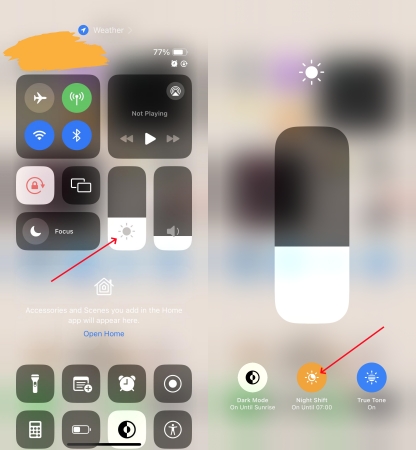
Step 1. Swipe down from the drop-right corner of your screen to open Control Center.
Step 2. In Control Center, tap Brightness Control, then tap Night Shift to disable it.
Solution 2. Disable True Tone
True Tone is another function that also affects the color and intensity of your iPhone's display. On those iPhone models with True Tone Display, the sensors will automatically adjust the color and intensity of the display. In this case, you can turn off True Tone to fix the green screen issue.
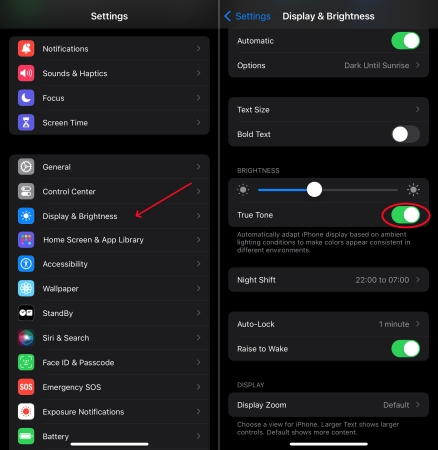
Step 1. In the Settings app, tap Display & Brightness.
Step 2. Scroll down to find True Tone and disable it.
Solution 3. Reset Color Tint Settings
Most iPhone users ignore display accessibility features. If the Color Filters feature has been enabled accidentally on your iPhone, your iPhone screen may display green. Try to turn off color filters on your iPhone.
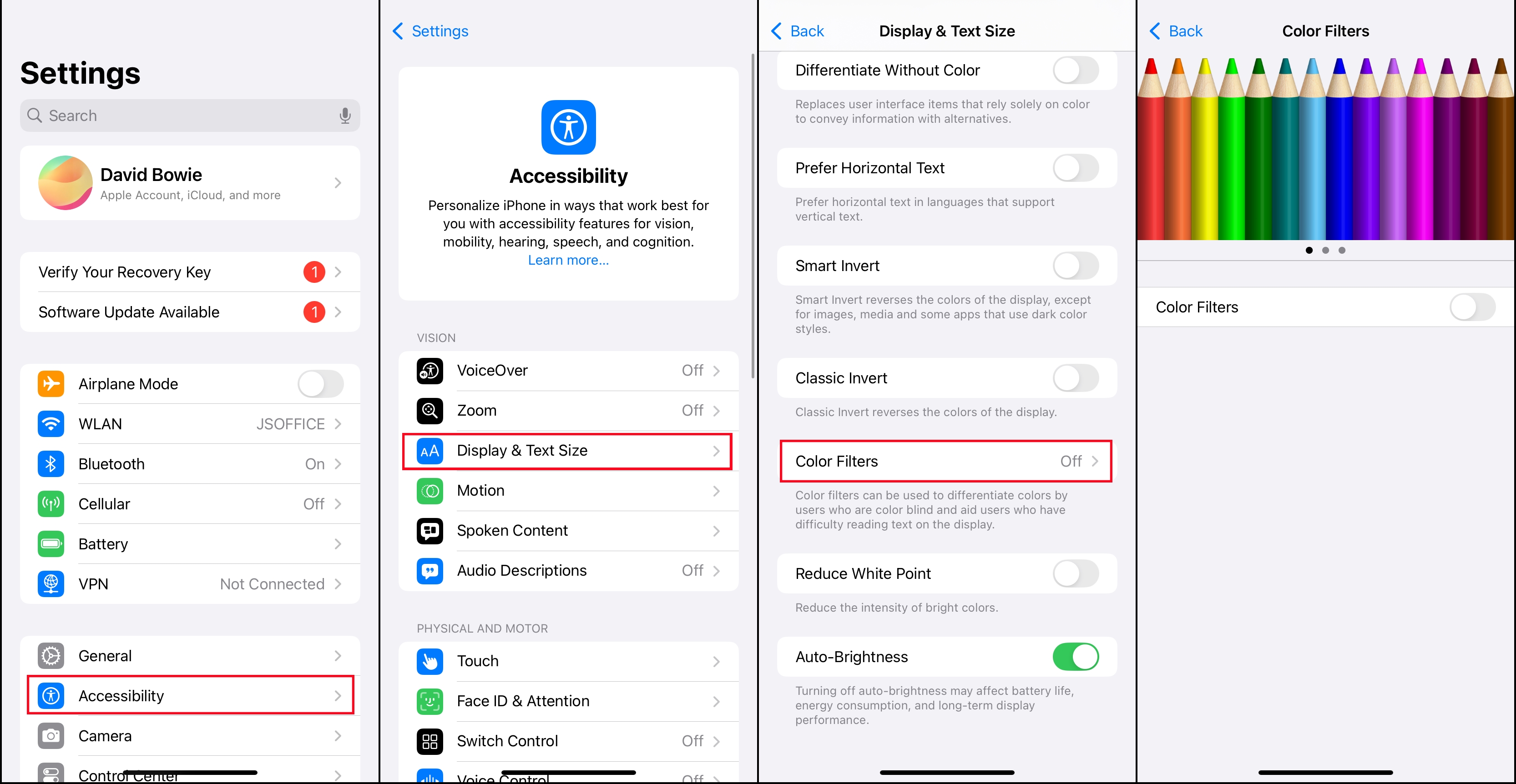
Step 1. Go to Settings > Accessibility > Display & Text Size.
Step 2. Under Color Filters, turn off Color Filter.
Solution 4. Toggle off Auto-Brightness
In Display Accessibility, you can find the Auto-Brightness feature that is on by default. When auto-brightness is on, the brightness slider on your device moves according to changing light conditions. If you notice that your iPhone screen turns green, you can turn auto-brightness off.
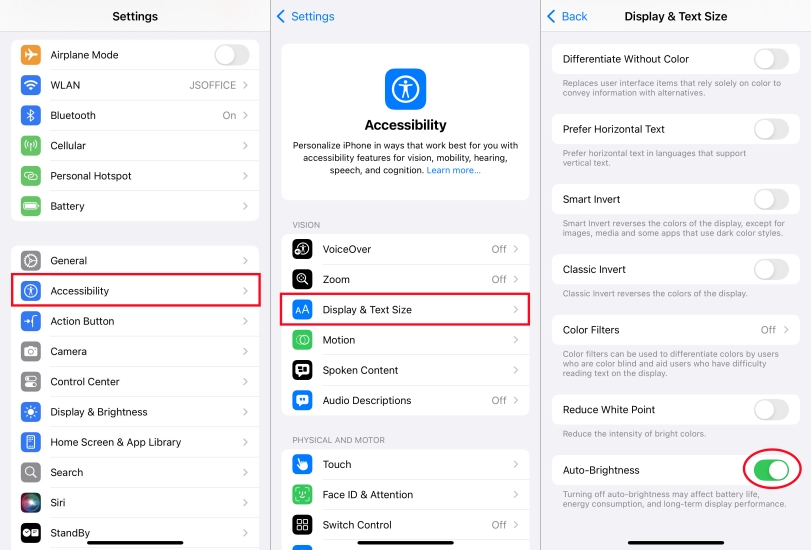
Step 1. In the Settings app, tap Accessibility.
Step 2. Tap Display & Text Size, then scroll to Auto-Brightness.
Step 3. Toggle off the switch next to Auto-Brightness.
Part 3. How to Fix iPhone Green Screen of Death
Many cases of the green screen of death are caused by the wrong settings of the display and brightness. If you still cannot fix the issue using the above steps, there may be some bugs or system glitches on your iPhone. You can continue to try the troubleshooting steps outlined in this part. By implementing the following solutions, you can fix the iPhone green screen of death and get your device back to normal.
Solution 1. Restart iPhone
The first step in troubleshooting any iPhone issue is to restart the device. By restarting your iPhone, you can resolve temporary bugs leading to a green screen on your iPhone. Here's how to.
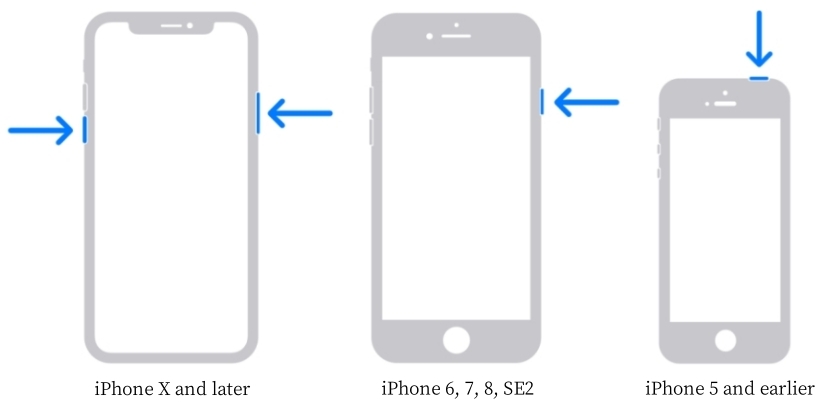
On iPhone X and later models:
Step 1. Hold one volume button and the power button at the same time until you see the slider.
Step 2. Drag the slide to the end to shut off your iPhone.
Step 3. Long-press the power button to restart your iPhone.
On models before iPhone X:
Step 1. Hold the power button and the home button until you see the slider.
Step 2. Drag the slider to the edge to switch off your iPhone.
Step 3. Long-press the power button to restart your iPhone.
Solution 2. Remove Running Apps
When too many apps run in the background on your iPhone, you would encounter the issue that the screen turns green. Try removing all apps running in the background.
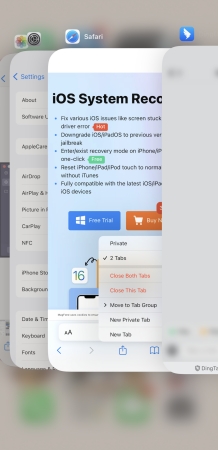
Step 1. Locate the Home Screen and swipe up from the bottom of the screen.
Step 2. Pause in the middle of the screen and swipe up on the app's preview to close it.
Solution 3. Reset All Settings on iPhone
If the screen is still green, try resetting all settings. This won't delete your data but will reset settings like Wi-Fi passwords and other personalized settings. Follow the steps below to reset all settings.

Step 1. Go to Settings > General > Transfer or Reset iPhone.
Step 2. Tap Reset iPhone and select Reset All Settings.
Step 3. Enter your screen lock passcode and tap Reset to confirm.
Solution 3. Update iOS System
Sometimes, simply updating to the latest iOS version can resolve screen issues. If your iPhone hasn't been updated to the latest version, go to check for updates and fix the issue.

Step 1. Open Settings on your iPhone, then tap General > Software Update.
Step 2. Tap Install Now to download the update.
Step 3. Enter the passcode and tap Install to update your device.
Solution 5. Factory Reset iPhone [Data Loss]
If updating and resetting all settings don't work, you can try resetting your iPhone to the factory default settings. This method for solving various software issues, but back up your device first.

Step 1. In the Settings of your iPhone, tap General > Transfer or Reset iPhone.
Step 2. Tap Erase All Content and Settings > Continue.
Step 3. Enter your screen passcode or Apple ID password and tap Erase to allow to reset your device.
Solution 6. Restore iPhone in Recovery Mode [Data Loss]
For the most stubborn issues, restoring your iPhone via iTunes is an effective and thorough method. Restoring your iPhone will cause data to be erased, so you need to back up your iPhone in advance.

Step 1. Connect your iPhone to a computer using a USB cable and open iTunes.
Step 2. In iTunes, click the Summary under Devices. Then select Restore to restore your iPhone to its original state.
Get an iPad, iPhone, or iPod touch into recovery mode with one click for free.
Step 3. In iTunes, select Restore to start repairing your iPhone.
Solution 7. Use an iOS Repairing Tool [No Data Loss]
Several third-party tools can help fix the iPhone green screen of death issue. These tools often provide more in-depth diagnostics and repair options than iTunes. A powerful iOS repairing tool like MagFone iOS System Recovery can be a great choice. It features in fix various screen issues like iPhone yellow screen of death, pink line on iPhone screen and more without losing any data. In addition to fixing over 150 kinds of system issues, MagFone iOS System Recovery can offers some other useful functions like iOS beta update, device reset, and more.

MagFone iOS System Recovery
Fix various iOS and iPadOS system issues, such as black screen, boot loop, frozen screen, or stuck on Apple logo, without data loss.
Step 1 Connect iPhone and Run MagFone iOS System Recovery

Start by launching MagFone iOS System Recovery on your computer, then use a USB cable to connect your iPhone to the computer. On the main interface of MagFone software, click the iOS System Repair button, then click the Start button.
Step 2 Select Standard Repair to Fix iPhone Green Screen of Death
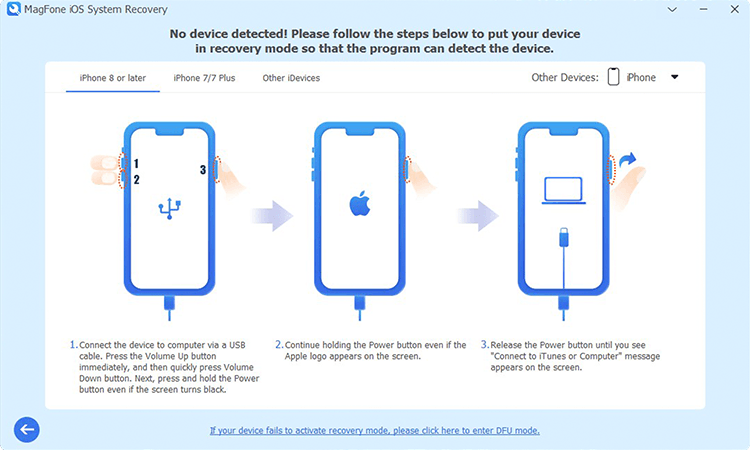
On the screen of selecting the repairing mode, select the Standard Repair mode. Then make sure that your device is detected by the MagFone software. If your device cannot be detected, you can put it into recovery mode.
Step 3 Download and Verify the Firmware Package for iPhone

When your device is detected, the device information will immediately appear on the screen. Check the device information, then select the iOS version and click the Download button to download the firmware package if there is anything wrong.
Step 4 Start to Fix iPhone Green Screen of Death without Data Loss

Once the download is complete, you can click the Start Standard Repair button to start fixing the green screen on your device. In the whole process, keep your device connected to the computer until you are prompted that the standard repair is completed.
Solution 8. Contact Apple Support
If none of the above solutions work, it might be time to contact Apple Support. Persistent hardware issues or software bugs that can't be fixed at home will require professional assistance.
Part 4. FAQs about iPhone Green Screen
How to back up iPhone with green screen?
When you have enabled iCloud backup before, your iPhone will be backed up automatically. If your iPhone is still responsive, you can back up your iPhone via iTunes. Just connect your iPhone to your computer and open iTunes. Click Summary and then click Back Up Now to back up your iPhone to your computer. If your iPhone is unresponsive, you may need to go to the Apple store to repair your iPhone and ask professionals for help. After repairing, you can back up your iPhone via iTunes or iCloud.
How to fix green lines on iPhone screen after drop?
If there are green lines on your iPhone screen after dropping, you should diagnose that if the issue lies with your screen hardware. A drop will cause physical damage to your iPhone and affect your iPhone's screen. You can implement the methods we introduced in this article to figure out what matters.
How much to fix green screen on iPhone?
The cost of replacing an iPhone screen ranges from $129 to $379 based on your model. If you have an available AppleCare plan, you can replace your iPhone screen for $29. You can have an estimation on the iPhone Repair and Service website.
Part 5. Conclusion
Facing the green screen issue can be frustrating, but it's not the end of your iPhone. By following the solutions in this guide, you can fix the issue yourself without needing expensive repairs. To address whether the green lines on the iPhone screen issue or the iPhone green screen of death issue, you can try using MagFone iOS System Recovery. And remember to keep your iPhone protected and avoid physical damage to prevent future problems.

Dylan Jones
Editor in chief





