








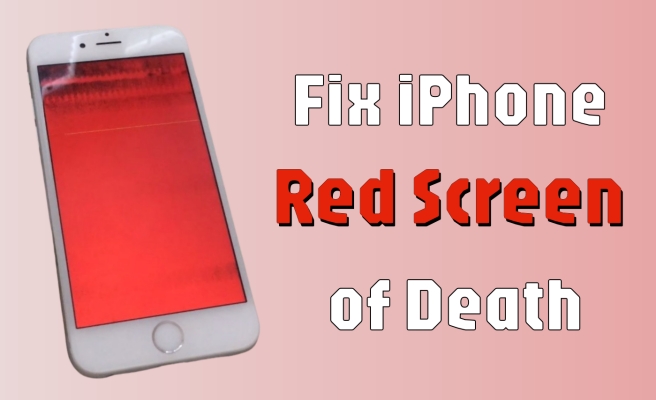
Seeing your iPhone screen suddenly turn bright red often followed by an endless reboot loop is a heart-stopping moment. In the tech world, this is known as the iPhone red screen of death. While it looks catastrophic, it doesn't always mean your phone is e-waste. This guide will help you diagnose the cause of the iPhone red screen of death and walk you through the proven steps to get your device back to normal.
- Part 1. Why Is My iPhone Screen Red?
- Part 2. How to Turn Off Red Screen on iPhone
- Part 3. How to Fix iPhone Red Screen of Death
- Part 4. How to Avoid Red Screen on iPhone
- Part 5. FAQs about iPhone Red Screen
- Part 6. Conclusion
Part 1. Why Is My iPhone Screen Red?
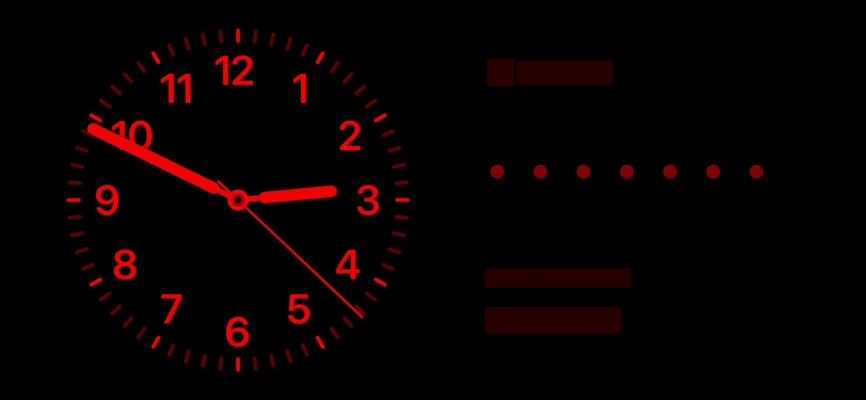
If your iPhone screen turns red while charging or at night, this isn't an issue, but rather a built-in feature. One feature is that StandBy activates when your iPhone is charging in landscape orientation. When Night Mode is enabled for StandBy, it adjusts the screen with a red tint to reduce brightness in low-light conditions, making it easier on the eyes while you sleep. This is why some users see the iPhone red clock screen. Other features like Color Filters in Accessibility settings or Night Shift can also turn your iPhone screen red.
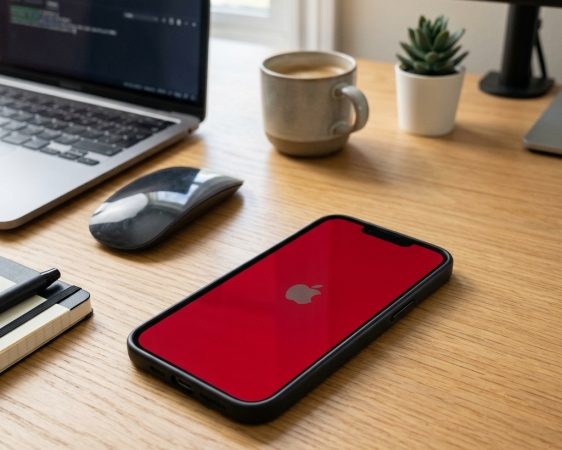
However, if your iPhone screen turns red unexpectedly and none of these settings are enabled, it's a sign of an issue. This is a technical way of saying the iPhone's operating system encountered an error it couldn't handle, causing the system to crash and display a red warning. The red screen might appear during boot-up, app usage, or randomly. This could be due to system bugs, software glitches, or even a faulty display.

Software Glitches:
A corrupted iOS update or a failed restore process.
Corrupted Restore:
Errors during a data restore from iCloud or a computer.
Hardware Failure:
Often related to the NAND flash memory, a faulty battery, or a loose display flex cable.
Environmental Factors:
Water damage or physical impact.
Part 2. How to Turn Off Red Screen on iPhone
Depending on whether your screen is completely stuck on a solid red color or if your screen just has a reddish tint that makes it hard to see, the solution is very different. Here is how to turn off the red screen if there is a red clock or a red tint on the iPhone.
Method 1. Disable Night Mode for StandBy
Night Mode is a lesser-known feature among iPhone users. When enabled, it adjusts the iPhone screen to a red tint at night to protect your eyes. Additionally, StandBy displays a red clock on the iPhone screen. You might have activated this setting unintentionally. Go to disable the iPhone red clock screen to get rid of the iPhone red screen.
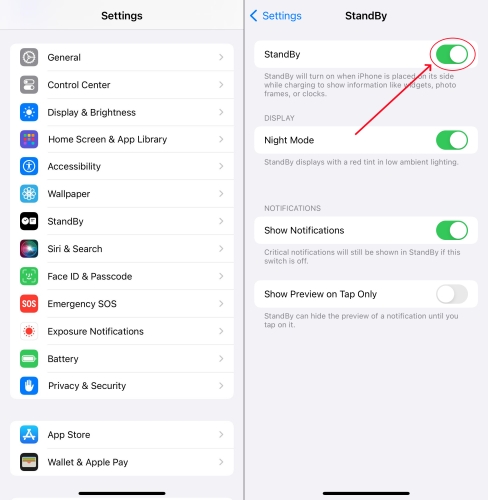
Step 1. Enter Settings.
Step 2. Scroll down and press on Standby.
Step 3. Toggle off both StandBy and Night Mode options.
Method 2. Turn Off Color Filters
If it is not related to Night Mode, you can also try adjusting the Color Filters setting to turn off the red screen on your iPhone. This feature allows you to modify the screen's colors to your preferences, and it could be a key cause of the iPhone red screen. Just turn off Color Filters to avoid a vivid red overlay.
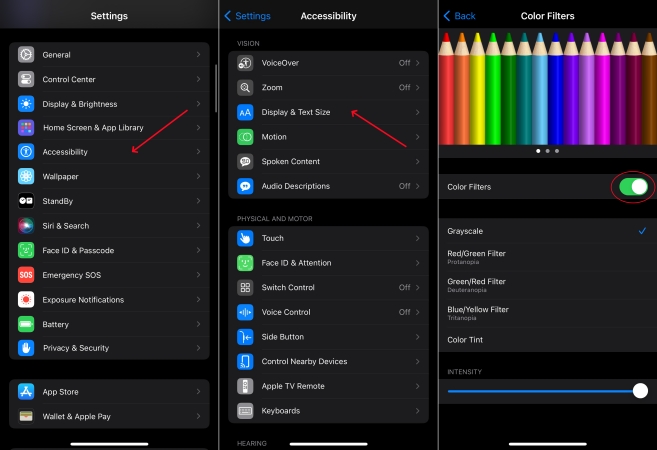
Step 1. Launch the Settings app.
Step 2. Tap on Accessibility > Display & Text Size.
Step 3. Tap Color Filters, then disable Color Filters.
Method 3. Switch Off Night Shift
Night Shift shifts the colors of your display to the warmer end of the spectrum to help you sleep. It doesn't offer a specific red screen setting, but you can adjust the display's warmth to make it reddish. If Night Shift is enabled, you can adjust the schedule or simply turn it off to fix the iPhone red screen during the certain times.
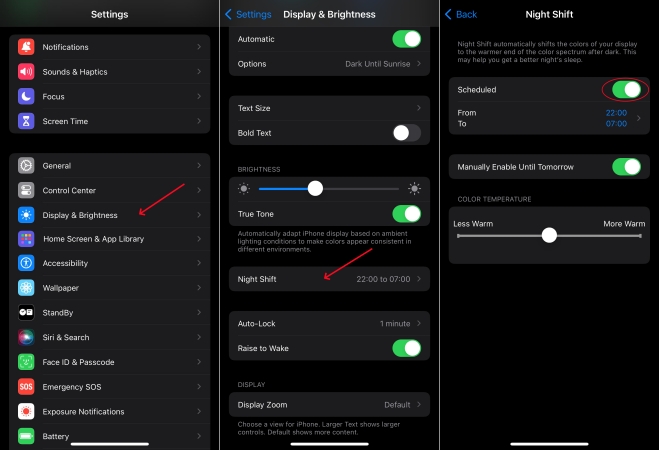
Step 1. Run Settings and touch Display & Brightness.
Step 2. Scroll down to tap Night Shift.
Step 3. Switch off the Scheduled button.
Method 4. Check True Tone
True Tone adjusts the screen based on ambient lighting, which can sometimes make the screen look excessively warm or reddish in yellow light. When you feel your iPhone screen turning red, you can check the True Tone settings and make some changes. Then check whether your iPhone screen doesn't turn red.
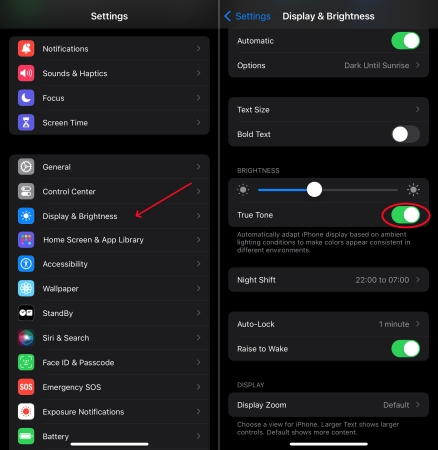
Step 1. Go to Settings > Display & Brightness.
Step 2. Toggle True Tone to Off.
Part 3. How to Fix iPhone Screen Turned Red
The sudden red screen of an iPhone is very frightening, not only does it let the user down, but it also damages the hardware if left untreated. When encountering the issue of the iPhone red screen of death, no worry, and follow the solutions below to fix the issue in time.
Solution 1. Force Restart iPhone
A force restart cuts the power to the logic board and forces the software to re-initialize. For an iPhone stuck in the red screen, you can use the side button to force restart the device to resolve the issue. But this will cause some damage to the iPhone hardware.
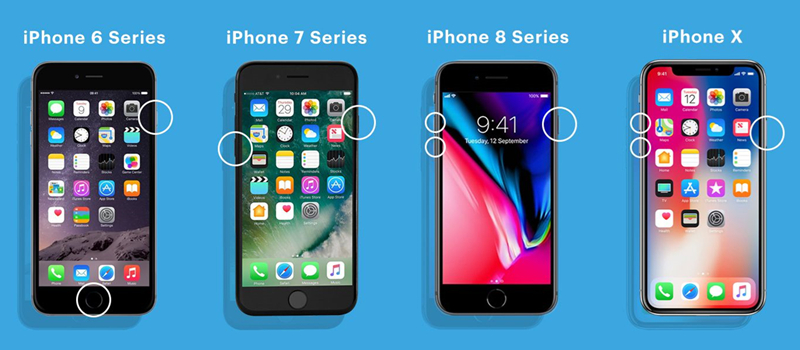
For iPhone 8 and Later Models:
Press the Volume Up and then the Volume Down key for once. Keep pressing the Power key until the iPhone restarts.
For iPhone 7 or iPhone 7 Plus:
Strike the Volume Down and Power key simultaneously. When the Apple logo shows, release them.
For iPhone 6 and Earlier Models:
Hold the Power and the Home key at once. Release these buttons when the iPhone powers on.
Solution 2. Reset All Settings
If a force restart doesn't resolve the red screen issue, you can reset all settings on your iPhone. This will restore your device's settings to the default state without erasing any data. It can help fix issues caused by mis-configured settings that may be triggering the red screen.

Step 1. Enter Settings and navigate to Transfer or Reset iPhone.
Step 2. Proceed to pick the Reset option, then choose Reset All Settings.
Step 3. Input the screen passcode and tap Reset to confirm your resetting action.
Solution 3. Update iOS Version
In addition to some hidden settings, the red iPhone screen can appear in outdated iOS system vulnerabilities as well. If your iPhone is in an old iOS version, be sure to update it in the Settings to fix the red iPhone screen.

Step 1. Go to Settings > General, then choose Software Update.
Step 2. Tap Download and Install to download the update.
Step 3. Press on Install Now and input your screen passcode.
Solution 4. Use a Dedicated System Repair Tool
If a restart fails, the issue may be a deeper system crash that standard buttons cannot reach. Before moving to a full factory restore, many users opt for professional system recovery software to avoid data loss. MagFone iOS System Recovery is a specialized utility designed to address over 150 different iOS issues, including the red screen of death and boot loops. It is particularly useful because its Standard Mode can repair the underlying firmware without erasing your photos, messages, or apps. No need to wait, simply fix the issue with MagFone now.

MagFone iOS System Recovery
Fix various iOS and iPadOS system issues, such as black screen, boot loop, frozen screen, or stuck on Apple logo, without data loss.
Step 1 Link iPhone and Launch MagFone

Use a USB cable to link the red-screen iPhone and a computer. Then launch MagFone iOS System Recovery on your computer and select the iOS System Repair tab. Continue to click Start.
Step 2 Pick iOS Standard Repair Mode
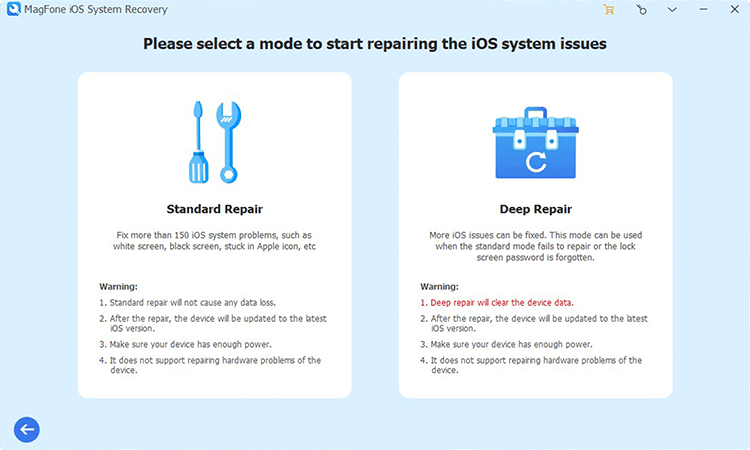
Choose the standard repair mode on the next interface to avoid the data loss. If MagFone doesn't detect your iPhone, put your iPhone into recovery mode manually.
Step 3 Download a Proper Firmware Package

Once your device is detected by MagFone software, go to check the iPhone information display on the screen. Next, click the Download button to get a proper firmware package.
Step 4 Restore iPhone Red Screen of Death

After the firmware package is downloaded on the computer, click Start Standard Repair to repair the iPhone red screen of death issue. The iPhone will reboot after the whole process.
Solution 5. Use iTunes in Recovery Mode (Data Loss)
If you prefer using official Apple tools, Recovery Mode allows you to reinstall iOS using a Mac with the Finder or a PC with iTunes. Whether your iPhone is displaying red or stuck on a red screen, you can use iTunes to perform system repairs on it.

Step 1. Connect your iPhone to your computer using a certified cable.
Step 2. Put the device into Recovery Mode.
Note:
Follow the Force Restart steps, but continue holding the Side button even after the Apple logo appears, until you see a Connect to Computer icon.
Step 3. On your computer, launch the Finder or iTunes, then select Update.
Step 4. Wait for the process to finish. Finally, you can set up your iPhone for use again.
Solution 6. Contact Apple Support
Provided that you areSolution 6. Contact Apple Support screen and don't know what problem is causing the red screen on your iPhone, contacting Apple is the safest way. You can access Apple Support online, call Apple, or inquire at an offline Apple store.
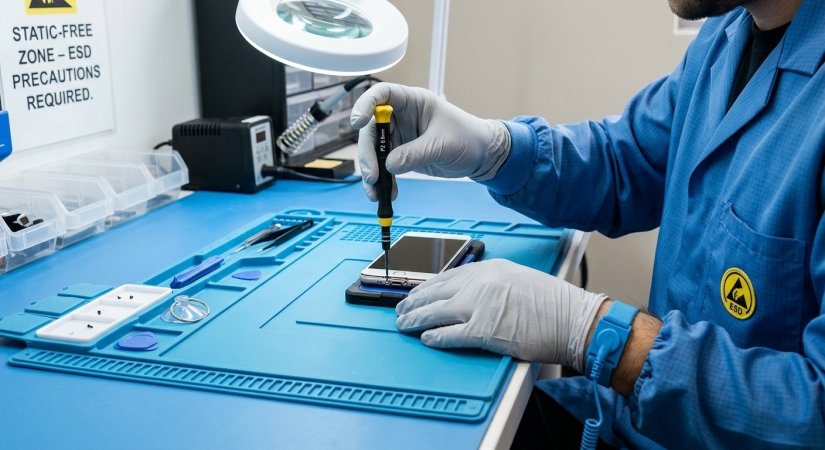
- NAND Error: Instant red screens during boot often mean the internal memory chip is failing.
- Sensor Cable Issues: A common culprit in newer models is the front-facing sensor flex cable. If this is pinched or wet, the iPhone will turn red.
- Battery Health: A depleted battery may not provide enough voltage to boot the CPU, triggering a red flash.
If software fixes like MagFone iOS System Recovery or Recovery Mode fail, don't attempt to open the phone yourself. Take it to an Apple Authorized Service Provider for a professional diagnostic.
Part 4. How to Avoid iPhone Red Screen of Death
Even if you have resolved the iPhone red screen issue, it is necessary to prevent the red screen of death with some measures. To keep your iPhone healthy in the future:
Keep 10% Storage Free: iPhones need some storage space for temporary files. A full NAND chip is a leading cause of boot loops.
Use MFi Cables: Cheap chargers can cause power surges that damage the logic board.
Update via Computer: If your iPhone frequently glitches, try updating iOS through a computer rather than over WiFi, as it provides a more stable installation.
Part 5. FAQs about iPhone Red Screen
How to make iPhone screen red at night?
If you want to turn your iPhone screen red at night, there are two main ways to do it. You can use a dedicated Red Color Filter or the standard Night Shift mode.
How to get red clock on iPhone lock screen?
If you are looking to change your iPhone lock screen clock to red, you can do through the Lock Screen customization menu. Here is the step-by-step process.
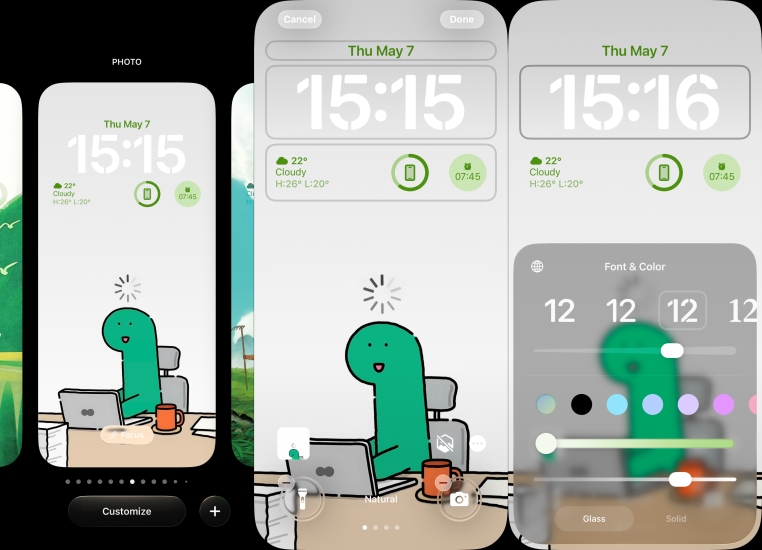
Step 1. Press and hold on any empty space on the Lock Screen.
Step 2. Tap the Customize button at the bottom of the screen.
Step 3. Tap the clock widget and swipe through the color to Red.
Step 4. Tap the X to close the color menu.
Step 5. Tap Done in the top-right corner of the screen.
Will an iPhone red screen erase my photos?
Not necessarily. If you can fix the iPhone red screen of death with a force restart or an update in Recovery Mode, your data remains untouched. Only a restore in Recovery Mode or DFU Wipe deletes data. Or you can use a professional tool like MagFone iOS System Recovery to fix it.
Part 6. Conclusion
An iPhone red screen may stem from various causes, including improper settings or software malfunctions. If you encounter the iPhone red screen of death, don't worry. Start with a force restart, try a data-safer repair tool like MagFone iOS System Recovery if you are worried about your files, and only use a recovery restore as a last resort. Keeping at least 10% of your storage free is the best way to prevent this error from returning in the future.

Dylan Jones
Editor in chief




