








A white dot on your iPhone screen can be confusing. Depending on what caused it, that spot might be an active software tool, a harmless display setting, or physical damage to the screen itself. Before assuming your display is broken or booking an expensive repair, it helps to identify what kind of white spot you are looking at.
Most floating white circles are actually built-in iOS features that can be turned off in a few seconds, while those physical white dots on the iPhone screen cannot be fixed or repaired at home. Use this guide to diagnose your iPhone screen, turn off floating software white dots, and understand your repair options if your screen has physical display damage.
- Part 1. Quick Troubleshoot for White Spot in iPhone Screen
- Part 2. How to Remove Floating Software White Dot on iPhone
- Part 3. How to Repair Physical iPhone White Spots on Screen
- Part 4. FAQs about White Spot on iPhone Screen
- Part 5. Conclusion
Part 1. Quick Troubleshoot for White Spot in iPhone Screen
Sometimes, a white spot on your iPhone screen is more than just a cosmetic blemish. It can be a sign of internal issues, display defects, or even software bugs. Before changing settings or visiting a repair shop, run this quick diagnostic test to instantly determine if the issue is caused by software or hardware.
Step 1. Open any app or your home screen where the white dot is visible.
Step 2. Take a screenshot:
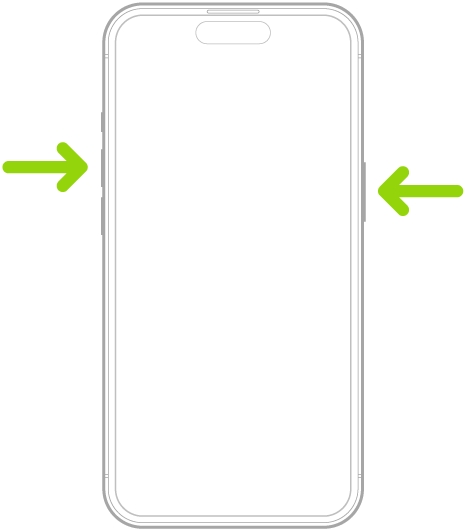
- For iPhone with Face ID: Press both Side and Volume Up button at the same time, then release.
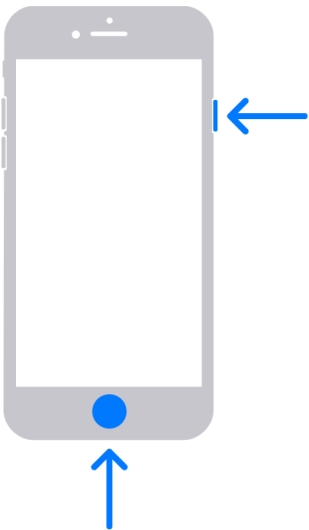
- For iPhone with Touch ID: Press both Side and Home button at the same time, then release.
Step 3. View the screenshot full-screen in the Photos app. Zoom in or rotate the phone if needed.
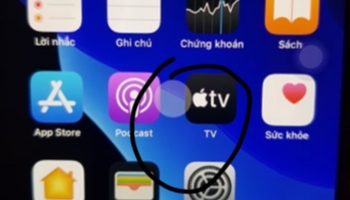
Result 1: The white dot is visible in the screenshot photo.
👉 Cause: It is a software feature or system setting such as AssistiveTouch or Motion Cues.
🛠️ Solution: Your hardware is completely fine. You can easily turn this off in your iOS settings without paying for a repair.
Result 2: The white dot is not visible in the screenshot photo.
👉 Cause: It is a physical hardware issue with the display screen, backlight layer, or screen protector.
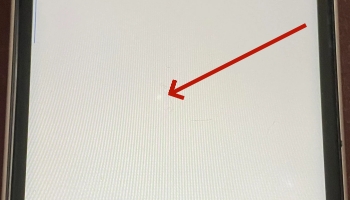
🛠️ Solution: Changing software settings will not remove it. You will need to inspect your screen hardware or look into physical repair options.
The cause of white spots on your iPhone screen can be caused by software or hardware. After checking the screenshot, you can figure out the exact reason, then take action to remove white spots on your iPhone screen. Here you can use this quick reference table to determine what is causing the white dot on your iPhone screen and how to fix it.
| What You See | Likely Cause | Quick Fix |
|---|---|---|
| Floating dot that moves when touched | AssistiveTouch | Say "Turn off AssistiveTouch" to Siri, or go to Settings > Accessibility > Touch > AssistiveTouch. |
| Animated dots along screen edges in vehicles | Vehicle Motion Cues | Go to Settings > Accessibility > Motion > Vehicle Motion Cues and turn it off. |
| Fixed bright spot on LCD screen | Backlight Pressure Spot | Check for tight cases or pockets. Screen replacement required if permanent. |
| Tiny sharp white pixel on OLED screen | Stuck Pixel | Try running a pixel-fixer color loop video. Replace display if persistent. |
| Spot with screen lifting or gap | Swollen Battery | Stop charging immediately, and take the phone in for battery replacement. |
Part 2. How to Remove Floating Software White Dot on iPhone
If the white dot appears in your screenshot, or if it moves when you drag it around the screen, one of the following features on your iPhone is enabled. To get rid of white dots on the iPhone screen, try to disable or reset these features and check the device again.
Solution 1. Disable AssistiveTouch
AssistiveTouch places a semi-transparent floating white circle on your display to help with navigation, gestures, and hardware button shortcuts. It is the most common reason for a floating white dot. Just activate Siri and say, "Turn off AssistiveTouch." Or you can turn off AssistiveTouch with the following steps.
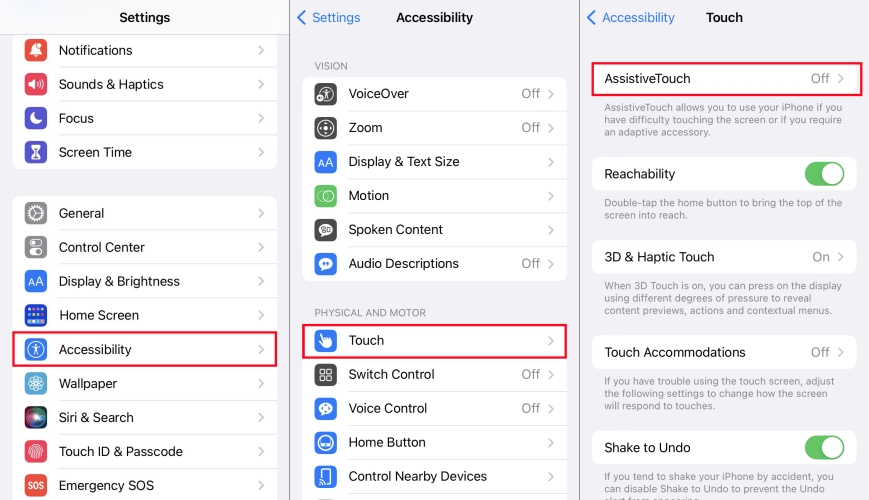
Step 1. Open Settings and tap Accessibility.
Step 2. Select Touch under the Physical and Motor section.
Step 3. Tap AssistiveTouch at the top.
Note:
If you want to keep AssistiveTouch active but make it less noticeable, open Settings > Accessibility > Touch > AssistiveTouch > Idle Opacity and lower the slider percentage.
Solution 2. Turn Off Vehicle Motion Cues
Starting in iOS 18, Apple introduced Vehicle Motion Cues to help reduce motion sickness for passengers looking at their phones in moving vehicles. This feature displays subtle animated dots along the edges of the screen that respond to vehicle movement. If you have encounter a white dot on your iPhone while driving, try to disable Vehicle Motion Cues.
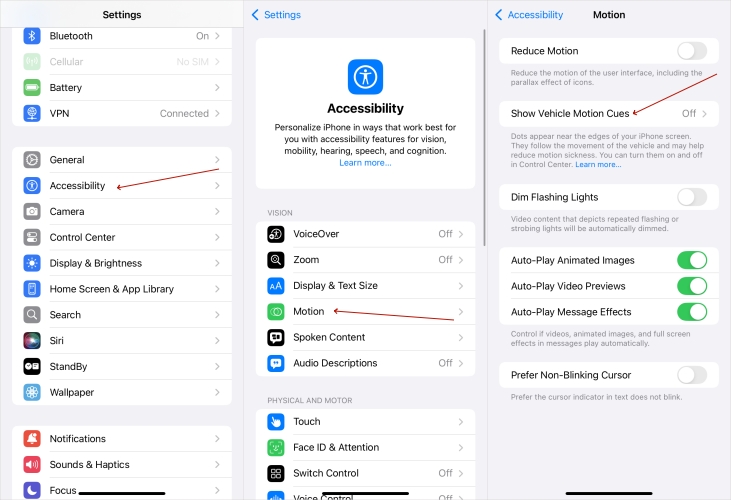
Step 1. Go to Settings and tap Accessibility.
Step 2. Select Motion and tap Vehicle Motion Cues.
Step 3. Change the setting to Off. Or select Automatic if you only want it active while driving.
Note:
If you only want Vehicle Motion Cues active while riding in a car, you can select Automatically in Vehicle, instead of directly turning it off.
Solution 3. Adjust Accessibility Shortcuts & Zoom Controls
Sometimes accessibility tools remain active in the background due to double-taps or quick button shortcuts. In this case, accessibility tools may cause floating white spots appearing on your iPhone screen. These floating white spots on the screen can be removed by turning off Accessibility Shortcuts and Zoom Controls.
Check the Accessibility Shortcut:
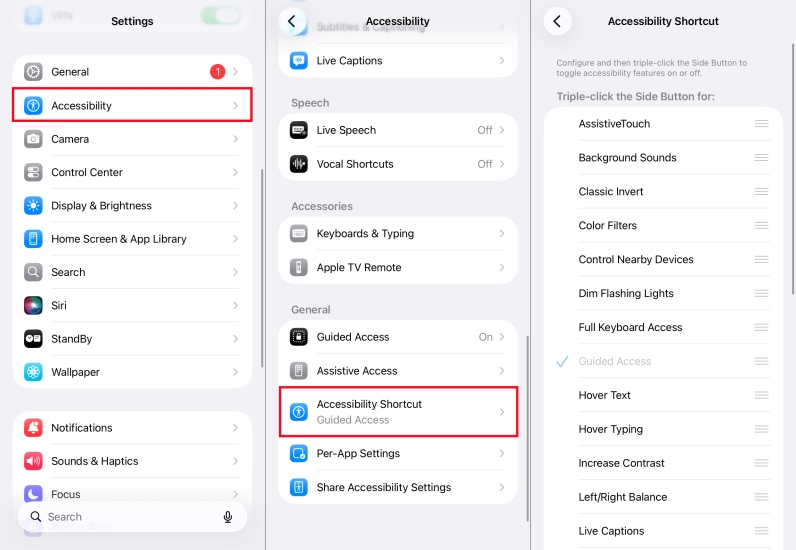
Go to Settings > Accessibility > Accessibility Shortcut. Uncheck options like AssistiveTouch or Touch Accommodations to prevent accidental activation when triple-clicking the side button.
Turn Off Zoom Controller:
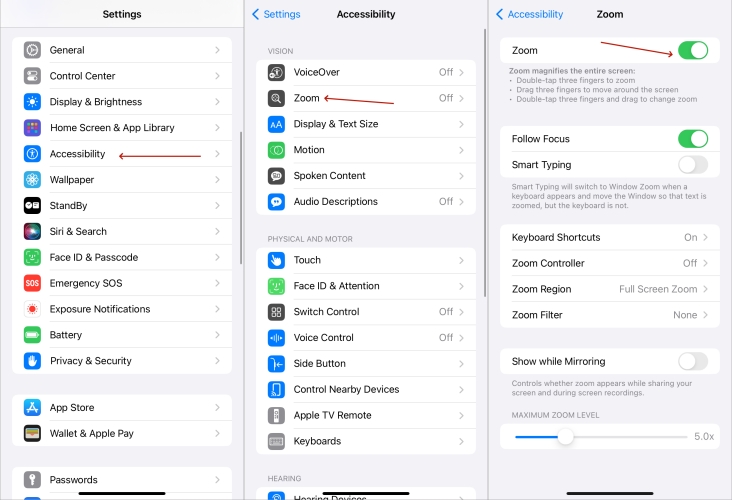
Go to Settings > Accessibility > Zoom. If Zoom Controller is toggled on, turn it off to remove the floating touch pad on screen.
Solution 4. Force Restart Your iPhone
If the white spot is caused by a temporary system glitch or frozen UI element, you can perform a force restart on your iPhone. Forcing the device to restart clears the temporary memory and resets background processes, which often removes unresponsive white dot elements on-screen without data loss.
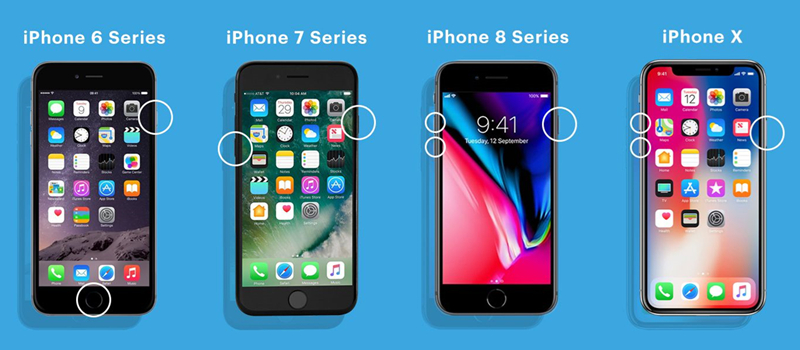
For iPhone 8 and Later Models:
Quickly press the Volume Up key, followed by the Volume Down key. Hold the Power key until the device restarts.
For iPhone 7 or iPhone 7 Plus:
Hold both the Volume Down key and Power key. Release them when the Apple logo appears.
For iPhone 6 and Earlier Models:
Press both the Power and Home keys simultaneously. Release when the iPhone powers up.
Solution 5. Reset All iPhone Settings
Often, incorrect settings can cause screen display issues. By resetting all settings, without erasing your personal data, you can remove the white dot on your iPhone screen due to the wrong settings you’ve set. Also, If a persistent software bug keeps generating an on-screen overlay, resetting all settings on the iPhone is a feasible solution to software white dots.
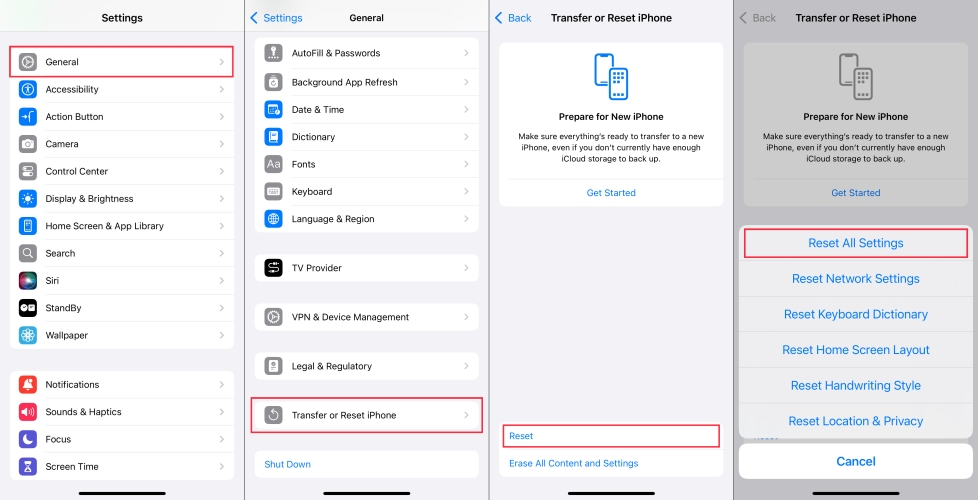
Step 1. Head to Settings, then the General option.
Step 2. Pick the Transfer or Reset iPhone option on the bottom of the iPhone.
Step 3. Touch Reset, then Reset All Settings to factory reset all iPhone settings.
Solution 6. Repair iOS System Glitches
If basic restarts or accessibility toggles fail to clear a frozen on-screen overlay or persistent UI bug, the issue may stem from corrupted iOS system files. In these cases, dedicated system repair software can refresh the operating system. Tools like MagFone iOS System Recovery are designed to scan and repair underlying iOS firmware bugs, stuck screen overlays, or frozen UI states. No technical skills are needed, just launch, connect, and let MagFone fix the system as follows.

MagFone iOS System Recovery
Fix various iOS and iPadOS system issues, such as black screen, boot loop, frozen screen, or stuck on Apple logo, without data loss.
Step 1 Launch MagFone and Connect Your iPhone
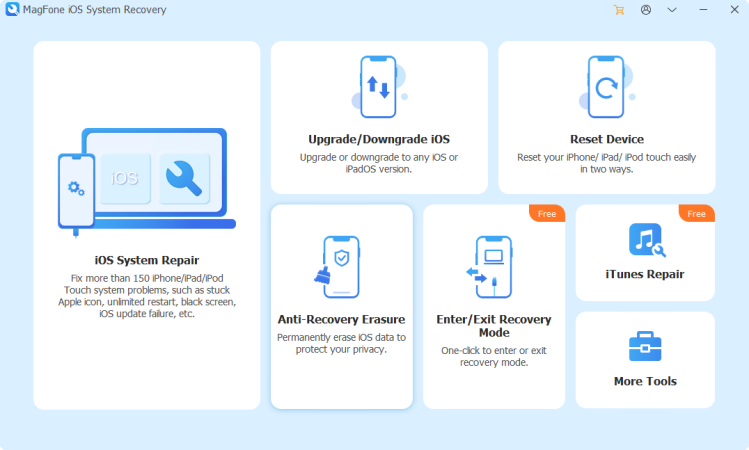
Plug in the iPhone to a computer using USB and then enter the MagFone iOS System Recovery software home interface. After that, select iOS System Recovery and hit the Start key to start the process. It's noted the device should stay connected to avoid interruptions.
Step 2 Choose Standard Repair to Protect the Data
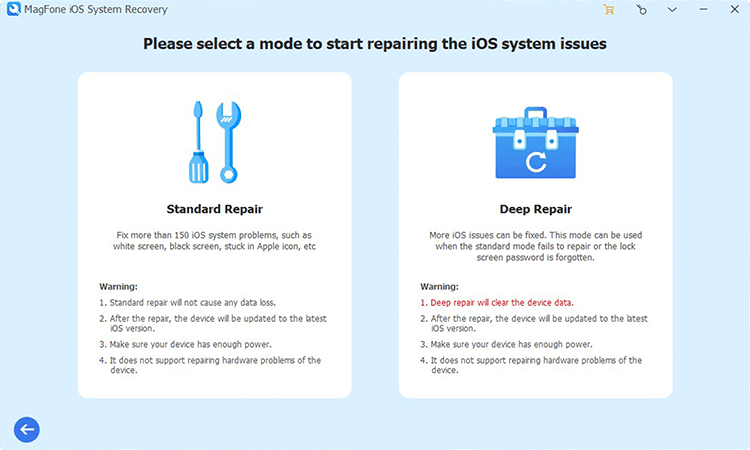
After starting, choose Standard Mode to ensure that no data is lost during the repair. You'll be guided through the steps to put your iPhone into Recovery Mode or DFU Mode. Simply follow the onscreen instructions that appear within the software for your specific device model.
Step 3 Confirm Device Info and Download Firmware
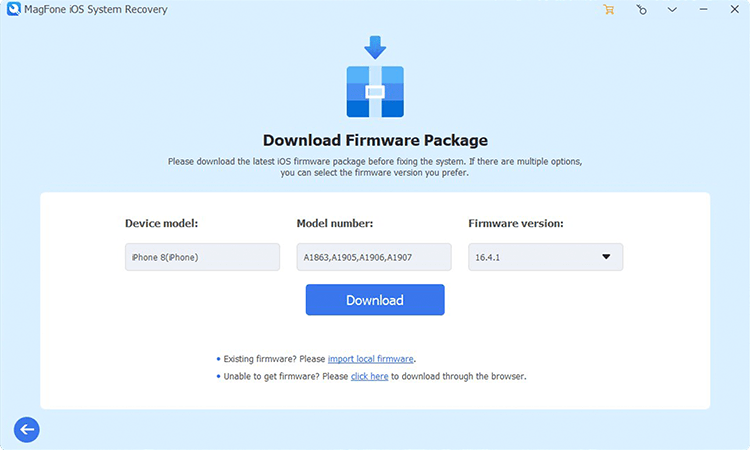
Once your iPhone is in the correct mode, MagFone will automatically detect your device information. Confirm that the details match your iPhone. If everything looks right, click Download to get the latest firmware package needed to fix the system and remove the white spot.
Step 4 Start to Fix the iPhone White Spot on Screen
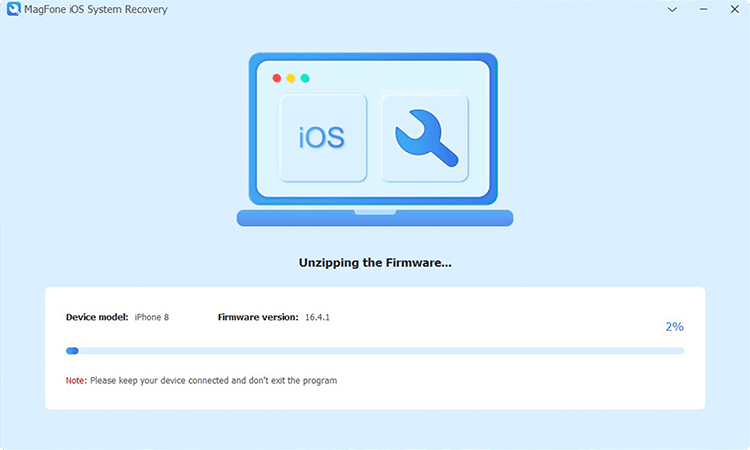
After the firmware package is downloaded and verified, you can continue to click Start Standard Repair. Then the repair process is initiated. Keep your iPhone connected during this step. Once complete, your device will automatically reboot, and the white spot should be gone.
Part 3. How to Repair Physical iPhone White Spots on Screen
If the white dot did not show up in your screenshot, the issue is physical. Hardware-based white spots stay fixed in one precise location on the screen and do not move when you scroll or switch apps. Following are the main causes to white spots on an iPhone screen. In this case, your choice is not to fix or repair it at home, and you have to turn to professional assistance.

Cause 1. Screen Protector Bubbles or Debris
Before assuming the display panel is broken, inspect your screen protector. A small trapped air bubble, piece of dust, or chip in the tempered glass can reflect light in a way that looks like a white dot on the display underneath. Gently peel back or remove the screen protector to verify.
Cause 2. Pressure Spots (LCD Displays)
If your iPhone model such as the iPhone SE series, iPhone 11, or older models uses an LCD screen, pressure damage is a common culprit. Carrying your phone in a tight pocket, sitting on it, or dropping it against an object can crush the internal layers of the LCD screen.
Cause 3. Stuck Pixels (OLED Displays)
OLED screens found on iPhone X, 12, 13, 14, 15, 16 series, and newer consist of millions of microscopic sub-pixels. A single pixel gets stuck on its highest brightness setting, appearing as a tiny, sharp white or colored dot.
Cause 4. Swollen Battery Pressure
An older or failing battery can swell inside the chassis, pushing up against the back of the display and causing a distinct bright spot. Look at your phone from the side. If you see screen lifting, a gap along the frame, or if the display feels spongy when pressed, stop charging the phone and seek professional assistance.
When dealing with physical hardware damage, you have a few options based on the severity of the spot and your warranty status.
DIY Stuck Pixel Attempts
If you suspect a stuck pixel rather than structural backlight damage, you can try playing a pixel-fixer video loop available on YouTube or web tools. These tools rapidly cycle bright primary colors across the screen to try and reset stuck sub-pixels. While results vary, it is a safe non-invasive step to try before pursuing repairs.
Official Apple Service
If your device is covered under warranty or AppleCare+, screen defects not caused by accidental drops are often eligible for low-cost or free display replacement. When the display has severe pressure marks or cracked glass, a full screen assembly replacement by Apple or an authorized service provider is the most reliable long-term solution.
Part 4. FAQs about White Spot on iPhone Screen
Why did a white dot randomly appear on my iPhone?
In most cases, a white dot appears suddenly because an accessibility shortcut like AssistiveTouch or Motion Cues was accidentally activated via a triple-click of the side button or an iOS update setting preference.
Can a white spot on an iPhone screen spread?
If the dot is caused by a software setting, it will not spread. However, if the white spot is caused by physical LCD backlight pressure damage or a expanding battery, the affected area can grow larger over time if pressure continues to be applied to the display.
How much does it cost to fix a physical white spot on an iPhone screen?
If the issue is purely software, fixing it costs nothing. If physical display replacement is needed, costs depend on your model and coverage. AppleCare+ screen replacements typically incur a minor service fee, while out-of-warranty screen repairs vary based on the specific iPhone model and display type.
Will restoring my iPhone fix a hardware white spot?
No. Restoring or factory resetting your iPhone will only resolve software-based artifacts. Physical backlight damage and stuck pixels require hardware servicing.
Part 5. Conclusion
A white dot on your iPhone screen isn't always a sign of a broken display. By running the 10-second screenshot test, you can immediately determine whether you are dealing with a quick software setting tweak, an iOS system bug, or a physical screen issue.
If the dot shows up in your screenshot, simply turn off AssistiveTouch or Vehicle Motion Cues in your Accessibility settings, or use MagFone iOS System Recovery if a persistent firmware bug is causing the overlay. If the spot is physical, evaluate your screen protector, avoid applying pressure to the display, and consult an authorized technician if a screen replacement is necessary.

Dylan Jones
Editor in chief





