








Today I got my new iPhone 15 Pro max. Before this one I got the 13 Pro max and that phone always vibrated on silent mode until a few months ago. I thought that maybe my phone was the problem and searched and watched every YouTube video I could find to try and find a solution but nothing works. Today, my 15 Pro max still doesn't vibrate and I tried everything. It may sound weird, but I really hate the phone and message sounds in general. Does someone know what's going wrong on?"
—— From the Apple Community
Have you noticed that your iPhone is not vibrating on Silent after updating to the latest iOS? Don't worry! You are not alone in having to put up with this annoying problem. Many iPhone users suffer from the same headaches as you. We all know that it is convenient to be noticed of calls and notices by vibration on silent phones, otherwise we would miss a lot of important messages without vibration on silent phones. In this article, you'll find out why the iPhone does not vibrate silently and learn how to fix iPhone not vibrating on Silent.
- Part 1. Why Does My iPhone Not Vibrate on Silent?
- Part 2. How to Make iPhone Vibrate on Silent (Various Models)
- Part 3. How to Fix iPhone Not Vibrating on Silent iOS 26/18/17
- Part 4. Ultimate Solution to iPhone Vibration Not Working on SilentHOT
- Part 5. FAQs about Vibration on iPhone
- Part 6. Conclusion
Part 1. Why Does My iPhone Not Vibrate on Silent?
The iPhone uses a tiny motor to create vibrations. This feature is critical when you silence your phone but still want to stay updated on notifications. The issue of iPhone not vibrating on Silent could be due to several reasons. Below are the most common reasons why iPhone vibration may not work in Silent Mode.
Reason 1. Vibration Settings
One of the most common reasons an iPhone is not vibrating on silent is that the vibration setting is disabled. The vibration setting should be customized well in various aspects.
Reason 2. Mode Interfere
An iPhone has different focuses modes such as Do Not Disturb, Sleep, or Work that can suppress alerts and vibrations depending on their settings. If Focus mode is active, the issue would exist.
Reason 3. Software Glitches
Sometimes the issue occurs because of a temporary iOS bug or software glitch. This can happen after an iOS update, installing new apps, or system processes crashing in the background.
Reason 4. Hardware Problems
If your iPhone is experiencing problems with complete silence and no vibration, the issue may be related to the Taptic Engine, which is the hardware component responsible for vibration.
Part 2. How to Make iPhone Vibrate on Silent (Various Models)
Setting your iPhone to vibrate on Silent allows you to keep up with important calls and notifications in a variety of situations, such as in the library or at a meeting. To make your iPhone vibrate while in Silent Mode, follow the steps below.
Step 1 Turn Silent Mode on
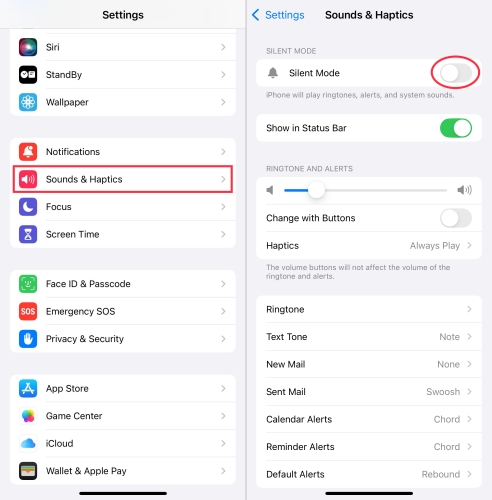
In recent updates like iPhone 15 and later, Apple redesigned the "Sound & Haptics" settings, moving the traditional "Vibrate on Silent" toggle into a new Haptics sub-menu. Make sure that you have turned Silent Mode on. If not, here's a quick setup.
On models with an Action button: Go to Settings > Sound & Haptics, then turn Silent mode on.
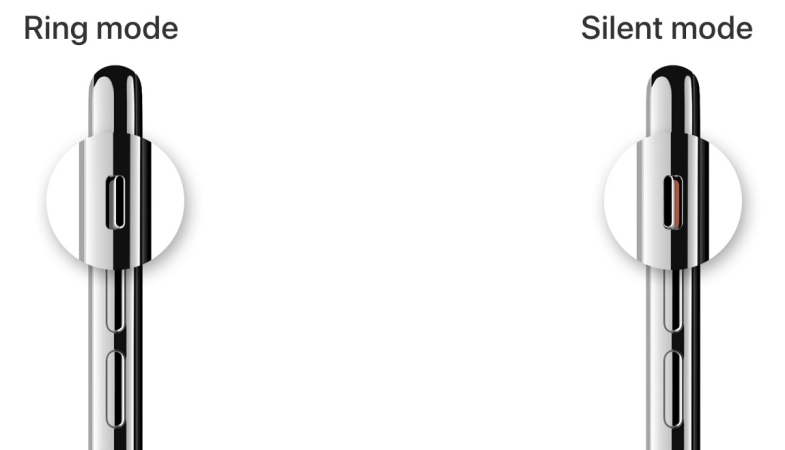
On other modes: Flip the Silent switch toward the back of your iPhone to turn Silent mode on.
Step 2 Enable Vibration for Silent Mode
When Silent Mode is on, enabling vibration for Silent Mode is the primary setting. If this is not set to "Play in Silent Mode," your phone will stay still when the silent switch or Action Button is active. Proceed to enable vibration for Silent Mode.
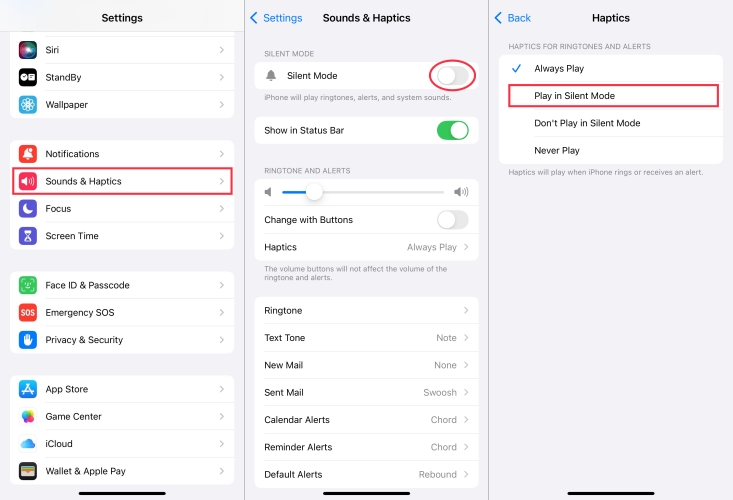
1) Open the Settings app and tap Sounds & Haptics.
2) Tap Haptics and select Play in Silent Mode.
If you don't want to miss any information no matter in Silent mode or other mode, you can choose Always Play.
Step 3 Change the "Synchronized" Pattern
In iOS 17 and later, many users find that the "Synchronized" vibration pattern is too weak to notice on silent. From a user sharing on Reddit, changing the "Synchronized" vibration pattern to a standard alert pattern often fixes "missing" vibrations.
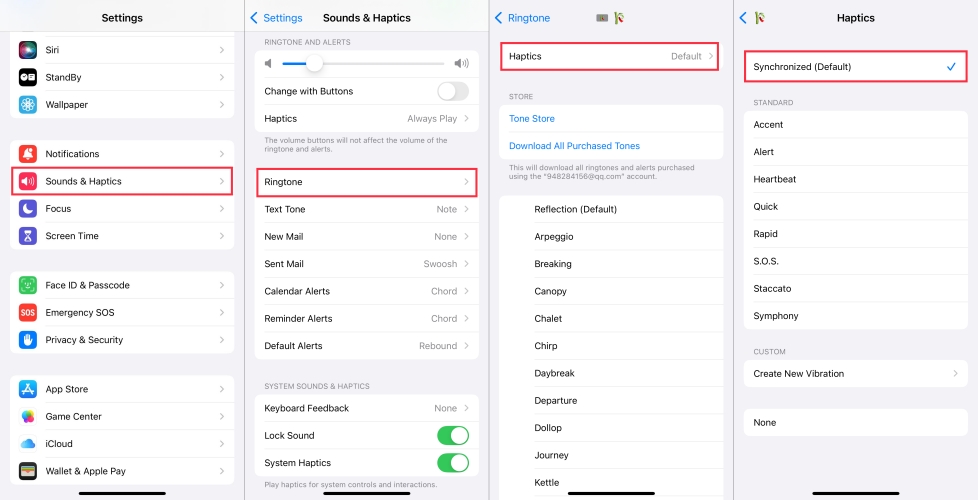
1) Go to Settings > Sound & Haptics > Ringtone.
2) Tap Haptcis at the very top of the screen.
3) Change the default selection to Accent or Alert.
Part 3. How to Fix iPhone Not Vibrating on Silent iOS 26/18/17
Fixing vibration issues isn't rocket science. Follow the above steps to make your iPhone vibrate on Silent. If the above steps fail, you can proceed with the following solutions to fix iPhone not vibrating on Silent. Let's dive in.
Solution 1. Check the Silent Switch
The first thing you can do is check the silent switch on your iPhone to find out if the vibration is still functional. After flipping the silent switch, if you can see the orange color, you are successfully in Silent mode. Try it a couple of times. If you can feel a buzz as notifications and calls arrive, your iPhone's vibration is still working. Otherwise, there could be hardware issues.
Solution 2. Enable Vibration in Accessibility
Apple's accessibility options include vibration tweaks. Additionally, check the Accessibility settings on your iPhone. If the vibration is disabled in the Accessibility settings, your iPhone will have no access to vibrate either in Ring mode or Silent mode. Here's how.
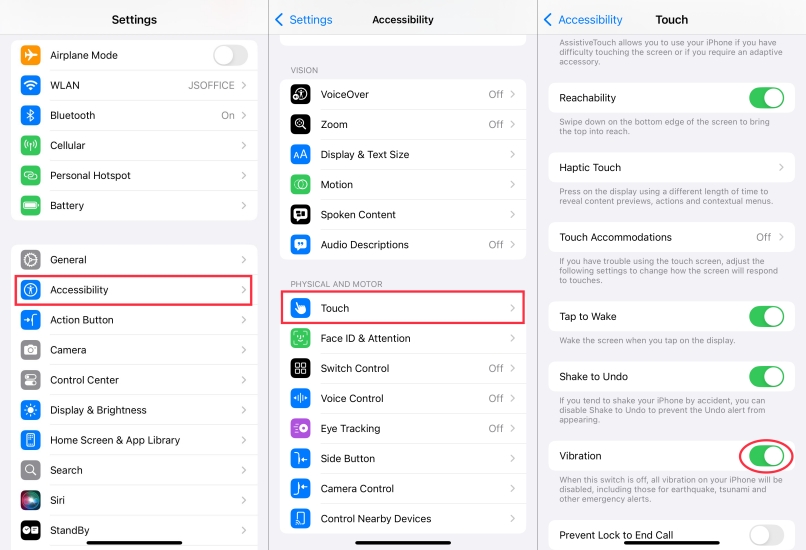
Step 1. Go to Settings > Accessibility > Touch.
Step 2. Switch on the toggle next to Vibration.
Solution 3. Turn on System Haptics
System Haptics control many vibration interactions across iOS devices. If they are disabled, you may notice that alerts and system feedback do not vibrate properly. Go to enable this, then test your phone by switching the silent switch on and off.
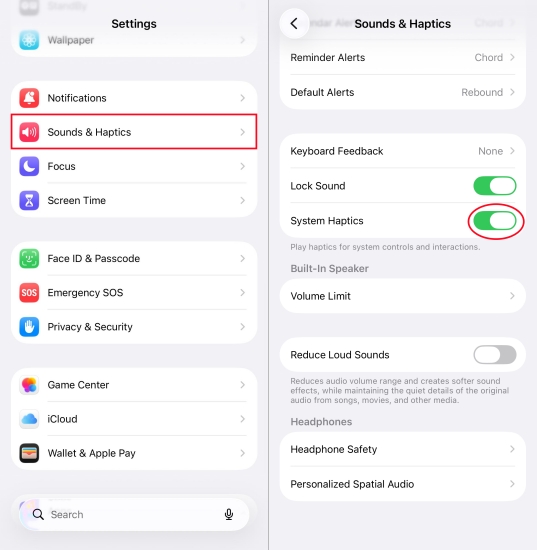
Step 1. Open Settings and tap Sounds & Haptics.
Step 2. Scroll down to turn on System Haptics.
Solution 4. Disable Do Not Disturb Mode
If you accidentally turn on the Do Not Disturb mode on your iPhone, your device will not vibrate in this mode. So, when your iPhone is in the Do Not Disturb mode, manually turn it off or set the vibration for this mode. Follow the steps below to disable Do Not Disturb.
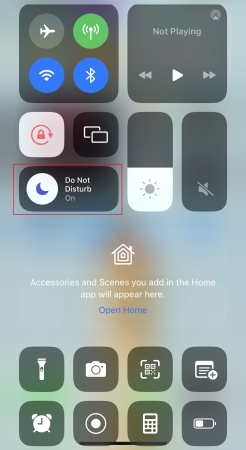
Step 1. On your iPhone, swipe down from the top-right edge to open Control Center.
Step 2. Tap the Focus icon to turn Do Not Disturb off.
Solution 5. Turn off Low Power Mode
Low Power Mode can limit vibrations. If your iPhone doesn't have enough power and you have enabled Low Power Mode, then there would happen the issue of iPhone not vibrating on Silent. In this case, you can disable Low Power Mode on your iPhone.
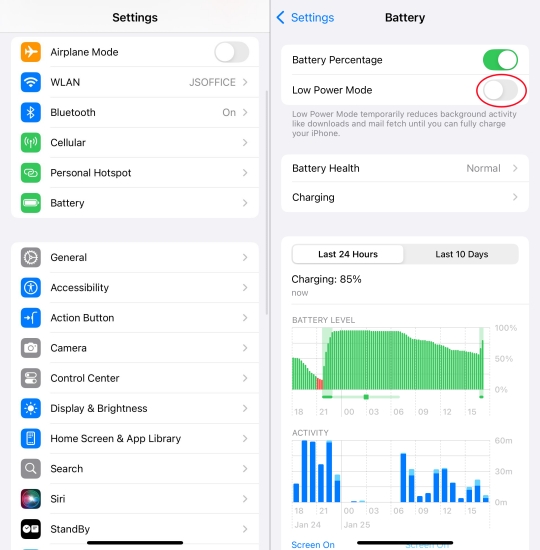
Step 1. Locate Settings and tap Battery.
Step 2. Disable Low Power Mode on your device.
Solution 6. Restart Your iPhone
There is another quick way to solve this issue, that is, to restart your iPhone. Sometimes, system glitches and bugs result in small issues, such as iPhone not vibrating on Silent. And restarting your iPhone can be a simple and effective idea in such a small issue.
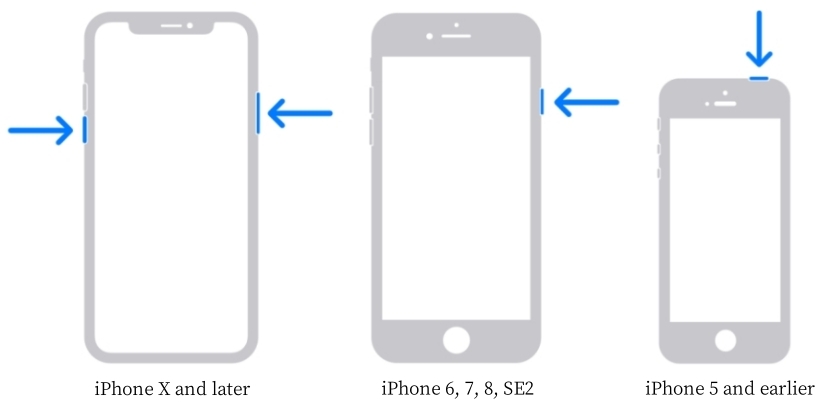
Step 1. Press and hold either volume button and the power button until the power-off slide appears.
Step 2. Drag the slider, then wait 30 seconds for your device to turn off.
Step 3. Press and hold the power button to turn your device back on.
Solution 7. Update the iOS Version
If you are still experiencing vibration issues, try updating your iPhone to the latest version. Sometimes, small bugs originate from the previous version. Instead, bug fixes and improvements from advanced version are the solution. Follow the steps below.

Step 1. On your iPhone, tap Settings and select General.
Step 2. Tap Software Update and check whether there is an update available.
Step 3. Tap Download and Install to download a new iOS version.
Step 4. After downloading the update, tap Install Update to update your device.
Solution 8. Reset All Settings
If you have tried all of the above methods and are still having trouble with this issue, you can choose to reset all of your settings on your iPhone. However, as soon as you reset all the settings on your iPhone, your device will revert to its default factory state. Here's how.

Step 1. Head to Settings and tap General > Transfer or Reset iPhone.
Step 2. Tap Reset > Reset All Settings and enter the screen lock passcode.
Step 3. Tap Reset All Settings again to confirm. Wait for a few minutes to complete resetting.
Part 4. Ultimate Solution to iPhone Vibration Not Working on Silent
If you have tried all the above solutions and are still in this issue, you can try using MagFone iOS System Recovery. MagFone iOS System Recovery is an efficient and effective iOS repair tool to fix any iOS and iPadOS system issues. By using this tool, you can fix over 150 issues such as iPhone not vibrating on Silent, iPhone stuck on Do Not Disturb, and more. Meanwhile, your privacy and data are highly protected during the recovery. Here's how to fix iPhone not vibrating on Silent by using MagFone iOS System Recovery.

MagFone iOS System Recovery
Fix various iOS and iPadOS system issues, such as black screen, boot loop, frozen screen, or stuck on Apple logo, without data loss.
Step 1 Run MagFone iOS System Recovery and Link iPhone

Download and install MagFone iOS System Recovery on your computer. Connect your iPhone to the computer through a USB cable. Then open MagFone iOS System Recovery.
Step 2 Select Standard Repair to Fix iPhone Not Vibrating on Silent
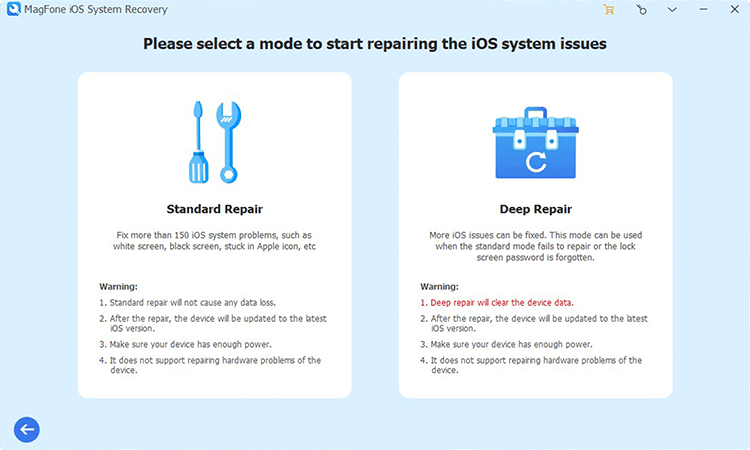
Go to iOS System Recovery from the main interface and click the Next button to select a repairing mode. There are two repairing modes, and just select the Standard Repair mode.
Step 3 Download the Verify the Firmware Package for iPhone

After successfully downloading the firmware package, you can click the Start Factory Reset button to begin resetting your device to the factory state. During the whole process, ensure your device is always connected to the computer with a USB cable.
Step 4Start to Fix iPhone Not Vibrating on Silent
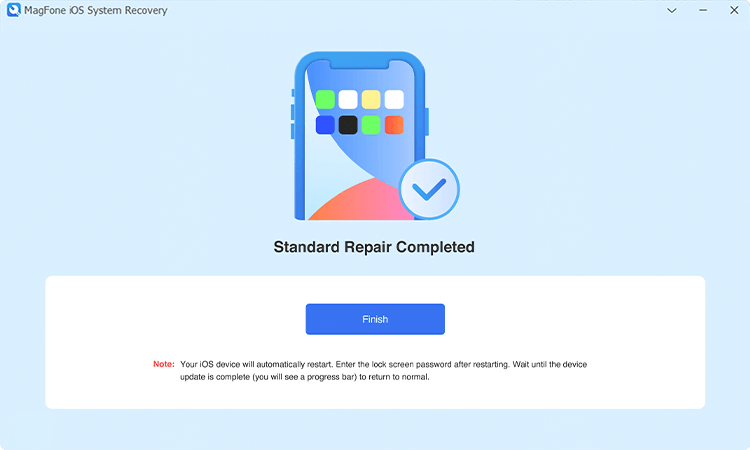
Click the Start Standard Repair button to fix the issue. Wait for a few minutes until Repair Completed appears. Proceed to click the Finish button when it is finished.
Part 5. FAQs about Vibration on iPhone
How to turn off vibration on iPhone?
It is easy to turn off vibration on your iPhone. Here you can choose to turn vibration off for specific uses or all alerts.
Turn off All Vibrations
Step 1. Go to Settings > Accessibility > Touch.
Step 2. Turn off Vibration.
Disable Vibration for Specific Alerts
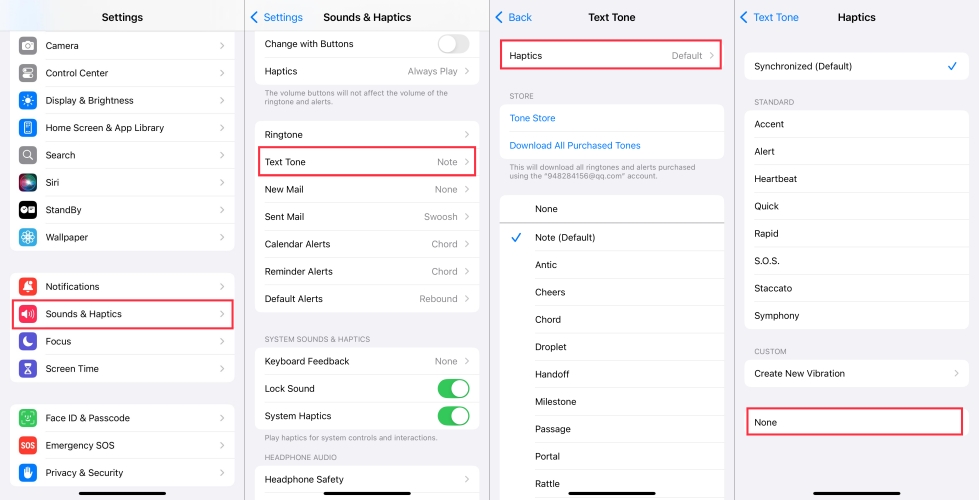
Step 1. Go to Settings > Sound & Haptics.
Step 2. Start to turn haptic off for specific alerts.
How do you customize vibrate on iPhone?
All iPhone users are allowed to customize vibrate. You can create a new vibrate according to your demand. Perform the following steps.
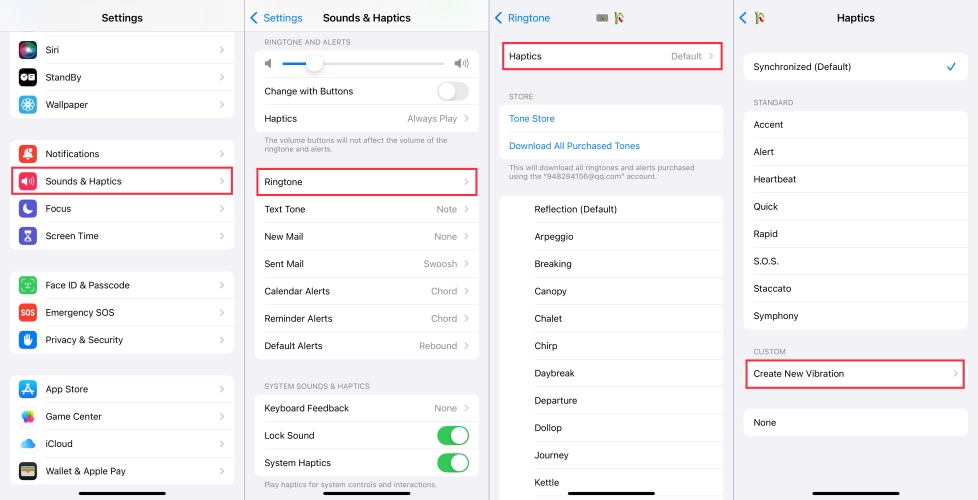
Step 1. Head to Settings > Sounds & Haptics.
Step 2. Select Ringtone, Text Tone, or any other option.
Step 3. Tap Haptics, then tap Create New Vibration to create your own.
How to make notifications vibrate on iPhone?
To make your iPhone vibrate for notifications, you can do the following.
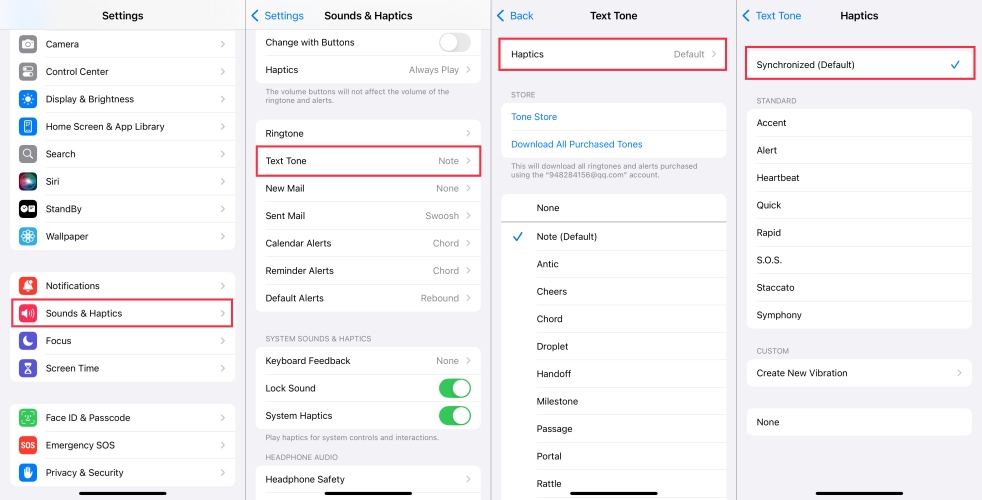
Step 1. Go to Settings and select Sounds & Haptics.
Step 2. Select Text Tone and proceed to set Haptics.
Part 6. Conclusion
Making your iPhone vibrate on Silent is not a hard thing to do after reading this article. There are different ways you can do this, such as checking the switch button on your iPhone, resetting your iPhone and more. However, if the problem is caused by some complicated system glitch and you are still stuck in the problem after trying a range of methods, consider using MagFone iOS System Recovery. The assistance of MagFone iOS System Recovery can help you fix the problem as quickly as possible without losing any data and settings on your iPhone.

Teresa Miller
Editor in chief





