








Transferring Pokémon from GO to HOME has become an essential step for trainers who want to consolidate their collection across devices. With Pokémon HOME acting as a cloud-based storage hub, players can safely store, manage, and even trade Pokémon from various games. Learning the transfer process allows you to expand your roster in Nintendo Switch titles like Pokémon Sword.
- Part 1. Can You Transfer Pokémon from GO to HOME?
- Part 2. How to Transfer Pokémon from GO to HOME
- Part 3. How to Catch More Pokémon for Transferring
- Part 4. FAQs about Pokémon Transfer
- Part 5. Conclusion
Part 1. Can You Transfer Pokémon from GO to HOME?
Yes, you can move certain Pokémon from Pokémon GO to Pokémon HOME. This feature bridges mobile gameplay and console experiences, enabling trainers to bring their favorite catches into other Pokémon titles. Later sections explain the benefits and requirements to transfer Pokémon from GO to HOME.
01Reasons to Transfer Pokémon from GO to HOME
Transferring Pokémon has several benefits:
- Preserve rare Pokémon safely.
- Access Pokémon in multiple games.
- Free up storage in Pokémon GO.
- Simplify trading and organizing collection.
02Requirements to Transfer Pokémon from GO to HOME
Before sending Pokémon, you need to ensure a few things:
- Linked Pokémon GO and HOME accounts.
- Updated Pokémon HOME app on your device.
- Sufficient GO Transporter Energy.
- Pokémon eligibility check.
03Limits When Transferring Pokémon from GO to HOME
There are a few transferring limitations to keep in mind:
- Pokémon cannot be sent back to Pokémon GO once transferred.
- Certain Pokémon transferred to Pokémon HOME cannot be moved to other Pokémon games.
- Some Pokémon (like event or costume ones) cannot be transferred.
- Transfers use GO Transporter Energy, which limits how many you can send.
Part 2. How to Transfer Pokémon from GO to HOME
Moving Pokémon from GO to HOME requires a few straightforward steps. Following these instructions carefully ensures your Pokémon arrive safely in your HOME boxes without errors or delays.
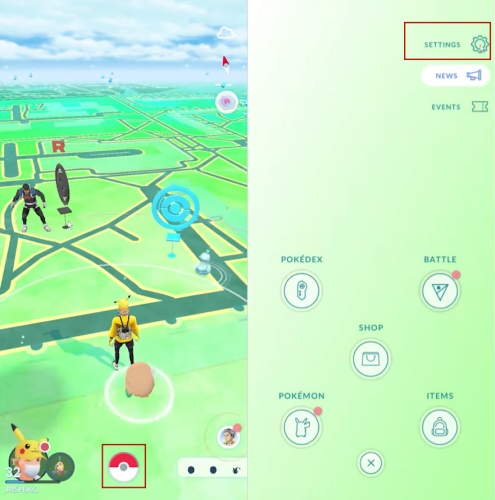
Step 1 Enter Pokémon GO Settings
Launch Pokémon GO on your mobile device. Tap the Poké Ball icon to open the main menu and locate the Settings option.
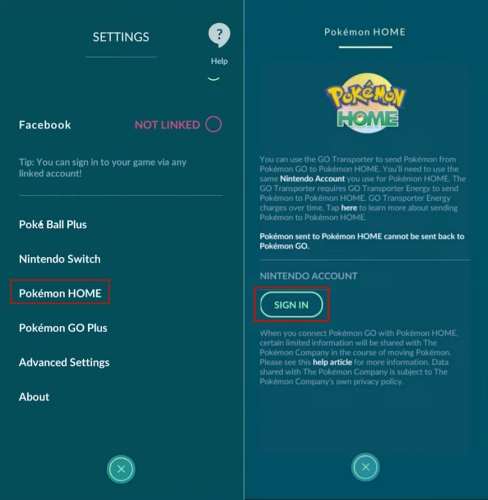
Step 2 Link to Pokémon HOME
Head to the Pokémon HOME section in Settings. Sign in using your Nintendo Account, making sure it matches the one used in HOME. Follow the on-screen instructions to finish the connection.
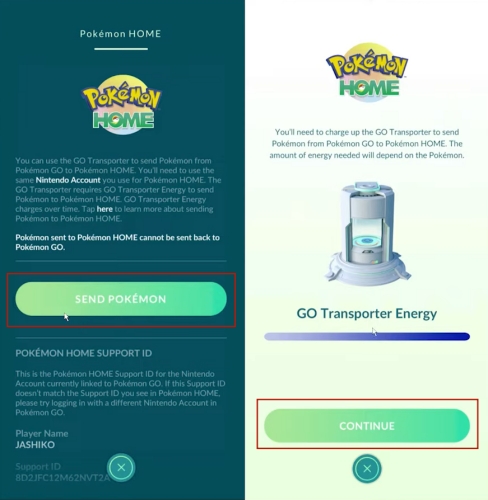
Step 3 Prepare Pokémon for Transfer
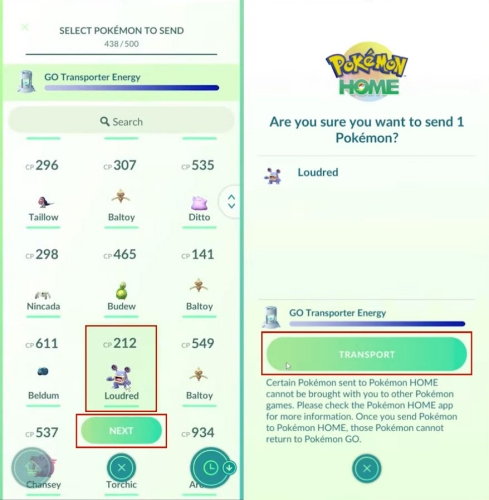
Select the SEND POKEMON option. Review the GO Transporter Energy required for each Pokémon and press CONTINUE. Remember, Legendary or Shiny Pokémon consume more energy than regular Pokémon.
Step 4 Choose Pokémon to Send
Pick the Pokémon you want to transfer carefully. Confirm your selection by tapping TRANSPORT and checking the energy costs before proceeding.
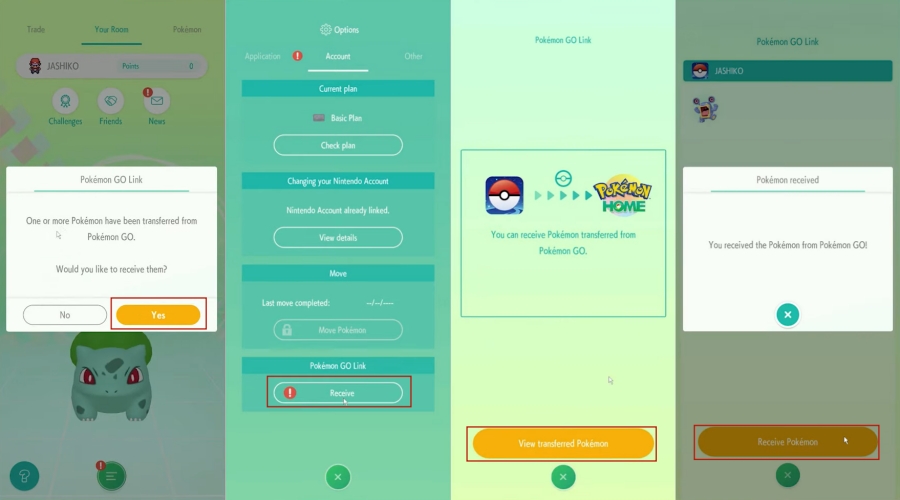
Step 5 Accept in Pokémon HOME
Next, open Pokémon HOME and receive the incoming Pokémon. Once received, they are officially part of your HOME collection and cannot be returned to Pokémon GO.
Part 3. How to Catch More Pokémon for Transferring
To maximize your transfers, catching more Pokémon in Pokémon GO is essential. Tools like MagFone Location Changer allow you to simulate movement and explore new areas virtually. This is particularly helpful for encountering region-exclusive Pokémon and rare species without leaving home. By using this method, you can build a more diverse and valuable collection ready for transfer to HOME. Here's how to use this program to catch more Pokémon.

MagFone Location Changer
Easily change your GPS location on iOS and Android devices to anywhere with one click, while not requiring root or jailbreaking!
Step 1 Connect Device and Launch MagFone

Get a USB cable to link your iPhone or Android phone to your computer. Enable Developer Mode, then open MagFone Location Changer. Choose Start > Next and press Game Mode to begin.
Step 2 Modify Your Pokémon GO Location

Navigate the map to select your desired spot, or type the address in the search bar. Pick the Start Modifying button to change your GPS location in Pokémon GO. This will allow you to catch more Pokémon in different places.
Part 4. FAQs about Pokémon Transfer
Which Pokémon should I never transfer?
Many players now search for "don't transfer that Pokémon" to avoid losing valuable traits. You should not transfer Shadow Pokémon before purification, costumed Pokémon, or event-exclusive forms like special Pikachu, as they may lose unique moves or event status. Only transfer standard, shiny, fully evolved, or eligible Legendary and Mythical Pokémon to ensure they retain their full value in HOME.
Can you transfer special Pokémon from Go to HOME?
Yes, many special Pokémon can be sent, including regular Legendaries, Mythicals, and Shiny versions. However, certain forms like Gigantamax, fused, Safari Ball, or specific event Pokémon cannot move to HOME. Always double-check the Pokémon's status before attempting a transfer.
Can you transfer items through Pokémon HOME?
No, items collected in Pokémon GO, such as Poké Balls, berries, or other inventory objects, cannot be transferred to HOME. Pokémon HOME only manages creatures themselves, so all item management must remain in GO or the respective console game.
How many Pokémon can you transfer from GO to HOME?
You can transfer up to 25 Pokémon at a single time from Pokémon GO to Pokémon HOME. However, the total number you can move over a period is restricted by your GO Transporter Energy, which has a maximum capacity of 10,000 units.
Part 5. Conclusion
Transferring Pokémon from GO to HOME bridges the mobile and console experiences, letting you expand your collection safely and efficiently. By linking accounts, checking eligibility, and using tools like MagFone to catch rare Pokémon, you can make the most of every transfer.

Edgar Davis
Editor in chief





