








Imagine seeing a Pikachu standing on your living room floor or spotting a Charizard appearing in your backyard through your phone's camera. This immersive experience is exactly what Pokemon GO AR mode offers. By blending virtual Pokemon with your real-world surroundings, AR mode transforms ordinary gameplay into an interactive adventure. In this article, we'll show you exactly how to activate and use Pokemon GO AR mode.
- Part 1. What Is Pokemon GO AR Mode?
- Part 2. How to Activate AR Mode in Pokemon GO
- Part 3. How to Use AR Mode in Pokemon GO
- Part 4. Troubleshooting: AR Mode Not Working in Pokemon GO
- Part 5. Bonus Tip: How to Catch More Pokemon in Pokemon GO
- Part 6. Conclusion
Part 1. What Is Pokemon GO AR Mode?
Pokemon GO's AR mode integrates augmented reality into the gameplay experience. It allows players to view and interact with Pokemon as though they exist in the real world. Players can encounter Pokemon in various real-world environments, such as parks, homes, and streets, making each capture experience feel more immersive and unique.
There are two versions of this feature available in the game: the standard Pokemon GO AR mode and Pokemon GO AR+ mode. While both allow Pokemon to appear in real-world settings, AR+ mode offers a more advanced, interactive experience through enhanced environmental tracking. Here are the differences between the AR mode and the AR+ mode.
| Feature | Pokemon GO AR Mode | Pokemon GO AR+ Mode |
|---|---|---|
| Camera Usage | Uses device camera | Uses advanced camera and motion tracking |
| Environmental Awareness | Limited | Detects surfaces and surroundings |
| Pokemon Interaction | Basic positioning | Dynamic movement and hiding behavior |
| Device Requirements | Most supported smartphones | Compatible AR-supported devices only |
| Immersion Level | Moderate | High |
Part 2. How to Activate AR Mode in Pokemon GO
If you're wondering how to activate AR mode in Pokemon GO, the setup process is relatively straightforward. You can enable the standard AR mode directly through the game settings. However, to use AR+ mode, your device must meet specific requirements. iPhone users need an iPhone 6s or newer running iOS 11 or later, while Android users require Android 7.0 or newer with support for Google Play Services for AR.
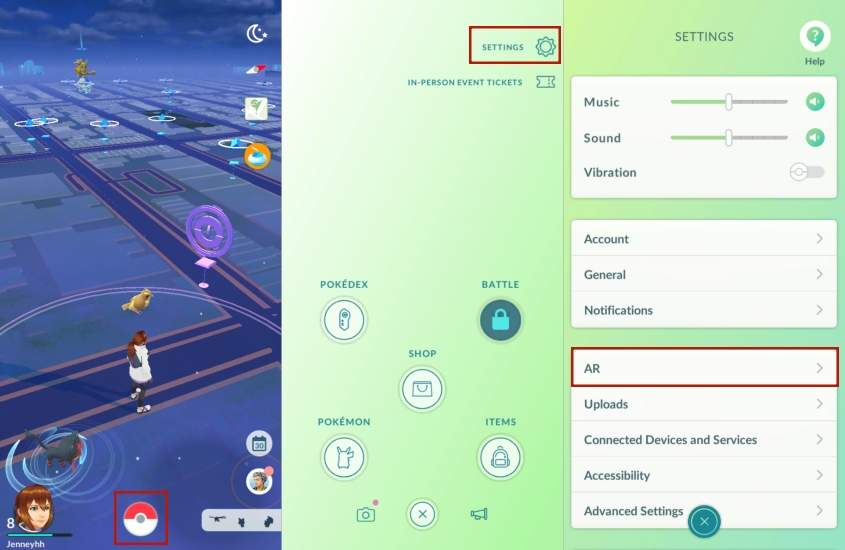
Step 1. Open Pokemon GO on your smartphone and sign in to your account.
Step 2. Tap the Poke Ball icon located at the bottom center of the screen.
Step 3. Pick the Settings option from the top-right menu.
Step 4. Find and tap the AR or Niantic AR option.
Step 5. Enable the AR features to activate the Pokemon GO AR mode.
Step 6. If your device supports AR+, enable the Niantic AR option for enhanced augmented reality experiences.
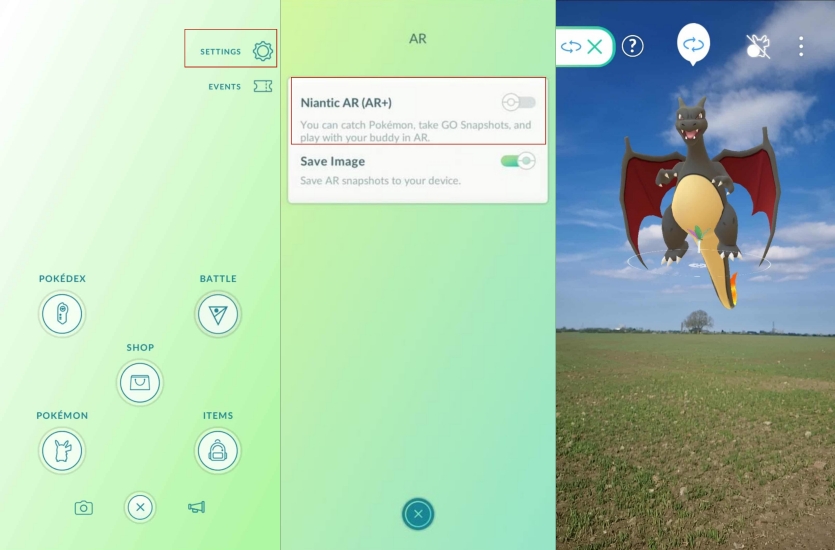
You can turn off AR Mode in Pokemon GO either through the Settings menu or directly during a Pokemon encounter on the top of the screen.
Part 3. How to Use AR Mode in Pokemon GO
After you set up the AR mode in Pokemon GO, you can begin catching Pokemon using your real-world environment as the background. Learning how to use AR mode in Pokemon GO properly allows you to improve immersion, capture memorable screenshots, and enjoy more realistic encounters. The controls differ slightly between standard AR mode and AR+ mode.
Using Standard Pokemon GO AR Mode:
Step 1. Encounter a wild Pokemon.
Step 2. Hold your phone steadily and point the camera at your surroundings.
Step 3. Wait for the Pokemon to appear on your screen.
Step 4. Use Poke Balls normally to attempt the catch.
Step 5. Adjust your phone position if you want to capture photos from different angles.
Using Pokemon GO AR+ Mode:
Step 1. Begin a Pokemon encounter.
Step 2. Slowly move your phone around to allow the game to scan the surrounding area.
Step 3. Watch for visual indicators showing that a flat surface has been detected.
Step 4. Approach the Pokemon carefully, as sudden movements may cause it to flee.
Step 5. Position yourself strategically for improved throwing accuracy.
Step 6. Capture the Pokemon and take AR snapshots if desired.
Part 4. Troubleshooting: AR Mode Not Working in Pokemon GO
Sometimes players encounter problems where AR mode not working in Pokemon GO becomes frustrating. Issues can occur due to outdated software, missing permissions, unsupported hardware, or temporary bugs. Here are some fixes for you when you encounter these errors.
Fix 1. Verify Device Compatibility: Confirm your device meets Pokemon GO and ARKit or Google Play Services for AR requirements.
Fix 2. Update Pokemon GO: Install the latest Pokemon GO update from your app store, then restart the game.
Fix 3. Enable Camera Permissions: Allow camera access for Pokemon GO in your device settings, then relaunch the app.
Fix 4. Install or Update Google Play Services for AR: Android users should install or update Google Play Services for AR.
Fix 5. Restart Your Smartphone: Restart your device completely, then reopen Pokemon GO and test AR mode again.
Fix 6. Disable and Re-enable AR Mode: Turn AR off in Pokemon GO settings, wait a few seconds, then enable it again.
Fix 7. Reinstall Pokemon GO: Reinstall the latest version of Pokemon GO and check whether AR functionality is restored.
Part 5. Bonus Tip: How to Catch More Pokemon in Pokemon GO
While exploring different locations in Pokemon GO can help you discover more Pokemon, traveling everywhere in person isn't always practical. As a location-changing tool, MagFone Location Changer provides a dedicated game mode designed specifically for Pokemon GO players. It allows you to change your location for remote catching, remote trading, and remote raids. Additionally, it can simulate movement routes for egg hatching and Buddy walking. Here's a simple uesr guide for you.

MagFone Location Changer
Easily change your GPS location on iOS and Android devices to anywhere with one click, while not requiring root or jailbreaking!
Step 1 Connect Your Device to a Computer

Uninstall the Pokemon GO app on your phone. Connect your iPhone or Android device to your computer using a USB cable. Download and run MagFone Location Changer on your computer. Then choose the Pokemon GO in the game mode.
Step 2 Change Your Virtual GPS Location

Select a location-changing mode at the top of the screen. Browse the map manually or enter a specific destination in the search field. Once you've selected your desired location, click the Start Modifying button to update your device's GPS position instantly.
Part 6. Conclusion
Pokemon GO AR mode adds an exciting layer of realism to the game by bringing Pokemon into your everyday environment. Whether you're learning how to turn on AR mode in Pokemon GO, exploring advanced AR+ features, troubleshooting technical issues, or enhancing your gameplay experience with location-changing tools, understanding these features can help you enjoy a more immersive and rewarding Pokemon adventure.

Olivia Wood
Editor in chief





