







Want to roam the world in Pokemon GO without leaving your couch? iFlowGo promises exactly that, using a Bluetooth link to move your iPhone's GPS wherever you like. But the internet is split: some trainers swear by it, others call it malware. Before you hand over your device or your money, let's unpack whether iFlowGo is safe, free, and truly worth your time. We tested it ourselves, so you get real answers, not rumors.

- Part 1. User Reviews of the iFlowGo Tool
- Part 2. Pros and Cons of iFlowGo Spoofer
- Part 3. How to Download and Use iFlowGo
- Part 4. Best Alternative to the iFlowGo Tool
- Part 5. Conclusion
Part 1. User Reviews of the iFlowGo Tool
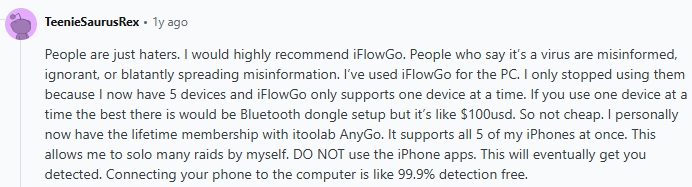
Start with Reddit , where the tool has a rough reputation. One popular thread, titled along the lines of "iFlowGo sucks," has commenters claiming the download is a Trojan. They say it was hard to remove, and that the Discord community tells people to switch off their antivirus. Several users also accuse a few accounts of aggressively promoting the tool.

Not everyone agrees. Other commenters argue that the antivirus flags are common false positives, since the app is built with Python-based packaging tools that security software often distrusts. Some long-term users call the critics "haters" and say iFlowGo has worked well for them for months, with only minor annoyances, such as having to track cooldown timers by hand.
So who is right? We tested the app, and the truth sits in the middle: it works, but it has limits. Its Bluetooth link can be fussy, and access sits behind a paywall. If the program won't open on your PC after downloading, right-click it and choose Run as administrator. That fixed the problem for us. Still, scan every file before installing, and download only from the official website.
Part 2. Pros and Cons of iFlowGo Spoofer
iFlowGo has real strengths, but it also comes with trade-offs that matter before you commit. Here is a quick, honest snapshot of what the spoofer does well and where it stumbles, so you can decide whether its Bluetooth-based approach fits your setup, budget, and tolerance for annoying troubleshooting sessions.
 Pros
- No jailbreak required.
- Joystick, teleport, and routes.
- Android phone can control.
- Free VIP trial available.

- Bluetooth connection drops often.
- Only spoofs iPhones.
- Full access needs payment.
- No dedicated customer support.
Part 3. How to Download and Use iFlowGo
Getting iFlowGo running is fairly painless if you follow the right order, especially the Bluetooth pairing. Download only from the official site, since fake links are common. Here is a simple walkthrough covering installation, pairing, and your first teleport, plus a quick note about the free VIP trial offer.
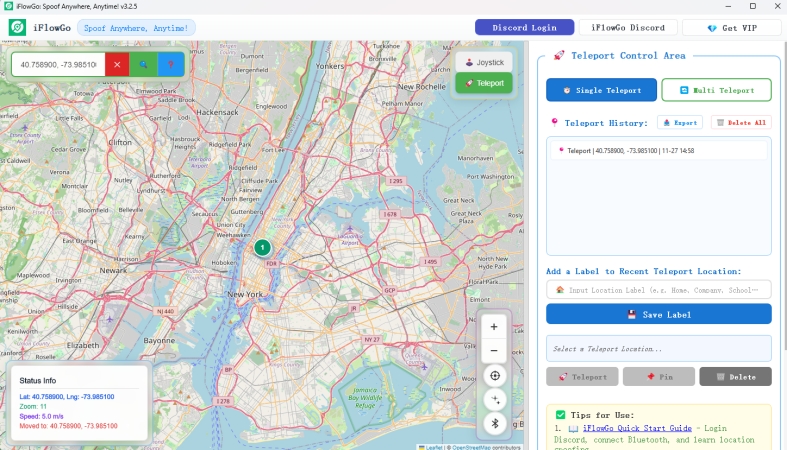
Step 1. Open the official iFlowGo website and download the version for your Windows PC, Mac, or Android phone.
Step 2. Unzip and install the program. If it refuses to open on Windows, right-click it and select Run as administrator.
Step 3. Make sure the regular App Store version of Pokemon GO is installed on your iPhone.
Step 4. Turn Bluetooth off on both devices, switch it on for your computer first, then on your iPhone, and pair them manually.
Step 5. Pick Teleport or Joystick mode, choose a spot on the map, and return to the game to see your new location.
Part 4. Best Alternative to the iFlowGo Tool
If iFlowGo's Bluetooth drops and Patreon-only access frustrate you, MagFone Location Changer is a smoother alternative. It works with both iPhone and Android over a simple USB connection, so there is no pairing drama, and setup stays quick. Beyond one-click teleporting, it can simulate walking routes with custom stops, moving look natural. That reliability makes long Pokemon GO sessions far less stressful. The table below compares the two tools.
| Feature | iFlowGo | MagFone Location Changer |
|---|---|---|
| Connection | Bluetooth | USB cable |
| Supported phones | iPhone only | iPhone and Android |
| Teleportation | Yes | Yes |
| Route simulation | Yes | Yes, with custom multi-stop routes |
| Joystick | No | Yes |
| Access model | Patreon subscription | Standalone desktop software |

MagFone Location Changer
Easily change your GPS location on iOS and Android devices to anywhere with one click, while not requiring root or jailbreaking!
Step 1 Open MagFone Location Changer
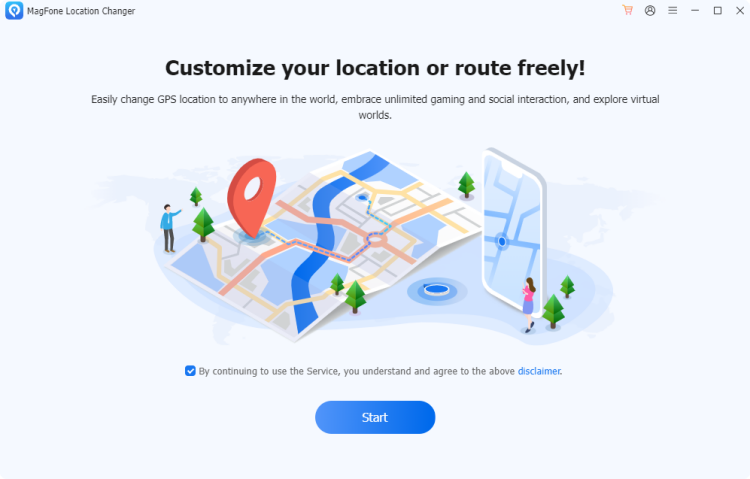
Install the program on your computer and open it. Plug in your iPhone or Android phone with a USB cable, select the Change Location mode on the main screen, and click Start to begin editing your GPS position.
Step 2 Teleport or Build Virtual Routes
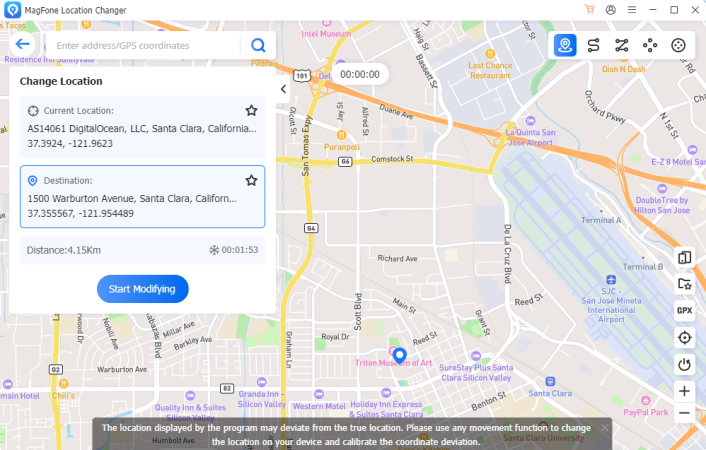
Switch to the route-planning tab in the top-right corner, then click around the map to place several stops and create your own path. When you're happy with it, press the Start Modifying button. MagFone keeps refreshing your position along the path.
Part 5. Conclusion
iFlowGo works, but it is not flawless. Expect Patreon pricing, occasional Bluetooth drops, and antivirus warnings that you should treat carefully. If you try it, download from the official site, run it as administrator, and accept that no spoofer guarantees account safety. For steadier connections, routes, and teleporting, MagFone Location Changer is a very worthwhile alternative to consider seriously before you spend any money.

Edgar Davis
Editor in chief




