








In the modern classroom, staying on top of attendance and participation points has evolved from a simple roll call to a digital dance with location-based software. At the center of this shift is iClicker, an interactive tool used by colleges across the globe to gauge student presence and comprehension in real-time. Whether you're dealing with a faulty GPS signal or a tight schedule that keeps you out of the lecture hall, this guide shows how to change your location on iClicker.
- Part 1. Does iCicker Track Location?
- Part 2. How to Change Location on iClicker [For Instructors]
- Part 3. How to Get Around iClicker Location [For Students]
- Part 4. FAQs about iClicker Location Change
- Part 5. Conclusion
Part 1. Does iCicker Track Location?
Yes, iClicker uses location data, but it does not operate like a constant GPS tracker. It primarily verifies whether students are physically present during class for attendance and participation purposes.
How Does iClicker Geolocation Work?
When a class session begins, iClicker checks your device's coordinates to see if you are within a set radius—usually a few hundred feet—of the classroom. It does not display your exact location to the professor. Instead, the app provides a simple pass/fail check: inside the geofence, you can check in; outside, the app blocks attendance and may flag you as absent, ensuring fair participation monitoring.
Why Students Change Their iClicker Location?
The primary purpose of this tracking is to maintain academic integrity. Since participation often accounts for 5% to 15% of a final grade, universities use geolocation to prevent students from "remote-clicking" from their dorm rooms or local coffee shops. As a result, some students seek iClicker location change methods to correct GPS errors or handle emergencies, helping them maintain participation credit and avoid unfair penalties.
Part 2. How to Change Location on iClicker [For Instructors]
There is no official way for students to change their location on iClicker. However, instructors do have an approved method to adjust class location and response radius settings. Below is a clear, step-by-step guide explaining how instructors can update location details properly within the platform.
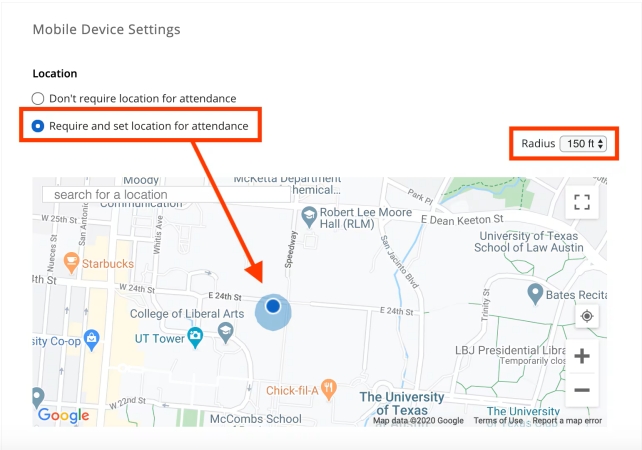
Step 1. Log in to the iClicker Cloud instructor website and select your course.
Step 2. Click on Settings in the sidebar, then navigate to the Attendance tab.
Step 3. Scroll to the Location part and choose Require and set location for attendence.
Step 4. Use the map search bar to enter your classroom's address or building name.
Step 5. Adjust the Radius (e.g., 150 feet) and click Save to update the check-in zone.
Part 3. How to Get Around iClicker Location [For Students]
Changing location on iClicker is a technical process that involves overriding the GPS data your phone sends to the app. While the app is designed to be secure, students have found ways to align their digital presence with the classroom coordinates using other useful tools.
| Method | Supported Devices | Stability | Summary |
|---|---|---|---|
| MagFone Location Changer | iOS & Android (All Versions) | High | Best overall performance with system-level spoofing. |
| iTools | iOS Only (Up to iOS 16) | Moderate | Integrated device management but outdated for new OS. |
| Fake GPS Location | Android Only | Low | Simple and free, but easily detected by some apps. |
Method 1. Change Location on iClicker via MagFone
As shown in the table, MagFone Location Changer is considered effective because it alters system-level GPS data on both Android and iOS devices in a stable way. This means every app on your phone, including iClicker, believes you are at the specified coordinates, making it much harder for the app to detect that you aren't physically present in the lecture hall. You can spoof location on iClicker via MagFone Location Changer anytime and anywhere.

MagFone Location Changer
Easily change your GPS location on iOS and Android devices to anywhere with one click, while not requiring root or jailbreaking!
Step 1 Link Your Phone and Launch MagFone

Download and open MagFone Location Changer on your computer. Connect your iPhone or Android device using a USB cable or wireless connection. Follow the on-screen prompts to enable Developer Mode, then choose a preferred virtual location mode inside the software.
Step 2 Locate the Target iClicker Lecture Area

Once the map loads, browse to the target location or input exact GPS coordinates in the search field. After confirming the spot, click Start Modifying. Your device's GPS location will instantly update, and iClicker will register the new position accordingly.
Method 2. Change Location on iClicker Using iTools
iTools offers a built-in Virtual Location feature that allows iPhone users to bypass geographic restrictions without jailbreaking. While it is highly effective for managing iOS content, its GPS spoofing capabilities serve as a reliable bridge for students needing to "check in" from a distance while keeping their data secure.
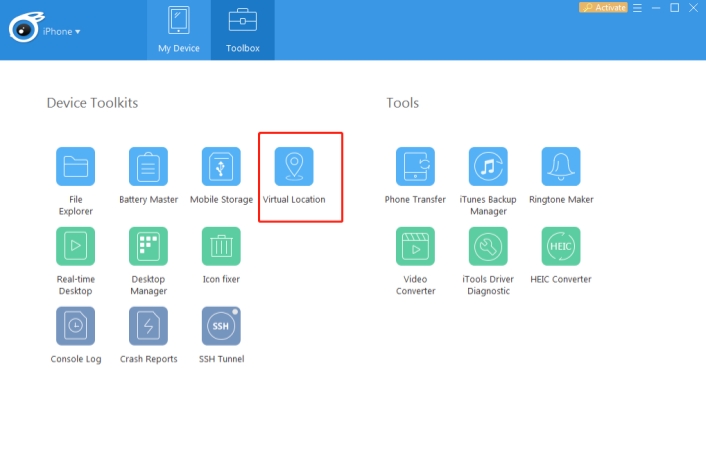
Step 1. Visit ThinkSky's official site and download the iTools desktop software to your computer.
Step 2. Run the installer and complete the setup by following the guided installation prompts.
Step 3. Use a stable USB cable to connect your iPhone to the PC.
Step 4. Launch iTools, navigate to Toolbox, and choose the Virtual Location option.
Step 5. Enter specific latitude and longitude values or manually select a location on the map.
Step 6. Confirm your selection by clicking Go or Move Here to apply the new virtual location to your device.
Method 3. Change Location on iClicker with Fake GPS Location
For Android users, the Fake GPS Location app is a popular, lightweight solution that utilizes the "Mock Location" setting hidden within the developer menu. This method requires no computer, making it a quick way to override your coordinates directly from your handset during a lecture check-in.
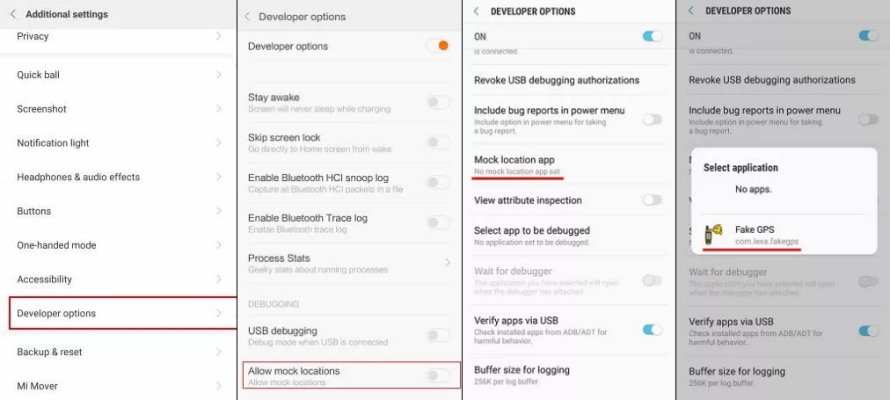
Step 1. Open Fake GPS Location on your Android phone.
Step 2. Go to Settings, tap About Phone, and tap the Build Number 7 times to enable Developer Mode.
Step 3. In Developer options, enable Allow mock locations and tap Mock location app.
Step 4. Select Fake GPS and start changing your location on your iClicker app.
Part 4. FAQs about iClicker Location Change
Does iClicker show your location?
No, it does not show a live map of your movements to your professor. It only reports whether you were within the allowed radius at the time of the check-in "ping."
How to turn off iClicker location?
You can disable location by going to your phone's Settings > Privacy > Location Services and toggling iClicker to "Never." However, if your professor has enabled the geolocation requirement, you will be unable to join the session or earn points.
Why does iClicker location not work?
This is often due to poor Wi-Fi, being in a "dead zone" in a large building, or having "Precise Location" turned off in your phone's app settings.
How to fix iClicker says my location is disabled?
Go to your device's settings, find the iClicker app, and ensure that location permissions are set to "While Using the App" and that the "Precise Location" toggle is turned on.
Part 5. Conclusion
While native settings usually suffice for on-campus issues, tools like MagFone or iTools provide more robust solutions for technical overrides. Whether you are an instructor or a student, understanding these settings ensures a smoother classroom experience and helps bypass the common "out of range" errors that disrupt learning.

Edgar Davis
Editor in chief





