








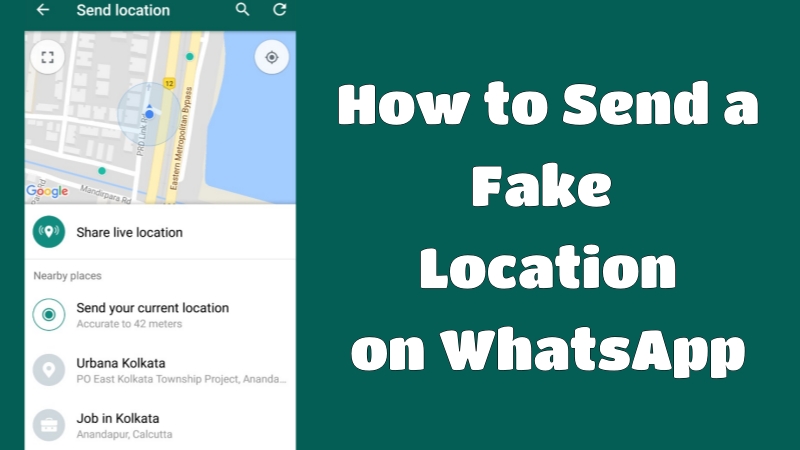
There are many situations where people may want to share a virtual or altered location on messaging apps like WhatsApp. Some users do it for privacy, while others use it for app testing or simply for fun with friends. Whether you're using iOS or Android devices, you'll learn how to send a fake location on WhatsApp. This guide covers both current location sharing and live location manipulation step by step.
- Part 1. What Happens After Faking Location on WhatsApp?
- Part 2. How to Fake Location on WhatsApp [iOS & Android]
- Part 3. How to Send a Fake Location on WhatsApp [For iOS]
- Part 4. How to Send a Fake Location on WhatsApp [For Android]
- Part 5. Conclusion
Part 1. What Happens After Faking Location on WhatsApp?
WhatsApp location sharing relies on GPS signals from your device to pinpoint where you are and transmit it to contacts. When you change or spoof this GPS data, the app will read the modified position instead of your real one. There are several benefits to faking your location on WhatsApp.
Benefits of faking WhatsApp location:
- Helps protect real-time privacy by hiding your actual physical position during chats or group sharing sessions.
- Useful for creating simulated travel scenarios in social conversations or content creation purposes online.
- Can assist developers in checking map features or GPS-based services during app development or debugging stages.
- Provides flexibility for users who want to appear in a different city temporarily for personal reasons.
Part 2. How to Fake Location on WhatsApp [iOS & Android]
In this section, we explain practical ways to fake a GPS location and send it through WhatsApp quickly. The process depends on whether you are sharing a static current location or a continuously updating live location, but both can be adjusted using the following two ways.
01Fake Current Location on WhatsApp
When you send a location on WhatsApp, the app allows you to search and choose any point on the map. This means the shared position does not have to match your real-time GPS. You can manually select another place before sending it to your contact.
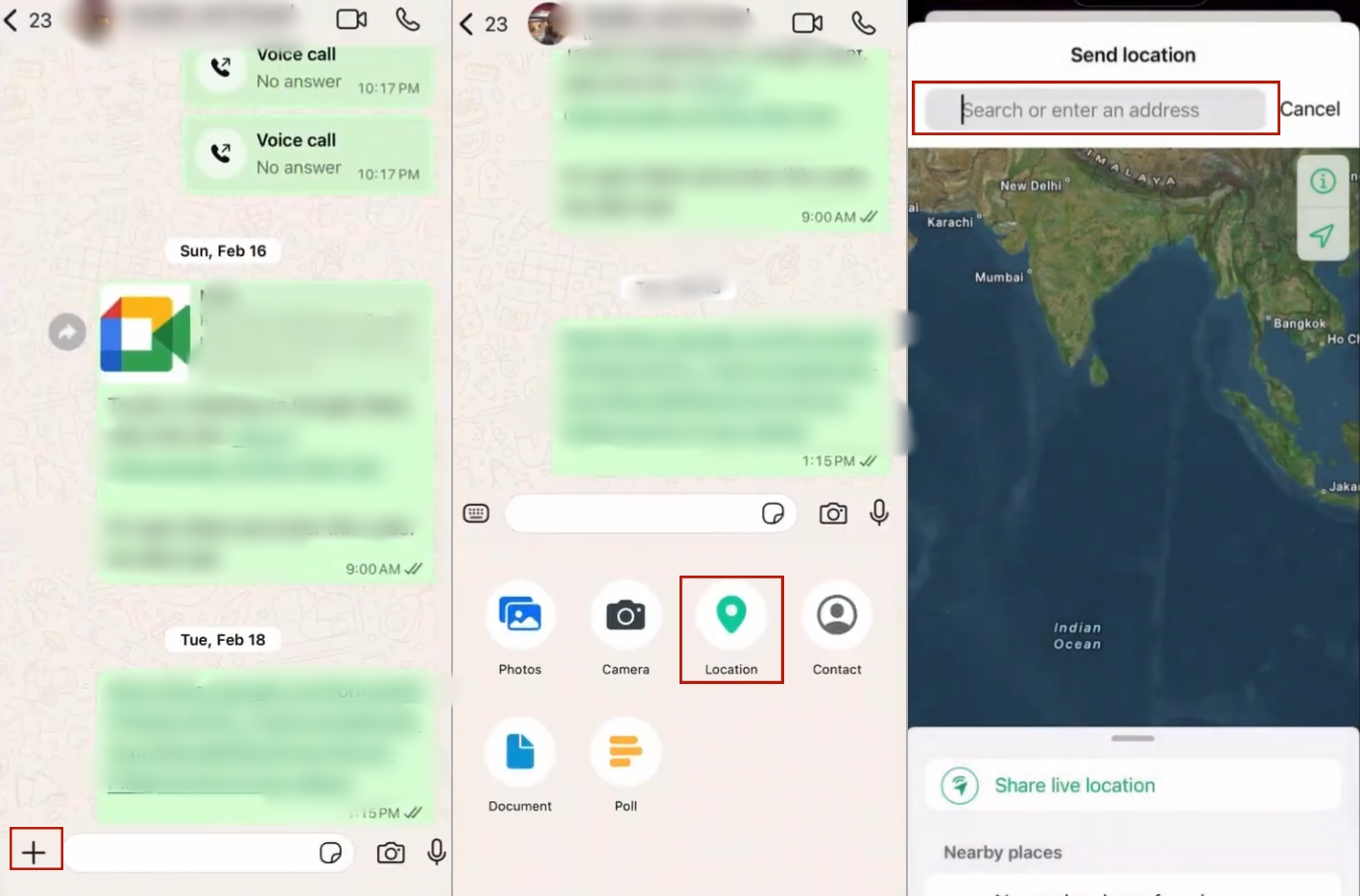
Step 1. Open WhatsApp on your device, then enter the conversation.
Step 2. Tap the + icon and select the Location section.
Step 3. Search for an address or tap the search icon to find a location.
Step 4. Find and tap the location name from the list to send it.
02Fake Live Location on WhatsApp
Unlike a static location, a live location constantly updates your movement in real time. To fake this properly, you need tools that simulate GPS movement or create virtual routes. One widely used solution is MagFone Location Changer, which allows users to set a fixed point or simulate travel paths and joystick-style movement. It supports both iOS and Android. Here's how to fake a current or live location for WhatsApp with MagFone Location Changer.

MagFone Location Changer
Easily change your GPS location on BLK to anywhere with one click, while not requiring root!
Step 1 Install MagFone Location Changer on PC

Start by downloading and opening MagFone Location Changer on your PC. Use a USB cable to link your smartphone and PC. Once the device is detected, click Start and choose General Mode.
Step 2 Fake Current/Live Location on WhatsApp

From there, you can either type a city or manually drop a pin to select a virtual location. Select the first tab if you want to fake your current location on WhatsApp. If you want to fake a WhatsApp live location, choose the second or third tab in the top-right corner of the map.
Part 3. How to Send a Fake Location on WhatsApp [For iOS]
iOS devices have stricter GPS controls, but you can still spoof your location using tools like iFakeLocation. By connecting your iPhone to a PC with iFakeLocation installed, you can fake your GPS position that WhatsApp will use instead of your real address. After setup, your selected coordinates will appear when sharing location on WhatsApp.
Step 1. Visit GitHub and download the iFakeLocation files onto your Windows PC or Mac for free.
Step 2. Unzip the downloaded ZIP file, or directly download the files if you are on a Mac.
Step 3. On Windows, right-click the iFakeLocation .exe file and select Open > Extract all.
Step 4. After extraction, right-click the iFakeLocation.exe file again and choose Run as administrator to open the program.
Step 5. Connect your iPhone or iPad to the computer and tap Trust on the device when prompted. Open iTunes so it can recognize the device.
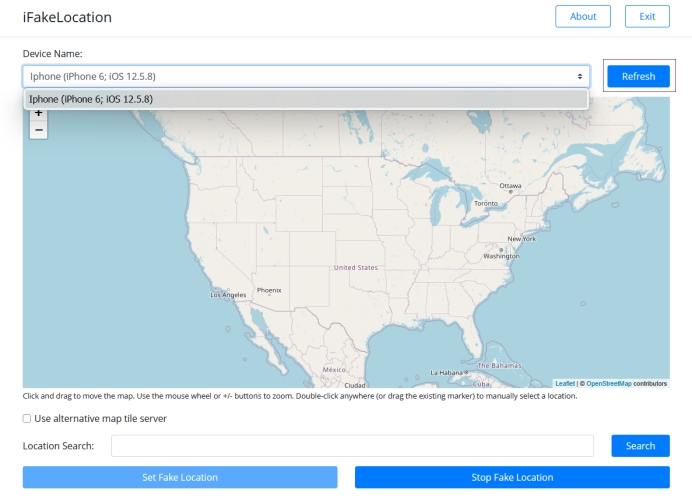
Step 6. Press the Refresh button in the iFakeLocation interface, then pick your device from the Device Name list.
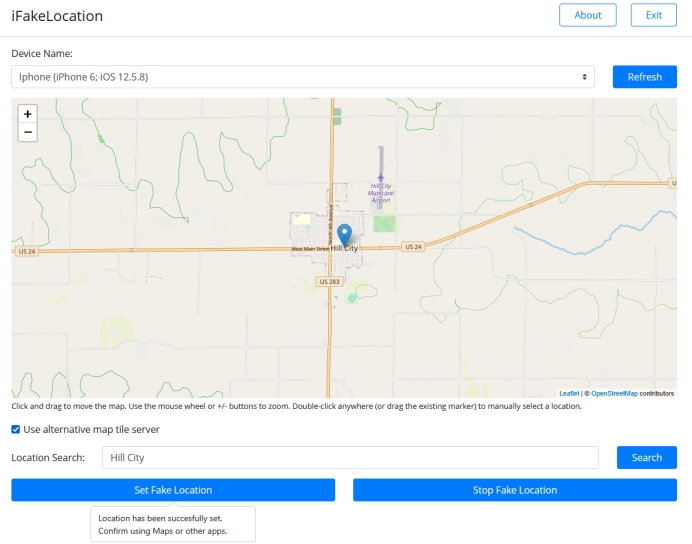
Step 7. Type the location you want to spoof in the search box and click Search, or simply double-click a spot on the map to set it manually.
Step 8. Select Set Fake Location to change your current location on WhatsApp.
Part 4. How to Send a Fake Location on WhatsApp [For Android]
Android users can also fake their WhatsApp location with Fake GPS, a completely free app available on Google Play. This program allows you to fake your GPS location instantly without needing a computer. Simply select any location on the map, and WhatsApp will recognize it as your current position. The app also includes a random movement feature that simulates activity around the selected point.
Step 1. Open Settings > About Phone > Software information.
Step 2. Hit the Build number section several times to turn on Developer Mode.
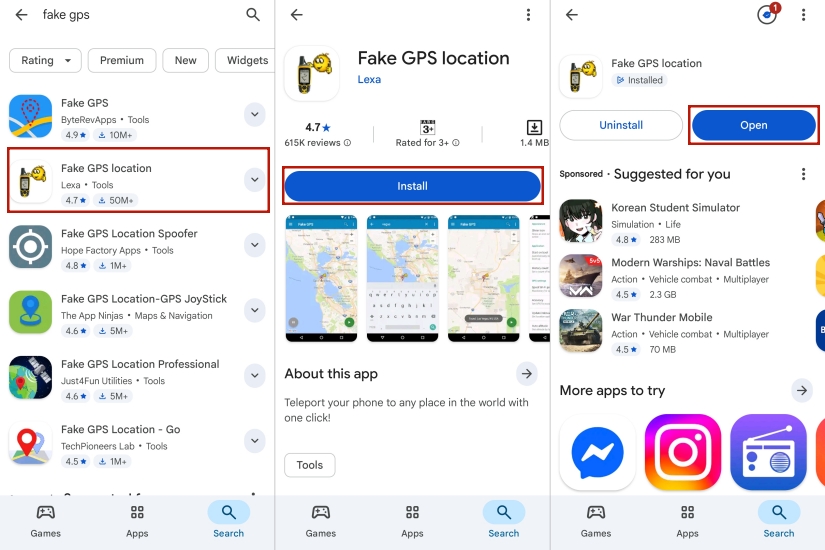
Step 3. Go to the Play Store, search for Fake GPS, and tap Install.
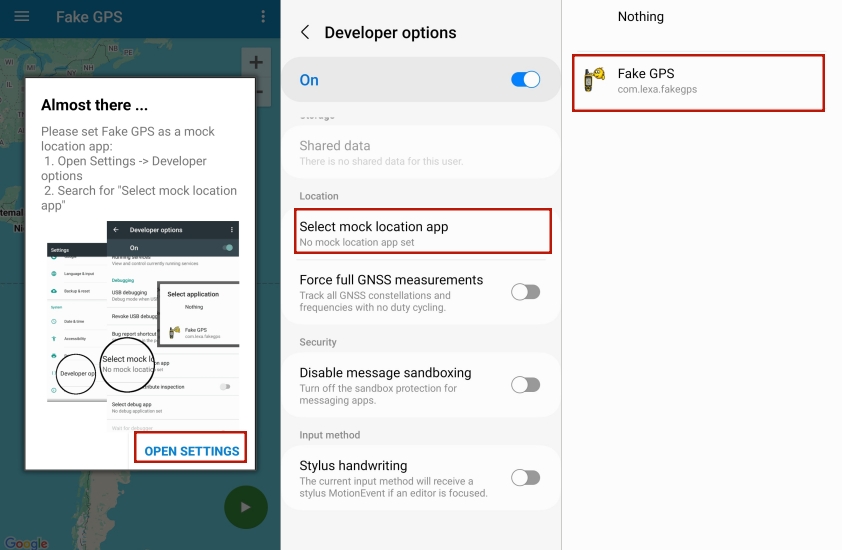
Step 4. Then open the app and tap OPEN SETTINGS to complete setup.
Step 5. In the Developer Options page, scroll to the bottom and tap Select mock location app.
Step 6. Choose Fake GPS, then return to the map and pick a desired location.
Step 7. Tap the Start button to activate the fake GPS location.
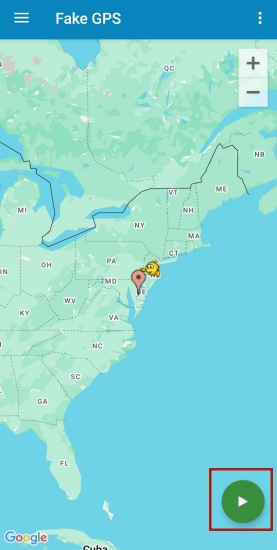
Step 8. Open WhatsApp and share your updated location.
Part 5. Conclusion
Faking location on WhatsApp can be done in multiple ways, depending on your device and needs. Whether you are sending a fake current location or simulating a live route, both iOS and Android offer workable solutions through apps and desktop tools. While these methods provide flexibility and privacy control, they should always be used responsibly to avoid misunderstandings in communication and ensure proper usage.

Edgar Davis
Editor in chief





