








Locked out of your Samsung phone because you forgot the pattern can be frustrating. Many users encounter this issue due to accidental changes, children playing with the device, or purchasing a second-hand phone. But fortunately, there are several methods to help you regain access to your Samsung phone. All methods follow best practices, user-intent insights, and trustworthy information, ensuring you get clear, reliable, and actionable help. Let's see how to unlock Samsung phone pattern lock now.
- Part 1. Is It Possible to Remove Pattern Lock on Samsung Phone?
- Part 2. How to Unlock Samsung Phone Pattern Lock without Factory Reset
- Method 1. Bypass Pattern Lock on Samsung Phone via Previous Screen Lock
- Method 2. Unlock Pattern Lock on Samsung Phone via Google Account
- Method 3. Open Pattern Lock on Samsung Phone via Emergency Call
- Method 4. Turn Off Pattern Lock on Samsung Phone via ADB Commands
- Method 5. Get Past Pattern Lock on Samsung Phone via Smart Lock
- Method 6. Unlock Pattern Lock on Samsung Phone via Safe Mode
- Part 3. How to Unlock Samsung Phone Pattern Lock with Factory Reset
- Part 4. Conclusion
Part 1. Is It Possible to Remove Pattern Lock on Samsung Phone?
It is normal to forget your pattern lock on your Samsung phone, but it will be stressful, especially when you urgently need access to your device. If you forgot your pattern lock on your Samsung phone and cannot unlock it, not fret, several methods include official Samsung solutions and third-party tools to get you out of trouble easily and quickly.
Comparison of Ways to Unlock Pattern Lock on Samsung Phone
Whether it is because you forget your pattern lock after changing it or enter too many incorrect attempts leading to temporary lock, the methods below cover almost every scenario where you're locked out of your Samsung phone. To better understand each way to unlock the pattern lock on a Samsung phone, check this deep comparison of all the methods.
| Method | Works on | Google or Samsung account | Data Loss | Difficulty | Reliability |
|---|---|---|---|---|---|
| Previous Screen Lock | Change to pattern lock within 72 hours | ❌ | ❌ | Easy | Moderate |
| Google Account | Very old Samsung phones | ✔️ | ❌ | Easy | Moderate |
| Emergency Call | Very old Samsung phones | ❌ | ❌ | Easy | Low |
| ADB Commands | Only if ADB debugging is enabled | ❌ | ❌ | Medium | Low |
| Smart Lock | Only if Smart Lock is enabled | ❌ | ❌ | Easy | Moderate |
| Safe Mode | Only if a third-party lock app is used | ❌ | ❌ | Easy | Moderate |
| MagFone Android Unlocker | All Samsung phones | ❌ | ✔️ | Easy | High |
| Recovery Mode | All Samsung phones | ❌ | ✔️ | Medium | Moderate |
| Google Find Hub | Samsung devices running Android 9 and up | ✔️ | ✔️ | Medium | Moderate |
| SmartThings Find | Samsung devices running Android 8 and up | ✔️ | ✔️ | Medium | Moderate |
Video Demo: How to Unlock Pattern Lock on Samsung Phone
Before following the detailed instructions, you can watch this demonstration video about how to remove pattern lock on Samsung phone first. The methods shown in this video support all types of Samsung phone. Whatever the Samsung phone you're using, you can follow the methods in this video to delete the pattern lock on your device.
Part 2. How to Unlock Samsung Phone Pattern Lock without Factory Reset
It is not easy to unlock the pattern lock on a Samsung phone without any data loss. But some methods, including using previous screen lock, Google Account, Emergency Call, ADB commands, Smart Lock, and Safe Mode, can still help you. Know the details of the steps from the below.
Method 1. Bypass Pattern Lock on Samsung Phone via Previous Screen Lock
Some users forget the pattern lock on their Samsung phone after just setting up recently. If you changed to a new pattern after your screen lock PIN, password, or pattern within 72 hours, you can unlock your Samsung phone with your previous screen lock.
📝Requirements:
Used once per screen lock type
Change the pattern within 72 hours
Device equipped with One UI 6.1 or later
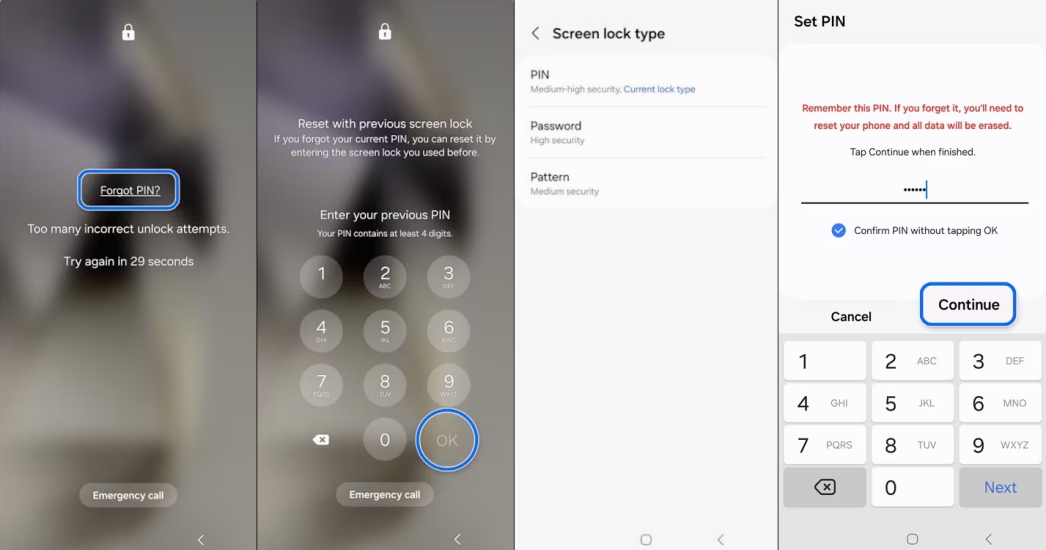
Step 1. Enter the wrong pattern five times or more until the Forgot PIN screen appears.
Step 2. Tap Forgot PIN, then enter a previous PIN and tap OK.
Step 3. Select a screen lock type like PIN, password, or pattern.
Step 4. Enter your new lock and tap Continue.
Step 5. Enter the lock you've set again and tap OK to confirm.
 Pros
Pros- No Google or Samsung account required
- No data loss
- Easy and safe to operate

- Time limitation
- Need the previous screen lock
- Not suitable for all Samsung phones
Method 2. Unlock Pattern Lock on Samsung Phone via Google Account
For those Samsung devices running Android 4.0 or lower, you're allowed to remove the forgotten pattern with your Google account and password. This won't cause any data loss. By entering your Google account login, you can set up a new lock, then successfully unlock your device.
📝Requirements:
Google account and password
Device running Android 4.0 or below
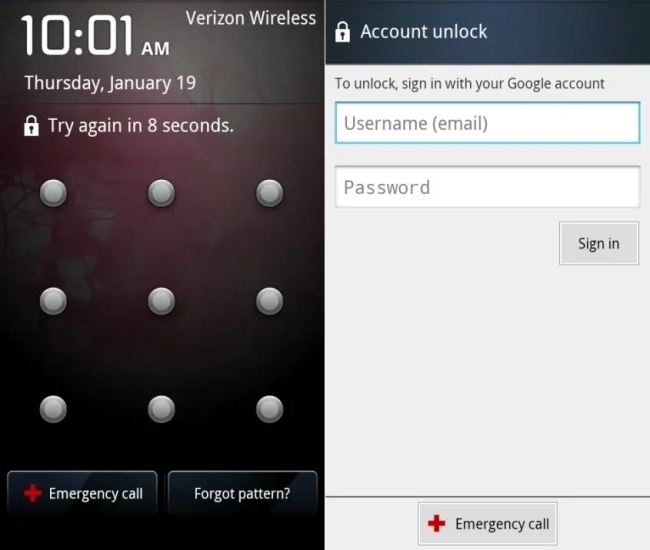
Step 1. Input the incorrect pattern several times.
Step 2. Tap Forgot patter?, then enter your Google account login.
Step 3. Tap Sign in to log into your Google account.
Step 4. Draw a new pattern to replace the old one.
Pros- No data loss
- Fast and easy to unlock device
- Not support the latest Android versions
- Only work on some older Samsung models
Method 3. Open Pattern Lock on Samsung Phone via Emergency Call
Older versions of Android had a vulnerability allowing certain actions through the Emergency Call screen. Modern Samsung devices running Android 10 and later have already patched this, but on very old models, it may still help bypass the pattern lock temporarily.
📝Requirements:
Older Samsung models
Devices running Android 10 and below
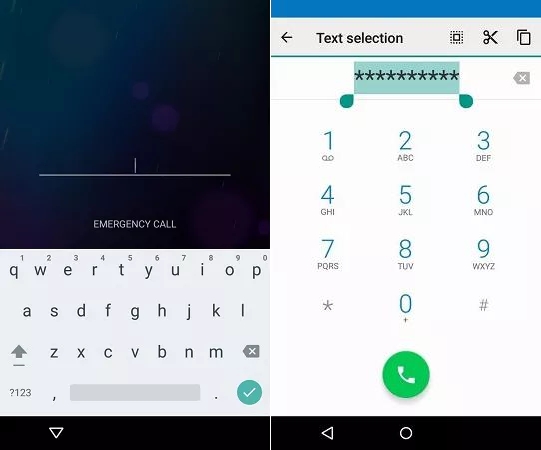
Step 1. On the lock screen, tap Emergency Call.
Step 2. Enter a long string of characters, such as *************.
Step 3. Copy and paste repeatedly until the input field crashes or freezes.
Step 4. Return to the lock screen and wait to redirect to the home screen.
Pros- No data loss
- No account or password needed
- Quick to attempt
- Work only on very old Samsung firmware
- Not a practical long-term solution
- Completely patched on modern devices
- Useful when system glitches or bugs exist
Method 4. Turn Off Pattern Lock on Samsung Phone via ADB Commands
If your Samsung phone previously authorized ADB debugging on a trusted computer, you may remove lock files via ADB commands. By deleting lock files on your Samsung phone, you can remove the pattern on your device. Then you can enter your device and create a new screen lock.
📝Requirements:
USB debugging enabled on device
Phone previously trusted your computer
Have a trusted computer
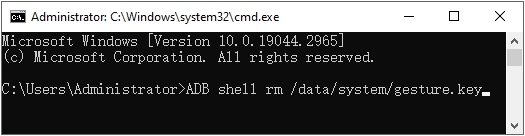
Step 1. Connect your Samsung phone to your trusted computer.
Step 2. Press Win + R, type cmd, and hit Enter to open Command Prompt.
Step 3. Run ADB commands like adb shell rm /data/system/pattern.key.
Step 4. Type adb reboot and hit Enter on the keyboard.
Step 5. After booting, set a new pattern on your device.
Pros- No data loss
- No account or password needed
- Not suitable for beginners
- Need enable ADB debugging before locked
- Fail to remove the screen lock sometimes
Method 5. Get Past Pattern Lock on Samsung Phone via Smart Lock
Smart Lock allows your Samsung phone to stay unblocked under trusted conditions. It works if the Smart Lock feature was set up previously. In this case, your Samsung phone may unlock automatically when you are at a trusted location or it is connected to a trusted Bluetooth device.
📝Requirements:
Smart Lock must be enabled previously
Options like Trusted Places have been set
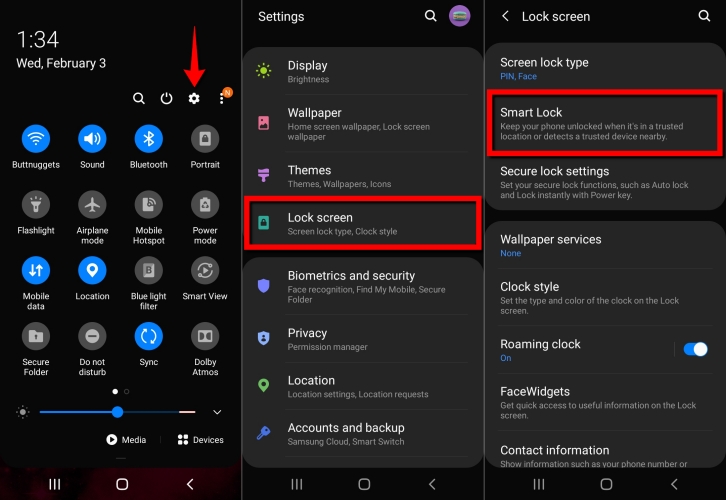
Step 1. Bring your Samsung phone to a trusted location or connect it to a trusted device.
Step 2. Wait to activate Smart Lock, then your phone should unlock automatically.
Step 3. Go to Settings > Lock screen and AOD > Screen lock and biometrics.
Step 4. Start to set up a new screen lock, replacing the forgotten pattern.
Pros- No data loss
- Easy to operate
- Limit support for devices with Smart Lock
- Not able to unlock devices sometimes
Method 6. Unlock Pattern Lock on Samsung Phone via Safe Mode
Safe Mode temporarily disables third-party apps on Samsung devices. This can help only if the pattern lock was set by a third-party lock screen app, not by Samsung's built-in security. This method will not work if the lock is Samsung's native pattern lock.
📝Requirements:
A third-party lock screen app controlling the pattern
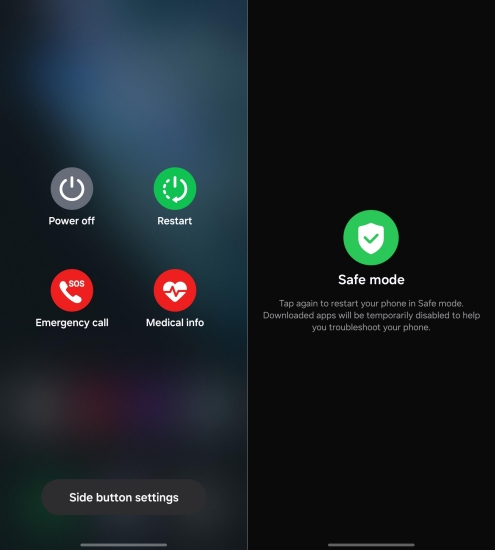
Step 1. Press and hold the Power button until the Power Menu appears.
Step 2. Long press the Power Off option until Reboot to Safe Mode appears.
Step 3. Tap OK to reboot into Safe Mode.
Step 4. Once in Safe Mode, the third-party lock screen app will be disabled automatically.
Step 5. Go to Settings > Apps, find the locking app, and uninstall it.
Step 6. Restart your phone to exit Safe Mode.
Pros- No data loss
- Very simple to try
- No Samsung or Google account required
- No computer or software needed
- Work only if a third-party app created the lock
- Ineffective against Samsung's built-in pattern lock
- Some newer phones block this method entirely
Part 3. How to Unlock Samsung Phone Pattern Lock with Factory Reset
The pattern lock cannot be removed from all Samsung phones with the above methods. If you're using a Samsung phone running the latest Android version, you may try some other methods to remove the pattern lock. But these methods need a factory reset, causing a data loss.
Method 1. Remove Pattern Lock on Samsung Phone via Android Unlocker
Whatever reasons that your Samsung phone is locked by the pattern, MagFone Android Unlocker provides a fast and straightforward solution. This professional Android unlocking tool is designed to remove various screen locks, including pattern, PIN, password, fingerprint, and face lock on a wide range of Samsung devices. With an intuitive interface and step-by-step guidance, MagFone Android Unlocker allows users to unlock Samsung phones in a variety of environments. Following the steps below, your Samsung phone becomes accessible again.

MagFone Android Unlocker
Remove multiple kinds of screen locks on over 5000 Android devices and delete Google FRP lock without a password.
Step 1 Run MagFone and Connect Samsung Phone
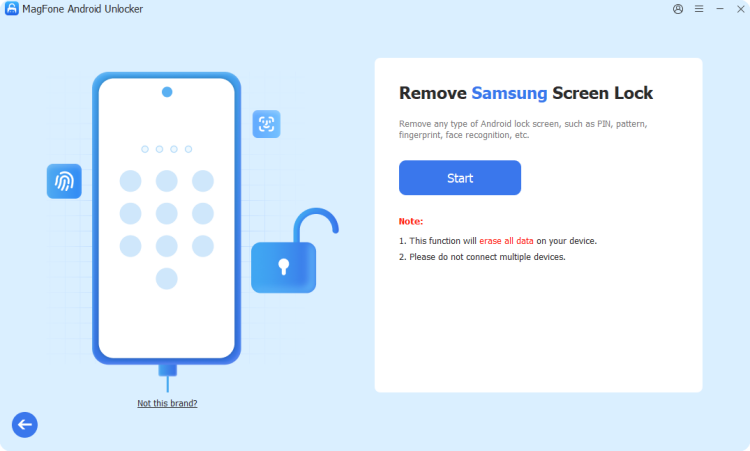
Start by installing MagFone Android Unlocker on your computer, then run it and connect your locked Samsung device to the computer through a USB cable. On the main interface of the MagFone program, choose the Remove Screen Lock option.
Step 2 Put Locked Samsung Phone into Recovery Mode
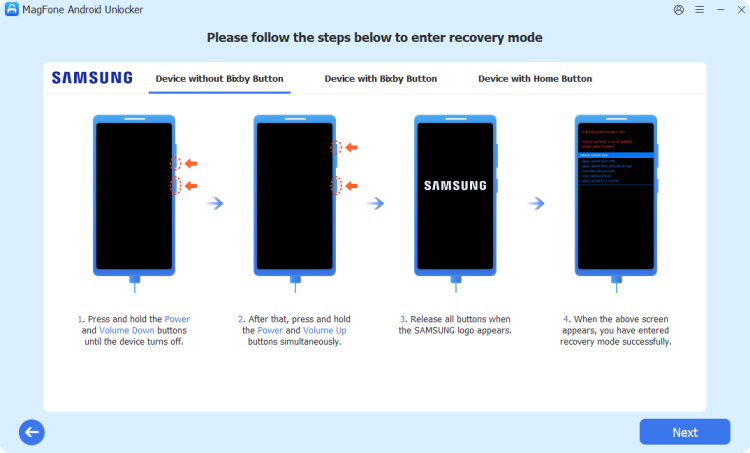
Follow the on-screen instructions to put your locked Samsung phone into Recovery Mode. After entering Recovery Mode, go back to click the Next button on the MagFone program. After that, click the Continue button to proceed the next step.
Step 3 Start to Remove Pattern Lock on Samsung Phone

Proceed with the on-screen instructions to remove the pattern lock on your Samsung phone. Wait for a while, and click the Next button after completing the removal. Now you can set up your device and set up a new screen lock.
Method 2. Break Pattern Lock in Samsung Mobile via Recovery Mode
Performing a factory reset via Recovery Mode will unlock the device, but wipe all data. If you have a backup of your Samsung phone, you can directly delete the pattern lock with buttons in Recovery Mode. Make sure you know your Google login before proceeding.
📝Requirements:
Google or Samsung account
At least 30% power
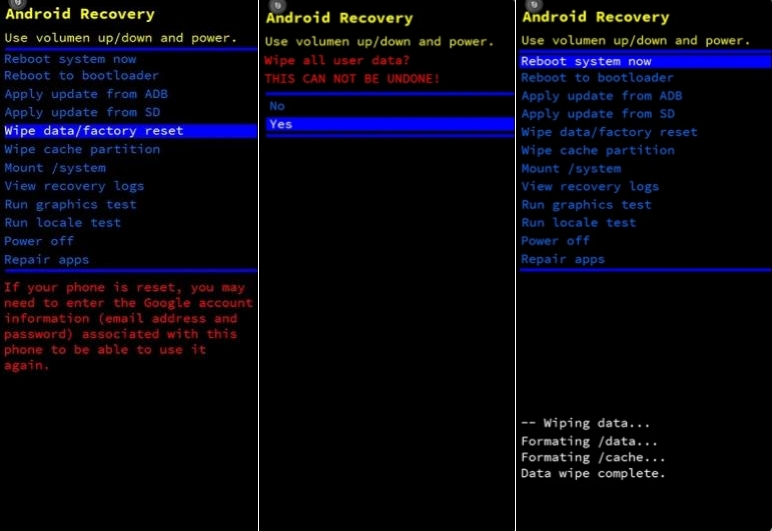
Step 1. Turn off your Samsung phone, then hold Volume Up and Power.
Step 2. Release Volume Up and Power until Recovery Mode appears.
Step 3. Choose Wipe data/factory reset with Volume Down and Power.
Step 4. Proceed to choose Factory reset data, then Reboot system now.
Step 5. Wait to restart your device and log in with your Google or Samsung account.
Pros- Work even without the internet
- No Samsung or Google account required
- Direct screen unlocking
- Data loss
- A bit complicated to operate
- FRP lock may still apply
Method 3. Delete Pattern Lock in Samsung Phone via Google Find Hub
Google's Find My Device cannot directly remove the pattern, but it allows you to erase the device remotely. This method erases all data. After reset, the phone will require your Google account due to the FRP lock. Below is how to delete Samsung phone patter lock via Google Find Hub.
📝Requirements:
Phone must be logged into your Google account
Find My Device must be enabled
Device must be connected to a useful network
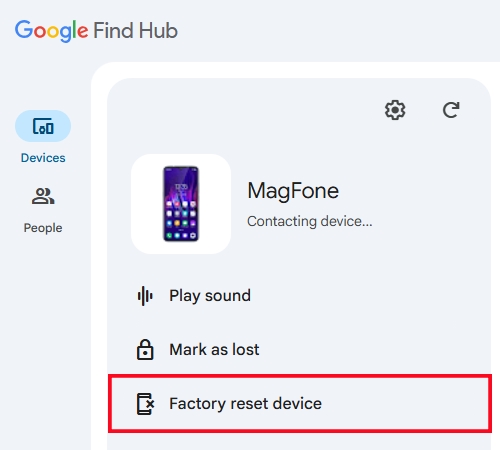
Step 1. Visit Google Find Hub and log in with your Google account.
Step 2. Select your Samsung device from the device list.
Step 3. Click Freset device > Next and enter your Google account password.
Step 4. Click Reset to confirm that you want to factory reset your device.
Step 5. After reset, set up your phone again using your Google account.
Pros- Easy and safe
- Work for most Samsung phones
- Free to remove the pattern
- Data loss
- Exist the FRP lock
- Device with a useful network
- Find My Device in enabled
Method 4. Disable Pattern Lock in Samsung Phone via SmartThings Find
Samsung's Find My Mobile is one of the safest and most effective ways to remove a pattern lock, provided the feature was enabled previously. Follow the steps below to disable the pattern lock on your Samsung phone if your device meets the below conditions.
📝Requirements:
Samsung account logged in on the phone
Find My Mobile must be enabled
Phone must be online
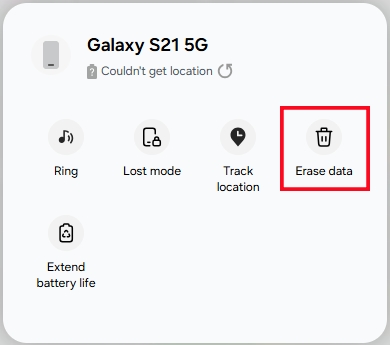
Step 1. Go to the official website of Samsung SmartThings Find.
Step 2. Log in with the same Samsung account linked to your Samsung phone.
Step 3. Select your locked Samsung phone from the device list.
Step 4. Click Erase data, input the verification code, and click Verify.
Step 5. Click Erase data > Erase and enter your Samsung account password.
Step 6. Click Next, then the screen lock will be removed remotely.
Pros- Fast and official
- Work on most Samsung models
- Data loss
- Must be enabled before the phone gets locked
- Device connected to a network
Part 4. Conclusion
Unlocking a Samsung phone pattern lock is entirely possible, even if you've forgotten your pattern or cannot access your device. Start with official methods like using Smart Lock, then move to alternatives like MagFone Android Unlocker when necessary. Each method introduced in this guide is designed to help you unlock your Samsung phone safely. For a quick and easy Samsung screen unlock, MagFone Android Unlocker is firmly recommended to you.

Dylan Jones
Editor in chief





