








It may take a few minutes to activate your iPad. After resetting, came like this, and now it's been 4 hours, it hasn't confirmed anything, it's not my internet problem."
—— From the Apple Community

After buying a new iPad or resetting an iPad, you may receive a notification like this "It may take a few minutes to activate your iPad." You thought it just needed you to wait for a few minutes, but after several hours, nothing changed, and the iPad got stuck on this spinning interface. It's frustrating that you can't use this iPad if you're unable to activate it first. What factors may cause that? How to repair this error notification? Fear not! Today you'll learn about the specific reasons and nine proper ways to solve this issue in this article. Now let's check it out together.
- Part 1. Why Does It Say It May Take a Few Minutes to Activate Your iPad?
- Part 2. How to Activate iPad When iPad Stuck on Activation Screen
- Part 3. How to Fix It May Take a Few Minutes to Activate Your iPad
- Method 1. Check the System Status Page
- Method 2. Switch the Network Connection
- Method 3. Reinsert the SIM Card
- Method 4. Force Reboot iPad
- Method 5. Use a Third-Party Repair Tool
- Method 6. Restore iPad in Recovery Mode
- Method 7. Turn off Activation Lock on iPad
- Method 8. Contact the Carrier or Apple Support
- Part 4. FAQs about iPad Unable to Activate
- Part 5. Conclusion
Part 1. Why Does It Say It May Take a Few Minutes to Activate Your iPad?
Sometimes, during the process of setting up or restoring your iPad, the device may get stuck on the "It may take a few minutes to activate your iPad" screen. This situation is often related to network connectivity, SIM card status, Apple servers, or even system failures.
Cause 1. Network Connectivity
An unstable internet can affect the process of iPad activation. What you need to do is connect your iPad to a network. If the existing network doesn't help, you can also try switching to another network.
Cause 2. SIM Card Error
For the iPads with SIM cards, perhaps your SIM card is loose in your iPad when you shake or bump your iPad in your daily life. You'd better use the pin to open the card slot and make sure the SIM card is set correctly.
Cause 3. Server's Problem
Apple devices have a lot of servers for their devices. An official website called Apple System Status helps Apple users to know the status of different servers. So, you can also check the activation-related part on this website.
Cause 4. System Failures.
Even though the possibility is low, you can't rule out that your iPad occurs some bus in its system. At that time, you need to fix it with iTunes or a system repairing tool.Part 2. How to Activate iPad When iPad Stuck on Activation Screen
If you've tried reactivating your iPad, but your iPad still shows a prompt that it may take a few minutes to activate your iPad. In this case, Apple officially recommends that the activation be done through iTunes or Finder. Here's how to activate your iPad manually via iTunes.
Requirements:
- The latest version of macOS or iTunes
- Computer with a stable network connection

Step 1. Connect your iPad to your computer via a data cable and launch iTunes.
Step 2. Click the device icon on iTunes page.
Step 3. Wait for iTunes to detect and activate your iPad. When you see the Welcome to Your New iPad page, it means that your iPad has been activated. You can click Set up as new iPad or Restore from this backup to get it done.
Note:
If you see an error saying "activation information was invalid" or "could not be obtained from the device" while using iTunes, you should restore your iPad using recovery mode.
Part 3. How to Fix It May Take a Few Minutes to Activate Your iPad
If the device is still stuck on the interface showing it may take a few minutes to activate your iPad while trying to activate your iPad, then the activation process did not go smoothly. At this point, you may need to troubleshoot further issues such as network connectivity, Apple server status, or system settings. Next, we will introduce several practical methods to help you solve this activation stuck issue so that you can use your iPad normally.
Method 1. Check the System Status Page
Considering that sometimes the iPad needs a few minutes to be activated due to the busy server. That causes the error message to appear on your iPad. So you can first stop activating and wait for a while before trying to activate your iPad one more time.
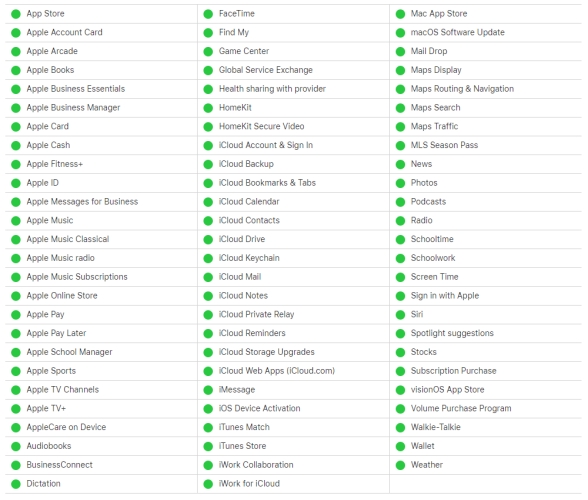
The website of Apple System Status provides real-time status about Apple services, helping users understand whether the services are running properly. This website can provide you with the current status information of various Apple services. If Apple is conducting system maintenance or updates, the website will notify users in advance. It also indicates the start and end times of the repair process. So you can enter the website to check if there is any malfunction in iOS Device Activation.
Method 2. Switch the Network Connection
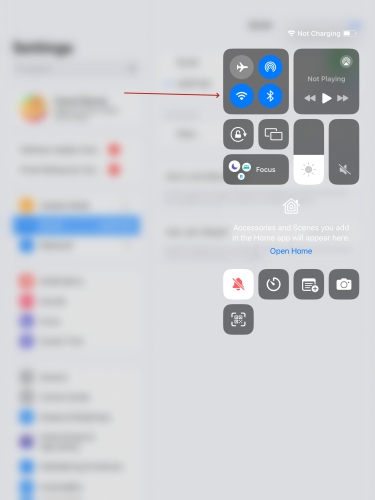
Please note that the activation process cannot proceed if your iPad is not connected to a stable network. You can check if your iPad is connected to the internet by looking for the Wi-Fi icon at the top of the screen. If you do not see the icon, open the Control Center to enable Wi-Fi. For new iPads, you may return to the previous step to select a Wi-Fi network. Besides, some users have found that when their iPad was stuck on the activation screen, switching to a different network allowed them to activate the device successfully. If one network doesn't help you proceed with the activation, you may connect to another available network.
Method 3. Reinsert the SIM Card
Some iPad models support SIM cards. These devices support the use of SIM cards for data transfer and communication. Sometimes, the shaking of the iPad or external collisions can cause the internal SIM to detach from the card tray. Then you won't be able to fully activate the iPad. You can use a card ejector or paper clip to open the card slot to clean the tray with a cotton swab, and then reinsert the SIM card to try activating the iPad.

Method 4. Force Reboot iPad
Force restarting your device is a workable option for you. It is a relatively simple way for you to deal with this error prompt issue. Here's how to force restart different iPad modes.

For iPads with Home button: Hold the Top button and Home button simultaneously, and then release both of them when the iPad powers on.
For iPads without Home button: After pressing the Volume Up key, press the Volume Down key. Then, you need to hold the Top key and release it until the Apple logo is visible.
Method 5. Use a Third-Party Repair Tool
Most of the time, the error it may take a few minutes to activate your iPad is related to the network or Apple system server. And in some other cases, it may be due to an issue in the iPad system. When you can't activate the iPad smoothly, your iPad won't be accessible. If you can't come up with further solutions, MagFone iOS System Recovery can get you out of this trouble.
MagFone iOS System Recovery is a reliable and feasible tool for Apple system repair. It can help with more than 150 types of iOS matters, including an update required to activate an iPhone, the inability to activate an iPhone, and so forth. Once you employ this program, you can fix the iPad says it may take a few minutes to activate your iPad without any data loss under standard repair mode. Action is better than excitement, just try it!

MagFone iOS System Recovery
Fix various iOS and iPadOS system issues, such as black screen, boot loop, frozen screen, or stuck on Apple logo, without data loss.
Step 1Link iPad to Computer and Start MagFone

Initially, you should connect your iPad to a computer and launch MagFoneon the computer. Choose iOS System Recovery to fix the iPad's system issue. Then click Start.
Step 2Choose the Standard Repair Mode
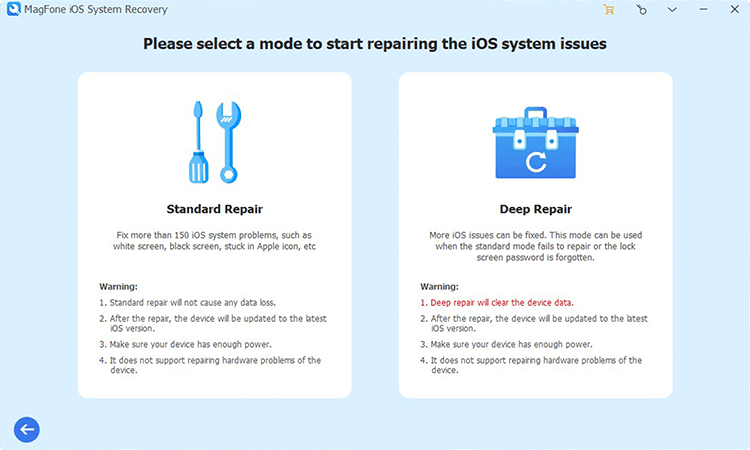
Next, choose a repair mode. We recommend you to to select the Standard Mode for protecting your data on the iPad. After that, go to put your iPad into recovery mode based on the onscreen guide.
Step 3Proceed to Download the Firmware Package

Check the device information of your iPad once it's shown on the software. If it's wrong, correct it by selecting the proper information. Then click Download to download the firmware package on your computer.
Step 4Fix the iPad Spinning Notification Error

Finally, it's time for you to click the Start Standard Repair button. You should wait for the process to be finished, and keep your device connected. After that, continue to reboot your iPad and start activating it.
Method 6. Restore iPad in Recovery Mode
If you get an error message saying "activation information was invalid" or "activation information could not be obtained from the device," then it may be a systematic issue in your iPad. You can choose to restore the iPad with iTunes in recovery mode.
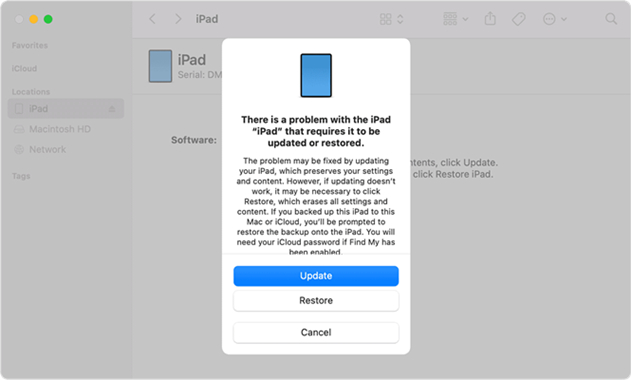
Step 1. Start the newest version of iTunes on your computer, and connect your iPad to the computer. Manually set your iPad to recovery mode or use MagFone iOS System Recovery to enter your iPad into recovery mode for free.
Get an iPad, iPhone, or iPod touch into recovery mode with one click for free.
Step 2. When iTunes detects that your iPad is in recovery mode, you can click Update.
Step 3. If the iPad can't update in iTunes, select Restore to delete all the data. Then you should follow the instructions and wait for the process to complete. After the whole process, the iPad will restart.
Method 7. Turn off Activation Lock on iPad
When the iPad stays stuck on it may take a few minutes to activate your iPad page, there is a common reason why the device is blocked by the activation lock. Activation Lock is Apple's security feature that prevents others from using stolen or lost devices. But if the device belongs to you, or if you bought a used iPad, you will need to turn off Activation Lock before the activation process can be completed.
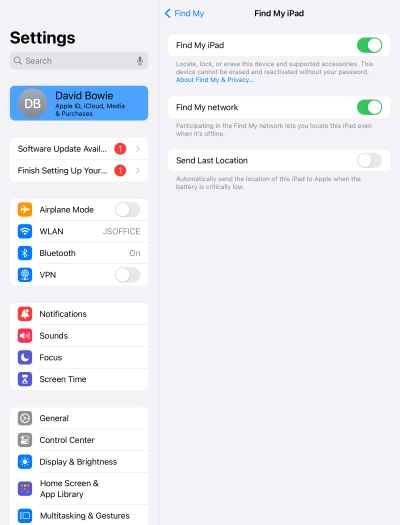
Step 1. Go to iPad Settings and tap your Apple ID.
Step 2. Tap Find My and turn off Find My iPad. You will be required to input your Apple ID account password to proceed the operation.
Step 3. Tap Turn off to finish the operation.
Method 8. Contact the Carrier or Apple Support
The final solution is to contact the carrier to inquire about your card's issues and whether they are preventing your activation and use. If necessary, you can replace the SIM card. What's more, if you are certain that your iPad doesn't have issues with the SIM card, you can also contact Apple Support for iPad repairs. The maintenance period for the entire iPad is one year. Within this period, if there are any problems with the iPad, including the inability to activate, you can directly ask Apple's customer service center for assistance.
Part 3. FAQs about iPad Unable to Activate
How long does it take to activate iPad?
It's normal to wait for five to ten minutes to activate your iPad. If it exceeds an hour, your iPad may have a problem. You can implement the solutions we introduce in this guide to troubleshoot.
How to activate iPad directly during setup?
If you have bought a new iPad and want to activate it directly during setup, it is suggested that you follow the screen instructions to set it up. When you are asked to choose a Wi-Fi network, remember to connect to a stable network so that you can activate your iPad smoothly. Go ahead to the screen instructions to set up and activate your iPad step by step.
How to activate eSIM on iPad?
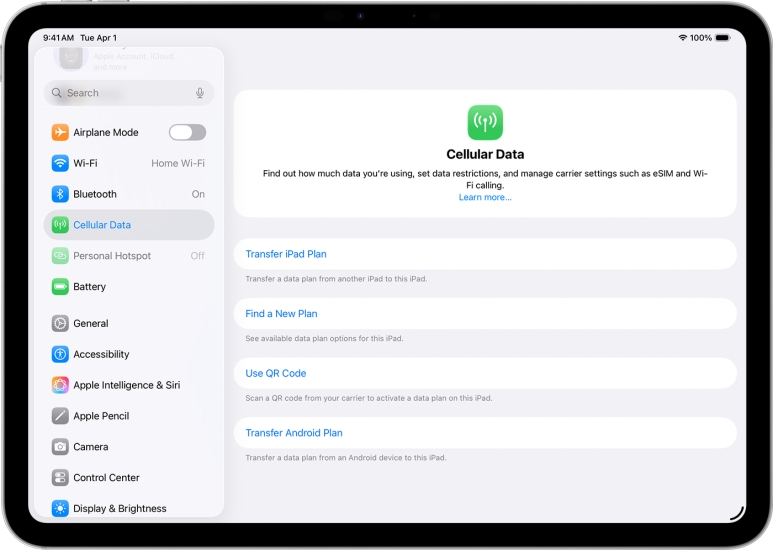
To activate eSIM on your iPad for cellular data use, there are several options for you. You can go to iPad Settings > Cellular Data, and you will see four options. You can choose one feasible activation method to activate your eSIM.
Part 5. Conclusion
Until now, we've introduced nine feasible workarounds here, from checking the network to contacting Apple Support. If your iPad is stuck on the activation screen, you can use iTunes to activate it or use MagFone iOS System Recovery to avoid the "It may take a few minutes to activate your iPad" message. If you are unable to activate your iPad, don't return your iPad to the seller in a rush. Another faster and easier solution can get you out of this trouble is to use MagFone Activation Unlocker. This professional tool can help you activate your iPad safely and quickly.

Teresa Miller
Editor in chief





