








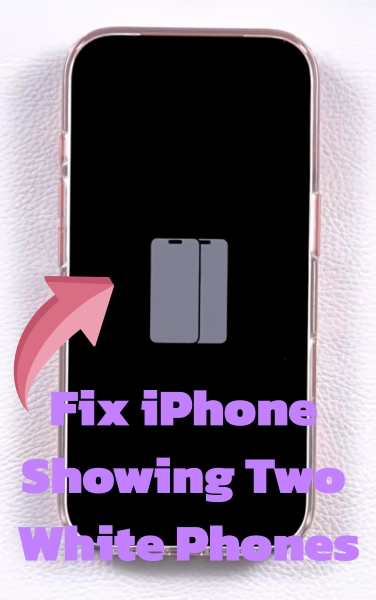
Seeing your iPhone black screen with two white phones can be alarming, especially when your device refuses to boot into the home screen or respond to touch. This graphic, featuring two white iPhone silhouettes side-by-side or overlapping, is a safety feature introduced in modern versions of iOS. Fortunately, this isn't a sign that your device is permanently broken. In this guide, we will explain what this icon means and walk you through step-by-step methods to get your iPhone working normally again.
- Part 1. Why Is iPhone Showing Two White Phones on Screen?
- Part 2. How to Fix iPhone Black Screen with Two White Phones
- Part 3. FAQs about Two White Phones on iPhone Screen
- Part 4. Conclusion
Part 1. Why Is iPhone Showing Two White Phones on Screen?
The image of two white iPhones represents Apple's Nearby Device Recovery Mode. Introduced in modern versions of iOS, this feature acts as an automatic safety net when your device encounters a critical system error, an interrupted software update, or a boot loop.
Instead of requiring an immediate connection to a computer, your iPhone displays this screen to signal that it can be restored or repaired wirelessly using another nearby Apple device. Common triggers for the two white phones on the iPhone screen include:
- Interrupted Software Update: A dropped WiFi signal, lost connection, or depleted battery during an over-the-air iOS update.
- Temporary iOS Boot Loop: Temporary operating system corruption preventing the phone from booting into the home screen.
- Corrupted System Data: Damaged system files or insufficient internal storage space available during a firmware update.
Part 2. How to Fix iPhone Black Screen with Two White Phones
Several solutions are available for fixing the iPhone showing two white phones. But before jumping into software repairs, run through this quick checklist to ensure physical factors aren't trapping your device in a recovery loop.
- Unplug All Cables: Disconnect any Lightning or USB-C charging cables, power banks, or computer adapters. Active wired connections can sometimes keep the device stuck in its current boot cycle.
- Clean the Buttons: Ensure your Volume and Power buttons are not stuck, sticky, or blocked by a protective phone case.
- Check Device Temperature: If your iPhone is noticeably hot or extremely cold, let it return to room temperature before attempting recovery.
Solution 1. Forced Hard Reset
A force restart cuts power to the memory temporarily and forces the system to reboot fresh. This solves the majority of temporary boot freezes and will not erase your photos, messages, or apps.
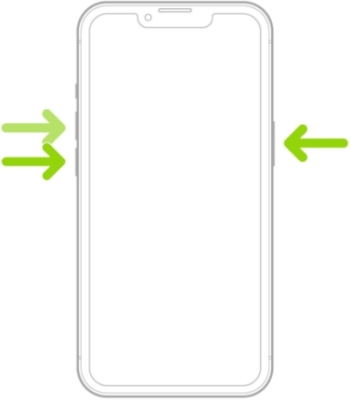
Step 1. Press and quickly release the Volume Up button.
Step 2. Press and quickly release the Volume Down button.
Step 3. Press and hold the Power button.
Step 4. Keep holding the Side button until the screen turns completely off and the Apple logo appears on the screen.
Step 5. Release the Side button and allow the phone to load into iOS.
Solution 2. Wireless iOS System Repair via Nearby Device
If a hard reset brings you right back to the two white phones icon, your iPhone needs its system software reinstalled. Apple allows you to do this wirelessly using a secondary iPhone or iPad.
Requirements:
- A secondary iPhone or iPad running iOS 18 or later or iPadOS 18 or later.
- Both Wi-Fi and Bluetooth turned ON on the helper device.
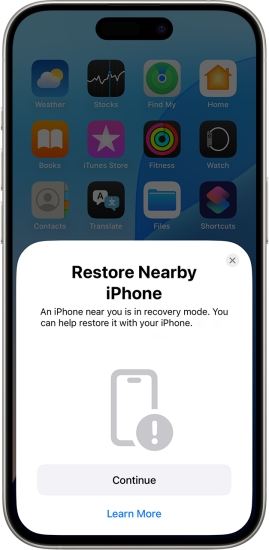
Step 1. Bring the helper iPhone or iPad close to your stuck device.
Step 2. Ensure both devices are connected to power or have sufficient battery life.
Step 3. A pop-up reading "Recover Nearby iPhone" will appear on the screen of the helper device.
Step 4. Tap Continue on the helper device and wait for the devices to connect.
Step 5. A 6-digit verification code will display on your stuck iPhone screen.
Step 6. Enter this code into the helper device to pair them.
Step 7. Wait while the helper device downloads and wirelessly transfers the required firmware files to repair your iPhone.
Solution 3. Recovery via Finder or Apple Devices
If you don't have access to a second Apple device running modern iOS, or if the wireless repair process gets interrupted, you can restore system files using the Finder or Apple Devices.
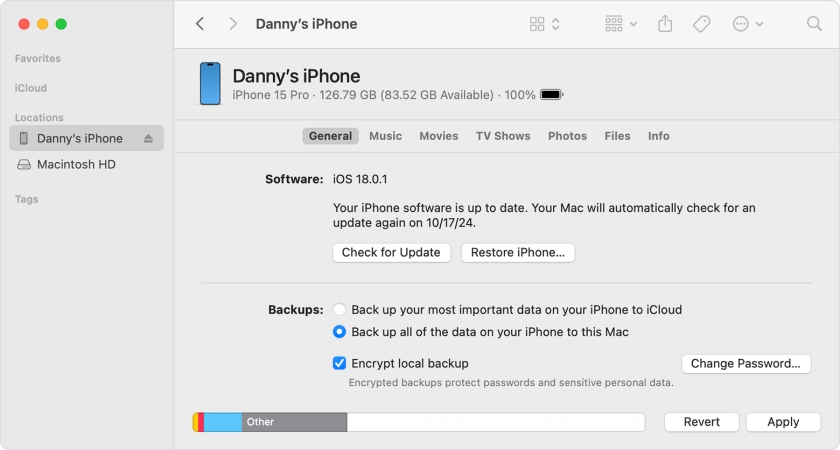
Step 1. Connect your iPhone to a Mac via Finder or a Windows PC via Apple Devices or iTunes using a reliable USB cable.
Step 2. Open the respective application on your computer.
Step 3. A prompt will pop up stating that an iPhone in Recovery Mode has been detected.
Step 4. Click Update. This prompts the computer to download and reinstall iOS without erasing your data.
Solution 4. Use Specialized iOS System Recovery Software
If your computer fails to detect the iPhone in a loop or throws specific error codes such as Error 4013 or 4014, third-party system repair utilities like MagFone iOS System Recovery offer a direct alternative. It is built specifically to address system glitches, including stuck recovery screens, boot loops, and update failures.
By using the Standard Repair mode in MagFone iOS System Recovery, you can download matching firmware directly to your computer and repair corrupted iOS files without wiping personal user data from your device. To resolve the issue quickly and efficiently, follow the steps below with MagFone iOS System Recovery.

MagFone iOS System Recovery
Fix various iOS and iPadOS system issues, such as black screen, boot loop, frozen screen, or stuck on Apple logo, without data loss.
Step 1 Connect iPhone and Open MagFone Software
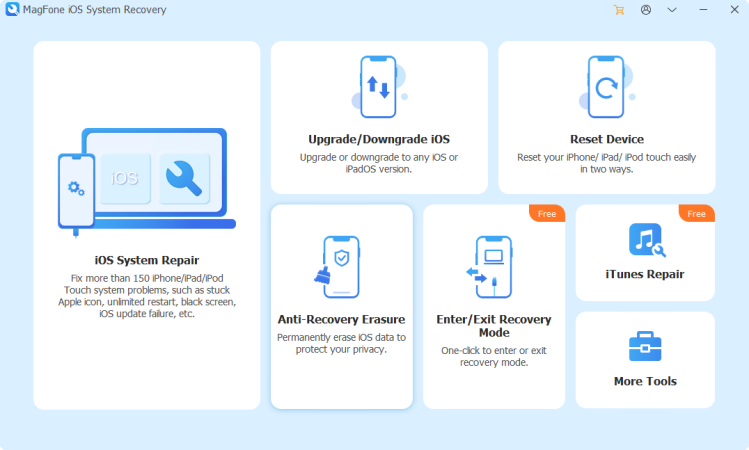
First of all, you need to connect your iPhone to your computer by using a USB cable. Then open MagFone iOS System Recovery on the computer and select the iOS System Repair button. After that, click on the Start button.
Step 2 Select Standard Repair to Fix the iPhone Issue
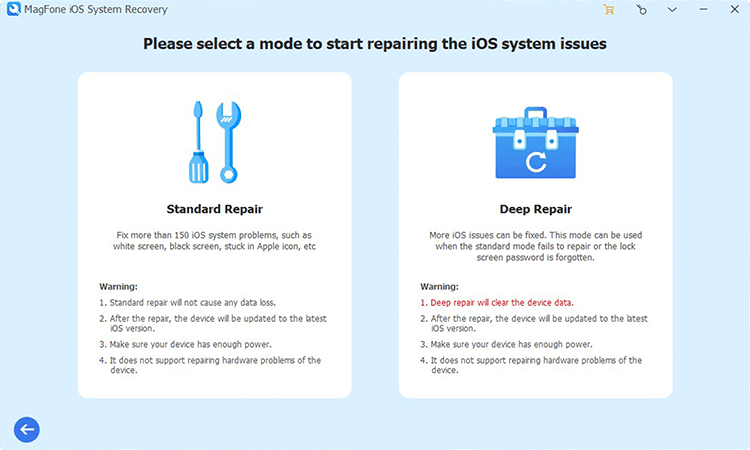
Then select the Standard Repair option. To proceed with the next step, make sure that your device is connected to the MagFone software. You have to put your iPhone into recovery mode or DFU mode by following the onscreen instructions.
Step 3 Download and Verify the Firmware for iPhone
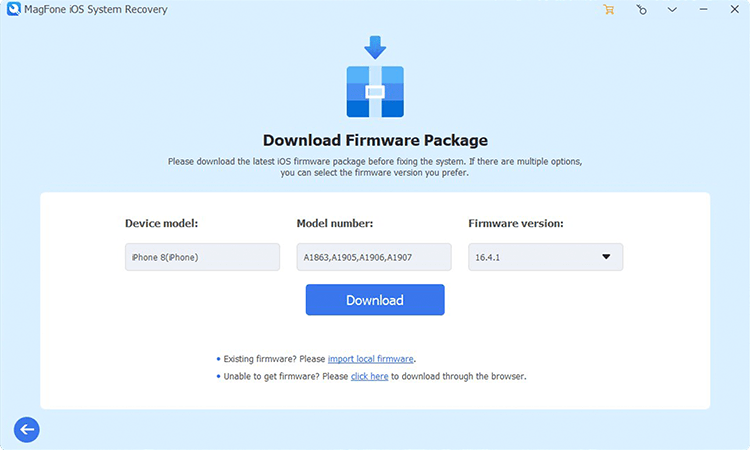
Next, check the device information, including the device model and model number. Select the firmware version and click on the Download button to download the firmware package for your iPhone.
Step 4 Resolve iPhone Showing Two White Phones
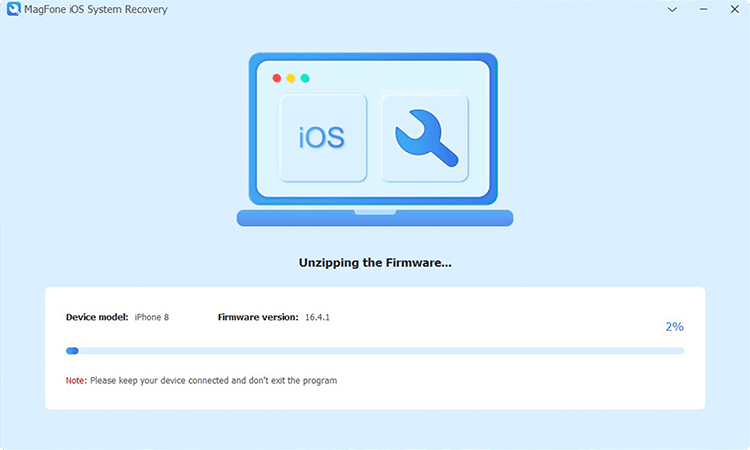
Once the firmware is downloaded, you can click on the Start Standard Repair button. MagFone software will unzip the firmware package and start fixing your iPhone showing two white phones on the screen.
Part 3. FAQs about Two White Phones on iPhone Screen
Will fixing the two white phones screen erase my photos and data?
In almost all cases, no. Performing a force restart or using the Wireless Recovery feature on a computer repairs the operating system while keeping all your personal data, apps, and photos intact. If you worry about the data loss, try using a professional system repairing tool like MagFone iOS System Recovery.
How long does the wireless recovery process take?
The wireless repair typically takes between 15 to 30 minutes, depending on the speed of your Wi-Fi network and the size of the operating system repair package.
What if my iPhone screen stays black or continues to freeze?
If your iPhone remains unresponsive after trying a force restart, wireless recovery, and computer update, the issue may be related to hardware such as battery degradation or logic board failure. In this scenario, schedule an appointment at an authorized Apple Service Provider or Apple Store for hands-on diagnostics.
Part 4. Conclusion
Seeing your iPhone stuck on the two white phones screen can be alarming, but it is rarely a sign of permanent hardware damage. In most cases, this icon is simply Apple's Nearby Device Recovery mode signaling that system files need a quick reset or patch. By starting with a simple force restart, using a nearby iOS device for wireless repair, or leveraging computer-based recovery methods like Finder or specialized tools like MagFone iOS System Recovery, you can safely restore your iPhone to working order without losing your valuable data.

Dylan Jones
Editor in chief




