








Mastering your digital presence often requires more than just navigating the physical world; it demands total control over your virtual coordinates. Whether you are an avid Pokémon GO trainer seeking rare spawns or a privacy-conscious user looking to mask your tracks, iToolPaw iGPSGo is a great solution. This powerful gps spoofing software allows you to teleport your device anywhere globally with a single click. In this guide, we'll explore how to download and master this essential GPS location changer for pc.

- Part 1. What Is iGPSGo GPS Location Changer?
- Part 2. Where to Download iToolPaw iGPSGo
- Part 3. How to Use iGPSGo GPS Spoofing Software
- Part 4. Pros and Cons of iGPSGo Location Changer
- Part 5. Best iGPSGo Alternative on PC [iOS & Android]
- Part 6. Conclusion
Part 1. What Is iGPSGo GPS Location Changer?
iToolPaw iGPSGo is a GPS location changer for PC, designed to modify the GPS coordinates of iOS and Android devices. It serves as a bridge between your computer and mobile device, allowing you to simulate movement and teleport across the globe for games, social media, and privacy.
Main Features of iGPSGo:
- One-Click Teleportation: Instantly move your device's location to any set of coordinates or city worldwide.
- Realistic Movement Simulation: Avoid detection by simulating walking, cycling, or driving speeds.
- GPX File Integration: Import custom routes created by other players to automate complex paths through PokéStop-heavy areas.
- Joystick Control: A virtual joystick on your PC allows you to "walk" your in-game avatar in real-time with 360-degree flexibility.
Part 2. Where to Download iToolPaw iGPSGo
To ensure you get a secure, malware-free version of the software, it's essential to avoid third-party "cracked" sites. Below is some other key information you should know.
01Official Website:
The safest place to download iGPSGo is directly from itoolpaw.com.
02Price List:
iGPSGo is not a completely free location changer; it offers four subscription plans.
| 1 Month License | 1 Quarter License | 1 Year License | Lifetime License |
|---|---|---|---|
| $9.97 | $19.97 | $59.97 | $89.97 |
03Platform Compatibility:
Additionally, the tool does not support the latest iOS and Android devices, so be sure to check compatibility before using.
| Windows | Supports Windows 7, 8, 10, and 11 |
| MacOS | Supports macOS 10.11 and later (including the latest M2/M3 chip versions) |
| Mobile | Supports up to iOS 18 and Android 15 |
Part 3. How to Use iGPSGo GPS Spoofing Software
iGPSGo allows two free teleports, letting you verify that the software works with your device and game version before subscribing. Below, we demonstrate the process on a Windows PC using the free trial and show the common errors at the end.
01For Android Users:
Step 1 Connect Your Device
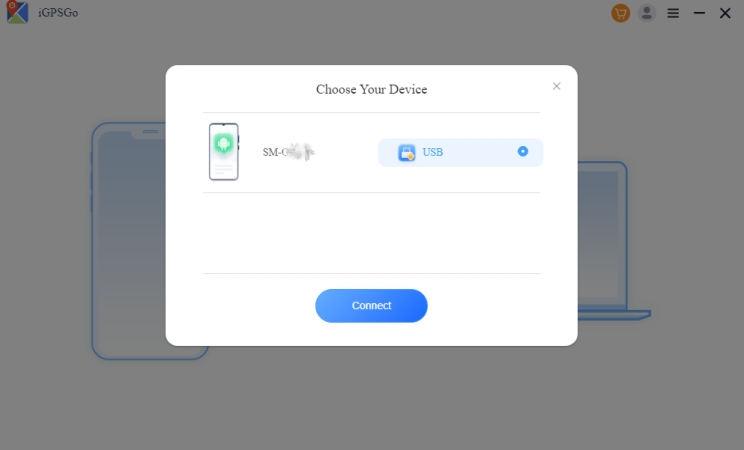
Launch iGPSGo on your PC or Mac. Connect your iPhone or Android via a USB cable. Confirm your device information and tap Connect.
Step 2 Select a Mode
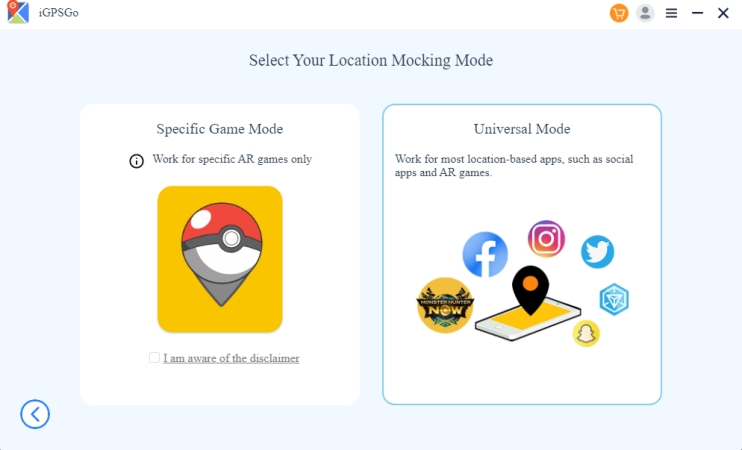
Then, you can choose between Universal Mode for normal apps and Specific Game Mode for games like Pokémon GO.
Step 3 Change Your Location
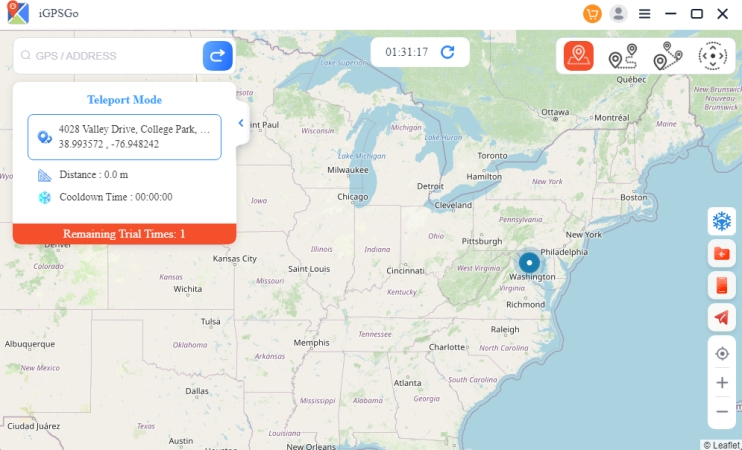
Once the map interface loads, you will see a selection of icons representing different movement modes. You can choose to instantly teleport or simulate a natural walk.
- To Teleport: Type an address or coordinates into the search bar. Click "Go."
- To Simulate Walking: Select Multi-Spot mode, click several points on the map, adjust the speed slider to Walking, and click "Start."
02For iOS Users:
Step 1 Obtain the iGPSGo Tool
Go to the official iGPSGo website and download the pogo.ipa file to your desktop.
Step 2 Enable Developer Mode
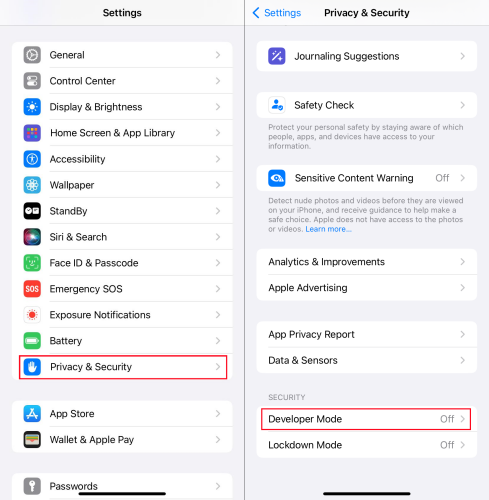
On your iPhone, go to Settings > Privacy & Security > Developer Mode. Toggle it On and restart your device when prompted to unlock system permissions.
Step 3 Trust the App Profile
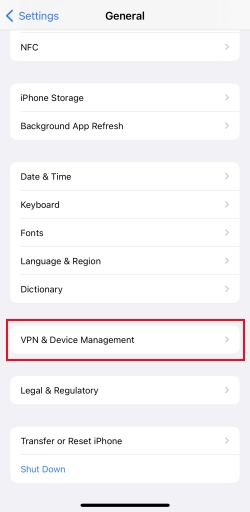
On your iPhone, navigate to Settings > General > VPN & Device Management. Tap your Apple ID under the Developer App section and select Trust to authorize the game.
Step 4 Activate iGPSGo
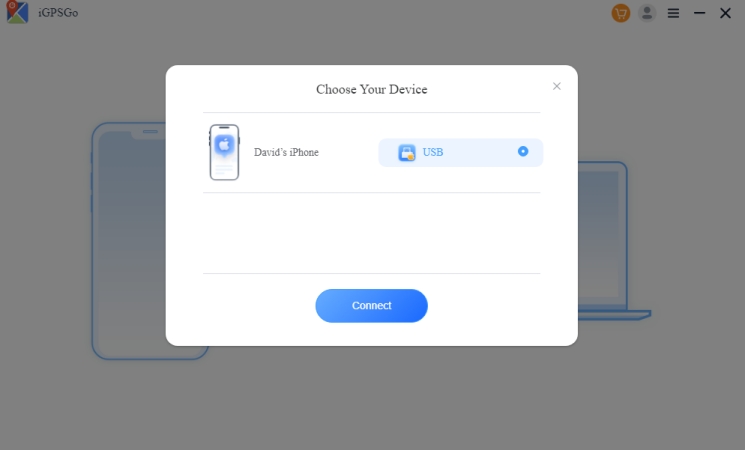
Open the iGPSGo desktop software and link both your iPhone and the iGPSGo software. Select your desired mode to instantly fake your location.
03Testing Error:
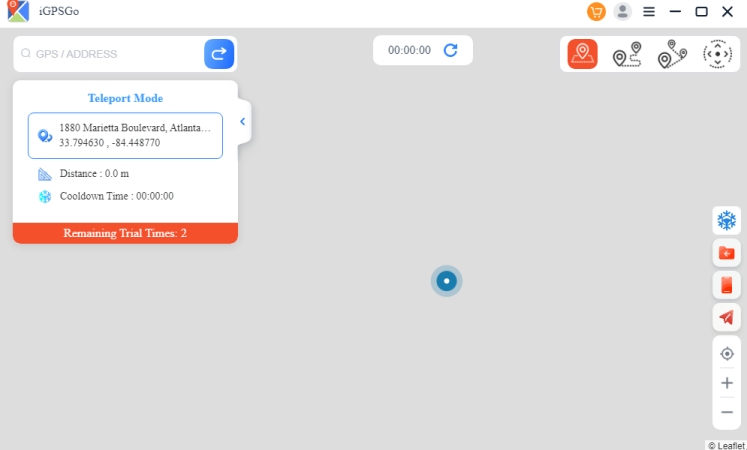
After testing, we found it's not very easy to use. When selecting a desired location, the map can get stuck, as shown here, which may sometimes waste time.
Part 4. Pros and Cons of iGPSGo Location Changer
 Product rating:
⭐⭐⭐
Product rating:
⭐⭐⭐
No software is perfect. Based on our hands-on testing and user feedback, we evaluated iGPSGo's performance, features, and limitations. The following highlights the main advantages and drawbacks, helping you decide whether this location changer is suitable before committing to a paid license.
 Pros
Pros- Two Free Trials: Lets users test core features before buying.
- Instant Switching: Change locations quickly.
- Smooth Joystick: More stable than many web-based tools.
- Adjustable Speed: Avoid speed-lock issues in AR games.

- Slow Loading: Map loading can be slow at times.
- Limited Compatibility: Only up to iOS 18 and Android 15.
- Paid Features: Full functionality requires a paid license.
- Uncertain Crashes: May crash during gameplay.
Part 5. Best iGPSGo Alternative on PC [iOS & Android]
If you find iGPSGo's map loads slowly or are looking for a tool with even higher stability, MagFone Location Changer is the best alternative. Why choose MagFone? MagFone Location Changer stands out because of its superior anti-detection technology. While many tools trigger "Error 12" in modern AR games, MagFone utilizes a more advanced Bluetooth-based simulation protocol that makes the movement appear more "organic" to game servers. It also offers a slightly more modern UI and faster map rendering speeds, making it ideal for users on the latest iOS 26 or Android 16 systems.
01Video Guide: How to Use MagFone Location Changer in Pokémon GO
This video shows how MagFone Location Changer helps players level up in Pokémon GO.

02Text Guide: How to Use MagFone Location Changer on iOS/Android
A step-by-step usage guide is also provided to help you learn more about using MagFone GPS Location Changer.

MagFone Location Changer
Easily change your GPS location on iOS and Android devices to anywhere with one click, while not requiring root or jailbreaking!
Step 1 Link Your Device and Launch the Software

Connect your iPhone or Android phone to your PC or Mac using a reliable USB cable. Open the MagFone Location Changer software on your desktop. On the main dashboard, select the Change Location mode and hit the Start button to initialize the connection to your mobile device.
Step 2 Select New Coordinates and Teleport

Once the world map appears, browse to find your desired destination or enter specific coordinates/addresses in the search box at the top left. After the pinpoint appears on the map, click the Start Modifying button. Your mobile device will instantly update its GPS signal.
Part 6. Conclusion
iToolPaw iGPSGo remains a top-tier contender for anyone needing a reliable, stable GPS location changer. Its ease of use makes it perfect for beginners, while its GPX and multi-device support satisfy power users. However, if your primary goal is high-stakes gaming with the most advanced anti-detection tools, MagFone Location Changer might be the edge you need.

Edgar Davis
Editor in chief





