








Mobile phones are crucial and indispensable to our current lives. However, any electronic product, from its release to subsequent improvement, will encounter various problems. One of the most common and fatal issues with the iPhone is the black screen, like the inability to turn on after resetting or after turning off. Today we are going to discuss the iPhone screen went black but phone is still on. In such scenes, your iPhone is still functioning normally except for the black screen, and you can hear incoming calls and alert sounds. So how can you fix the iPhone 17/16/15/14/13/12/11 black screen but still on? Let's find the answer in this guide.
- Part 1. What Does iPhone Black Screen But Still On Mean?
- Part 2. Why Is My iPhone Screen Black But Still On?
- Part 3. Basic Solutions for iPhone Still On But Black Screen
- Part 4. Advanced Solutions for iPhone Black Screen But Still On
- Part 5. Conclusion
Part 1. What Does iPhone Black Screen But Still On Mean?
When an iPhone has a black screen but is still on, the operating system is still running in the background, but the display output isn't functioning properly. In the Apple Community, there are multiple questions about the iPhone screen goes black but it is still on. Based on the analysis of these threads, common cases of iPhone black screen but still on include:

Case 1. The Part of iPhone Screen Goes Black
One user complained that part of his iPhone screen suddenly became black, and rebooted the iPhone to restore it. It happens that the iPhone screen goes black again after the iOS update later. Actually, the part of the iPhone screen becoming black is highly likely due to physical damage.
Case 2. The Whole Screen of iPhone Blacked Out
Compared to the partial iPhone screen turning black, the entire screen gets black and unusable is a worse situation because you cannot access the touch screen. Some users are using an iPhone and suddenly the screen goes black, but the sound on the phone can still be heard.
Case 3. The iPhone Screen Goes Black Randomly
A user said, "My iPhone randomly has a black screen with loading gear then takes me to the Lock Screen." If your iPhone blacked out randomly while using it, a number of factors can cause this issue. The most common one is that your iPhone may be attacked by malicious software.
Part 2. Why Is My iPhone Screen Black But Still On?
When an iPhone screen goes black but the phone still works, the issue generally falls into two categories, like software-related causes and hardware-related issues. Here are the main causes of the iPhone screen black but still on.
| Software-Related Causes | Hardware-Related Issues |
|---|---|
| iOS system crash freezing the display driver Failed or interrupted iOS update App conflict causing a temporary system glitch Incorrect brightness or accessibility settings Overheating protection temporarily disabling the screen |
Damaged LCD/OLED panel from drops or pressure Loose internal display connector Water or liquid damage affecting circuits Backlight failure causing a faint or invisible screen |
However, before attempting technical fixes, you must confirm the phone is actually "on." If any of the following steps work, the issue is likely related to the display rather than the entire system. In this case, go straight to a screen repair, instead of wasting time on software fixes.
- Toggle the mute switch or press the Action button and feel for vibration.
- Ask Siri a question like "Hey Siri, what time is it?" to test responsiveness.
- Plug your iPhone into a power source and listen for the "chirp".
- Call your phone from another device and check whether receiving a call.
- Connect the iPhone to a computer to see if it is recognized normally.
Part 3. Basic Solutions for iPhone Still On But Black Screen
If your iPhone suddenly crashes into a black screen and you are in the same situation as in the main cases, there is no need to panic. These quick solutions address common software glitches and minor display malfunctions. Follow them in order, as they are safe and non-destructive.
Method 1. Force Restart the iPhone
A force restart clears temporary system crashes that can cause the screen to remain black while the phone is still running. If your iPhone has a black screen in part, perform a force restart.
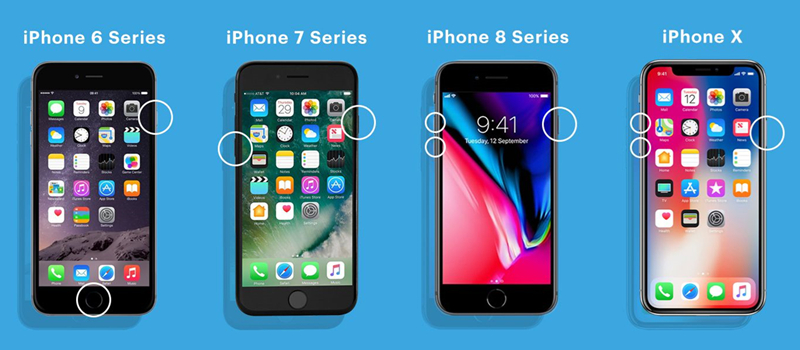
For iPhone 6s and earlier:
Hold both Home and Power buttons at the same time until the device restarts.
For iPhone 7 series:
Press both Volume Down and Power buttons until the screen shows the Apple logo.
For iPhone 8 and later:
Quickly press and release the Volume Up key. Repeat on the Volume Down key. Then press and hold the Power key until the Apple logo displays.
Method 2. Charge the iPhone
Sometimes the display stays black due to a drained battery or unstable power delivery, which cannot support the continuous working of the iPhone. Charge your iPhone and restart it.
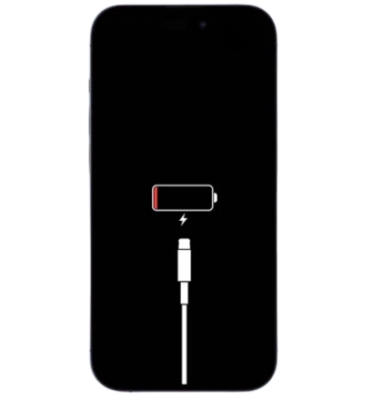
Step 1. Connect your iPhone to an official charger.
Step 2. Leave it charging for at least 20-30 minutes.
Step 3. Try a force restart again after charging.
Method 3. Adjust Brightness or Accessibility Settings
Extreme brightness or accessibility settings can make the screen appear completely black. Changes to these settings can restore visibility if the issue is purely display configuration-related.
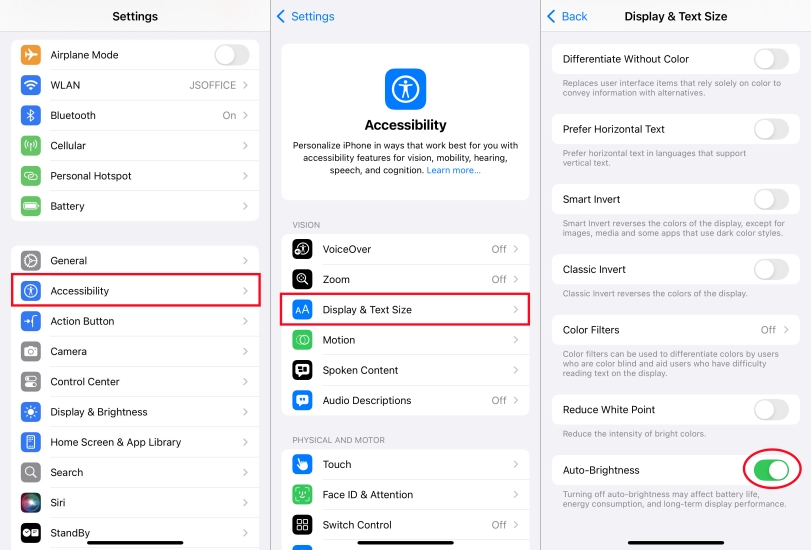
Step 1. Say, "Hey Siri, turn my brightness to maximum."
Step 2. Navigate to Settings > Accessibility > Display & Text Size.
Step 3. Toggle Auto-Brightness off and on to reset the sensor.
Method 4. Cool Down and Recharge the iPhone
When the iPhone overheats, it may temporarily disable the display to protect internal components while the system remains on. In this case, cool down the iPhone and recharge it.
Step 1. Power off if possible and let the device cool for 15–20 minutes.
Step 2. Charge using a certified cable before restarting.
Method 5. Update iOS via iTunes or Finder
Some iPhone screens are completely black, and the Sttings app is not accessible. Then you can stand by a computer to upgrade the iOS with iTunes or Finder to fix the issue caused by system bugs.
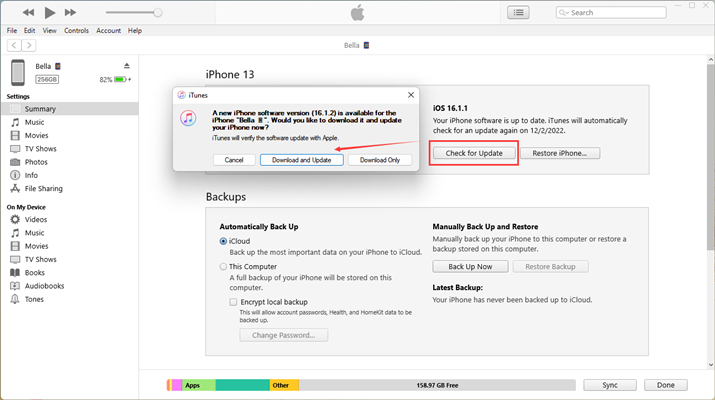
Step 1. Connect your iPhone to a computer and launch iTunes.
Step 2. Click the device icon in the top left and select Summary.
Step 3. Click Check for Update > Update.
Part 4. Advanced Solutions for iPhone Black Screen But Still On
Some users may not successfully repair the iPhone black screen but still on issue after trying the above basic fixes. Never mind. There are some deeper system repair methods to help you get your iPhone back to normal. Without further ado, let's move on.
Method 1. Use Recovery Mode to Restore iOS (Data Loss)
Recovery Mode can repair corrupted system files that may prevent the screen from displaying properly. This method often fixes persistent display glitches caused by failed updates.

Step 1. Plug your iPhone into a computer, then turn it off.
Step 2. Manually boot the device into recovery mode.
Get an iPad, iPhone, or iPod touch into recovery mode with one click for free.
Step 3. Open iTunes and choose Restore. This may erase data.
Method 2. Perform a DFU Restore (Data Loss)
DFU mode completely reinstalls firmware and iOS, making it effective for severe system crashes. It is especially useful when the screen remains black due to deep firmware issues.
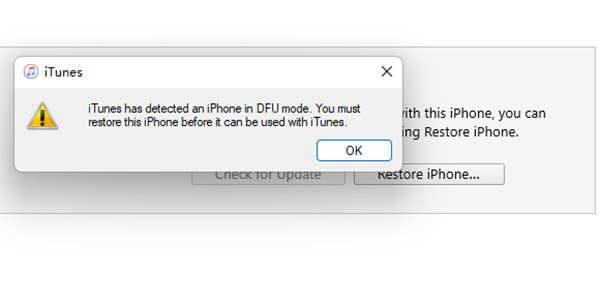
Step 1. Launch iTunes and connect your iPhone to the computer.
Step 2. Enter DFU Mode using the force restart button sequence, but keep holding until the DFU screen triggers.
Step 3. After iTunes detects the device in recovery mode, click Restore iPhone.
Step 4. Follow the instructions and wait until the process is completed.
Method 3. Use iOS System Repair Software
While Apple's native tools like iTunes or Finder often require a full "Restore" that wipes your data to fix deep system errors, MagFone iOS System Recovery is a specialized third-party utility designed to bridge the gap between simple restarts and a full factory reset. It focuses on Standard Repair that targets the display driver or system hang-ups causing the black screen and reboots the OS without deleting your photos, messages, or apps. By doing the following steps, you can quickly access your iPhone with ease again.

MagFone iOS System Recovery
Fix various iOS and iPadOS system issues, such as black screen, boot loop, frozen screen, or stuck on Apple logo, without data loss.
Step 1Launch MagFone on Your Computer

Install and start the MagFone iOS System Recovery on the computer first. Connect both the iPhone and the computer and choose the iOS System Repair option.
Step 2Choose the Standard Repair Mode
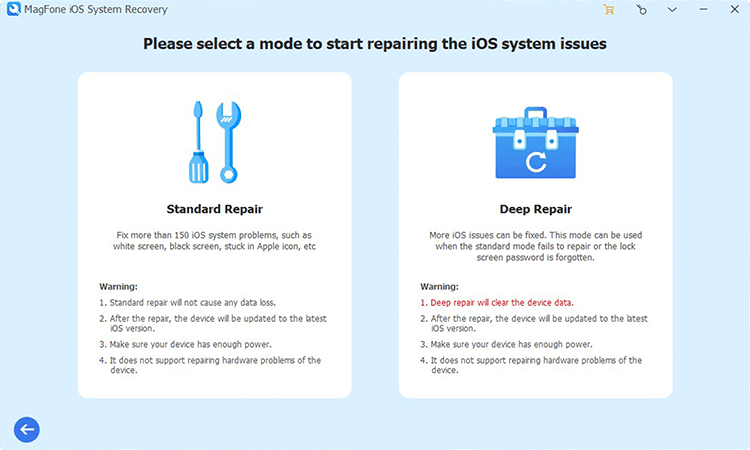
When you choose repair mode, select the standard repair mode in that the deep repair mode will cause data loss. Then continue to enter your device into recovery mode.
Step 3 Download and Verify the Firmware Package

Check the iPhone information on the computer carefully. Next is to download the firmware package by selecting the Download button.
Step 4Repair the iPhone Black Screen But Still On

Finally, click Start Standard Repair to repair the iPhone black screen but on issue. Wait for the software to complete the repair process. Then click the Finish button.
Part 5. Conclusion
The iPhone black screen but still on issue is usually caused by temporary software crashes, display configuration issues, or hardware damage. By following the above methods, starting with a force restart and moving to Recovery or DFU mode, you can resolve most cases safely. If the issue persists, professional repair may be necessary to restore full display functionality. Additionally, MagFone iOS System Recovery can help you get a normal iPhone quickly and safely.

Teresa Miller
Editor in chief





